
A yellow haze across your desktop, a pink patch in one corner, colors that look flat no matter how you adjust brightness. Computer screen discoloration takes many forms, and most of them trace back to a handful of causes: a stray display setting, an aging panel, a graphics driver that lost track of its color profile, or occasionally physical damage to the screen itself.
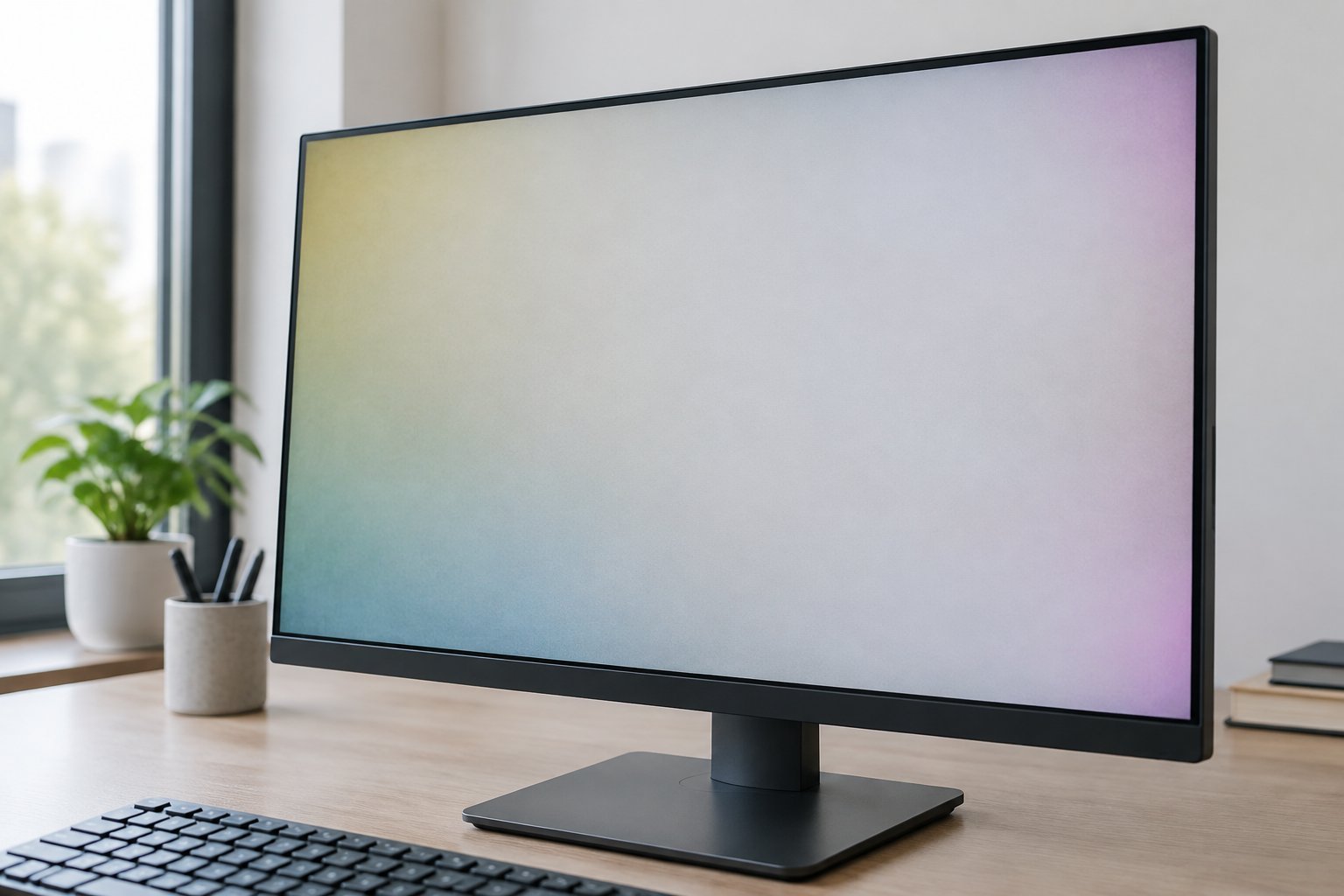
The fix depends entirely on what you’re seeing. A whole-screen tint usually clears up with a settings reset or by turning off a blue light filter, while fixed patches or shadows that don’t move often point to backlight wear or pressure damage that needs a hardware look. We’ll walk through how to tell these apart and what to try for each one, starting with what the discoloration actually looks like on your screen.
What Does the Discoloration Look Like?
The pattern you’re seeing tells you almost everything about the cause. A screen-wide tint behaves very differently from a localized patch, and distinguishing screen distortion from true display issues like backlight bleeding, dead pixels, or stuck pixels is the fastest way to skip fixes that won’t work.
Is the Whole Screen Yellow, Blue, or Another Color?
A uniform tint across the entire display almost always comes from software. Night Light, Night Shift, or a color filter can wash everything in warm yellow or cool blue tones without you realizing it’s switched on.
Do Colors Look Washed Out or Shift Unexpectedly?
Flat, faded colors often point to a signal range mismatch or an HDR setting that doesn’t suit the content. Colors that shift between apps or change right after waking the display suggest a color profile or graphics driver conflict rather than a panel problem.
Are There Fixed Patches, Shadows, or Bright Edges?
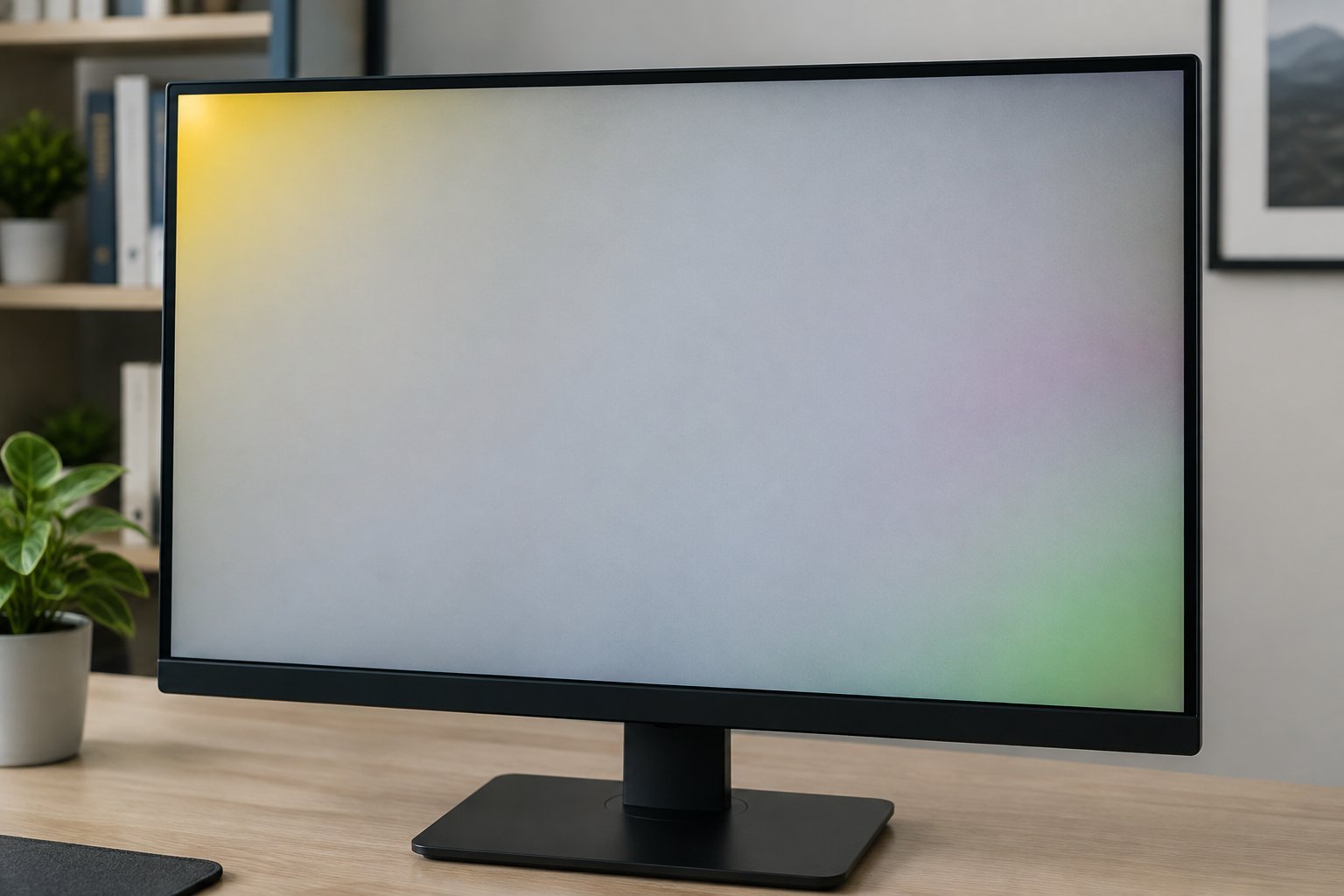
Patches that stay in the same spot regardless of what’s on screen point to hardware. Backlight bleeding shows up as bright edges or corners in dark scenes, while dark shadows can mean pressure damage or an aging backlight.
Are You Seeing Dots or a Faint Ghost Image Instead?
Tiny colored or black dots that never move are dead pixels or stuck pixels, which are isolated and don’t spread. A faint outline of old content, like a taskbar or static image, is image retention rather than a color problem.
Does the Problem Appear on Another Display?
Connect a laptop to an external monitor, or swap cables on a desktop setup, to isolate the source. If the discoloration disappears on the second display, the panel or its connection is the cause, not your graphics card.
Could a Loose Cable or Nearby Device Be Involved?
A damaged or loosely seated video cable can cause banding, tinting, or signal noise. Magnetic interference and electromagnetic interference from speakers or unshielded cables near the monitor can also distort color, though this is rare with modern LCD and LED panels.
How Can You Fix a Screen-Wide Tint or Faded Colors?
A tint across the whole screen responds well to display settings changes, since it’s rarely a sign of hardware trouble. Start with the filters and profiles most likely to be the culprit before touching anything more advanced.
Turn Off Night Light and Other Color Filters
Check Windows Night Light, macOS Night Shift, or third-party apps like f.lux first, since these intentionally apply a blue light filter that warms the whole screen. Accessibility color filters can also shift hues and are easy to overlook if someone else configured the machine.
Reset Display and Monitor Color Settings
Washed-out or oversaturated colors often trace back to the GPU’s output range or an HDR toggle that doesn’t match the content. Resetting color profiles to default in Display Settings, and checking the monitor’s own on-screen menu for brightness, contrast, and color temperature, resolves most faded-color complaints in a few minutes.
Check Color Profiles and Recalibrate the Display
An incorrect or corrupted ICC profile can leave colors looking flat or oddly shifted even after other settings look right. Running the built-in color calibration wizard in Windows or macOS walks through gamma, brightness, and color balance step by step, and it’s free.
What If the Colors Changed After a Software Update?
A color shift that started right after a Windows or driver update points to graphics driver issues, not panel damage. This is one of the most common triggers we see, since an update can quietly reset GPU color output, remove a manufacturer color profile, or install a generic driver in place of one tuned for your specific laptop or monitor.
Update the Graphics Driver
Outdated graphics drivers sometimes mishandle newer color standards or HDR signals, producing a tint or washed-out look that wasn’t there before. Updating through Device Manager, or pulling the latest version directly from NVIDIA, AMD, or Intel, often restores normal color without touching any other setting.
Roll Back a Driver That Introduced the Problem
If the discoloration appeared the moment a driver finished installing, rolling it back is faster than chasing settings. In Device Manager, open the display adapter’s properties, select the Driver tab, and choose Roll Back Driver; this returns color handling to the version that worked before.
When Does Discoloration Point to Screen Damage?
Fixed patches that don’t respond to any setting change usually mean the panel or backlight itself has a problem. This matters most for diagnosing lcd panel degradation and backlight failure, where no software fix will help.
Check for Pressure Marks, Aging, and Backlight Problems
Pressing a laptop lid against objects in a bag is a common cause of physical pressure damage, leaving a shadow or dark patch that lines up with where pressure was applied. Older panels can also develop yellowing or uneven brightness simply from years of use, and backlight bleeding that worsens in dark rooms often signals a failing backlight rather than a settings issue.
Run a Display Test and Compare an External Monitor
HP’s built-in display self-test, found through HP Support Assistant on HP laptops, checks the panel independently of the operating system and can confirm whether a defect exists at the hardware level. Connecting an external monitor and comparing the image side by side is a reliable way to confirm the problem lives in the built-in screen rather than the graphics card.
Decide Whether Repair or Panel Replacement Makes Sense
Once hardware is confirmed as the cause, screen panel replacement is the realistic path forward for permanent patches or a failing backlight. For a desktop monitor under warranty, replacement is often simpler than repair, while a damaged laptop panel typically needs a qualified technician for the swap.
Match the Fix to the Symptom
Matching the symptom to the right approach saves time before attempting to fix screen discoloration blindly.
| Symptom | Likely Cause | First Fix |
|---|---|---|
| Whole screen yellow or blue | Night Light / color filter | Turn off the filter |
| Washed-out, flat colors | Signal range or HDR mismatch | Reset display color settings |
| Tint after an update | Driver reset color output | Update or roll back the driver |
| Fixed dark patch | Pressure damage or backlight wear | Run a display self-test |
| Bright edges in dark scenes | Backlight bleeding | Check in a dark room, compare another panel |
| Tiny unmoving colored dot | Dead or stuck pixel | Confirm with a solid-color test image |
Frequently Asked Questions
Can you fix computer screen discoloration without replacing the screen?
Most cases clear up without any hardware work, especially when the cause is a color filter, a driver conflict, or a reset color profile. Replacement only becomes necessary when a display self-test confirms backlight failure or physical panel damage.
Why has my laptop screen suddenly turned yellow?
A sudden yellow tint is almost always Night Light, Night Shift, or a similar blue light filter that got switched on, sometimes automatically by a scheduled setting. Turning the filter off in Display Settings restores normal color within seconds.
How do I fix washed-out colors on a Windows computer?
Washed-out colors on Windows usually come from the GPU output being set to Limited range instead of Full, or from HDR being enabled without matching content. Opening the graphics control panel and setting Output Dynamic Range to Full, then checking Color Management for the correct profile, resolves it in most cases.
Why does my screen have a brown or dark patch?
A dark or brown patch that stays in one place typically means pressure damage to the LCD layers or a backlight starting to fail. Gently pressing near the spot can confirm pressure damage if the shadow shifts, while a patch that never changes points toward backlight wear.
Why is my laptop screen suddenly so dim?
Sudden dimming often comes from an accidental brightness change, a power-saving mode kicking in, or HDR settings dropping the perceived brightness of regular content. If brightness won’t respond to the keyboard controls or settings menu at all, a failing backlight is the more likely explanation.

I’m Anirban Saha, Founder & Editor of TechBullish. With a B.Tech in Electronics and Communication Engineering, and 8+ years of experience as a software developer, I have expertise in electronics, software development, gadgets, and computer peripherals. I love sharing my knowledge through informational articles, how-to guides, and troubleshooting tips for Peripherals, Smart TVs, Streaming Solutions, and more here. Check Anirban’s LinkedIn Profile here.
