
Here I will discuss an amazing feature “G Shift” found in several Logitech mice and keyboards that provides you an alternative mode or a special mode to trigger alternate functions from your existing mouse/keyboard buttons.
So, let’s get started!
G Shift Definition
G Shift is a button customization feature in G HUB software that assigns alternate functions to compatible Logitech mice and keyboard buttons, enabling two commands per button.
In normal usage, your mouse buttons will have regular key mapping. Once you hold down the G Shift button the secondary mapping that you assigned will get activated.
So, with this functionality, you can change the default mouse button’s functions and get additional customization on it.
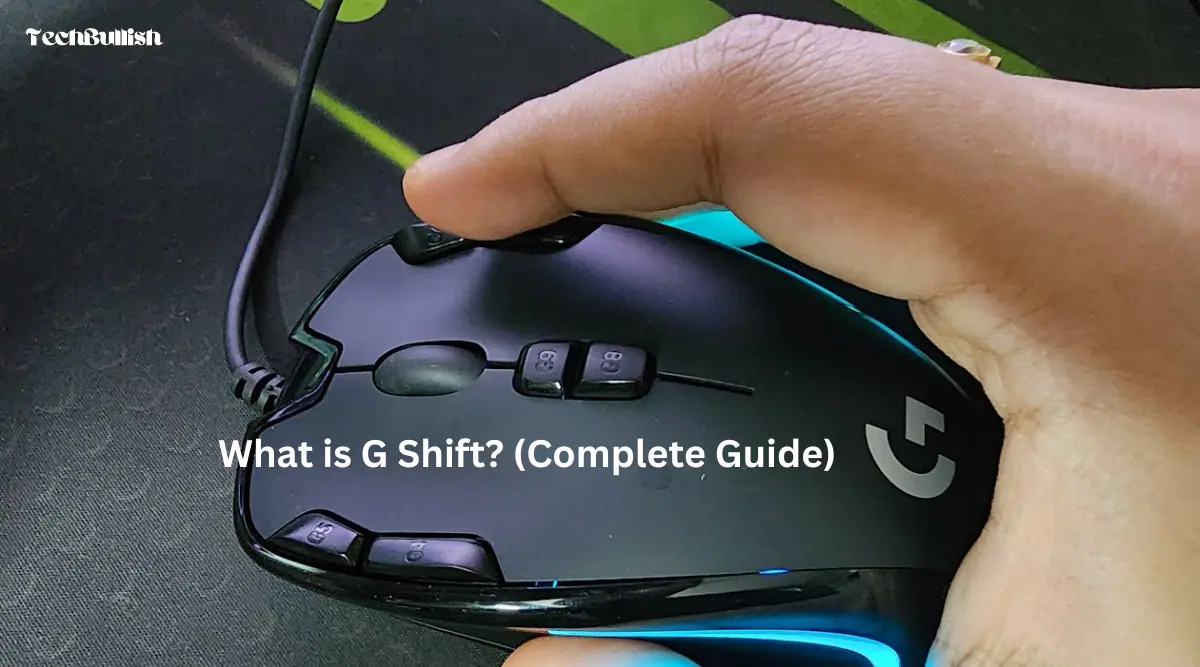
Now, this G Shift button can have multiple customizations.
In its default settings, you can hold the G shift button to enable an alternate key mapping to the respective key or button.
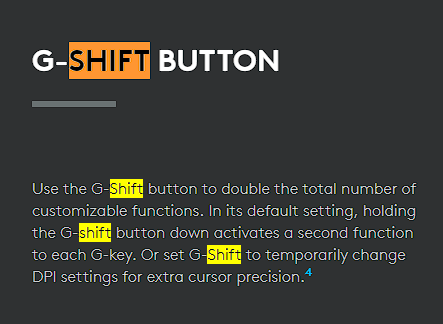
You can also set the G Shift button to enable temporarily changing the DPI settings. In this way, it can act like a DPI shifter enabling you to switch to another DPI on your mouse to get some extra precision on your mouse cursor movement.
This advanced modifier increases the utility of your mouse or keyboard to manifolds.
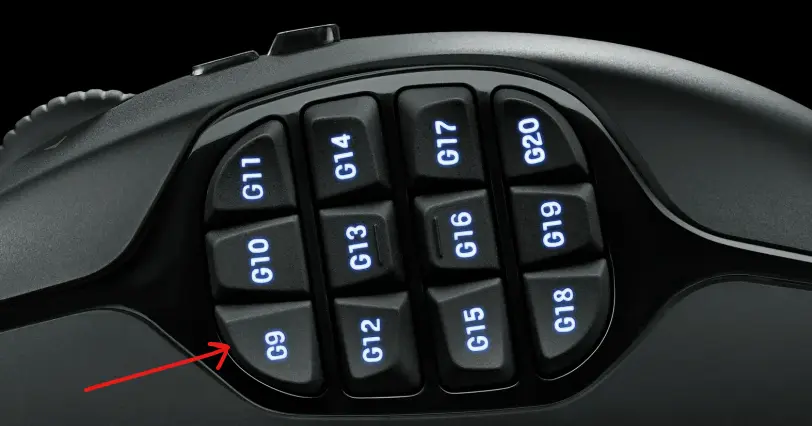
This feature comes in very handy, especially in gaming. I have set up the Logitech G Shift in my Logitech mouse and it helps a lot to trigger an alternate function from the same mouse button.
G Shift takes it to a whole new level where you can map a G Shift button to your keyboard or in our case a button of our mouse. This allows you to completely remap your keyboard without having to lift your hands and find the function button. pic.twitter.com/DhFzbXqM12
— Logitech G (@LogitechG) April 10, 2024
Logitech G Hub Overview
Logitech G Hub is the official software used to customize Logitech G series peripherals such as mice, keyboards, headsets, and webcams. While G Shift is one of its most powerful features, G Hub offers much more than just button remapping.
With Logitech G Hub, you can create game specific profiles, customize RGB lighting, adjust DPI and polling rate, record macros, and manage firmware updates. The software automatically detects compatible Logitech G devices when connected and keeps them updated.
Each profile in G Hub can have its own G Shift configuration. This means you can use different secondary button mappings depending on the game or application you are using, without manually switching settings every time.
Understanding G Hub as a complete ecosystem helps you get the most out of G Shift and other advanced Logitech features.
Compatible Devices for Logitech G Shift
G Shift only works on Logitech G series devices that are supported by Logitech G Hub. Not all Logitech products support this feature, so compatibility is important to check before setting it up.
Compatible Logitech G Mice
G Shift is supported on most Logitech G gaming mice, including:
- G502 Hero
- G502 X / G502 X Plus
- G Pro Wireless
- G Pro X Superlight
- G903 Lightspeed
- G703 Lightspeed
- G600 MMO Gaming Mouse
- G402 Hyperion Fury
- G305 Lightspeed
- G300s
Compatible Logitech G Keyboards
Many Logitech G keyboards also support G Shift functionality, including:
- G213
- G512
- G513
- G915 / G915 TKL
- G Pro Mechanical Keyboard
Newer Logitech G devices are generally compatible as long as they are supported by Logitech G Hub. Always confirm device support inside G Hub after connecting your hardware.
How to Set up G Shift?
To set up G Shift open the G Hub software on your desktop or laptop.
In case the G Hub software is not installed, you can go to the official Logitech Website to download and install it.

Now, here are the steps:
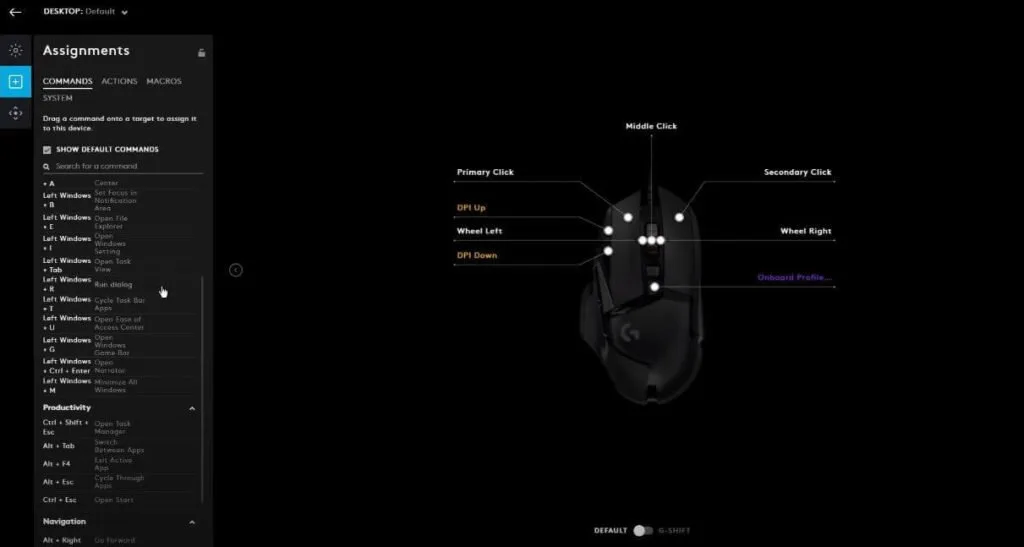
- First Open the G Hub app and then click on the Gear Icon
- After that is done go to the Settings option.
- You need to select the Device that you want to set up G Shift
- Then, click on the Assignment tab
- Click on the System Tab under Assignments and search for the G Shift.
- You can drag and drop to assign to any default mouse button which would act as your G Shift key.
- Now below, there would be a toggle in G Hub from Default to G Shift, do that. This would allow you to assign your G Shift mode keys.
- Now, you can assign other keys to its alternate mode by selecting the button on the G Hub and then clicking the keys.
- Search for the button you want to assign
- Now, again toggle to default to see the default mapping
E.g., You can assign the letter A on your mouse middle-click button on the G Shift mode. And suppose you set the side key as the G Shift key. Now, open the notepad to test whether holding the G Shift key(which is the side key here in the example) is printing A on the notepad by clicking the right-clicking button.
Also, check when not holding the G Shift key pressed, and whether the middle click works well in its default mode.
G Shift vs DPI Shift (Important Difference)
G Shift and DPI Shift are often confused, but they are different features.
G Shift acts as a modifier key. When held or toggled, it allows a button to perform an alternate function. This can include keyboard keys, macros, system commands, or even DPI changes.
DPI Shift, on the other hand, is a dedicated feature that temporarily switches your mouse to a predefined DPI level, usually for precision aiming or slow cursor movement. It is commonly used in FPS games.
In short:
- G Shift = secondary button layer
- DPI Shift = temporary DPI change
Some users assign DPI Shift as one of the functions inside G Shift, but they are not the same feature.
How to Use the G Shift Key?
When you hold down the G Shift key and then press another key, the secondary function assigned to that key will be activated.
For Using with Logitech G Keyboards:
Here’s how to use this button:
- Press and hold the G Key located on your keyboard’s left side.
- While holding down the G Shift button, press another key on the keyboard to trigger a secondary function or shortcut.
- Release both keys to return to normal keyboard function.
For Using with Logitech G Mice:
Here is how to use this button on your Logitech G Mice:
- If you press the G Shift button there, holding that you enable G Shift functionality.
- Now, you press any other button, you get access to the alternate functionality assigned to it.
G Shift Use Cases Beyond Gaming
Although G Shift is popular among gamers, it is equally useful for productivity and creative workflows.
For example:
- In Photoshop, you can assign brush size increase, decrease, undo, or layer switching to mouse buttons using G Shift.
- In video editing software like Premiere Pro or After Effects, G Shift can trigger timeline navigation, cuts, or playback controls.
- For general productivity, G Shift can be used for copy, paste, window switching, or launching applications.
Using G Shift in this way essentially gives you two mice or keyboards in one, making repetitive tasks faster and more efficient.
How to toggle G Shift?
To toggle the G Shift functionality, you can press the G Shift button on your keyboard or mouse. This will activate or deactivate the G Shift function, which allows you to access secondary functions on your keyboard/mouse.
How to reset Logitech G Shift?
Here are the steps to reset it:
- Open the Logitech G Hub on your computer.
- Click on the device that has the G Shift button assigned to it. It could be a mouse or a keyboard.
- Click on the “Assignments” tab at the top of the window.
- Then click on the Keys
- Select on G Shift from Default
- Select the button whose G Shift you want to reset
- Then click on the Use Default, and it will reset the G shift functionality to the button.
You have successfully reset the G Shift button on your device. You can now assign a different function to it or leave it unassigned.
G Shift Not Working? Common Problems and Fixes
If G Shift is not working as expected, the issue is usually related to software settings rather than hardware failure. Below are the most common problems and how to fix them.
G Shift Not Showing in Logitech G Hub
- Make sure Logitech G Hub is updated to the latest version.
- Disconnect and reconnect your mouse or keyboard.
- Restart G Hub and check if the device appears on the home screen.
- If the device does not appear, reinstall Logitech G Hub.
G Shift Stops Working in Games
- Check whether the correct game profile is active in G Hub.
- Set the profile as Persistent to prevent automatic switching.
- Some games run with administrator privileges. Run G Hub as administrator as well.
G Shift Works on Desktop but Not in a Game
- Confirm that the game has its own profile in G Hub.
- Verify that G Shift is assigned within that specific game profile.
- Disable third-party overlays or key mapping software that may conflict with G Hub.
G Shift Not Responding After a G Hub Update
- Open G Hub and reassign the G Shift button.
- Check firmware updates for your device inside G Hub.
- Restart your system after updates to apply changes properly.
G Shift Works Intermittently
- Avoid using on-board memory mode if you rely on G Shift.
- Ensure G Hub is running in the background.
- Plug the device directly into the motherboard USB port instead of a hub.
On-Board Memory vs Logitech G Hub
Logitech gaming devices can operate in two different modes: on-board memory mode and software (G Hub) mode. Understanding the difference is crucial when using G Shift.
On-Board Memory Mode
- Stores basic button mappings directly on the mouse or keyboard.
- Works without Logitech G Hub running.
- Does not fully support G Shift functionality.
- Ideal for simple setups or use on multiple computers.
Logitech G Hub Software Mode
- Requires G Hub to be installed and running.
- Supports advanced features such as G Shift, macros, profiles, and RGB syncing.
- Allows different G Shift configurations for different games or applications.
Important Note
If you enable on-board memory mode, G Shift may stop working or behave inconsistently. For full G Shift functionality, always use Logitech G Hub software mode.
If G Shift suddenly stops working after switching PCs or profiles, check whether your device is in on-board memory mode and switch back to software control.
Frequently Asked Questions
Is Logitech G Shift worth using?
Yes, especially if your mouse or keyboard has extra buttons. G Shift effectively doubles the number of usable
Where can I find G Shift in Logitech G Hub?
You can find G Shift under the Assignments tab in Logitech G Hub, inside the System section.
Does G Shift work without Logitech G Hub?
No. G Shift requires Logitech G Hub to be installed and running in the background.
Can I use G Shift on non Logitech devices?
No. G Shift is exclusive to supported Logitech G series peripherals.
Conclusion
Logitech G Shift is one of the most useful customization features available on Logitech G peripherals. By allowing alternate button functions through a single modifier, it significantly expands what your mouse or keyboard can do.
Whether you are gaming, editing videos, designing graphics, or simply looking to improve everyday productivity, G Shift provides flexibility that is hard to match. When combined with Logitech G Hub profiles and macros, it becomes a powerful tool that adapts to how you work and play.
If your device supports it, spending time setting up G Shift is well worth the effort.

I’m Anirban Saha, Founder & Editor of TechBullish. With a B.Tech in Electronics and Communication Engineering, and 6+ years of experience as a software developer, I have expertise in electronics, software development, gadgets, and computer peripherals. I love sharing my knowledge through informational articles, how-to guides, and troubleshooting tips for Peripherals, Smart TVs, Streaming Solutions, and more here. Check Anirban’s Crunchbase Profile here.