
A dead Ethernet connection on a Windows PC usually comes down to one of five things: a bad cable, a router hiccup, a wrong IP setting, a driver problem, or a corrupted network stack. Most Ethernet problems clear up by checking the cable and router first, then letting Windows run its built-in network troubleshooter before touching any advanced settings. We’ve walked through this exact process more times than we can count, and the fix is rarely as complicated as it first feels.
Ethernet not working on Windows can show up a few different ways. Sometimes the connection drops entirely and Windows shows a red X on the network icon. Other times it says “connected” but no websites load, which points to a different root cause.
The steps below move from the simplest fixes to the more technical ones, so you can stop as soon as something works. The process is nearly the same whether you’re troubleshooting on Windows 11 or Windows 10.
Check the Cable, Router, and Connection Status
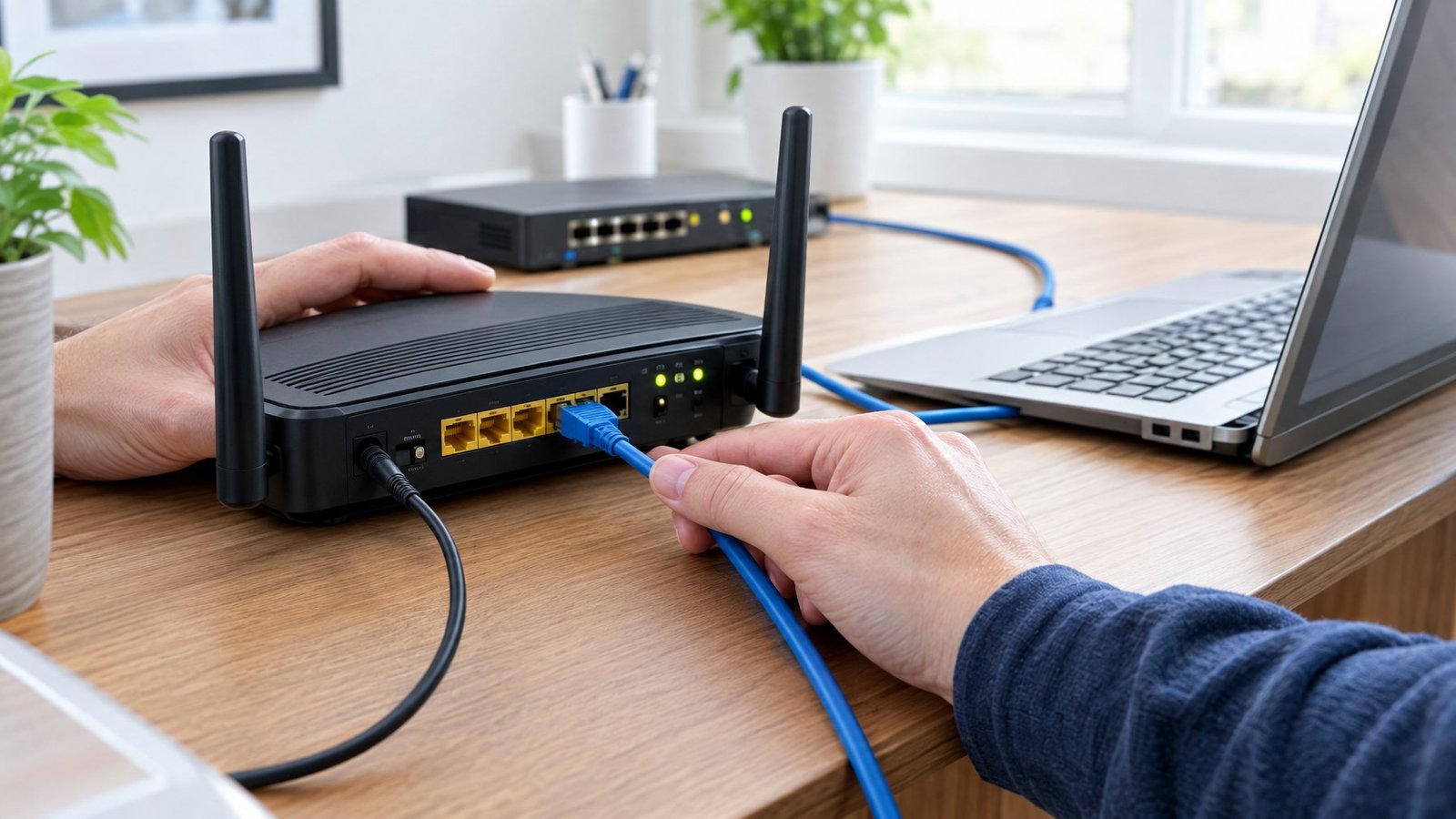
Most Ethernet failures trace back to something physical, like a loose cable or a port plugged into the wrong spot on the router. Before touching any Windows settings, confirm the cable is seated properly, the router and modem have power, and Windows actually recognizes the connection.
Test the Ethernet Cable, PC Port, and Router LAN Port
Make sure the ethernet cable is pushed firmly into the ethernet port on both your PC and your router. On the router, double check the cable is in a LAN port, not the WAN port used for the modem connection. Swap in a spare cable if you have one. If a different cable works, the original one was the problem. If your PC lacks a built-in ethernet port, a USB to Ethernet adapter can fill that gap, but try it on another port or PC if the connection still fails.
Restart the Modem and Router
Power cycling the modem and router forces a fresh connection to your internet service provider. Unplug the router, then unplug the modem (removing the battery if it has one and the lights stay on). Wait about 30 seconds, plug the modem back in and let its lights stop blinking, then plug the router back in. Give both devices a couple of minutes before reconnecting your PC.
Use Network Status and Wi-Fi to Narrow Down the Problem
Open Settings > Network & internet and look at the Ethernet connection status. It should read “Connected.” If it shows “Action needed” or something similar, select Ethernet for more detail. If your router also broadcasts Wi-Fi, try connecting over Wi-Fi instead. Getting online that way tells you the problem sits with the ethernet cable, port, or adapter rather than your internet service itself.
Run Windows Network Diagnostics
Windows includes a built-in network troubleshooter that catches a surprising number of common issues automatically. On Windows 11, open the Get Help app and run the Network and Internet troubleshooter. On Windows 10, go to Settings > Network & Internet > Status, then select Network troubleshooter and follow the prompts.
Correct IP, DNS, and Traffic Settings
When the cable and hardware check out but the internet still won’t load, the issue usually lives in IP or DNS settings, or something intercepting your traffic like a VPN or proxy. Fixing this means making sure your PC gets an address automatically and that nothing else is quietly rerouting your connection.
Set IP Assignment to Automatic DHCP
Your router’s DHCP server should hand out IP addresses automatically, so manual IP settings are rarely necessary and often cause conflicts. Go to Settings > Network & internet > Ethernet, select your connection, and next to IP assignment choose Edit. Set it to Automatic (DHCP). If it was already on manual with the wrong gateway or subnet, this one change often restores the connection immediately.
Check DNS Settings When Ethernet Connects but Websites Do Not Load
A connected-but-no-browsing situation almost always points to DNS. In the same IP settings panel, check the DNS server fields. If they’re blank or set to something unfamiliar, switching to automatic DHCP usually fixes it. If problems persist, manually entering a public DNS server like Google DNS (8.8.8.8) or Cloudflare DNS (1.1.1.1) can resolve name lookups that your ISP’s DNS server is failing to handle.
Temporarily Check VPN, Proxy, and Security Software
VPN client software, proxy settings, Windows Defender Firewall, and antivirus software can all block ethernet traffic without any obvious error message. Disconnect any active VPN and check Settings > Network & internet > Proxy to confirm “Automatically detect settings” is on and no manual proxy is configured. If the connection returns the moment you disable one of these, you’ve found your culprit, and you can adjust its settings rather than leaving it off permanently.
Repair the Ethernet Adapter and Driver
A faulty or outdated ethernet driver is one of the most common causes of connections that work inconsistently or stop working after a Windows update. Device Manager is where you check the adapter’s status, update or reinstall the driver, and adjust power settings that affect stability.
Enable the Adapter and Check for Device Manager Errors
Open Device Manager and expand Network adapters. If your ethernet adapter shows a down arrow, it’s disabled, right-click it and select Enable device. A yellow warning icon means there’s a driver error; right-click the adapter, choose Properties, and check the error code under Device status for more specific guidance.
Update, Reinstall, or Roll Back the Driver
Right-click the ethernet adapter and select Update driver, then choose Search automatically for updated driver software. If the connection broke right after a recent update, open the adapter’s Properties, go to the Driver tab, and select Roll Back Driver if that option is available. When updating doesn’t help, uninstalling the device entirely (checking the box to remove the driver) and restarting lets Windows reinstall a clean copy.
Check Power-Saving Settings if Ethernet Keeps Disconnecting
Energy Efficient Ethernet and other power-saving features can cause random disconnects, especially on certain network adapters. In Device Manager, open the adapter’s Properties, go to the Advanced tab or Power Management tab, and disable “Allow the computer to turn off this device to save power” and any Energy Efficient Ethernet option you find. Some of this configuration can also live in UEFI firmware settings on certain motherboards.
Reset Network Commands Only if Earlier Fixes Fail
Network commands rebuild your PC’s IP configuration and networking stack from scratch, and they work well once cables, drivers, and basic settings have already been ruled out. These commands run through Command Prompt and get more aggressive as you go, so try them in order rather than jumping straight to a full reset.
Renew the IP Address and Clear the DNS Cache
Open Command Prompt as administrator and run ipconfig /release, followed by ipconfig /renew, then ipconfig /flushdns. This releases your current IP address, requests a fresh one from the DHCP server, and clears out any stale DNS cache entries that might be pointing your PC in the wrong direction.
Reset Winsock and the TCP/IP Stack
If renewing the IP address doesn’t help, run netsh winsock reset followed by netsh int ip reset. These commands rebuild the Winsock catalog and reset the TCP/IP stack to its default state, which clears out corruption that builds up over time from software conflicts. Restart your PC after running both.
Use Windows Network Reset as a Last Resort
Network reset removes every installed network adapter and its settings, then reinstalls them fresh on restart. Go to Settings > Network & internet > Advanced network settings > Network reset (or Status > Network reset on some builds), select Reset now, and confirm. Expect to reconfigure VPN client software and any similar networking tools afterward, since this wipes their settings too.
Know When to Contact Your ISP or Test Another Adapter
If the connection still fails after a network reset, the problem likely sits outside your PC. Try connecting the same ethernet cable to another Windows PC, or test a USB to Ethernet adapter on a different machine. If neither device connects, the fault points to your router, your internet service provider, or the adapter itself, and it’s worth contacting your ISP directly at that point.
Find the Fault Before Replacing Hardware
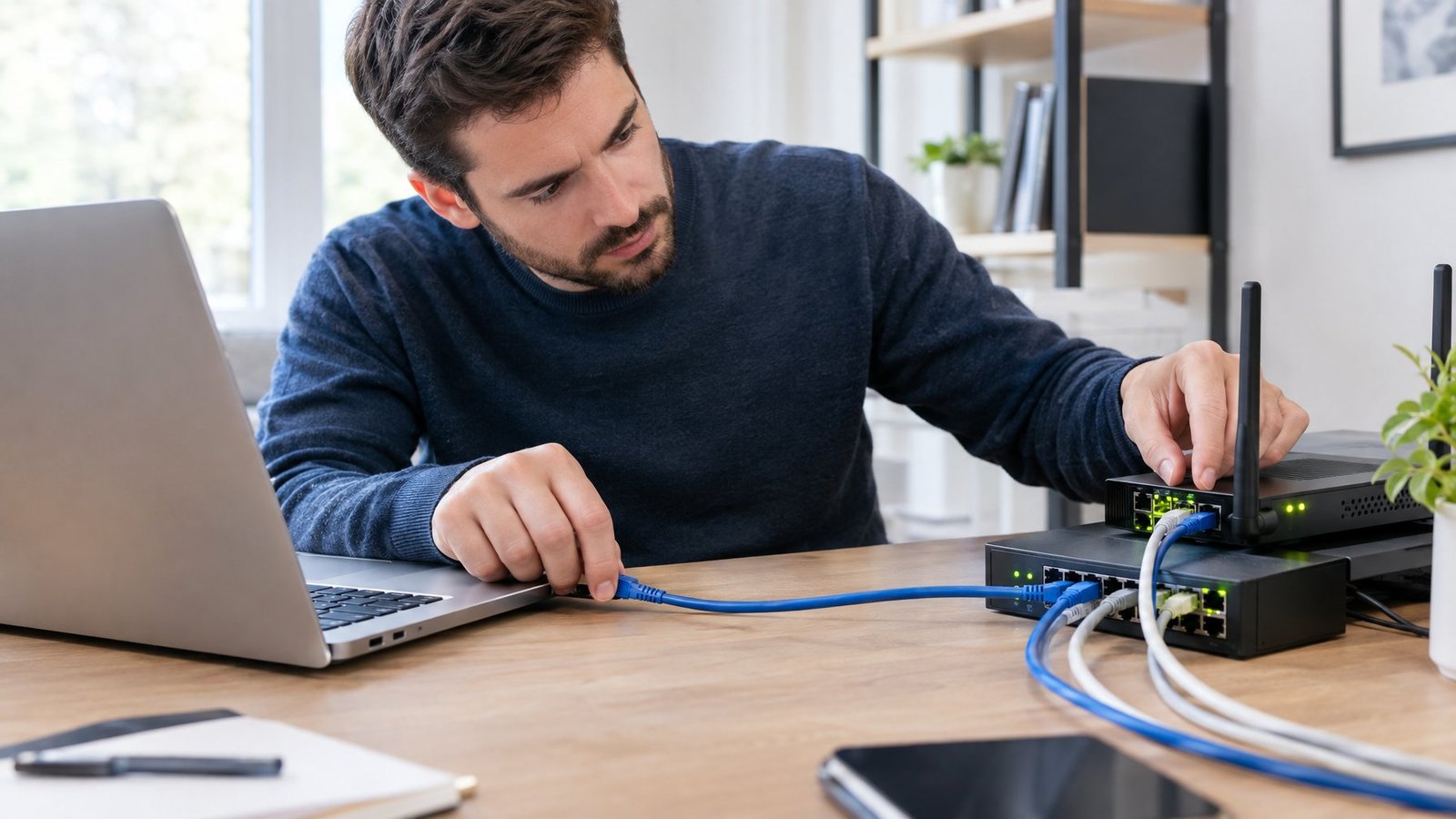
Replacing an ethernet cable, adapter, or router should be the last step, not the first one. Isolating which piece is actually broken saves money and gets you back online faster. Work through the connection in sections: cable to PC, cable to router, router to modem, then test each piece with a known-working alternative if one’s available. If a second PC connects fine with the same cable and port, your original computer is the likely source of the problem. If nothing connects on any device, the fault sits with the router or the internet service provider’s line coming into your home. Once you’ve isolated the broken piece, replacing just that one component usually solves it.
Frequently Asked Questions
Why does Wi-Fi work when Ethernet does not?
Wi-Fi and Ethernet use separate hardware and separate network adapters in Windows, so a problem affecting one often leaves the other untouched. A bad ethernet cable, a disabled ethernet adapter, or a faulty LAN port on the router won’t affect your Wi-Fi radio at all.
Why is my Ethernet cable connected but there is no internet?
This usually points to an IP address or DNS problem rather than a physical one. Check that IP assignment is set to Automatic (DHCP) in your network settings, and try switching to a public DNS server like Google DNS or Cloudflare DNS if websites still won’t load.
What should I do if my new PC does not detect Ethernet?
Open Device Manager and confirm the ethernet adapter appears under Network adapters without a warning icon. If it’s missing entirely, the PC may need a driver installed from the manufacturer’s website, which you can download on another device and transfer over with a USB drive.
How do I fix a slow Ethernet connection?
Check that your cable supports the speed you’re expecting, since older cables can cap your connection well below gigabit speeds. Confirm auto-negotiation is enabled on the adapter in Device Manager, and disable Energy Efficient Ethernet if your adapter supports it, since that setting has been linked to speed drops on some network controllers.
Do these fixes work on both Windows 10 and Windows 11?
Yes, nearly all the steps in this guide apply to both versions, though menu locations differ slightly. Windows 11 runs its troubleshooter through the Get Help app, while Windows 10 keeps it inside Settings under Network & Internet Status.

I’m Anirban Saha, Founder & Editor of TechBullish. With a B.Tech in Electronics and Communication Engineering, and 8+ years of experience as a software developer, I have expertise in electronics, software development, gadgets, and computer peripherals. I love sharing my knowledge through informational articles, how-to guides, and troubleshooting tips for Peripherals, Smart TVs, Streaming Solutions, and more here. Check Anirban’s LinkedIn Profile here.
