
A printer that shows “offline” is almost never actually broken. It is usually a small mix-up between your computer, your network, and the printer itself, and that mix-up is fixable in a few minutes most of the time.
The fastest fix for an HP printer stuck offline is to restart the printer, computer, and router, confirm both devices sit on the same Wi-Fi network, then turn off “Use Printer Offline” in Windows or re-add the printer on a Mac. Those few steps clear up the large majority of offline printer errors we see reported.
This article walks through every layer of the problem, from quick power cycles to Windows settings, network checks, and deeper repairs like resetting your Mac’s printing system.
Work through the sections in order, since each one builds on the last and saves you from chasing the wrong fix.
First Checks: Power, Errors, and a Fresh Start
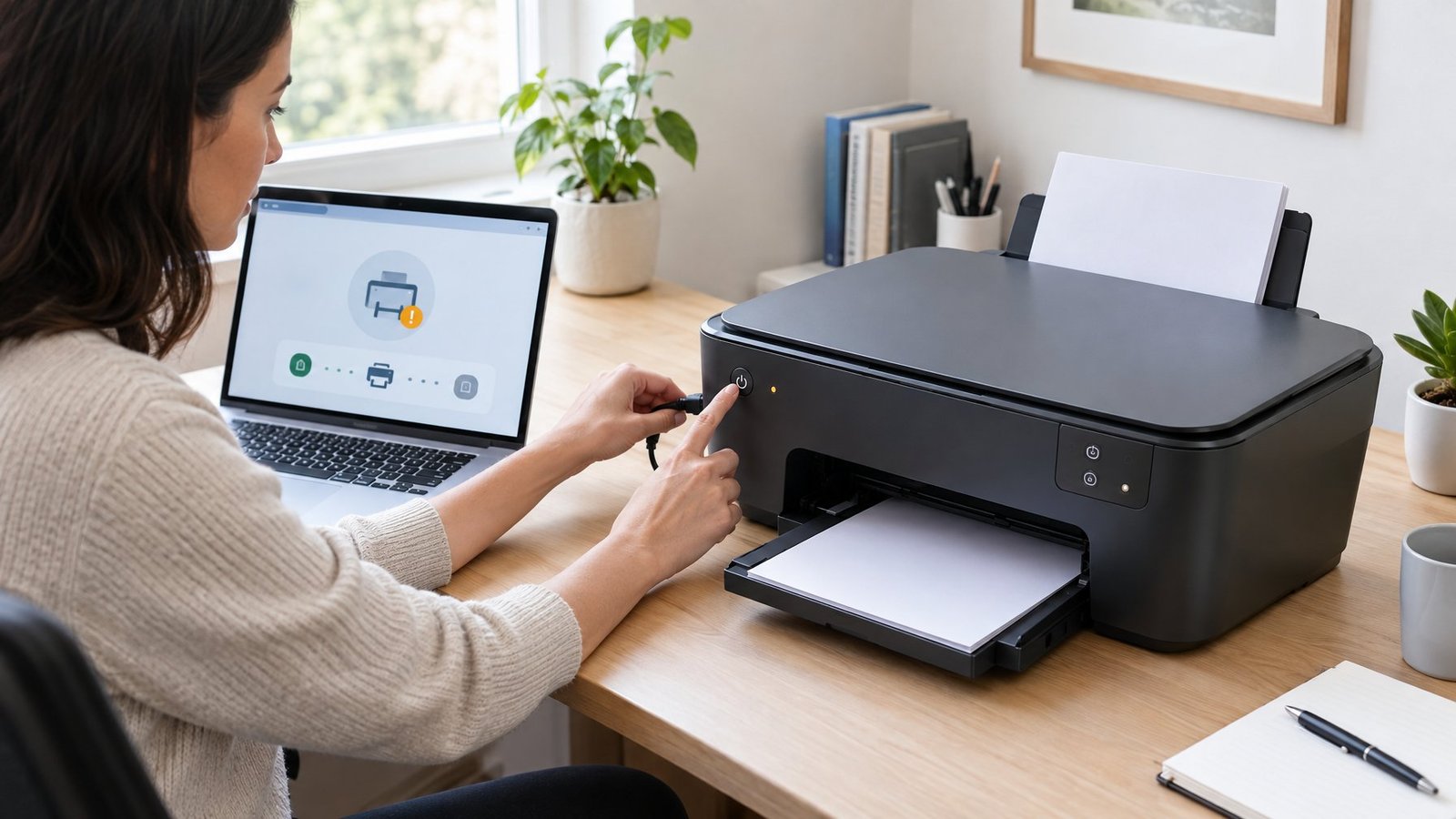
Most offline errors trace back to something simple: a stuck error on the printer, a sleeping device, or a connection that needs a reset. Before touching any settings menu, rule out these basics first.
Check for Paper Jams, Cartridge Errors, and Sleep Mode
Look at the printer’s control panel for warning lights or error messages. A paper jam, low ink warning, or open cover can all push a printer into an offline-looking state even when it’s technically connected. Many HP printers also drop into sleep mode after sitting idle, which can make them appear offline until they wake up.
Restart the Printer, Computer, and Router
Power cycling clears temporary glitches better than almost any other step. Turn off the printer, then turn off the computer or mobile device you’re printing from. If the printer connects over Wi-Fi or Ethernet, restart the router too.
Plug the printer directly into a wall outlet rather than a power strip, then turn everything back on in order: router first, then printer, then computer. Check that your computer reconnects to the same Wi-Fi network name the printer uses.
Try Printing from Another Device
Send a test print from a second computer or phone on the same network. If it prints fine there, the problem sits with the original computer’s settings, not the printer itself. If every device fails to print, the issue is more likely the printer’s network connection or the printer itself.
Is the Printer Connected to the Right Network?
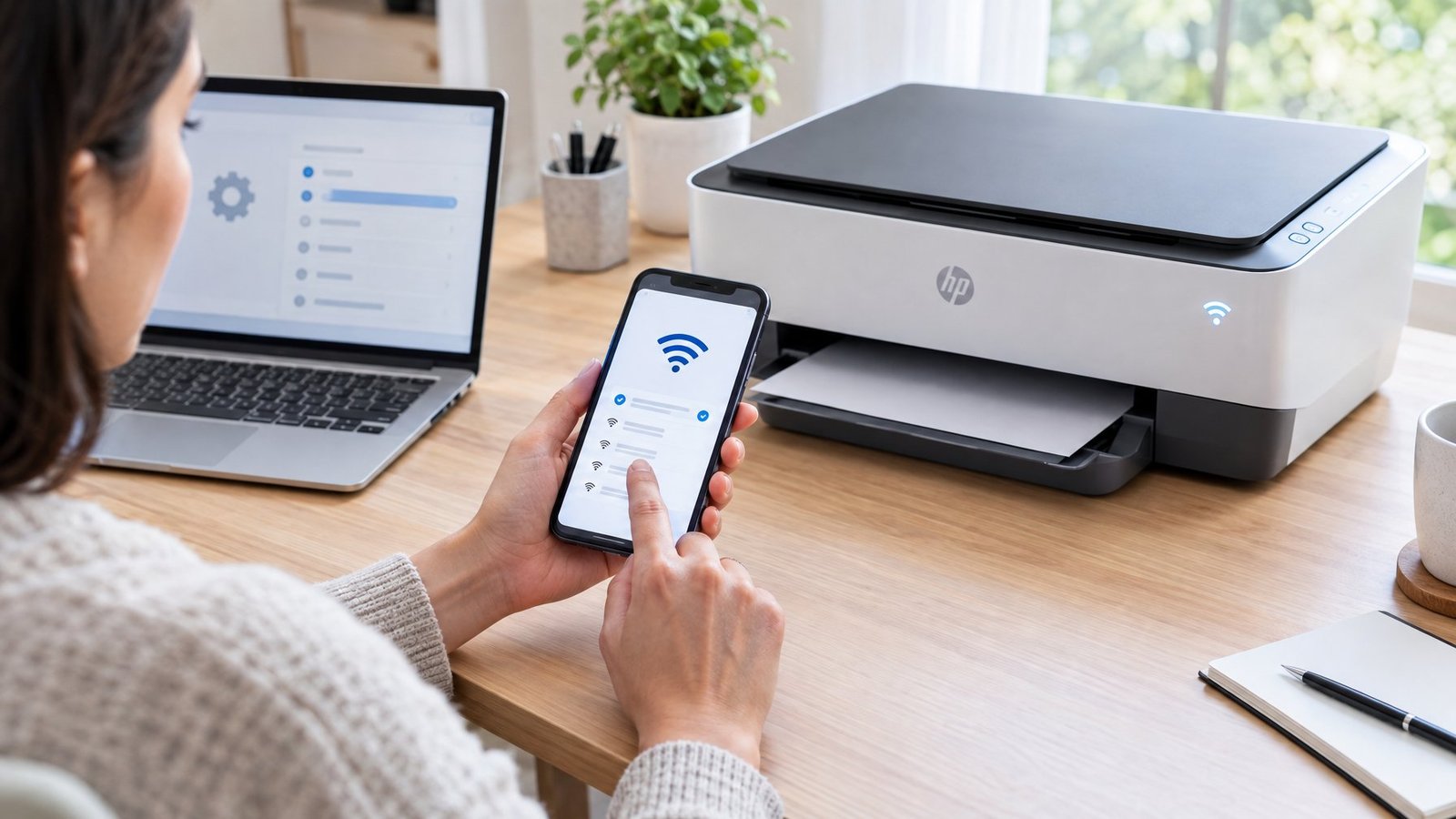
An offline status often means the printer and computer are talking to two different networks instead of one. Checking the wireless light, cable connections, and a printed network report will tell you exactly where the mismatch is happening.
Check Wi-Fi and Reconnect to the Same Network
Look at the printer’s Wireless light. A solid blue light means it’s connected; off or blinking means it isn’t. Keep the printer within about 26 feet of your router, then open the Wi-Fi list on your computer or phone and confirm it shows “Connected” next to the same network name the printer uses.
Avoid connecting to a network starting with “DIRECT-xx-HP,” since that’s a direct printer connection, not your home Wi-Fi.
Inspect Ethernet and USB Connections
For wired setups, check that the Ethernet cable is firmly seated in the correct port and that the activity lights on the port are lit. A loose cable or a bad port on the router can cause the exact same offline symptoms as a Wi-Fi drop. For USB, make sure the cable is under 5 meters long and connected securely at both ends, and try a different cable if printing still fails.
Print a Network Configuration Report
A network configuration report shows the printer’s IP address, subnet mask, and default gateway, which you can compare against your router’s settings. Print one from the printer’s control panel (often by holding the Wireless and Information buttons) or through the HP app under Printer Reports. If the printer’s IP address doesn’t match your network’s range, that mismatch is likely the root cause of the offline status.
Fix Offline Settings and Stuck Jobs in Windows
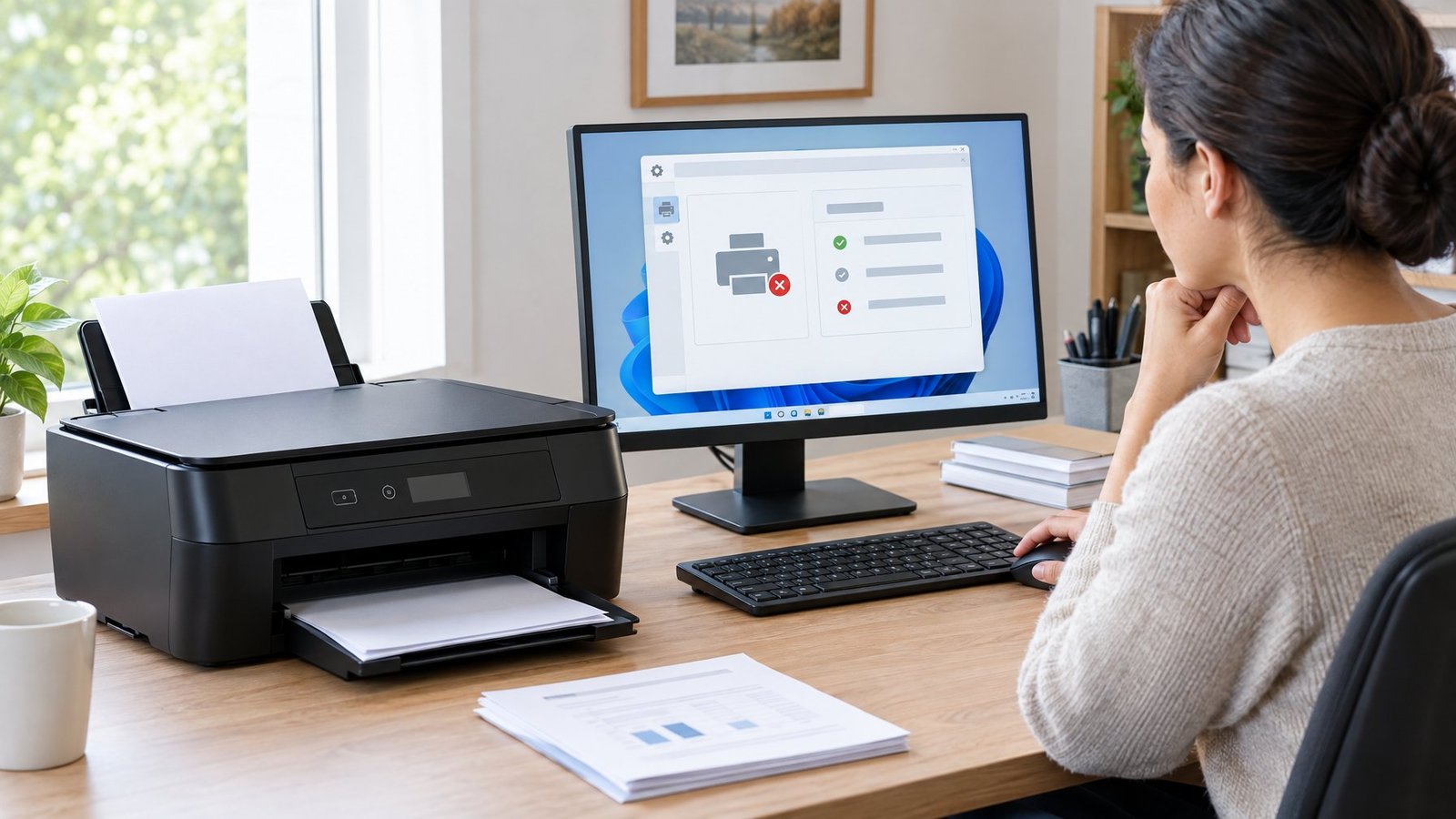
Windows sometimes marks a printer offline on its own, even when the printer is working fine. The fix usually involves one setting, one default printer check, and a spooler restart, and it works the same way in both Windows 11 and Windows 10.
Turn Off Use Printer Offline in Windows 11 or Windows 10
In Windows 10, open the print queue, click Printer, and uncheck Use Printer Offline if it’s selected. This single setting is one of the most common causes of a printer that’s connected but still shows offline. Windows 11 manages this differently through the printer’s queue and status settings, but the same idea applies: clear any forced offline flag before troubleshooting further.
Select the Correct Default Printer
Go to Settings > Bluetooth & devices > Printers & scanners (Windows 11) or Settings > Devices > Printers & scanners (Windows 10). Turn off Let Windows manage my default printer, then select your HP printer and choose Set as default. If more than one entry for the same printer appears, pick the one marked idle or online.
Clear a Stuck Print Job and Restart the Print Spooler Service
A stuck print job can block every document behind it in the queue. Open the print queue, cancel any pending jobs, then search for “services” in the taskbar, find the Print Spooler service, right-click it, and select Restart. This refreshes the background process that manages all printing on your PC and often clears an offline status instantly.
Try HP Diagnostics and Deeper Repairs
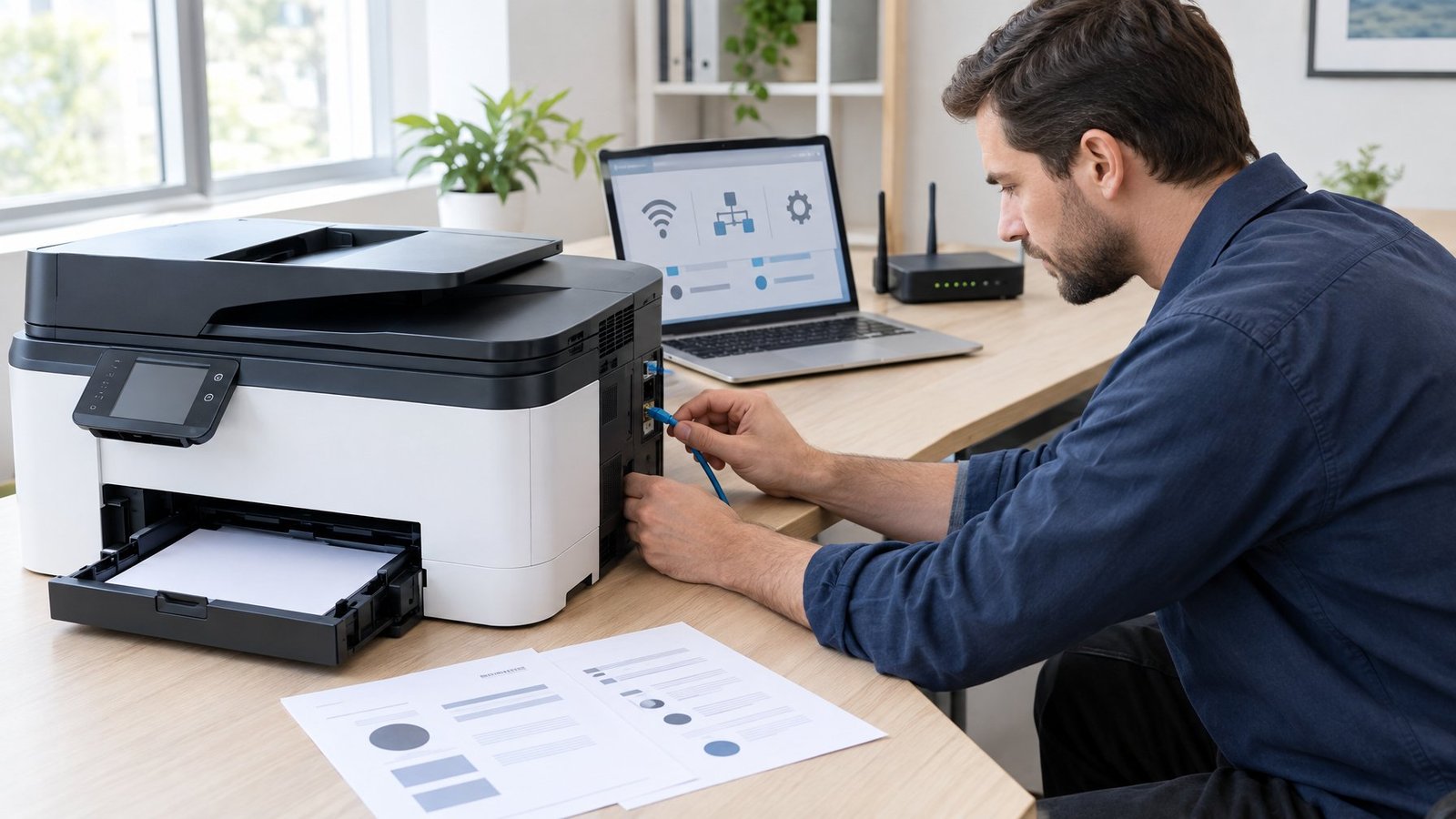
When basic restarts and settings don’t fix the offline status, HP’s own diagnostic tools and a driver refresh usually finish the job. These steps go a bit deeper but don’t require any technical background.
Run HP Print and Scan Doctor or HP Smart Diagnose & Fix
HP Print and Scan Doctor and the Diagnose & Fix tool inside the HP Smart app both scan for the same core issues: an offline printer, stuck jobs, spooler errors, port mismatches, and outdated drivers. Open HP Smart, select your printer, then choose Diagnose & Fix and let the scan run without closing the app. It reconnects the printer to your network automatically when possible and installs available driver updates on Windows.
Check the Printer Port and Update Printer Drivers
On Windows, open the printer’s properties and check the Ports tab to confirm it’s using the correct Standard TCP/IP Port and that the IP address matches your printer’s actual address. An outdated or mismatched port is a quiet cause of offline errors that never show an obvious error message. Updating printer drivers through HP Smart or HP’s support site resolves many of these mismatches at the same time.
Remove and Re-Add the Printer
Removing the printer from Printers & Scanners and adding it back forces Windows or macOS to rebuild the connection from scratch, clearing out corrupted settings in the process. Make sure the printer is powered on and connected to the same network before reinstalling it. This step alone fixes persistent offline statuses that survive a restart.
Reset the Printing System on a Mac
Resetting the printing system on a Mac wipes every saved printer, scanner, and print job, then lets you start clean. In System Settings > Printers & Scanners, right-click (or Control-click) in the printer list and choose Reset printing system, then restart the printer and add it back. This fixes stuck jobs, connection errors, and incomplete driver installs that regular troubleshooting can’t touch, though you’ll need to re-add any other printers afterward too.
Keep Your HP Printer Ready to Print
Keeping your printer’s firmware current and its network connection stable prevents most offline errors before they start. HP releases firmware updates regularly to fix bugs and improve reliability, and checking for them from the printer’s control panel or the HP app takes just a minute.
Give the printer a fixed spot near your router rather than moving it around, since a weak Wi-Fi signal is one of the most common reasons printers randomly drop offline. If your router’s network name or password ever changes, update the printer’s Wi-Fi connection right away instead of waiting for a print job to fail.
A quick monthly habit helps too: print a test page, check the ink or toner levels, and confirm the printer still shows as the correct default device on your computer. Small checks like this catch problems before they turn into a full afternoon of troubleshooting.
Frequently Asked Questions
Why does my HP printer show offline when it is connected to Wi-Fi?
This usually happens because your computer and printer are connected to different networks, or Windows has a stuck “Use Printer Offline” setting enabled. Check the printer’s Wireless light for a solid blue connection, then confirm your computer shows the same network name as connected.
How do I get my HP printer back online in Windows 11?
Open Settings > Bluetooth & devices > Printers & scanners, select your printer, and set it as default after turning off “Let Windows manage my default printer.” If that doesn’t help, restart the Print Spooler service through the Services app, since a frozen spooler is a common cause in Windows 11.
How do I switch my HP printer from offline to online in Windows 10?
Open the print queue for your printer, click Printer in the menu, and uncheck Use Printer Offline. This setting is the most direct way Windows 10 forces a printer into offline status, and clearing it usually brings the printer back immediately.
Why is my HP printer offline when it is connected by Ethernet?
A loose cable, a bad port, or an incorrect IP address saved in the printer’s properties are the most likely culprits. Check that the Ethernet cable is firmly seated and that the port’s activity lights are on, then compare the printer’s IP address on its configuration page against what Windows has saved for it.
Why does my HP printer keep going offline?
Repeated offline errors usually point to a weak Wi-Fi signal, an outdated driver, or a router that assigns a new IP address to the printer each time it reconnects. Updating the printer’s firmware and drivers, and setting a fixed IP address through the printer’s network settings, stops this cycle in most cases.

I’m Anirban Saha, Founder & Editor of TechBullish. With a B.Tech in Electronics and Communication Engineering, and 8+ years of experience as a software developer, I have expertise in electronics, software development, gadgets, and computer peripherals. I love sharing my knowledge through informational articles, how-to guides, and troubleshooting tips for Peripherals, Smart TVs, Streaming Solutions, and more here. Check Anirban’s LinkedIn Profile here.
