
A dead link in an email is annoying, but most hyperlink problems in new Outlook come down to one of six things: junk mail settings, your default browser, message formatting, security tools, a browser extension, or a glitch that needs a repair.
We’ve sorted these checks from fastest to most involved, so you can start with the thirty-second fix before trying anything that touches your system settings.
The fastest fix for hyperlinks not working in Outlook is to check Settings > Mail > Junk email and make sure the option blocking links from senders outside your safe list is unchecked. That single setting disables clickable links in new Outlook by default for anyone not on your safe senders list, and it catches more cases than people expect. If that doesn’t solve it, the problem likely sits somewhere else: your default browser, the message format, or a security tool scanning your links before they load.
This guide walks through each cause in order, starting with figuring out whether the link itself is broken or new Outlook just won’t open it.
Is the Link Broken or Is New Outlook Failing to Open It?
Before changing any settings, figure out whether the link is actually broken or whether new Outlook is the one refusing to cooperate. This distinction saves you from fixing the wrong thing. A link that fails everywhere points to the sender or the URL itself. A link that fails only in new Outlook for Windows points to your app or browser setup.
Test the Same Link in a Browser and Outlook on the Web
Copy the URL straight into your browser’s address bar. If it opens fine there, the link is good and the issue sits in the new Outlook client.
Next, open the same message in Outlook on the web. If the link works in your browser version but not in the Windows app, you’ve narrowed the problem down to the desktop client’s settings or its connection to your default browser.
Check Whether the Problem Affects One Message or Every Link
Open a few other emails and try their links too. If only one message is affected, the sender’s formatting or a corrupted link is probably to blame.
If every link across every message fails the same way, the cause is systemic: a setting in new Outlook, your browser configuration, or a security tool are more likely culprits.
Restart New Outlook and Test a Trusted Link Again
Close new Outlook completely through Task Manager rather than just closing the window, then reopen it. A simple restart clears temporary glitches that can make links appear unresponsive.
Pick a link you know is safe and working, such as one from a site you visit often, and click it again after the restart. If it opens normally now, the earlier failure was likely a one-time hiccup rather than a setting you need to change.
Check Your Default Browser and Windows Link Settings
Your Windows default browser settings decide which app actually opens a link once you click it in new Outlook, and a mismatch here is one of the most common causes of links that seem to do nothing. Windows 11 lets you assign a default browser for web links, but new Outlook also has its own setting for which browser handles hyperlinks, and the two don’t always agree.
Set Your Preferred Browser as the Default in Windows 11
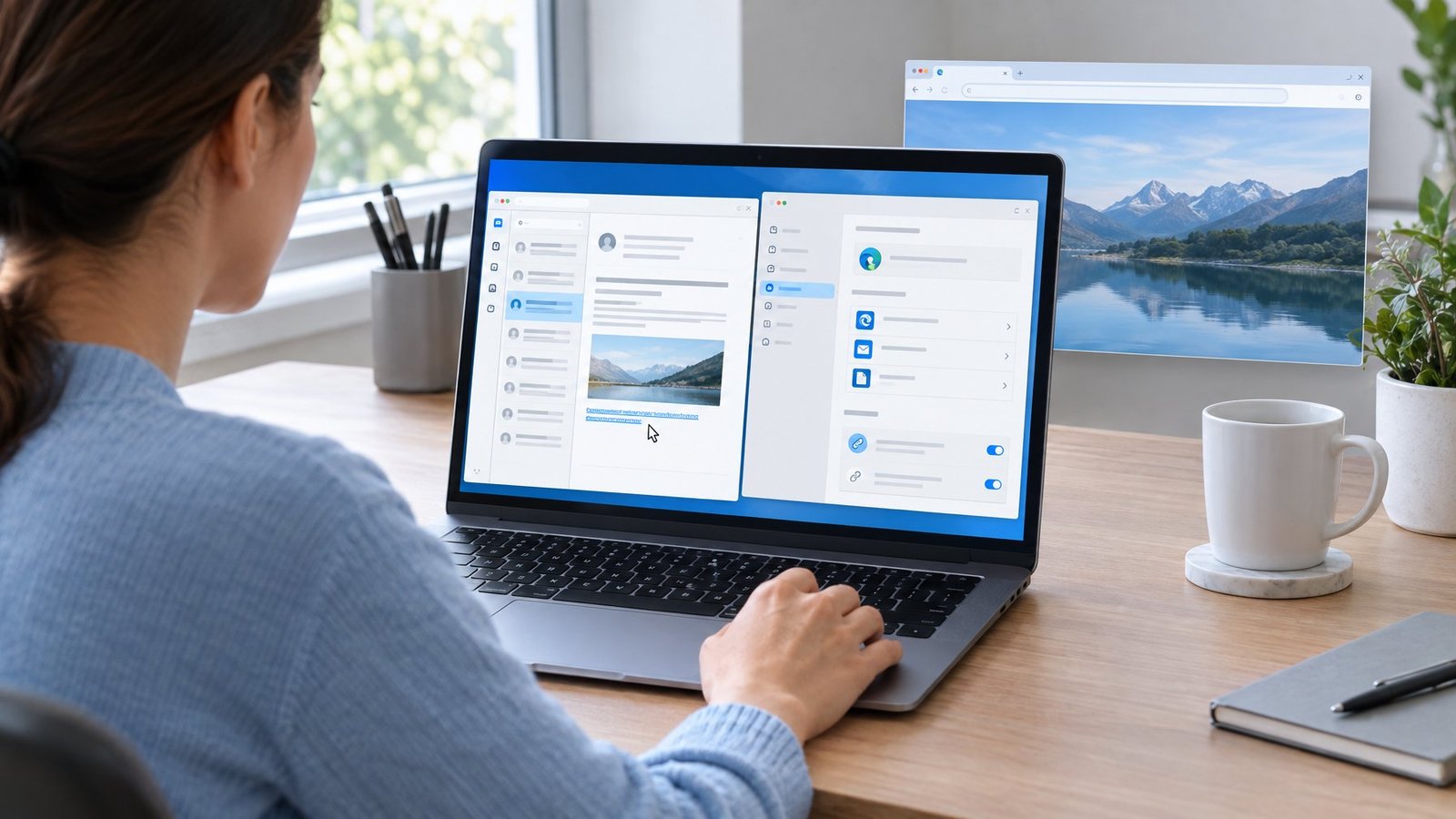
Go to Start > Settings > Apps > Default apps, search for the browser you want to use (Microsoft Edge, Chrome, or another), and select Set default. This tells Windows which browser should open web links system-wide, not just in Outlook.
Changing your default browser here does not automatically change what new Outlook uses for its own hyperlinks, which is worth knowing before you assume the job is done.
Verify HTTP, HTTPS, and HTML Associations
In the same Default apps screen, search for the file types or protocols directly, such as HTTP, HTTPS, and HTML, and confirm each one points to the browser you expect. Sometimes only one of these gets reassigned during an update, leaving the others pointed at a different app.
A mismatched HTML association in particular can cause links in HTML-formatted emails to misbehave even when your main browser setting looks correct.
Check Where Outlook Opens Links
New Outlook has its own override: go to Settings > General > Files and links, and look at the dropdown labeled Open hyperlinks from Outlook in. This setting can route links to Microsoft Edge even if Chrome is your Windows default, since Microsoft Edge opens Outlook links by default for many accounts.
If you’d rather links open in your regular browser, change this dropdown to match whatever you set as the Windows default.
Make Links Clickable in Messages You Compose
A link that won’t click in a message you’re writing is usually a formatting problem, not a bug. New Outlook needs HTML formatting to turn a pasted address into a working hyperlink, and plain text messages won’t auto-link URLs the same way.https://www.youtube.com/embed/8-Jp8IjPBfY
Insert a Link Instead of Pasting an Unformatted Address
Press Ctrl+K to open the hyperlink tool, paste your URL into the address field, and type whatever text you want recipients to see. This method guarantees a properly formatted link instead of relying on Outlook to auto-detect a pasted address.
Inserting the link this way also prevents a common problem with file paths that contain spaces, since Outlook otherwise truncates the link at the first space it finds.
Check Message Formatting and Pasted Links
Look at your compose window to confirm you’re in HTML format, not plain text. Go to Settings > Mail > Compose and reply to set HTML as your default message format, since plain text strips out clickable formatting entirely.
If you’re pasting a link copied from another document, paste it into the hyperlink dialog box rather than directly into the message body, especially for long URLs from OneDrive or SharePoint.
Understand the Limits of Links to Local Files and Folders
Links to files on your own computer or a local network drive don’t always translate well for recipients outside your network, since they rely on paths only your device or network can resolve. Microsoft Outlook handles links to OneDrive and SharePoint files differently, automatically formatting them with permission checks so recipients know whether they can open the file before you even hit send.
If a recipient can’t access a shared file link, Outlook flags it with a red exclamation mark before sending, giving you a chance to fix the permissions first.
Rule Out Browser and Workplace Security Blocks
Security software between you and the link is often the real reason it fails, especially in a workplace account. Browser extensions, URL rewriting tools, and endpoint security software can all intercept a click before it ever reaches the destination page.
Test Browser Extensions Without Weakening Security Settings
Open your browser’s extensions menu and temporarily turn off ad blockers, link scanners, or privacy tools one at a time, then try the link again. Turning off an extension to test it is different from lowering your browser’s actual security settings, and you should stick to the former.
If disabling a specific extension fixes the link, you’ve found your culprit without having to touch anything else.
Check Whether a Rewritten Link or Permission Error Is the Cause
Organizations using Microsoft Defender for Office 365 often have Safe Links turned on, which rewrites URLs into a long address starting with something like safelinks.protection.outlook.com before scanning them. You can see this rewritten version by hovering over the link or checking the message source, and it’s normal rather than a sign of a broken email.
If a rewritten link fails to open, the destination may be blocked by policy rather than broken, which is worth checking with IT before assuming your settings are at fault.
Ask IT to Review Organization-Wide Link Failures
If link failures are hitting multiple people in the same company, the fastest fix is reporting it to IT rather than troubleshooting your own machine further. IT teams can check Safe Links policies and endpoint security rules that individual users can’t see or change.
Mention whether the problem affects one domain, one type of link, or everything, since that detail speeds up their diagnosis considerably.
Repair the App Only If Simpler Checks Fail
Repairing new Outlook should be a later step, not a first move, since most hyperlink problems trace back to settings rather than corrupted app files. Reserve this fix for cases where links fail consistently after you’ve already ruled out junk mail settings, browser defaults, and security blocks.
Update or Repair New Outlook for Windows
Check for updates first through the Microsoft Store, since new Outlook receives regular fixes for known issues. If updating doesn’t help, right-click Start, choose Apps and Features (or Installed apps on newer builds), select your Microsoft Office product, and choose Modify, then run an Online Repair for the most thorough fix.
A Quick Repair option is also available and runs faster, though it only replaces files it detects as damaged rather than doing a full reinstall.
Keep Classic Outlook and COM Add-In Fixes Separate
Classic Outlook troubleshooting steps, including disabling COM add-ins or running Outlook in safe mode, don’t apply to new Outlook and won’t fix anything there. New Outlook doesn’t use the same add-in architecture, so advice aimed at the classic version can send you down the wrong path entirely.
Confirm which version you’re running by checking for a Settings option on the ribbon. If it’s there, you’re using new Outlook and should stick to fixes written for it.
Avoid Unnecessary DLL and Command Prompt Fixes
Older troubleshooting advice for link problems in Windows sometimes suggests running a command prompt fix like regsvr32 urlmon.dll to re-register a system file. This kind of fix targets old, specific Windows link-handling bugs and isn’t a documented solution for new Outlook’s hyperlink settings.
Stick to the settings and repair steps above before attempting anything at the command line level.
Match the Fix to Where the Link Fails
The right fix depends entirely on where the link breaks down, so matching your symptom to the cause saves time. Use this table as a quick reference once you’ve identified where the problem shows up.
| Symptom | Likely Cause | Where to Fix It |
|---|---|---|
| Links disabled on all incoming mail | Junk email security setting | Settings > Mail > Junk email |
| Link works in browser but not new Outlook | Default browser settings mismatch | Settings > General > Files and links |
| Link works on Outlook on the web but not the Windows app | New Outlook client setting or local browser config | Windows Default apps + Outlook settings |
| Pasted address isn’t clickable while composing | Plain text format or unformatted paste | Switch to HTML, use Ctrl+K to insert link |
| Link opens a long rewritten URL that fails | Security scanning (Safe Links) blocking destination | Contact IT about policy |
| All links fail after an update | App corruption or missing update | Repair Microsoft Office via Apps and Features |
Frequently Asked Questions
Why are hyperlinks not clickable in new Outlook?
The most common cause is a junk email security setting that blocks links from senders not on your safe list, found under Settings > Mail > Junk email. Message formatting also plays a role: plain text messages don’t support clickable links the way HTML messages do.
How do I insert a hyperlink in new Outlook?
Select the text you want to turn into a link, press Ctrl+K, paste the URL into the address field, and select OK. You can also right-click selected text and choose Link from the shortcut menu to open the same dialog box.
Why does a link work in Outlook on the web but not in the Windows app?
This usually points to a setting specific to the Windows app, such as its browser preference under Settings > General > Files and links, or a mismatch with your Windows default browser. Outlook on the web doesn’t rely on these local Windows settings, so it can work while the desktop app fails.
Does new Outlook require Microsoft Edge to open links?
No, new Outlook does not require Microsoft Edge, though it opens links in Microsoft Edge by default for many accounts as part of a side-by-side viewing feature. You can change this anytime in Settings > General > Files and links by selecting a different browser from the dropdown.
Can I link to a local file or network folder in new Outlook?
You can insert a link to a local file or network path, but paths containing spaces get truncated at the first space unless you insert them using the hyperlink tool rather than pasting them directly. Links to OneDrive or SharePoint files work more reliably since Outlook checks recipient access automatically before you send.

I’m Anirban Saha, Founder & Editor of TechBullish. With a B.Tech in Electronics and Communication Engineering, and 8+ years of experience as a software developer, I have expertise in electronics, software development, gadgets, and computer peripherals. I love sharing my knowledge through informational articles, how-to guides, and troubleshooting tips for Peripherals, Smart TVs, Streaming Solutions, and more here. Check Anirban’s LinkedIn Profile here.
