
Gaming lag ruins the moment you line up a headshot or try to make a clean pass in the final seconds of a match. The fastest fix is figuring out which type of lag you’re dealing with first: network lag shows up as rubber-banding and high ping, low FPS causes choppy visuals, and input lag makes your controls feel delayed even when the game looks smooth. Once you know which one is hitting your setup, the fix usually takes less than 20 minutes.
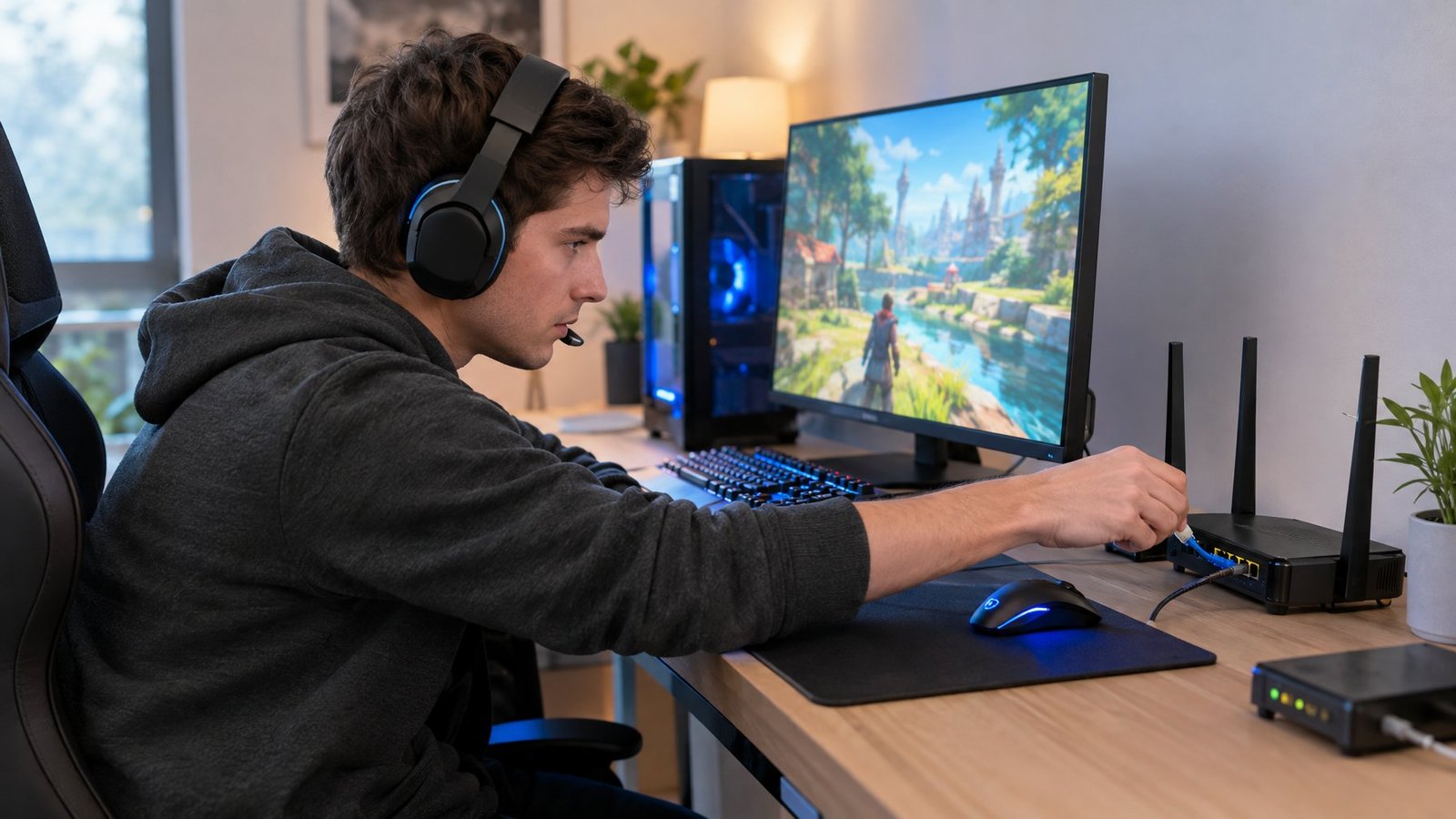
Gaming lag has three separate causes, and treating them as one problem wastes time. A player with a powerful gaming PC can still get rubber-banded because their internet is congested. Someone with great internet can still feel sluggish aiming because their monitor settings are working against them. Pinning down the right category first saves you from tweaking settings that were never the problem.
Which Kind of Lag Are You Seeing?
Lag spikes, fps lag, and input delay look similar on the surface but come from different parts of your system. Network latency causes sudden jumps and rubber-banding, fps lag shows up as choppy or stuttery motion, and input delay feels like your mouse or controller is a half-second behind your actions. Games like Valorant and Fortnite expose all three in different ways, which is why checking the right stat matters before changing anything.
Check In-Game Ping, FPS, and Frame Times
Most competitive games show your ping and FPS right on screen. Fortnite lets you turn on Net Debug Stats from the Game UI settings tab, which displays network details in the top left corner during a match. For deeper frame-by-frame data, a tool like MSI Afterburner can graph your framerate, frame time, GPU usage, and CPU temperature live, so you can see exactly when a frame-time spike happens and what else was going on at that moment.
If your ping number stays low and steady but the game still looks jumpy, the issue is on the rendering side, not the network. If ping jumps erratically while your FPS counter stays flat, your network is the culprit.
Match Rubber-Banding, Choppy Motion, or Sluggish Controls to a Cause
Rubber-banding, where your character snaps backward or an enemy teleports across the screen, points to network latency or packet loss. Choppy, stuttery motion with dropping frame numbers points to fps lag, often from a GPU bottleneck or background software eating resources. Sluggish controls, where the game runs smoothly but your clicks feel delayed, usually trace back to input lag from your display settings or sync mode.
Writing down which symptom you see helps you skip straight to the right fix below instead of guessing.
How Can You Lower Ping and Stop Packet Loss?
High ping and packet loss come from congestion somewhere between your PC and the game server. Fixing network lag usually means cutting down the number of devices competing for bandwidth, switching to a more stable connection type, and ruling out problems with your router or internet provider.
Try a Nearby Server and a Wired Connection
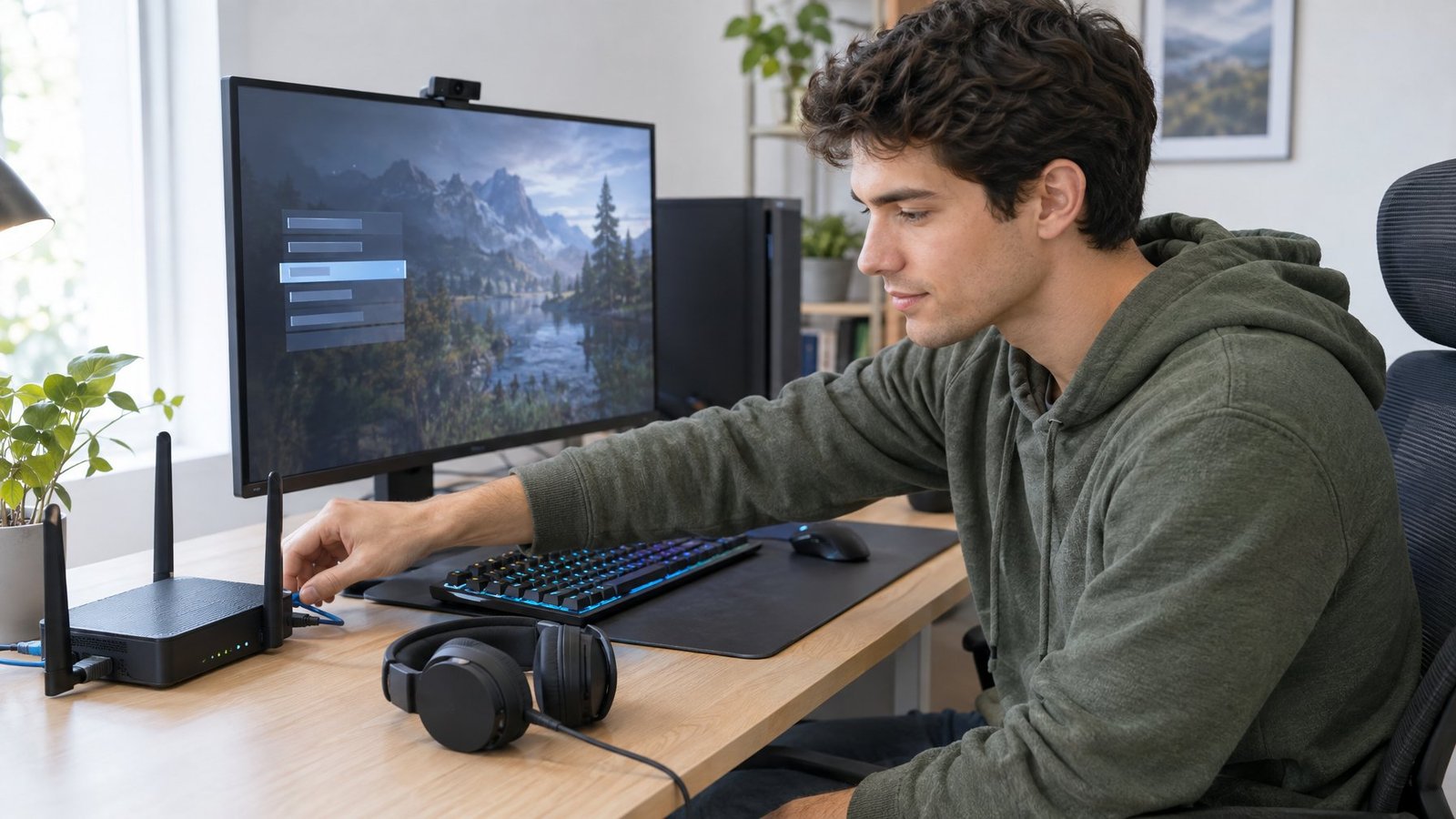
Picking the closest game server to your location cuts down the physical distance your data has to travel, which lowers ping directly. A wired ethernet connection beats Wi-Fi for gaming because it avoids interference from walls, other wireless devices, and signal drop-off. Switching from Wi-Fi to an ethernet connection is one of the most reliable ways to settle down ping spikes, especially in apartments with lots of overlapping wireless networks.
Pause Downloads and Check for Network Congestion
Background downloads, cloud backups, and other devices streaming video all eat into your available bandwidth. Pausing downloads on your PC and asking others on your network to hold off on heavy streaming while you play often clears up ping spikes almost immediately. If several people in your house are gaming or streaming at once, your router settings may need quality of service (QoS) or smart queue management turned on to prioritize game traffic.
Test for Jitter, Bufferbloat, and Router Problems
Jitter (inconsistent ping that bounces around) and bufferbloat (delay caused by your router queuing too much data) both create the stuttery, inconsistent connection that feels like lag even when your average ping looks fine. A ping test run over a few minutes while your network is under normal load shows whether your numbers stay steady or swing wildly. Smart queue management in your router settings helps reduce bufferbloat by managing how much data gets queued at once.
Rule Out Game Server and Internet Connection Issues
Sometimes the problem isn’t your setup at all. Checking the official server status page for the game you’re playing, as Fortnite players can do through Epic’s server status page, confirms whether an outage or system-wide issue is causing the lag. If servers are fine and your internet connection tests clean, the remaining ping issues are likely between your ISP and the game’s data center, which a traceroute test can help identify by showing exactly which network hop is adding delay or dropping packets.
How Can You Fix Low FPS and Game Stutter?
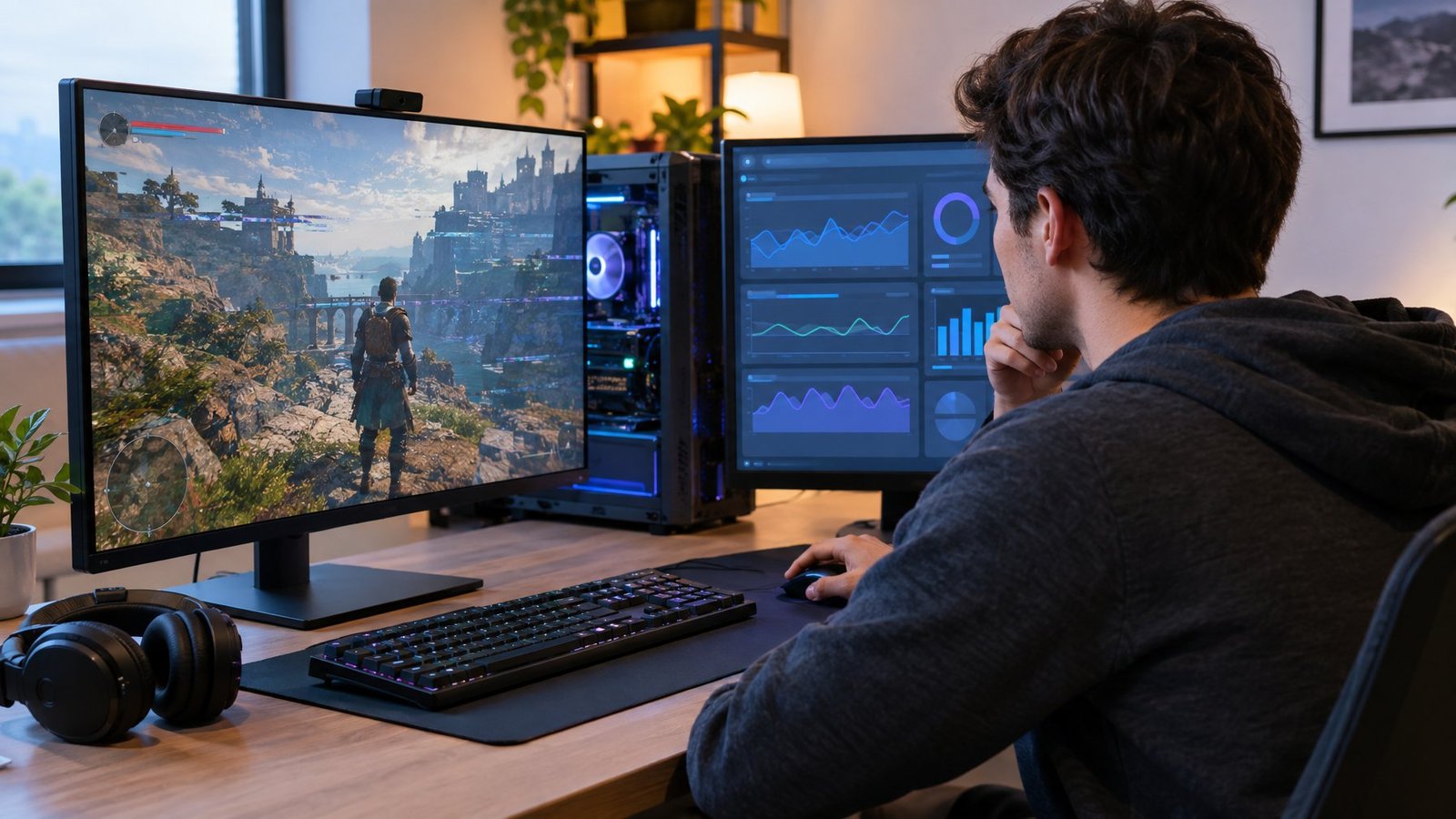
Low FPS and stutter come from your PC struggling to render frames fast enough, and the fix is to reduce the load on your GPU and CPU. That means adjusting graphics settings, clearing out background software, and checking for heat or memory limits before deciding you need new hardware.
Lower the Graphics Settings That Cost the Most Frames
Ray tracing, shadow quality, volumetric fog, and anti-aliasing are some of the most expensive graphics settings in modern games, and dropping them first usually brings the biggest FPS gains for the smallest visual tradeoff. Texture quality costs more video memory than processing power, so it’s often safer to leave high if you have a capable GPU. Upscaling tools like DLSS and FSR render the game at a lower internal resolution and use AI to rebuild detail, which can boost FPS significantly without dropping your settings as far. AMD reports FSR “Redstone” delivering sizable average frame rate gains over native rendering in supported titles on RX 9000 series cards.
Check Background Tasks, Drivers, and Windows Settings
Background apps like browsers, Discord overlay, and update processes all compete for CPU and GPU time while you play. Opening Task Manager and closing anything you don’t need running cleans up some of that overhead immediately. Keeping your GPU drivers current through Windows Update or your graphics card manufacturer’s app matters too, since outdated drivers can cause stutter in newer games. Windows Game Mode helps by prioritizing your game’s process, and setting your Windows power plan to Best Performance under Settings > System > Power & Battery stops your PC from throttling for battery savings. If you’re gaming on integrated graphics, lowering resolution and settings matters even more since there’s no dedicated GPU to lean on.
Find Heat, Memory, and Storage Bottlenecks
Thermal throttling happens when your GPU temperature climbs too high and the card slows itself down to avoid damage, which shows up as sudden FPS drops during long sessions. Monitoring tools can track GPU temperature in real time so you can see if heat is the trigger. Low RAM or high RAM usage forces your system to swap data to your SSD, which is slower and causes stutter in memory-heavy games. Closing unused background apps frees up RAM immediately, and an SSD upgrade helps if your game is still installed on a slower hard drive.
Retest Frame-Time Spikes After Each Change
Changing one setting at a time and rechecking your frame-time graph shows you exactly which adjustment made the difference. MSI Afterburner’s benchmark mode records your framerate average and 1% lows, which is a more honest measure of smoothness than a single FPS number. If frame-time spikes shrink after lowering shadow quality but stay the same after disabling background apps, you know where the real bottleneck was.
How Can You Reduce Input Lag?
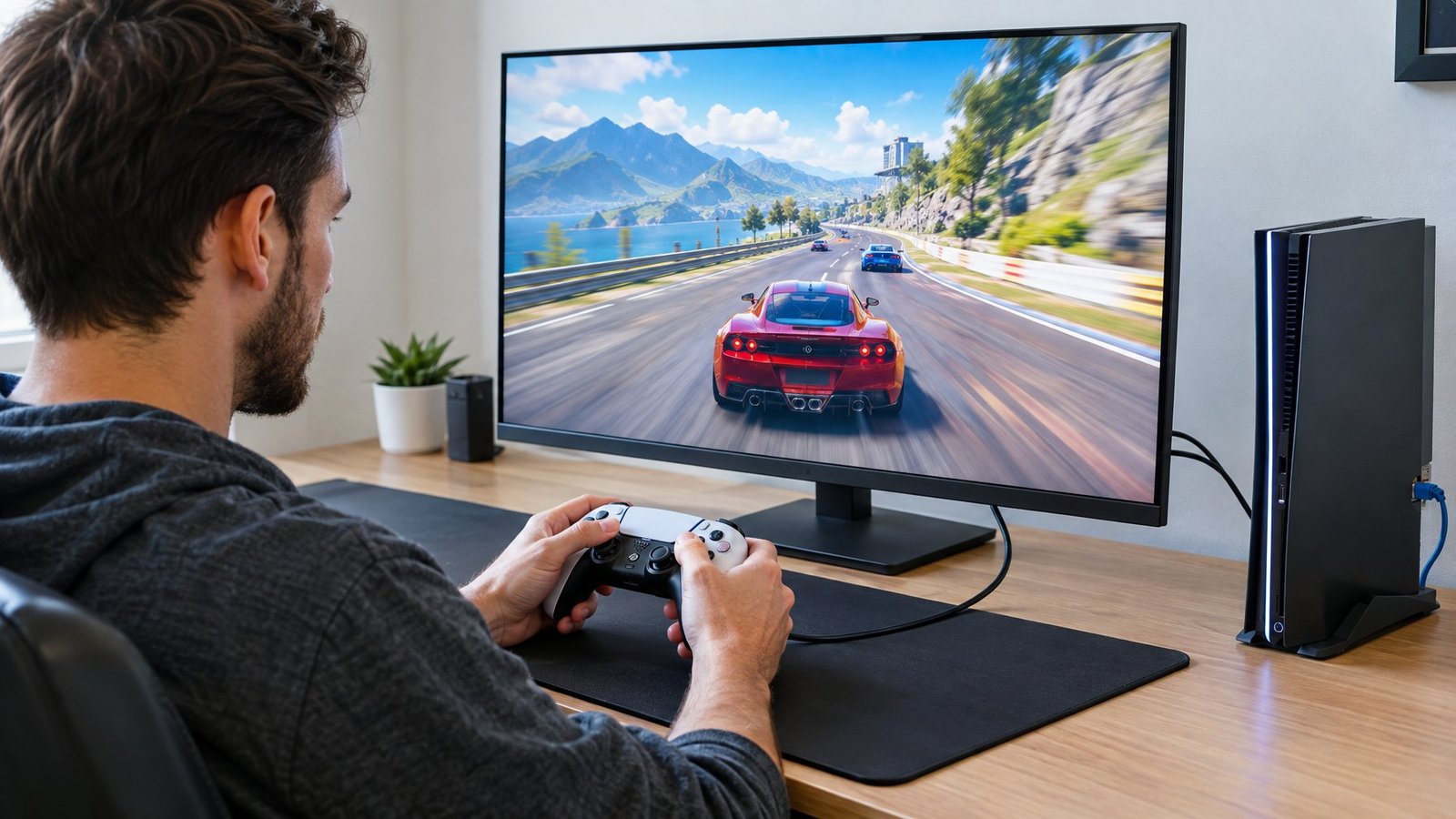
Input lag is the delay between pressing a button and seeing it happen on screen, and it’s controlled mostly by your display settings and sync mode rather than your internet or FPS. A higher monitor refresh rate, the right sync setting, and low-latency game options each shave real time off that delay.
Check Your Display’s Refresh Rate and Game Mode
A higher refresh rate reduces input lag by updating the screen more often, which means less time between your action and when it appears. Windows lets you check and change your refresh rate under Settings > System > Display > Advanced Display. Windows 11’s Dynamic Refresh Rate feature can sometimes limit a game to a lower rate than expected, so turning it off is worth trying if a favorite title feels locked below its usual smoothness. Turning on optimizations for windowed games in Windows 11 also helps by moving compatible titles to a presentation mode with lower frame latency.
Compare V-Sync, Adaptive Sync, and Frame Caps
V-Sync fixes screen tearing but adds noticeable input lag because it forces your GPU to wait on your monitor’s refresh cycle. G-Sync and FreeSync (adaptive sync) match your monitor’s refresh rate to your GPU’s output in real time, cutting tearing without the same latency penalty as traditional V-Sync. Capping your frame rate just under your monitor’s max refresh rate, combined with adaptive sync, often gives the smoothest feel without tearing or the extra delay of full V-Sync.
| Setting | Input Lag | Screen Tearing | Best For |
|---|---|---|---|
| V-Sync On | Higher | None | Slower, non-competitive games |
| G-Sync / FreeSync | Low | None (within range) | Most gaming, needs compatible monitor |
| V-Sync Off | Lowest | Possible | Competitive play, high refresh monitors |
Test In-Game Low-Latency Options
NVIDIA Reflex synchronizes your CPU and GPU pipelines so the game submits work just in time for rendering, cutting out the queuing delay that normally builds up input lag. It’s built into a growing list of competitive titles and works alongside NVIDIA’s Ultra Low Latency mode in the graphics driver if a specific game doesn’t support Reflex directly. Running your game in exclusive fullscreen mode instead of windowed or borderless also removes a layer of delay added by the Windows compositor.
Keep the Fix That Improves Your Game
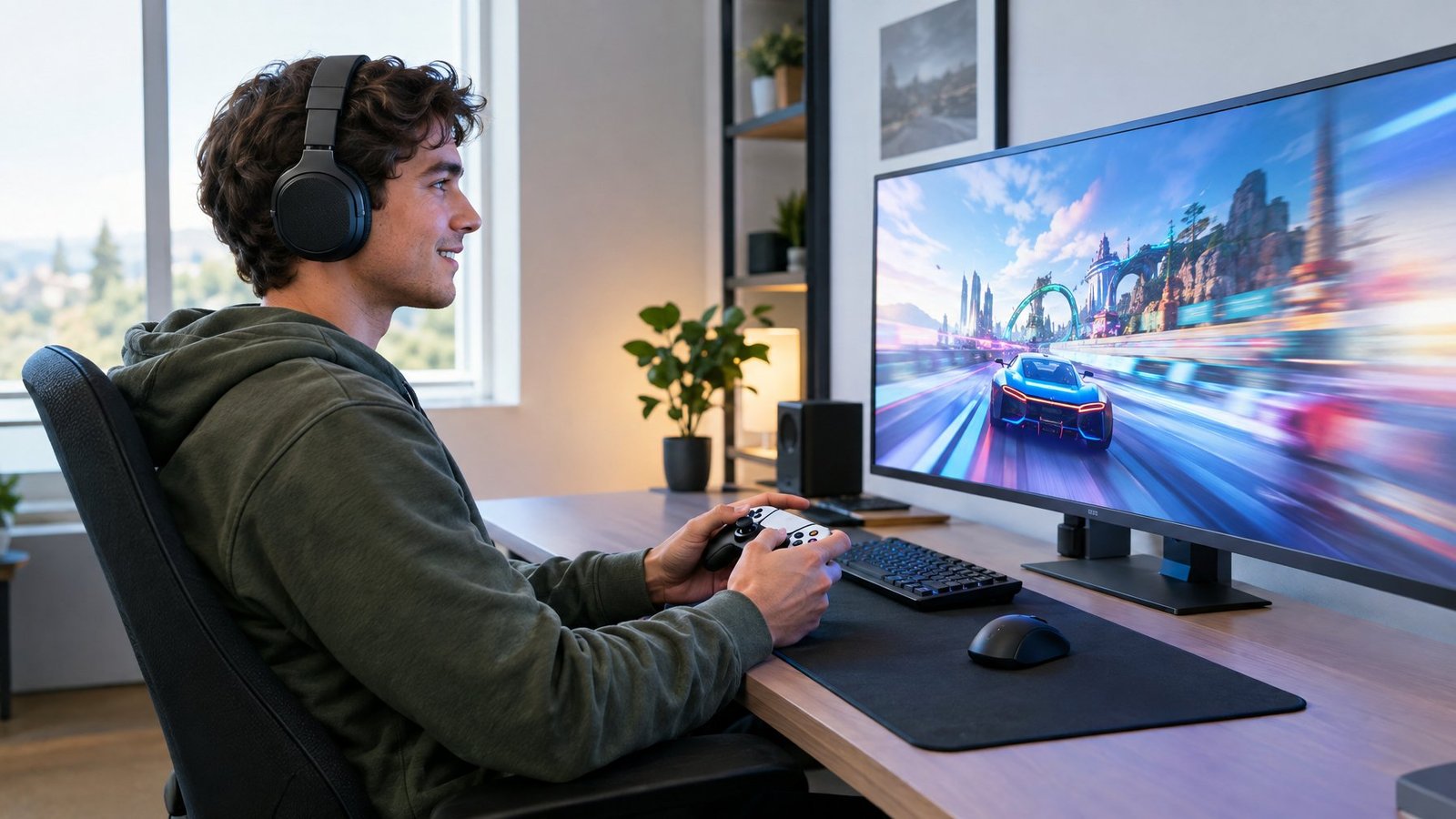
The best approach is to change one setting at a time and keep only the fixes that produce a real, noticeable improvement. Switching to a wired ethernet connection, lowering a single demanding graphics setting, or turning on adaptive sync each targets a different kind of lag, and testing them separately shows which one actually mattered for your setup.
Players chasing network stability should prioritize the ethernet switch and router checks first. Those fighting choppy visuals get more value from graphics settings and background app cleanup. Anyone who still feels a delay between their inputs and the action on screen should focus on refresh rate, sync settings, and low-latency game options before touching anything else.
Frequently Asked Questions
Why am I lagging in games when my internet seems fine?
A fine internet speed test doesn’t rule out jitter, packet loss, or bufferbloat, all of which cause lag without lowering your overall download speed. Background devices on your network competing for bandwidth during your match can also cause spikes that a basic speed test won’t catch. Running a ping test while actively gaming, rather than when your network is idle, gives a more accurate picture.
Why does my game stutter when the FPS counter looks good?
A high average FPS can hide frame-time spikes, which are brief moments where a single frame takes much longer to render than the rest. Checking 1% low framerates instead of just the average, using a tool like MSI Afterburner’s benchmark mode, reveals these spikes that a simple FPS counter misses. Background apps, thermal throttling, and RAM limits are common causes of this gap between average FPS and how smooth the game actually feels.
How do I fix lag in games on Windows 11?
Turning on Windows Game Mode, setting your power plan to Best Performance, and enabling optimizations for windowed games are the quickest Windows 11 specific fixes. Keeping your GPU drivers updated through Windows Update also prevents stutter caused by outdated software. If Dynamic Refresh Rate is limiting your game’s refresh rate below its normal level, turning that feature off under Advanced Display settings restores full smoothness.
How can I reduce lag in games on Xbox?
Connecting your Xbox directly to your router with an ethernet cable instead of Wi-Fi cuts down on the network instability that causes rubber-banding on console. Closing background apps and pausing any downloads or updates running on the console during play frees up bandwidth and system resources. Choosing a game mode that prioritizes frame rate over resolution, when a title offers that choice, also reduces stutter on console hardware.
How do I reduce game lag on Android?
Connecting to a strong, stable Wi-Fi network instead of mobile data cuts down on the ping spikes that cause lag in mobile games. Closing other apps running in the background frees up memory and processing power for the game itself. Lowering in-game graphics settings, when the game offers them, helps older or budget Android devices maintain a steadier frame rate during busy matches.

I’m Anirban Saha, Founder & Editor of TechBullish. With a B.Tech in Electronics and Communication Engineering, and 8+ years of experience as a software developer, I have expertise in electronics, software development, gadgets, and computer peripherals. I love sharing my knowledge through informational articles, how-to guides, and troubleshooting tips for Peripherals, Smart TVs, Streaming Solutions, and more here. Check Anirban’s LinkedIn Profile here.
