
Every gamer knows the moment: you line up the perfect shot, press the button, and your character freezes for half a second before teleporting backward. That’s online gaming lag, and it usually comes from one of a few fixable sources rather than a mystery your internet provider can’t explain.
Most lag in online games comes from high ping, packet loss, or network congestion, and you can fix it by switching to a wired connection, picking the nearest game server, and clearing background traffic before you play.
Game performance issues can also come from your PC itself, not just your network, so the fix depends on which one is actually causing the problem. We’ll walk through how to tell the difference and what to try at each stage, starting with the easiest changes first.
Fast internet speed doesn’t guarantee smooth gameplay. You can have a gigabit connection and still get rubber-banding if your route to the game server is congested or your Wi-Fi signal is weak. The goal is finding the real cause instead of guessing.
What Should You Try First?
Before touching router settings or reinstalling drivers, try the fixes that solve the majority of lag complaints in minutes. A wired connection and a clean network queue fix more lag problems than any advanced setting.
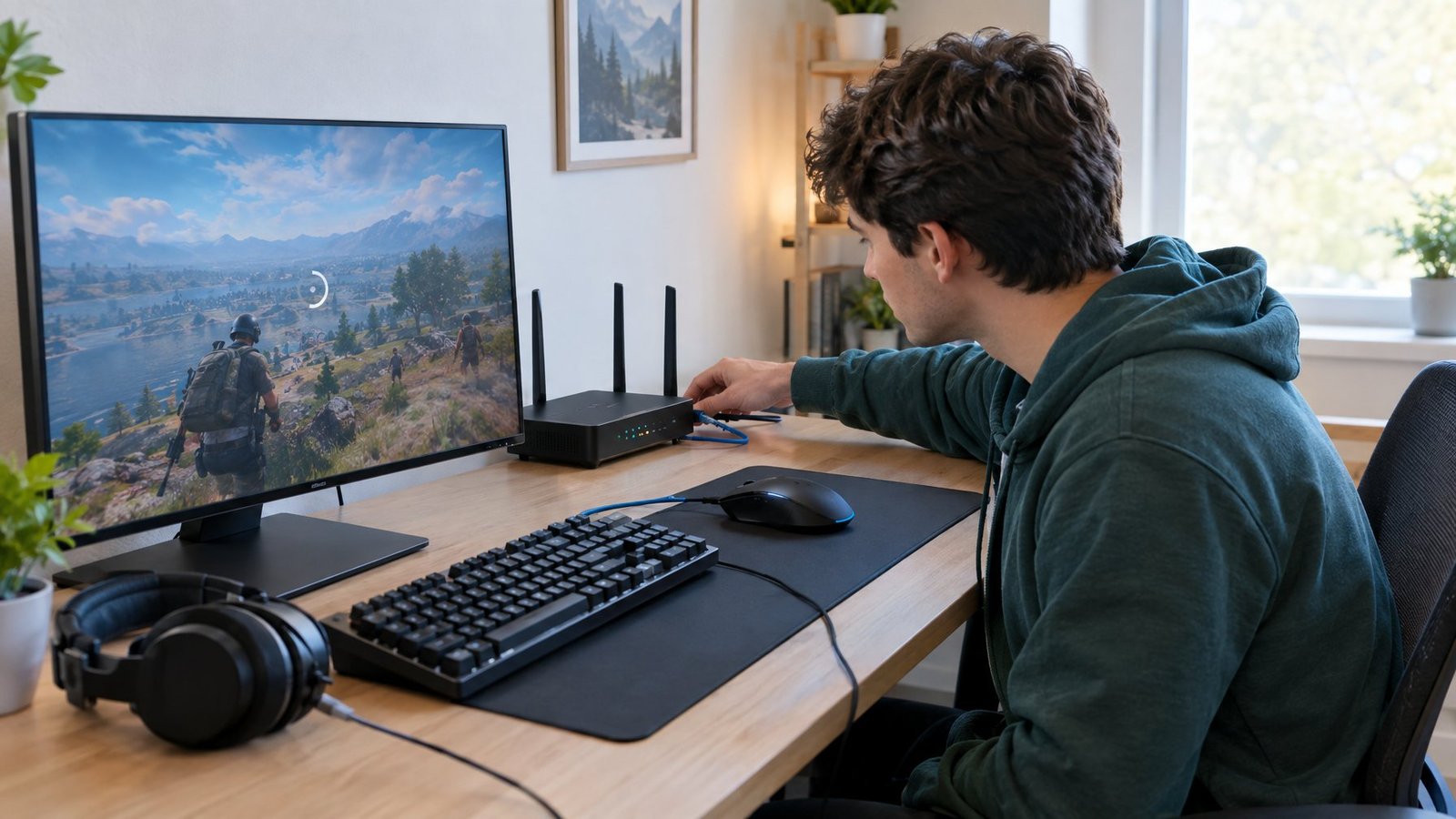
Use Ethernet and Choose the Nearest Game Server
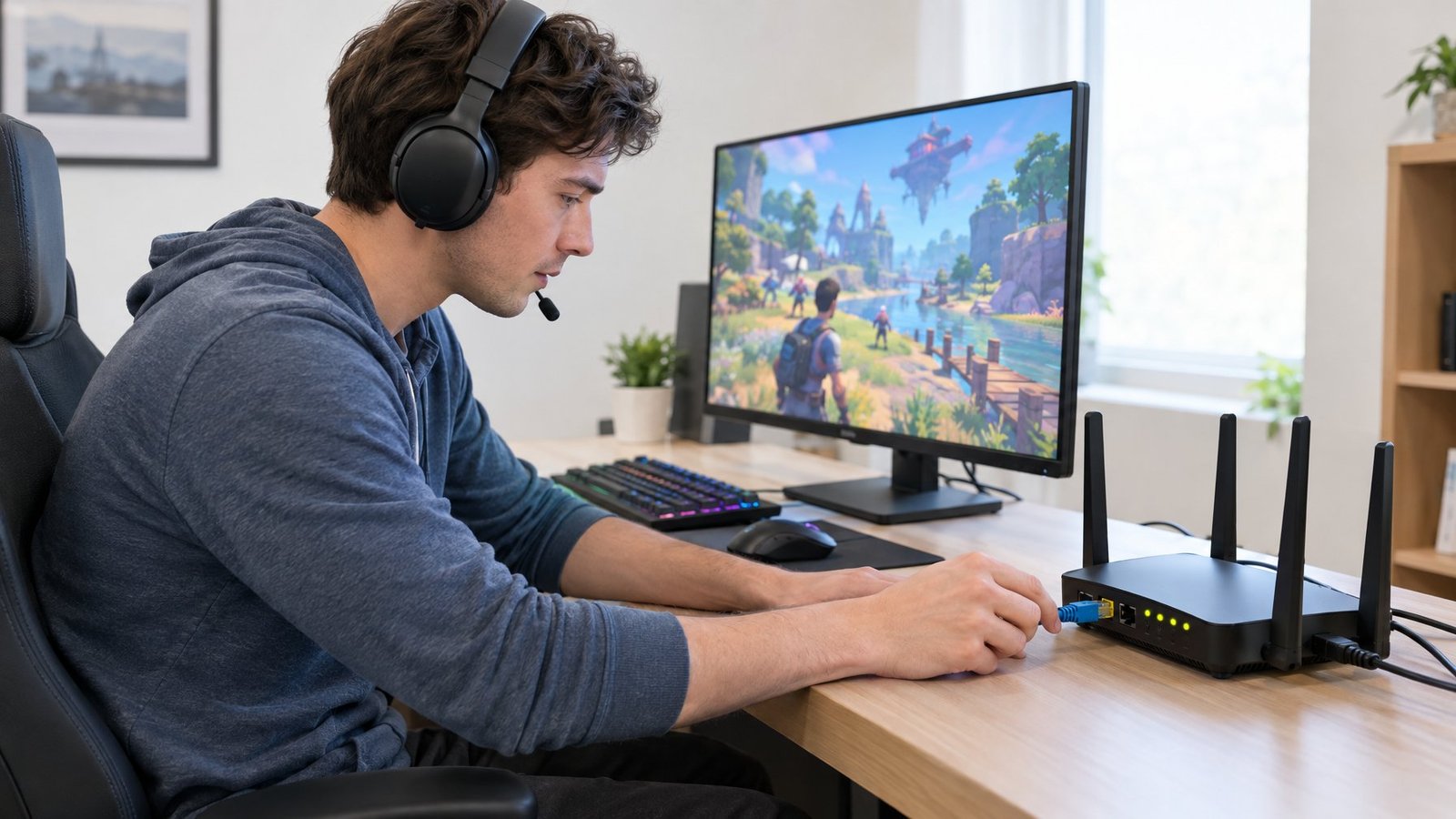
Switching from Wi-Fi to a wired ethernet connection is the single biggest thing you can do to reduce ping. Wireless signals deal with interference, distance, and competing devices, all of which add delay. An ethernet cable skips that entirely and gives you a direct, stable line to your router.
Picking the nearest game server matters just as much. Most games let you choose or at least see your assigned region in the network or matchmaking settings. Playing on a server three time zones away adds real distance for your data to travel, and that distance shows up as higher ping no matter how good your connection is.
Pause Downloads and Restart Your Devices
Background downloads quietly eat your bandwidth while you play. Game updates, cloud backups, and streaming apps all compete for the same pipe, so pause anything downloading before you queue up a match.
A quick router and console restart clears out minor glitches too. Unplug the router, wait about a minute, then power it back on. While you’re at it, check for a pending Windows Update. Updates sometimes include network driver fixes, and an update stuck mid-download can also hog bandwidth in the background.
If multiple background apps are still open on your PC, closing them frees up both bandwidth and processing power, which helps with lag that’s tied to your system rather than your network.
Is the Problem Your Connection or Your Game?
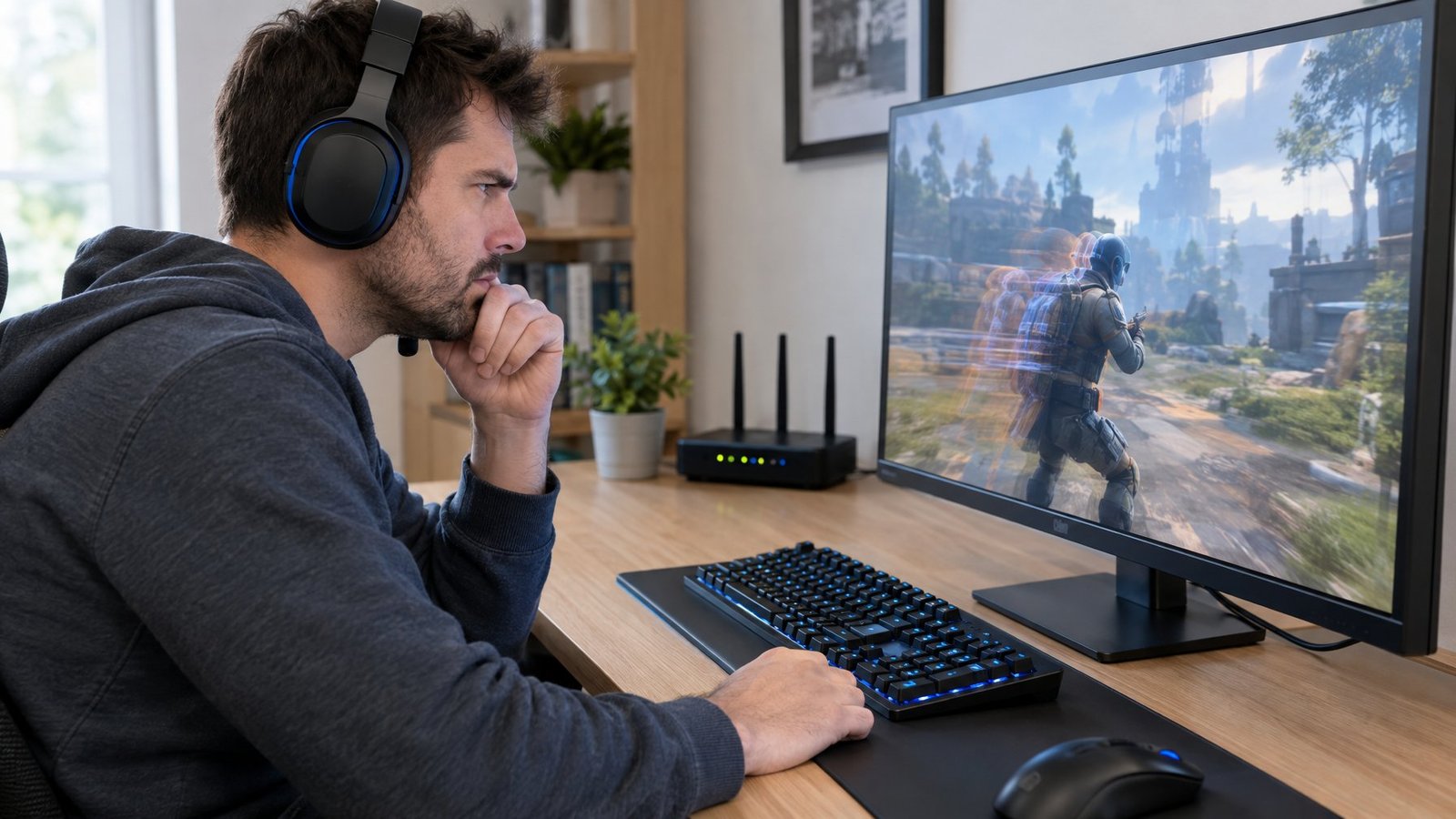
Separating network lag from game performance problems saves you from fixing the wrong thing. Ping, jitter, and packet loss point to a network issue, while FPS drops point to your hardware struggling to render the game itself.
Check Ping, Jitter, and Packet Loss While You Play
Ping measures how long it takes data to travel from your device to the game server and back, shown in milliseconds. A good ping for gaming sits under 50 ms, with anything under 20 ms considered excellent for fast-paced shooters. High ping shows up as delayed actions, like your shot registering a beat late.
Jitter is the variation in that ping over time. Even if your average ping looks fine, jitter causes random ping spikes that make movement stutter unpredictably. Packet loss is different again: it means some of your data never arrives at all, which causes rubber-banding or your character freezing and snapping to a new position.
A simple ping test tells you your baseline number, but a tool like WinMTR goes further by combining ping and traceroute. It shows you exactly which hop along the route to the server is dropping packets or adding latency, which helps you figure out if the problem sits with your home network or further down the line at your ISP.
Compare Network Lag with FPS Drops
FPS drops feel similar to lag but come from a different place. If your frame rate tanks during busy scenes, your CPU, RAM, or graphics card is struggling to keep up, not your internet connection.
Turn on an in-game FPS counter alongside a ping display. If FPS drops while ping stays steady, that’s a hardware or settings problem. If FPS stays smooth but other players teleport or your inputs lag, that points to your network.
Test for Lag Spikes When Your Network Is Busy
Run a ping test while someone else in your house streams video or downloads a large file. If your ping jumps sharply during that test, your home network is congested rather than your internet connection being slow overall. This kind of spike is common in households with several connected devices competing for the same bandwidth, and it’s one of the clearest signs that the fix belongs at the router level, not inside the game.
How Can You Make Your Home Network More Stable?
A stable home network starts with router placement and ends with settings that prioritize your game traffic over everything else sharing the connection. Wi-Fi interference, bufferbloat, and outdated firmware are common culprits that are often overlooked.
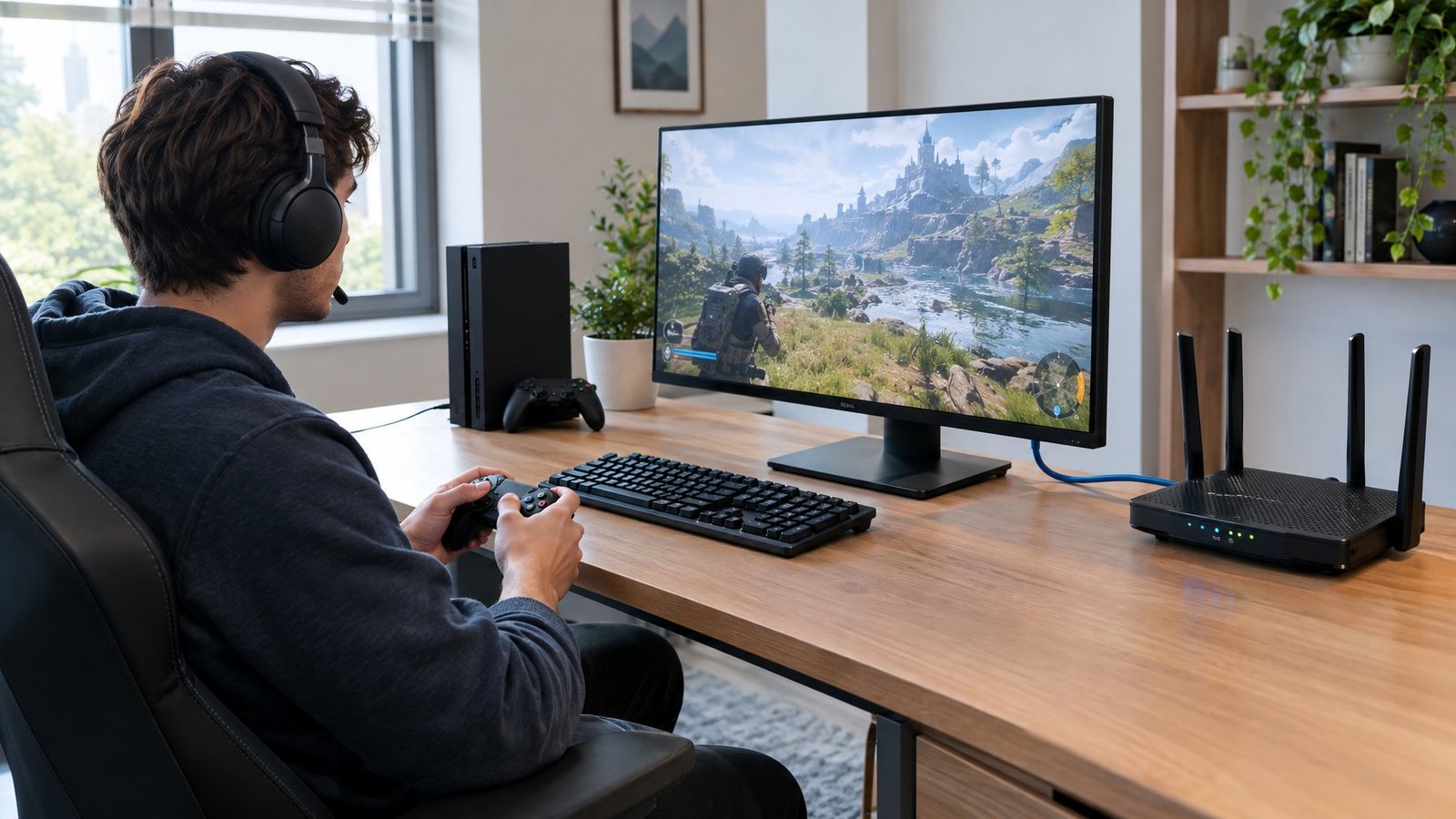
Reduce Wi-Fi Interference and Improve Router Placement
Walls, microwaves, and other electronics all interfere with your Wi-Fi signal. Keep your router out in the open, away from large objects, with its antenna pointed toward your gaming setup. The farther you sit from the router, the weaker and less reliable your connection gets.
If you live in an apartment building with lots of overlapping networks, switching your router’s Wi-Fi channel can cut down on interference from your neighbors’ networks. Your router’s admin page usually has this option under wireless settings.
Use QoS to Limit Congestion and Bufferbloat
Quality of Service (QoS) settings let your router prioritize gaming traffic over downloads, streaming, and other background activity. This matters most when bufferbloat is the real issue behind your lag spikes. Bufferbloat happens when your router’s queue fills up with data waiting to send, and that backlog adds delay to everything, including your game packets, even if your connection speed looks fine.
Enabling QoS and setting your upload and download limits slightly below your actual max speed helps your router manage that queue instead of letting it overflow. Many gaming routers include a QoS mode built specifically to prioritize low-latency gaming traffic.
Check Router Firmware, Cables, and Ethernet Ports
Outdated router firmware can cause the exact kind of instability that leads to random lag spikes. Most router brands let you check for and install firmware updates through the router’s web interface. Keeping firmware current also patches bugs that affect network stability over time.
Worn ethernet cables and older ports limit your speed too. If your router has gigabit ethernet ports, use a cable rated for gigabit speeds to actually take advantage of them.
What If Lag Persists After the Basic Fixes?
Lag that survives a wired connection and clean router settings usually points to your PC’s internal performance, your NAT configuration, or something happening outside your home network entirely. Checking Task Manager, your network driver, and your route to the game server narrows down the remaining possibilities.
Check PC Performance, Drivers, and Background Applications
Open Task Manager and look at what’s using CPU, RAM, and network resources while your game runs. Background applications, especially browsers with many tabs open or cloud sync tools, quietly drain resources your game needs.
An outdated network adapter driver can also cause stutters that look like lag. Windows Update installs recommended drivers automatically, but checking for optional driver updates manually sometimes turns up a newer network driver that Windows didn’t flag. While you’re adjusting system settings, disabling Energy Efficient Ethernet and interrupt moderation on your network adapter can reduce the kind of micro-delays that show up as inconsistent ping, though these are advanced settings best changed one at a time so you can tell what helped.
Understand What NAT and DNS Settings Can and Cannot Fix
An Open NAT type lets your console or PC connect directly to other players, which matters for hosting matches and voice chat. A Strict or Moderate NAT type can cause trouble finding matches or hearing teammates. Enabling UPnP on your router usually resolves this, and if it doesn’t, port forwarding is the next step.
Switching to a different DNS server, like Google DNS, can fix slow connection times if your ISP’s DNS is unreliable. Flushing your DNS cache clears out old, incorrect address records. Neither of these changes will lower your in-game ping, since DNS only affects how your device finds a server’s address, not how fast data travels once connected.
Investigate Game Servers, ISP Routing, and Gaming VPNs
Sometimes the bottleneck sits entirely outside your home. Your ISP’s path to a game’s servers can take an inefficient route through distant exchange points, adding latency that no router setting fixes. Checking the game’s official server status page rules out a problem on the publisher’s end, since titles like Fortnite and Call of Duty occasionally have downtime or degraded performance during updates.
A gaming VPN, sometimes called a GPN or game connection optimizer, works differently from a privacy VPN. Tools like ExitLag and WTFast analyze multiple paths to a game server and reroute your traffic through a path with lower latency when your ISP’s default route is inefficient. These tools only reroute traffic for the games you select, leaving your other internet activity untouched, and tend to help most when you’re playing on servers far from your location or dealing with an ISP that has poor routing to that game’s data centers.
Keep the Fix That Solves Your Lag
Work through these fixes in order: wired connection first, then network settings, then PC performance, then routing outside your home. Once you find the change that actually lowers your gaming ping, stick with it and avoid piling on more adjustments that make it harder to tell what’s working.
Lag rarely comes from one single cause. A combination of a slightly congested router, an outdated driver, and a server on the other side of the country can all add up. Testing one change at a time, with a ping test or in-game overlay running, shows you exactly which fix moved the needle on your game performance.
Keep notes on what you changed and when. If lag comes back later, you’ll have a record of what fixed it the first time instead of starting your troubleshooting from scratch.
Frequently Asked Questions
Why am I lagging in games when my internet speed is fine?
Speed measures how much data moves per second, while lag depends on latency, the delay in each round trip of data. You can have fast download speeds and still experience high ping, packet loss, or bufferbloat, all of which cause lag independent of your overall speed.
How can I reduce lag in online games on Android?
Connect to a strong, stable Wi-Fi network instead of mobile data when possible, and close background apps that use data or processing power. Moving closer to your router and avoiding peak network congestion times also helps reduce ping on mobile games.
How do I fix lag in online games on Xbox?
Start by testing your network connection and checking your NAT type under Network Settings, aiming for Open NAT. If you see errors like high latency, high packet loss, or UPnP failures, the Xbox network settings menu includes specific tests that identify which of these is affecting your connection.
What should I check if games lag on a Windows 11 PC?
Check Task Manager for background apps consuming CPU or network resources, and confirm your network adapter driver is current through Windows Update. Free up disk space and disable unnecessary startup apps too, since a cluttered system can cause frame drops that feel like network lag.
Will changing DNS or using a gaming VPN lower my ping?
Changing your DNS server, such as to Google DNS, can speed up how fast your device finds a server’s address, but it won’t lower your actual in-game ping. A gaming VPN like ExitLag or WTFast can lower ping by finding a faster route to the game server, particularly when your ISP’s default path is inefficient or the server is far from your location.

I’m Anirban Saha, Founder & Editor of TechBullish. With a B.Tech in Electronics and Communication Engineering, and 8+ years of experience as a software developer, I have expertise in electronics, software development, gadgets, and computer peripherals. I love sharing my knowledge through informational articles, how-to guides, and troubleshooting tips for Peripherals, Smart TVs, Streaming Solutions, and more here. Check Anirban’s LinkedIn Profile here.
