
The fastest way to fix laptop overheating is to shut the laptop down, let it cool for a few minutes, clear dust from the vents, and place it on a hard, flat surface. These steps restore airflow, which solves most heat problems before you need to try anything more advanced.
A hot laptop that shuts off mid-task is more than annoying. It’s a warning sign that heat is building up faster than your laptop can clear it. Ignoring it can shorten the life of the processor, battery, and other components packed inside that thin case.
The good news is that most overheating problems come from a handful of causes you can fix yourself: dust-clogged vents, blocked airflow, background processes overloading the CPU, outdated drivers, or, less often, a failing fan or dried-out thermal paste.
This guide walks through safe steps to fix laptop overheating, from the first five minutes to the point where you know it’s time to call a technician.
What Should You Do First When Your Laptop Overheats?
The first move when you notice a laptop running hot is to stop what you’re doing and let the machine cool off before you touch anything else. Fixing laptop overheating almost always starts with three quick checks: giving the system a break, moving it to better airflow, and clearing out any dust buildup blocking the vents.
Let It Cool Down and Clear the Vents
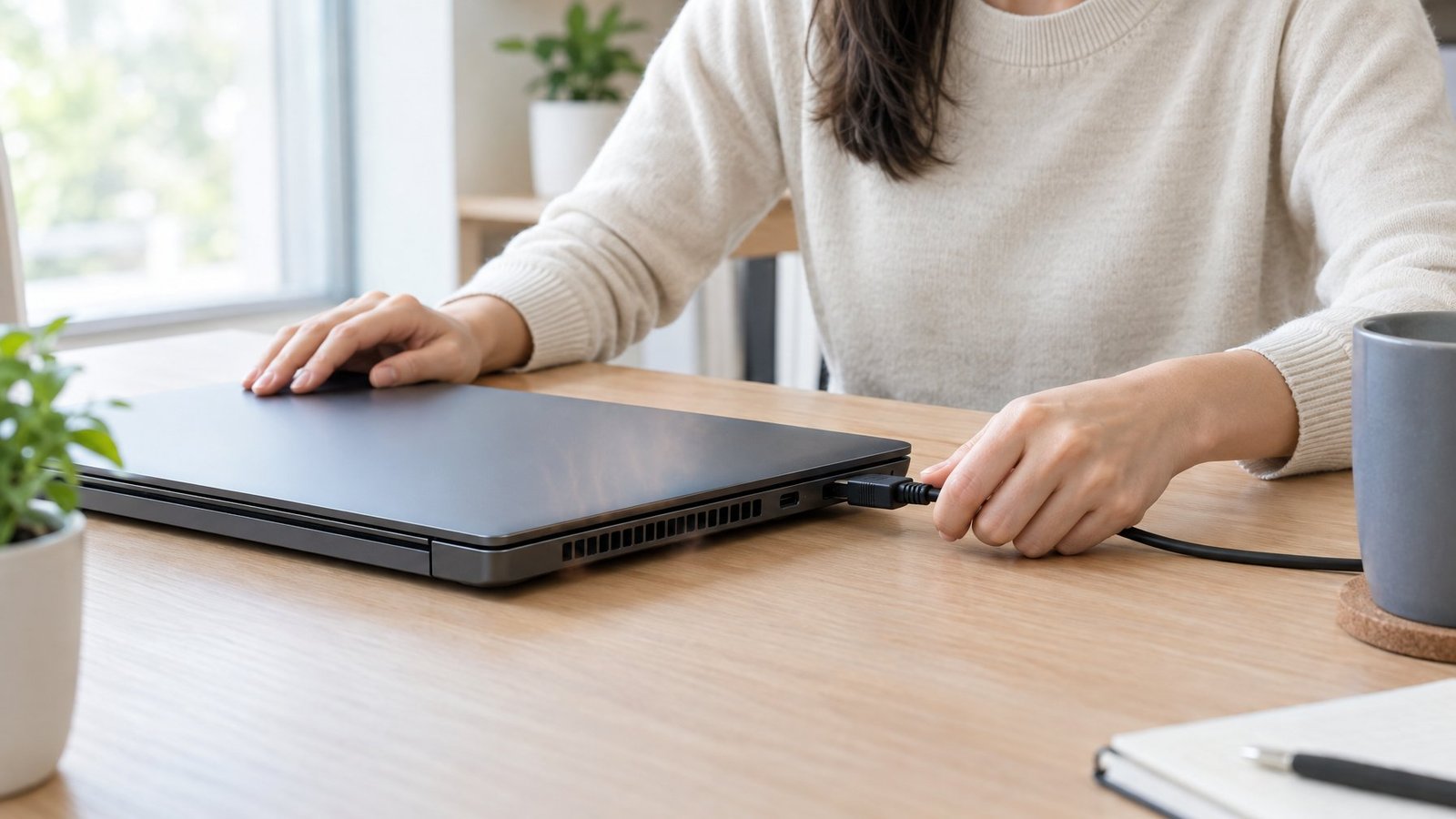
Save your work, shut the laptop down, and unplug it from the charger. Set it on a flat surface and leave it alone for at least five to ten minutes.
This isn’t just a stall tactic. A laptop that overheats badly enough to shut down needs time for its internal temperature to drop before you restart it. Restarting a laptop while it’s still hot can trigger another shutdown right away.
Move It to a Hard Surface or Laptop Stand
Once it’s cooled, place the laptop on a hard, flat surface like a desk or table instead of a couch, bed, or your lap. Soft surfaces block the air intake on the bottom of the case, which is where most laptops pull in cool air.
A laptop stand raises the chassis and opens up airflow underneath it even further. Some stands include their own small fans, which help pull additional heat away during long gaming or editing sessions.
Clean Dust from the Vents Safely
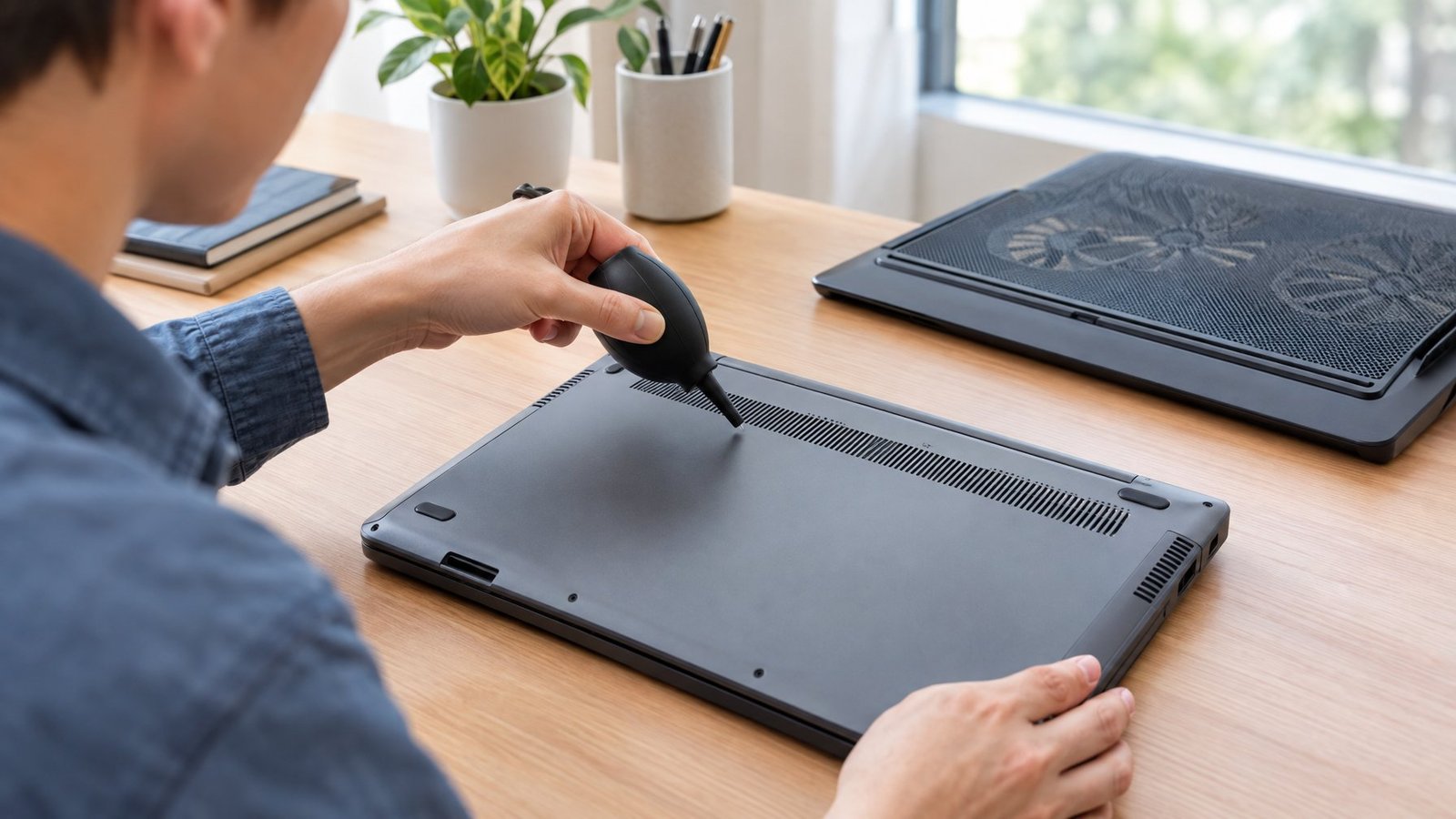
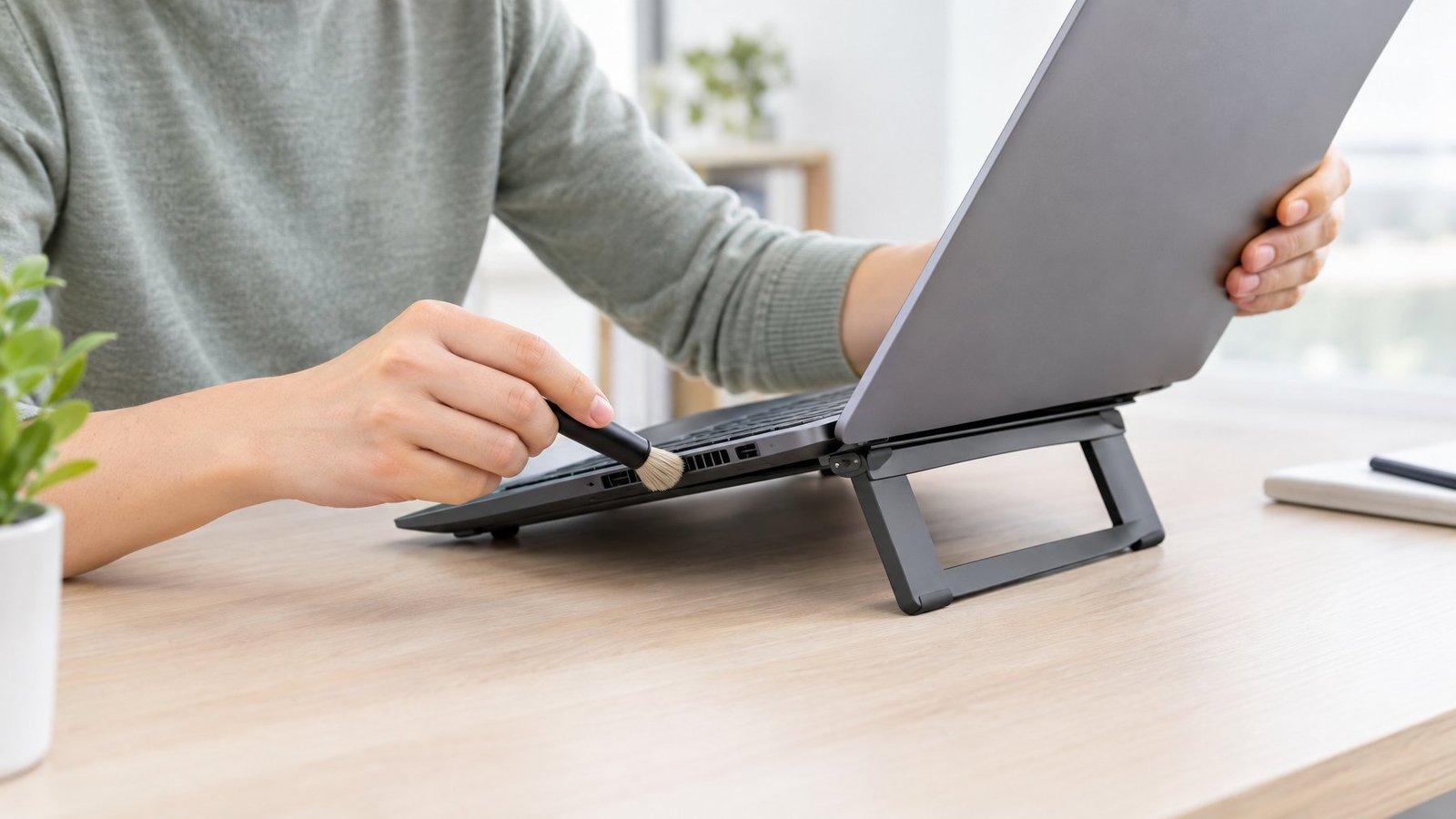
Dust buildup on the fans and vents is one of the most common causes of laptop overheating, and it’s also one of the easiest to fix. With the laptop off and unplugged, use a can of compressed air to blow dust out of the vents, holding the can upright and keeping it a few inches away from the openings.
Short bursts work better than one long blast. Doing this every few months keeps the cooling system clear before dust has a chance to build into a real laptop cooling problem.
How Can You Tell Whether Heat Is the Problem?

Heat is likely the culprit if your laptop slows down during heavy tasks, the fan runs loudly and constantly, or the machine shuts off without warning. Confirming it takes a quick look at fan behavior, a temperature check with free monitoring software, and a comparison against what your laptop maker considers normal.
Recognize Shutdowns, Fan Noise, and Thermal Throttling
A laptop that shuts down randomly during demanding work, especially when it also feels hot to the touch, is showing classic signs of a thermal problem. Loud, constant fan noise during light tasks is another red flag, since fans should only spin up fast during heavy workloads like gaming or video exports.
Thermal throttling is the processor’s built-in safety response: when temperatures climb too high, the chip lowers its own speed to cool down. This protects the hardware, but it also makes everything feel sluggish. Throttling that starts within minutes of light use, or that happens alongside freezes, points to a real cooling issue rather than normal behavior.
Check CPU and GPU Temperatures During Normal Use and Heavy Tasks
Free tools make it easy to see what’s happening inside the case. HWMonitor shows voltages, fan speeds, and temperatures across the CPU, GPU, and storage in one window. Core Temp focuses specifically on processor temperature, showing a reading for each individual core in real time. MSI Afterburner adds GPU temperature monitoring along with an on-screen display you can keep visible while gaming.
Run one of these tools while your laptop sits idle, then again during a demanding task like a game or video export. A big jump between idle and load readings is normal; what matters is whether the numbers climb into the 90s (Celsius) and stay there.
Compare Readings with Your Laptop Manufacturer’s Guidance
Every laptop model has different thermal limits built into its design. Checking your temperature readings against your manufacturer’s documented operating range tells you whether what you’re seeing is expected or a genuine problem.
Manufacturer support pages often note that a laptop can feel very warm during intensive tasks without anything being wrong, since fans are designed to speed up as temperatures rise. If your readings sit far outside the normal range even during light use, that’s the clearer signal something needs attention.
Which Software Changes Can Reduce Heat?
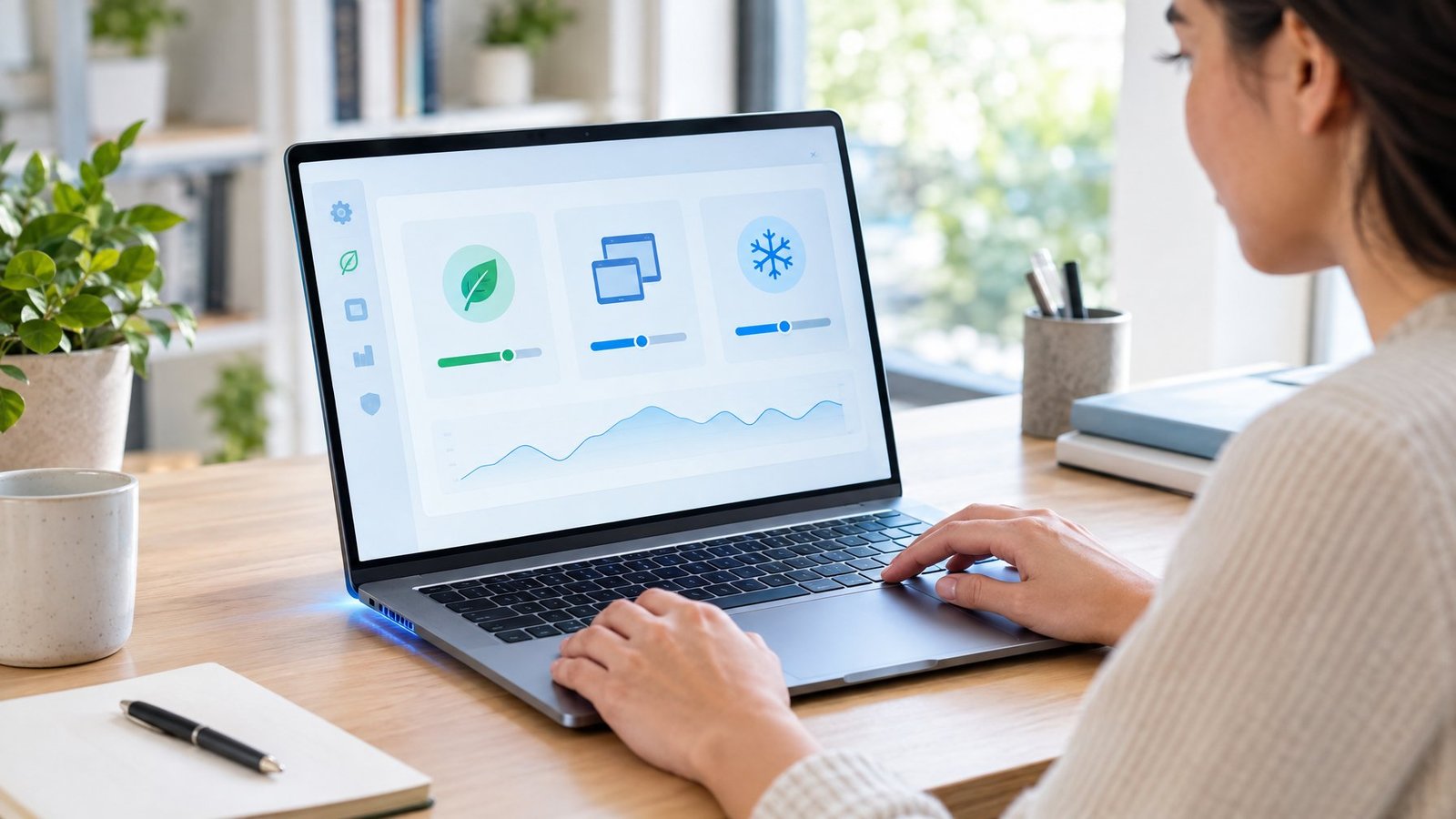
Cutting back on what your processor has to work on is one of the quickest ways to lower laptop temperature without opening the case. Closing background processes, adjusting your power plan, and keeping drivers current all reduce the workload that generates heat in the first place.
Find and Close Unnecessary Background Processes
Open Task Manager (Ctrl+Shift+Esc on Windows) and check the CPU column under the Processes tab to see what’s using the most processing power. Close anything you don’t recognize or don’t need running, since background processes and resource-intensive tasks are a common hidden cause of excess heat.
Startup apps deserve a look too. Many programs set themselves to launch automatically and quietly run in the background, adding to the load on your processor every time you turn the laptop on.
Adjust Power Settings and Demanding Workloads
Windows lets you choose a power mode under Settings > System > Power & Battery. Switching from Best Performance to Balanced reduces how hard the CPU pushes itself, which lowers heat output at the cost of some raw speed.
If you’re running several demanding programs at once, such as video editing software alongside a web browser with a dozen tabs, closing what you’re not actively using gives the processor less to juggle and less heat to shed.
Update Drivers and Check for Malware
Outdated drivers, especially graphics drivers, can cause a laptop to run hotter than it should by preventing proper power management. Checking for driver and Windows updates regularly keeps these settings working as intended.
Malware is worth ruling out too. Hidden malicious processes can quietly max out your CPU in the background, driving temperatures up even when you think the laptop is idle. A quick scan with your security software can confirm whether that’s part of the problem.
When Does Overheating Need a Hardware Repair?
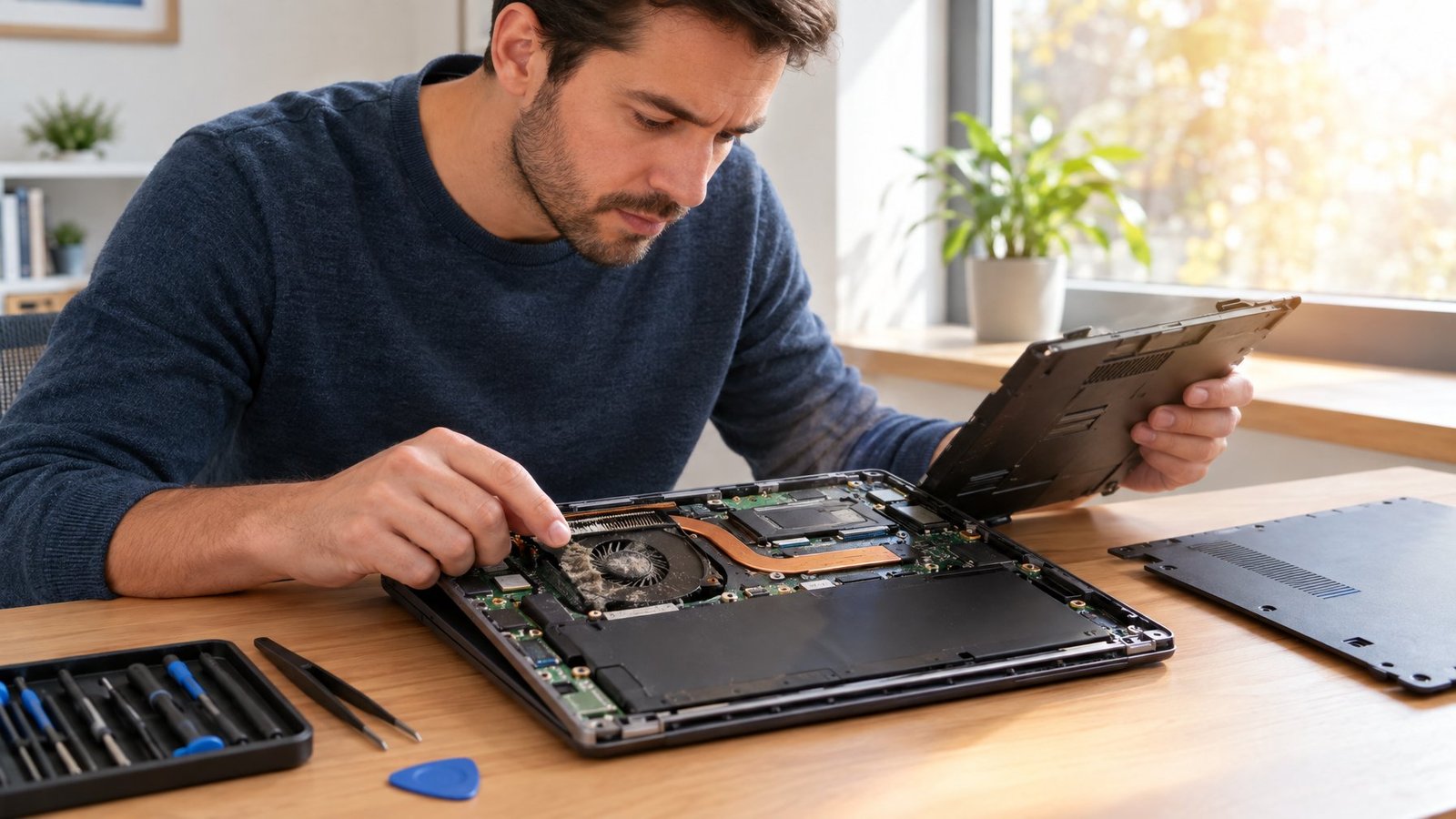
Overheating points to a hardware problem when cleaning the vents and adjusting software settings don’t bring temperatures back down. At that point, the cause is usually a failing fan, old thermal paste, or physical damage to the cooling system that cleaning alone can’t fix.
Check for a Failing Fan or Persistent Airflow Blockage
A fan that doesn’t spin up at all, or one that makes grinding or rattling noises, is not doing its job properly. Some manufacturer diagnostic tools include a built-in fan test that can confirm whether a fan has failed.
Physical damage to the vents or internal fan blades also blocks airflow in a way that compressed air can’t fix. If temperatures stay high right after a thorough cleaning, a damaged or worn-out fan is a likely cause.
Consider Thermal Paste Replacement Only When Appropriate
Thermal paste sits between the processor and the heat sink, helping transfer heat away from the chip. Over several years, this paste can dry out and lose effectiveness, causing temperatures to creep up even with clean vents and light software use.
Replacing thermal paste means opening the laptop, which can affect the warranty on newer machines and is easy to get wrong on tightly packed, modern designs. This step makes sense mainly on older laptops that are already out of warranty and still run hot after every other fix has been tried.
Know When to Stop Troubleshooting and Seek Service
Stop using the laptop immediately and disconnect it from power if the case feels swollen, deformed, or warm in a way that doesn’t match normal use, or if you notice a burning smell. These are signs that call for professional service, not more troubleshooting at home.
It’s also time to contact a repair service when the laptop keeps overheating or shutting down after you’ve tried cleaning the vents, checking software, and confirming the fan spins normally. A technician can run deeper diagnostics on the fan, heat sink, and motherboard that aren’t practical to check at home.
How to Prevent Laptop Overheating After the Fix
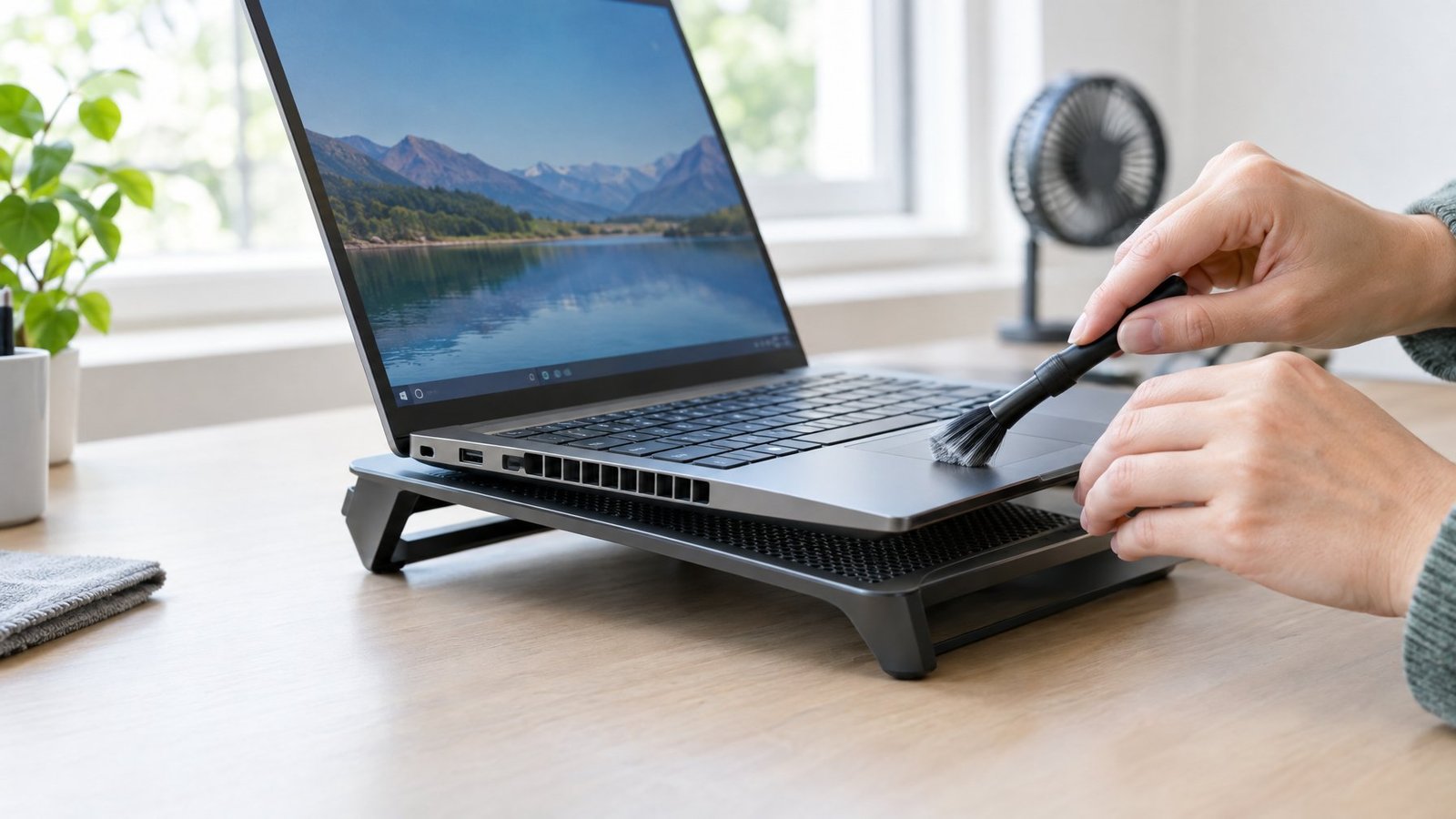
Most overheating problems follow the same path: cool the laptop down, restore airflow, check temperatures, reduce software load, and move to hardware repair only if heat persists. Once you’ve solved the problem, a few consistent habits keep it from coming back.
Clean the vents with compressed air every few months, since dust is the most common reason heat problems return. Use a hard, flat surface or a laptop stand instead of soft furniture, and avoid blocking the vents with pillows or blankets. Watch your room temperature too. Most laptops are designed to run best between about 50°F and 95°F, so a hot, stuffy room can push internal temperatures higher.
Check Task Manager occasionally for new background processes, and keep drivers and system updates current. If you ever notice a swollen case, a burning smell, or repeated shutdowns despite these steps, stop using the laptop and contact a professional.
Learning how to fix laptop overheating once gives you a routine you can repeat whenever fan noise or sluggish performance returns, long before it turns into a shutdown.
Frequently Asked Questions
Why is my laptop overheating even though nothing is running?
A hidden background process is likely using more CPU power than the apps you can see. Open Task Manager and sort by CPU usage to spot the culprit, since malware or a stuck system process can quietly push the processor hard even when the screen looks idle.
What should I do if my laptop overheats and shuts down?
Turn the laptop off, unplug it, and let it sit for at least five to ten minutes before turning it back on. Once it’s running again, clean the vents, check for background processes hogging the CPU, and move it to a hard surface before you resume regular use.
Why does my laptop get hot while charging?
Charging adds extra heat on top of whatever the processor and fans are already generating, since the battery and charging circuit both produce warmth as they work. This is normal during moderate use, but a laptop that gets uncomfortably hot while charging and idle may have a vent blockage or an aging battery worth checking.
How can I keep my laptop cooler when playing games?
Set the laptop on a hard surface or cooling pad, close background apps you don’t need, and keep the vents free of dust before long sessions. Watching GPU temperature with a tool like MSI Afterburner during gameplay helps you catch rising heat before it leads to throttling.
Can an overheated laptop be fixed?
Most overheating is fixable through cleaning, better airflow, and software adjustments, and these steps resolve the issue for the majority of laptops. When a failing fan, dried-out thermal paste, or physical damage is the cause, a hardware repair brings temperatures back to normal.

I’m Anirban Saha, Founder & Editor of TechBullish. With a B.Tech in Electronics and Communication Engineering, and 8+ years of experience as a software developer, I have expertise in electronics, software development, gadgets, and computer peripherals. I love sharing my knowledge through informational articles, how-to guides, and troubleshooting tips for Peripherals, Smart TVs, Streaming Solutions, and more here. Check Anirban’s LinkedIn Profile here.
