
Lag spikes during a video call or a sudden freeze mid-game usually trace back to one cause: packet loss. This happens when small bits of data sent across your network never reach their destination, which forces apps to pause, buffer, or resend information. The good news is that learning how to fix packet loss doesn’t require advanced networking skills. You just need to check the right things in the right order.
To fix packet loss, restart your modem and router, test a wired Ethernet connection, run a ping test to find where packets drop, then fix the weak link, whether it’s Wi-Fi interference, a faulty cable, outdated firmware, or your internet service provider.
Most cases of internet packet loss come from something close to home: a weak Wi-Fi signal, an overloaded router, or a damaged cable. Latency and jitter often show up alongside packet loss, since all three point to the same underlying traffic problems.
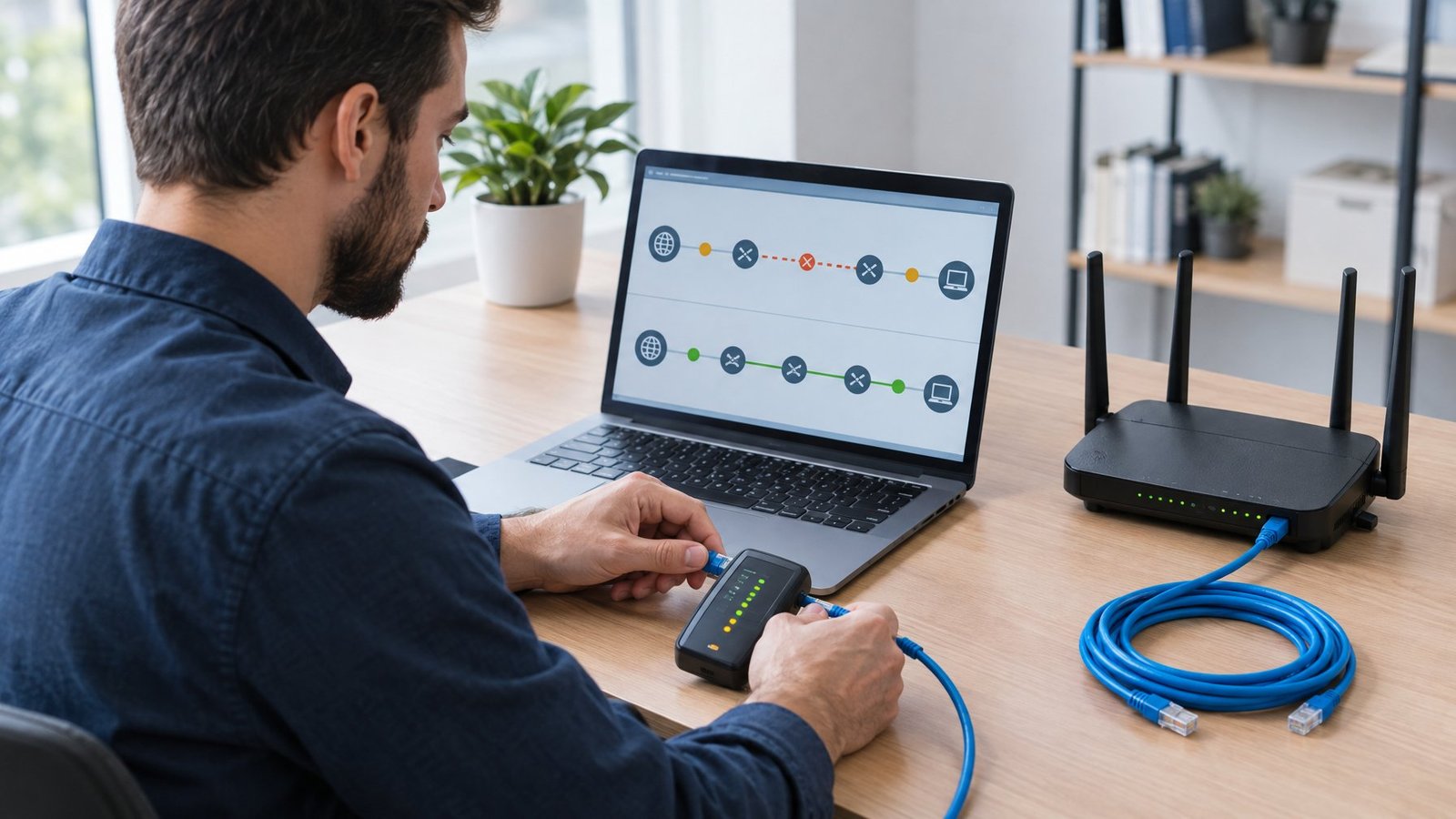
This guide walks through practical steps in the order we’d actually try them ourselves, from quick fixes you can test in five minutes to deeper checks that pinpoint exactly where packets are dropping.
What Causes Packet Loss?
Packet loss happens when data gets dropped somewhere between your device and the server it’s trying to reach. The most common causes are:
- Network congestion: Too many devices or heavy downloads competing for bandwidth, causing your router or ISP to drop packets.
- Wi-Fi interference: Distance, walls, and devices like microwaves weaken the signal and cause data to drop.
- Faulty hardware: Damaged Ethernet cables, failing router ports, or an aging modem.
- Outdated software: Old router firmware or network adapter drivers that mishandle traffic.
- VPNs and network software: Extra routing through a congested server.
- ISP or server problems: Congestion or line faults on your provider’s network, or issues with a specific game or app server.
The first four causes are inside your home and usually easy to fix yourself. The steps below start there, then move outward.
What Should You Try First?
Start with the simplest packet loss fix before touching any settings: clear out traffic, restart your hardware, and test a wired connection. These three checks solve a surprising number of cases because packet loss often comes from network congestion or overloaded devices rather than anything broken.

Pause Downloads and Other Heavy Traffic
Close any large downloads, cloud backups, or streaming happening on other devices. A modem or router pushing its limit tends to drop packets under pressure, and this shows up as lag spikes right when you need a stable connection most.
Restart the Modem and Router
Unplug the router, then the modem, and wait about 30 seconds before plugging the modem back in first. Wait for its lights to settle, then power the router back on. This creates a fresh connection to your internet service provider and clears out minor glitches that build up over days or weeks of uptime.
Compare Wi-Fi with a Wired Ethernet Connection
Plug a laptop or desktop directly into the router with an ethernet cable and run the same task that was lagging. If the problem disappears, Wi-Fi interference or distance from the router is the likely source. A wired ethernet connection removes a whole layer of variables, which makes it one of the fastest ways to narrow down where loss is happening.
How Can You Check Where Packets Are Lost?
Checking for packet loss means running a packet loss test with built-in tools like ping, traceroute, or pathping, then reading the results carefully. These tools send small test messages across your network and report how many came back, giving a clear picture of where data gets dropped.
Run a Ping Test to Your Router and an Internet Destination
First, find your router’s IP address. On Windows, open Command Prompt, type ipconfig, and look for “Default Gateway” (often 192.168.1.1 or 192.168.0.1). Then ping your router, followed by a public destination:
ping -n 100 192.168.1.1
ping -n 100 8.8.8.8
On Mac or Linux, open Terminal and use -c instead of -n:
ping -c 100 192.168.1.1
ping -c 100 8.8.8.8
When the test finishes, check the “lost” or “packet loss” percentage in the summary. If you see loss when pinging your router, the problem is inside your home network. If the router shows 0% but the public address shows loss, the problem is further out. A few lost packets out of hundreds can be normal; a consistent pattern of loss is worth digging into further.
Compare Devices, Connection Types, and Times of Day
Run the same ping test on a different device, switch between Wi-Fi and wired, and test at different hours. Constant packet loss that shows up no matter the device usually points to the router or the line coming into the house. Loss that only appears during peak evening hours often points to network congestion upstream.
Use Pathping or MTR to Investigate Persistent Loss
Pathping (on Windows) and MTR (on Mac and Linux) combine traceroute with repeated pings to show loss at each hop along the path to a destination.
On Windows, run:
pathping 8.8.8.8On Mac, install MTR with Homebrew, then run it. On Linux, install it from your package manager:
brew install mtr
sudo mtr 8.8.8.8
These tools gather data over roughly 90 seconds to a few minutes, then display loss percentages hop by hop. Loss on a router you don’t own but not on later hops often just means that router deprioritizes diagnostic replies. What matters most is whether loss continues all the way to the final destination. If it does, that’s worth saving and investigating further; if the destination shows no loss, the application is probably fine even if earlier hops look alarming.
How Much Packet Loss Is Acceptable?
Use these general benchmarks to judge your test results:
| Packet Loss | What It Means |
|---|---|
| 0% | Ideal. No action needed. |
| Under 1% | Generally fine for browsing, streaming, and most calls. |
| 1–2.5% | Noticeable in gaming and video calls as stutters or choppy audio. |
| Over 2.5% | A real problem. Expect lag, rubber-banding, and dropped calls. |
Online gaming and VoIP are the most sensitive, so even 1% loss can feel worse there than in a web browser.
How to Fix Packet Loss on Your Home Network?
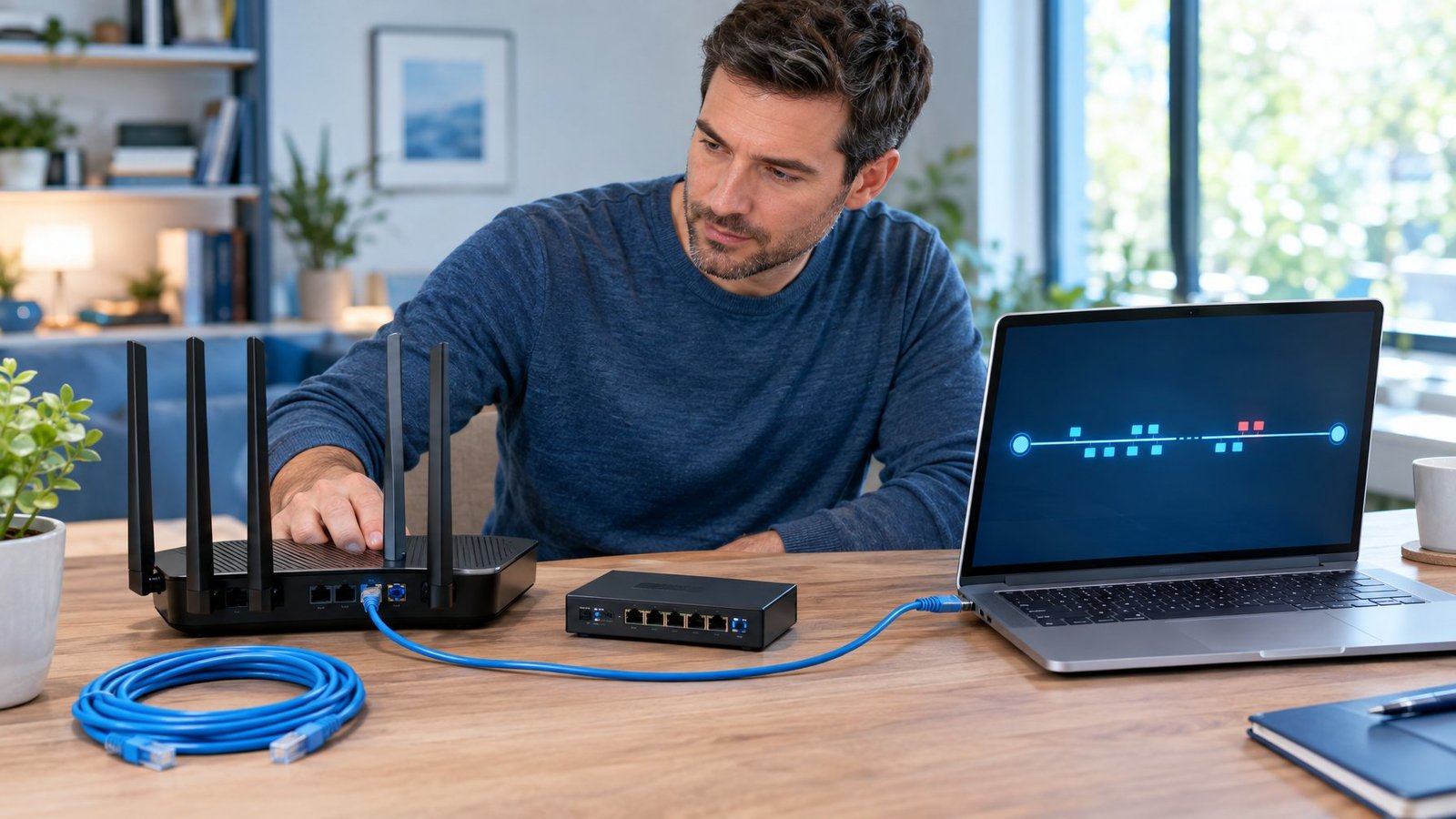
Reducing packet loss at home usually comes down to fixing a weak signal, updating outdated software, or managing how much traffic competes for bandwidth at once. Each of the steps below targets a different common cause, so working through them in order saves time.
Improve Wi-Fi Signal or Replace a Faulty Ethernet Cable
Move the router to a more open, central spot and away from thick walls, microwaves, and cordless phones, since wi-fi interference from these sources causes dropped packets. If you’re on a wired setup, swap the ethernet cable for a known-good one; a cracked or bent cable can quietly cause loss that’s easy to miss.
Check Router Ports, Firmware, and Network Adapter Drivers
Try a different port on the router, since a single damaged port can affect one device while others work fine. Check for a router firmware update through the manufacturer’s app or admin page, as outdated firmware can mishandle traffic under load. On the computer side, update network adapter drivers through Device Manager by right-clicking the network adapter and selecting Update Driver, or roll back a recent driver update if problems started right after one.
Control Congestion with QoS or SQM
Quality of Service (QoS) settings let a router prioritize certain traffic, like video calls or gaming, over bulk downloads. Many home routers include a QoS section in their settings. For bufferbloat specifically, where a router’s buffer fills up and delays everything behind it, Smart Queue Management (SQM) adds active queue management on top of basic prioritization. SQM is available on router firmware like OpenWrt and works by shaping traffic slightly below your connection’s real speed, which keeps the buffer from filling up in the first place.
Test Without a VPN or Other Network Software
Disconnect any VPN and temporarily disable other network software, then rerun your test. A VPN routes every packet through an extra server, and if that server or the path to it is congested, it can introduce loss that has nothing to do with your home network.
What If the Loss Starts Beyond Your Home?

When loss shows up consistently past your router, the cause usually sits with your internet service provider, your line, or a specific server you’re connecting to. At that point, the fix shifts from your own equipment to building a case your ISP or a game’s support team can act on.
Document Possible ISP Congestion or Line Problems
Run pathping or MTR at different times of day and save the results. ISP congestion often shows a pattern: loss gets worse during evening peak hours and clears up overnight. A physical line problem, by contrast, tends to show up at all hours and may come with noticeably high ping even on a simple ping test.
Check Whether the Issue Is Limited to One Game Server
Online gaming traffic typically runs over UDP, which doesn’t resend lost packets automatically, so even small amounts of loss show up as skipping or rubber-banding. Test connections to more than one game or server region. If gaming packet loss happens only on one server or one title, the problem likely sits with that server, not your connection.
Save ping and pathping or MTR output with timestamps before contacting anyone. An ISP’s support team can act faster on a documented pattern of loss than a vague description of lag. If you’re in the US and the problem remains unresolved after contacting your provider, you can file a complaint through the FCC’s consumer complaint center.
Fix the Failing Link, Then Test Again
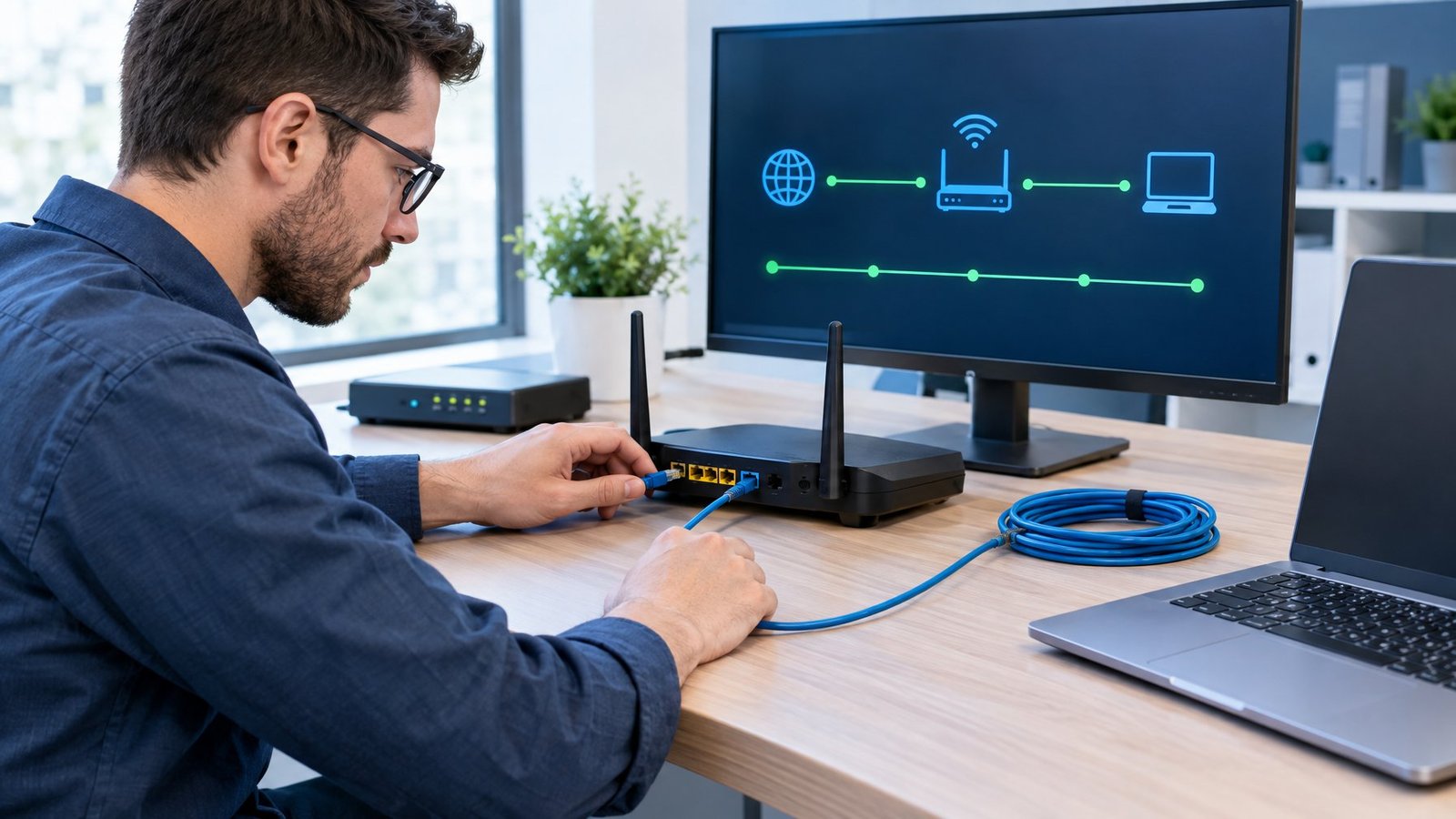
Learning how to fix packet loss comes down to finding the one weak link causing it, fixing that specific piece, and retesting to confirm the fix held. Chasing every possible cause at once wastes time and makes it hard to tell what actually worked.
Work through the order this guide laid out: quick resets first, then testing tools to locate the loss, then home network fixes, then ISP or server-side issues. Each step either solves the problem or rules out a cause, narrowing down where to look next.
Once a fix seems to work, don’t stop at one good test. Run ping or pathping again over a longer stretch, and check at a different time of day if the original problem was intermittent. A connection that looks clean for two minutes can still show loss under sustained load or during peak hours.
Frequently Asked Questions
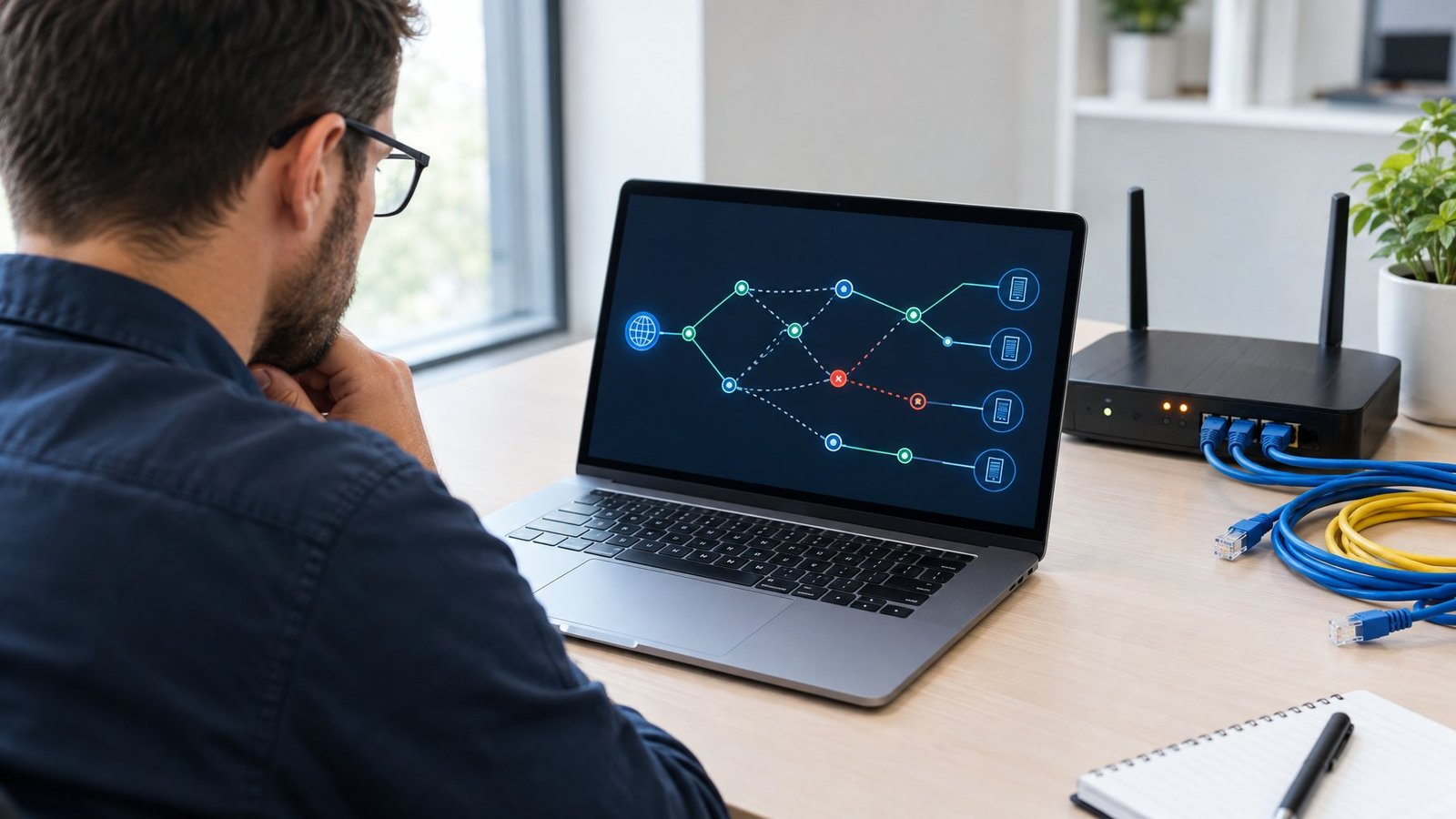
Ethernet removes Wi-Fi interference but doesn’t fix every cause of loss. A damaged cable, a bad port on the router, outdated network adapter drivers, or congestion further along your ISP’s network can all cause packet loss on a wired connection. Try a different cable and a different port before assuming the problem lies elsewhere.
Start with a wired ethernet connection instead of Wi-Fi, since gaming traffic is sensitive to even small amounts of jitter and loss. Pause downloads and other devices using bandwidth, check for router firmware updates, and test whether the loss happens on one game server specifically or across multiple games. If it’s limited to one server, the issue likely sits outside your home network.
Run the built-in network test on the console first. Both consoles have test tools under their network settings menus, and you can find step-by-step help on the Xbox network troubleshooting and PlayStation connection support pages.
A small amount of occasional packet loss, under 1 to 2%, usually goes unnoticed in most everyday use. At 2.7%, sensitive activities like video calls, online gaming, or VoIP calls will likely show visible glitches, stutters, or dropped audio. It’s worth tracing with a ping or pathping test to see if the loss is constant or tied to specific times or devices.
You can’t fix an ISP’s network infrastructure directly, but you can document the problem clearly enough for their support team to act on it. Save ping and pathping or MTR results showing consistent loss at the destination, note the times it happens, and share that with your provider’s technical support. If you’re in the US and the problem remains unresolved after contacting your provider, you can file a complaint through the FCC’s consumer complaint center.

I’m Anirban Saha, Founder & Editor of TechBullish. With a B.Tech in Electronics and Communication Engineering, and 8+ years of experience as a software developer, I have expertise in electronics, software development, gadgets, and computer peripherals. I love sharing my knowledge through informational articles, how-to guides, and troubleshooting tips for Peripherals, Smart TVs, Streaming Solutions, and more here. Check Anirban’s LinkedIn Profile here.
