
Learning how to fix weak Wi-Fi signal problems starts with finding where the slowdown actually occurs. When video calls freeze in the kitchen or streams buffer in the bedroom, the fastest way to fix a weak Wi-Fi signal is to test where the problem lives, move the router, and adjust bands or hardware accordingly. Most homes do not need expensive new equipment to restore high speeds.
Quick Steps to Fix Weak Wi-Fi Signal
- Test the connection: Compare download speeds next to the router against weak rooms to pinpoint the drop-off.
- Reposition the router: Elevate the router in a central, open location away from dense walls and appliances.
- Switch Wi-Fi bands: Shift nearby devices to 5 GHz or 6 GHz while leaving long-range devices on 2.4 GHz.
- Expand coverage: Deploy a wired access point, mesh network, or extender for stubborn dead zones.
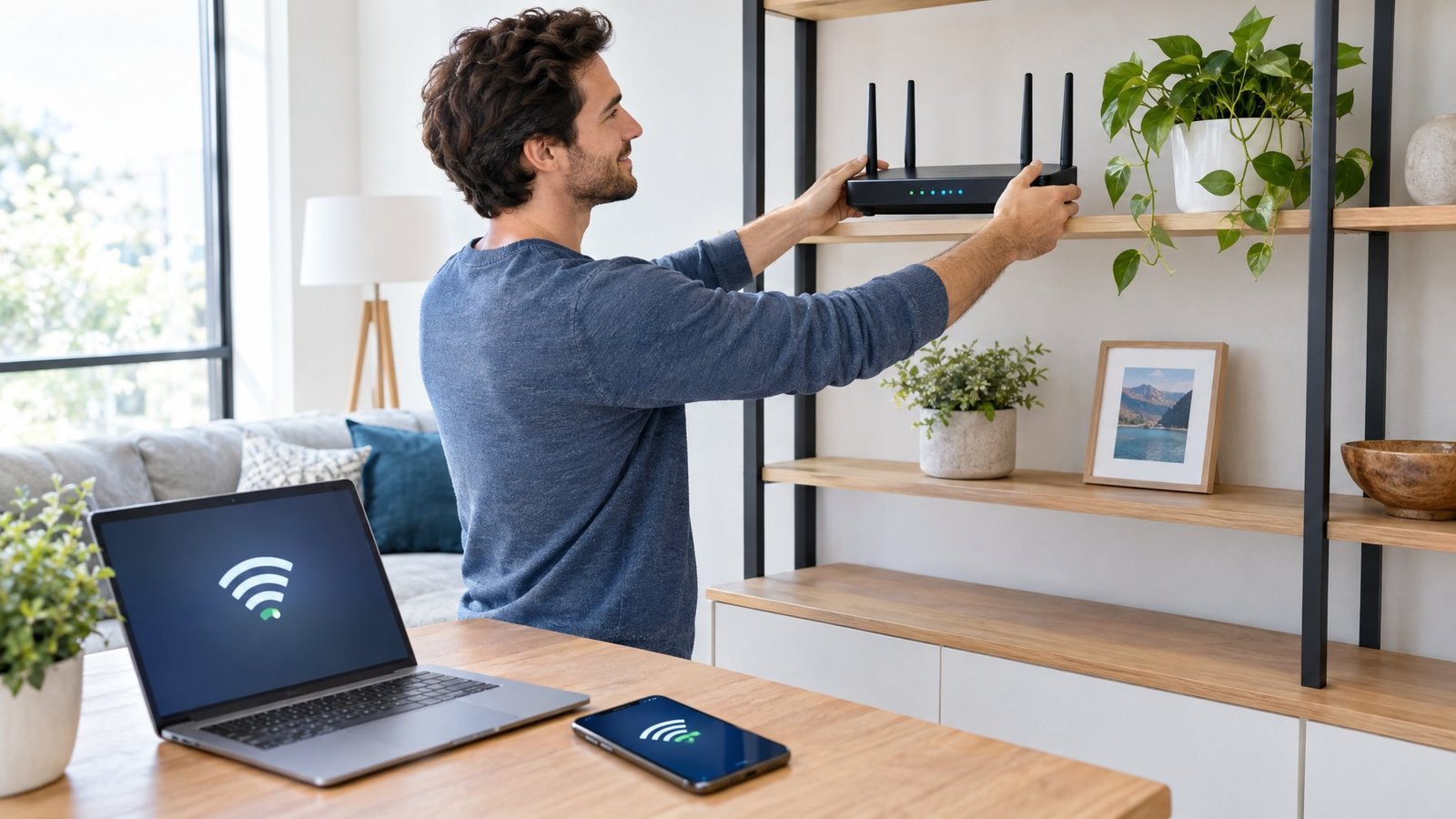
We’ve walked through how to fix weak wifi signal issues more times than we can count, and the pattern is almost always the same. A small placement change or a channel switch fixes more weak spots than a brand-new router ever does. This guide follows the order that gets results fastest: test first, then fix.
Is the Problem Your Wi-Fi Signal or Your Internet Connection?
Before touching the router, figure out whether you’re dealing with a weak Wi-Fi signal or poor internet speed. These are different problems with different fixes, and mixing them up wastes time.
Wi-Fi signal strength is measured by a value called RSSI, which tells you how strong the wireless connection is at a given spot. A Wi-Fi analyzer app, such as NetSpot, can show that number room by room and flag dead zones on a simple map. Internet speed, on the other hand, is about how much data your plan delivers, which you can check at Speedtest.net regardless of how strong your Wi-Fi signal looks.

Compare Speeds Near the Router and in the Weak Room
Open Speedtest.net standing next to the router and run a baseline check. Then run the test in the room with problems.
A big drop between the two points to a Wi-Fi signal issue. Similar slow internet speed in both spots usually points to your provider plan or upload speed instead.
Check Signal Strength and Find Dead Zones
Open a Wi-Fi analyzer and walk through the house room by room. Running a survey tool like NetSpot makes it easy to track dead zones near exterior walls, basements, and distant rooms.
Test Another Device Before Changing Your Network
Check whether the problem happens on one device or all of them. If only one phone or laptop struggles, the issue is likely with that device, not the whole network.
Restart the Router and Check for a Wider Outage
Unplug the router and modem, wait 30 seconds, then plug the modem in first and the router second. If every device in the house is slow after that, check with your internet provider for a service outage before doing anything else.
How to Fix Weak Wi-Fi Signal by Moving Your Router

Router placement fixes more weak Wi-Fi problems than any setting ever will. Even a high-performance modern router loses a huge chunk of its range when stuck in a closet or behind the TV. To improve Wi-Fi coverage across your living space, start by getting the hardware out in the open.
Choose a Central, Elevated, Open Location
Put the router near the middle of the home, roughly four feet off the floor, on a shelf or table rather than the ground. A central spot spreads the signal evenly instead of pushing most of it toward one side of the house.
Keep Walls, Metal, and Appliances Out of the Signal Path
Move the router away from metal file cabinets, mirrors, and thick walls, since these block or bounce the signal. Microwaves, cordless phones, Bluetooth speakers, and USB 3.0 devices also interfere with the 2.4 GHz band, so give the router some breathing room from these gadgets.
Retest the Rooms That Had Weak Coverage
After testing a new router placement, run the same speed and signal checks in the rooms that struggled before. If one room is still weak after improving your router placement, that is a sign you need more coverage, not more tweaking.
Adjust Bands and Settings to Reduce Interference
Picking the right band and channel clears up interference without buying anything. The 2.4 GHz band travels farther through walls, while 5 GHz and 6 GHz move faster at shorter range, so the fix depends on where each device sits.
Choose 2.4 GHz for Reach or 5 GHz and 6 GHz for Nearby Devices
Connect devices far from the router, like a garage camera or a basement speaker, to the 2.4 GHz band for better reach. For high-bandwidth tasks nearby, moving devices to the 5 GHz band or 6 GHz provides faster speeds with less competing noise.
| Wi-Fi Band | Range & Wall Penetration | Speed Potential | Best Device Use |
|---|---|---|---|
| 2.4 GHz | Longest reach; penetrates walls easily | Moderate (up to 450–600 Mbps) | Smart plugs, outdoor cameras, distant rooms |
| 5 GHz | Medium reach; reduced by walls | High (up to 1300+ Mbps) | 4K streaming, gaming, work laptops |
| 6 GHz | Shortest reach; open line of sight | Maximum (clean, zero interference) | Modern Wi-Fi 6E/7 phones and PCs nearby |
Find a Less Crowded Channel and Set a Suitable Channel Width
On the 2.4 GHz band, channels 1, 6, and 11 don’t overlap with each other, cutting down on channel congestion from neighbors. Peak hours often bring heavy network congestion across shared wireless airwaves.
Switching channels relieves this network congestion and preserves steady bandwidth. Set the 2.4 GHz channel width to 20 MHz for stability, and leave 5 GHz and 6 GHz on Auto.
Update Firmware and Check the Router’s Wireless Settings
Open the router’s admin page and check for a firmware update, since outdated firmware can cause dropped connections and slow speeds. A modern router often updates automatically, but checking manually ensures you have the latest performance patches.
Reviewing your router settings lets you confirm channels are optimized and that the device broadcasts across every available band. Adjusting advanced router settings, like disabling legacy transmission protocols or enabling beamforming, can provide an immediate boost to your connection stability.
Troubleshoot a Phone or Computer That Still Struggles
If one phone keeps dropping Wi-Fi while everything else connects fine, forget the network on that device and rejoin it. You can also reset network settings on the phone or laptop to clear out corrupted profiles and glitches before assuming the router is at fault.
Add Coverage When One Router Cannot Reach Every Room
A single router rarely covers a large or multistory home evenly, no matter how well it’s placed. The right fix depends on whether you have existing Ethernet wiring, how big the home is, and how old the current router is.
Use a Wired Access Point When Ethernet Is Available
An access point connected by Ethernet backhaul delivers a more stable, faster connection than relying on a wireless hop between devices. This works well in homes already wired for Ethernet, or in houses with thick walls where wireless signals struggle to pass through floors.
Running an Ethernet backhaul eliminates interference between rooms and ensures maximum throughput at each access point. Relying on a reliable wired backhaul keeps local wireless bands open for roaming devices.
Choose Mesh Wi-Fi for Larger or Multistory Homes
A mesh Wi-Fi system uses multiple nodes placed around the home to blanket every room in signal. Setting up a mesh Wi-Fi system provides seamless roaming under a single network name.
Connecting these nodes through a wired backhaul ensures top speeds, though a tri-band router design also keeps wireless backhaul traffic moving smoothly. Choosing a tri-band router model provides a dedicated radio frequency purely for inter-node communication.
Using a wired backhaul between satellite nodes eliminates speed loss across floors. Place satellite nodes at the same height as the main unit, away from walls and metal.
Know When a Wi-Fi Extender or Powerline Adapter Makes Sense
A plug-in wifi extender works well for a single weak room when placed halfway between the router and that area. While a Wi-Fi extender cuts bandwidth in half over wireless hops, it remains an affordable fix. Powerline adapters send a signal through your home’s electrical wiring instead, which helps in older homes where running a mesh node isn’t practical.
| Expansion Option | Connection Method | Speed Retention | Best Fit |
|---|---|---|---|
| Wired Access Point | Ethernet cable to router | 100% full speed | Homes with existing Ethernet cabling |
| Mesh Wi-Fi System | Dedicated wireless or wired backhaul | High speed, seamless roaming | Multi-story or large homes over 2,000 sq ft |
| Wi-Fi Extender | Repeats existing wireless signal | 50% bandwidth reduction | Budget fix for a single dead zone |
| Powerline Adapter | Sends signal over electrical wiring | Moderate (varies by home wiring) | Thick plaster or concrete walls |
Replace an Older Router Only When It Is the Limiting Factor
Swap out a router only if it predates Wi-Fi 5 or lacks MU-MIMO support for handling several devices at once. Upgrading to a modern router built for Wi-Fi 6 or Wi-Fi 6E handles more connected devices and reaches further.
Adopting Wi-Fi 6 improves battery efficiency and network capacity for smart homes. Meanwhile, choosing Wi-Fi 6E opens up clear frequencies on the 6 GHz spectrum. Even so, buying another modern router will not fix problems rooted in poor placement or interference.
How to Fix Weak Wi-Fi Signal Based on Your Test Results
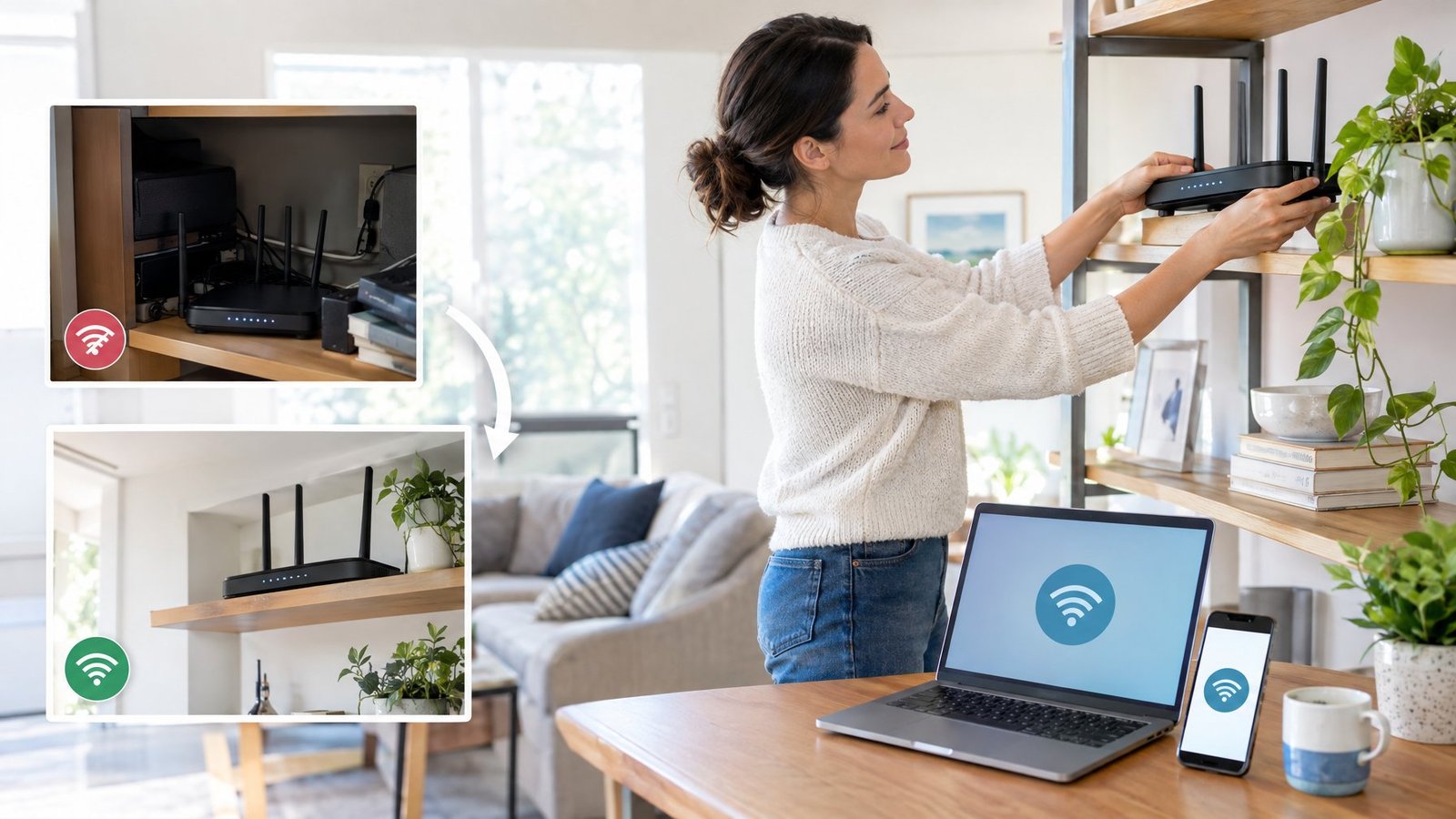
The right way to fix weak Wi-Fi signal problems is to let your test results decide the next step instead of guessing. If tests show slow internet speed across every room, the issue sits with your provider plan, not your router.
If one room tested weak but the rest of the house looked fine, move the router first and retest before changing any settings. If placement didn’t solve it, work through the band and channel adjustments next, since those often clear up the remaining weak spots.
Only add a mesh Wi-Fi system, access point, or extender once you’ve confirmed placement and settings aren’t the real cause. Knowing how to fix weak Wi-Fi signal issues comes down to following this order: measure, move, adjust, then expand only if needed.
Frequently Asked Questions

Why is my Wi-Fi signal weak all of a sudden?
A sudden drop usually comes from a new source of interference, like a neighbor’s router switching channels, a new appliance nearby, or a firmware glitch. Restarting the router and modem clears many of these sudden issues, and checking for a firmware update rules out a bug causing the slowdown.
How can I boost Wi-Fi through walls without buying a booster?
Focusing on smart router placement is the best free fix. Move the router to a central, elevated spot and switch far-away devices to the 2.4 GHz band, since it passes through walls better than 5 GHz or 6 GHz.
Angling the router’s antennas diagonally also helps spread signal across multiple floors without any new hardware.
Why is Wi-Fi weak on my phone but fine on other devices?
When only one device struggles, the problem is usually with that device’s settings rather than the network itself. Forgetting the Wi-Fi network on the phone and rejoining it, or resetting its network settings, often resolves this without touching the router.
Why is my Wi-Fi signal strong but my internet slow?
Strong signal bars only measure the wireless connection between your device and the router, not the speed coming from your internet provider. Check your internet speed at Speedtest.net right next to the router. If it’s slow there too, the issue is with your provider plan, not your Wi-Fi coverage.
Where should I put a Wi-Fi extender to help a weak room?
Place the extender roughly halfway between the router and the weak room, about 25 to 40 feet from the router for models with external antennas. Keep it at the same height as the router, around four feet up, with its antennas pointing straight up and its front facing the router.

I’m Anirban Saha, Founder & Editor of TechBullish. With a B.Tech in Electronics and Communication Engineering, and 8+ years of experience as a software developer, I have expertise in electronics, software development, gadgets, and computer peripherals. I love sharing my knowledge through informational articles, how-to guides, and troubleshooting tips for Peripherals, Smart TVs, Streaming Solutions, and more here. Check Anirban’s LinkedIn Profile here.
