
A faulty Windows key is one of those small annoyances that throws off your whole workflow. You tap it out of habit to open Start or jump into search, and nothing happens.
Before you panic about a broken keyboard, know that most cases of a windows key not working trace back to a software setting, a lock switch, or a driver hiccup rather than a hardware failure.
The fastest fix for most people is checking for a gaming keyboard’s Win Lock switch or Game Mode toggle, since these intentionally disable the Windows key and are easy to miss.
If that’s not the cause, Windows 10 and Windows 11 both have built-in accessibility settings, driver tools, and repair commands that resolve the rest.
This walkthrough moves from the quickest checks to the deeper fixes, so you can stop at whichever step solves it.
Check the Key and Unlock Your Keyboard First
Start with the simplest explanations before touching any settings. A physical lock switch or a loose connection causes more Windows key problems than people expect, and ruling these out takes less than two minutes.
Does Start Open Without the Physical Windows Key?
Try opening Start with your mouse instead of the key. If Start opens normally by clicking it, the issue is isolated to the key itself, not the Start Menu or Windows 11 system files.
Next, test a few keyboard shortcuts that use the Windows key, like Win + I for Settings or Win + E for File Explorer. If none of them work, the key or its driver is the problem. You can also turn on the on-screen keyboard through Settings > Accessibility > Keyboard to confirm Start opens when you click the on-screen Windows key.
Is the Keyboard Connected and the Key Responsive?
Unplug and reconnect a wired keyboard, or re-pair a wireless one, to rule out a loose connection. Press the Windows key firmly a few times and listen for the usual click; a key that feels mushy or doesn’t register at all might have debris stuck underneath it.
If you have a spare keyboard, plug it in and test the Windows key there. This single check tells you right away whether the fault is in Windows 10 or Windows 11, or in the keyboard hardware itself. For deeper hardware-level symptoms like unresponsive or sticking keys across the board, our guide on how to fix keyboard not typing covers additional diagnostic steps.
Is Win Lock or a Gaming Profile Blocking the Key?
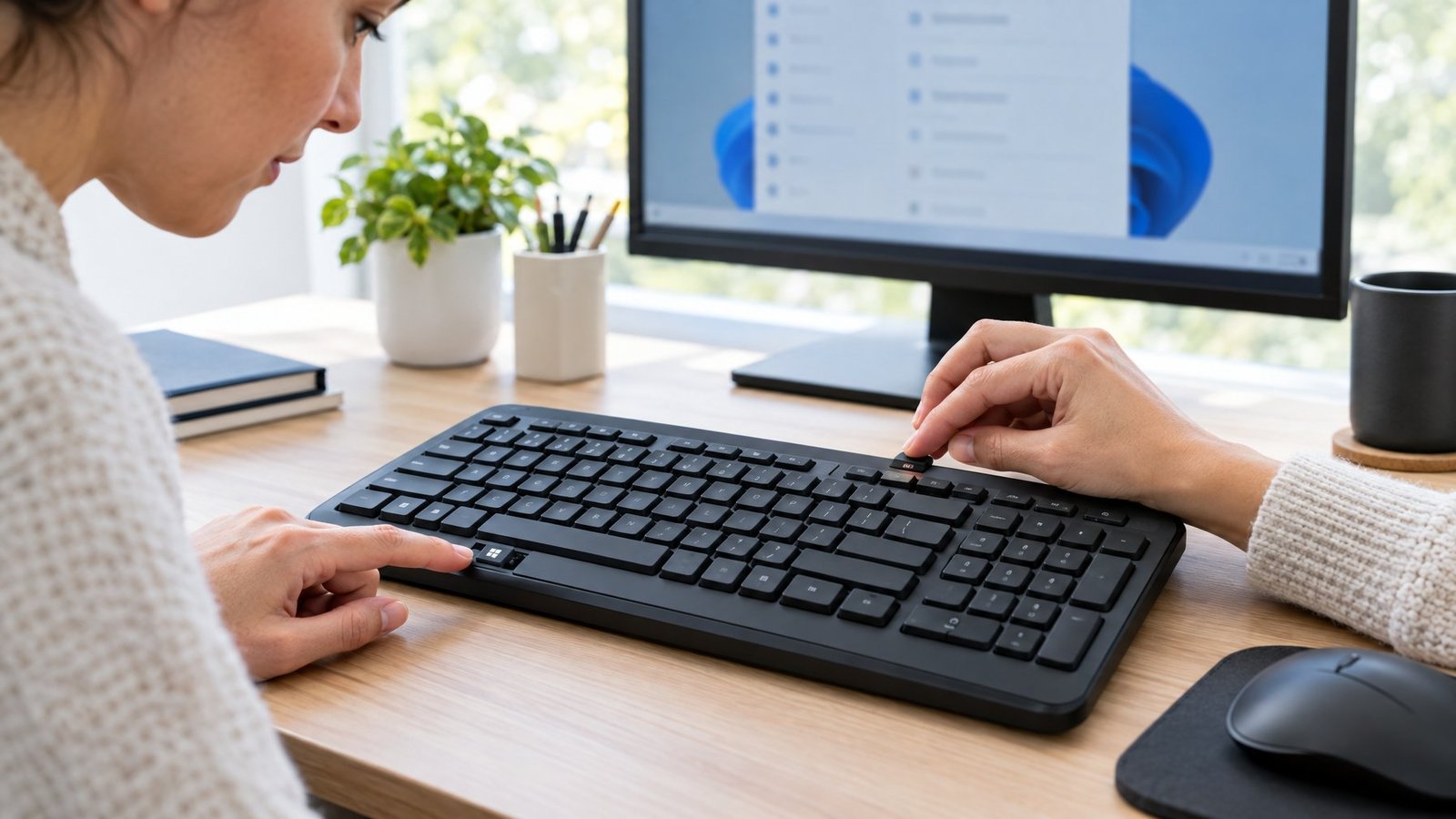
Many gaming keyboards include a dedicated Game Mode or Win Lock switch that disables the Windows key on purpose, so it can’t interrupt gameplay. Look for a key combination like Fn + F6, Fn + F12, or a labeled Game Mode button, since the exact shortcut varies by model.
Logitech keyboards such as the G610, G613, and G810 disable the Windows key by default whenever Game Mode is active, and Logi Options+ or Logitech G HUB lets you re-enable individual keys inside that mode. Razer Synapse offers similar profile controls for Razer keyboards. If you use a mechanical keyboard with custom firmware or software, check its companion app for any key-disable feature before moving to Windows settings.
Once hardware and lock switches are ruled out, the next likely cause lives inside Windows itself. Accessibility settings, a frozen Start Menu process, and gaming-related modes are the most common software culprits.
Turn Off Filter Keys and Check Sticky Keys
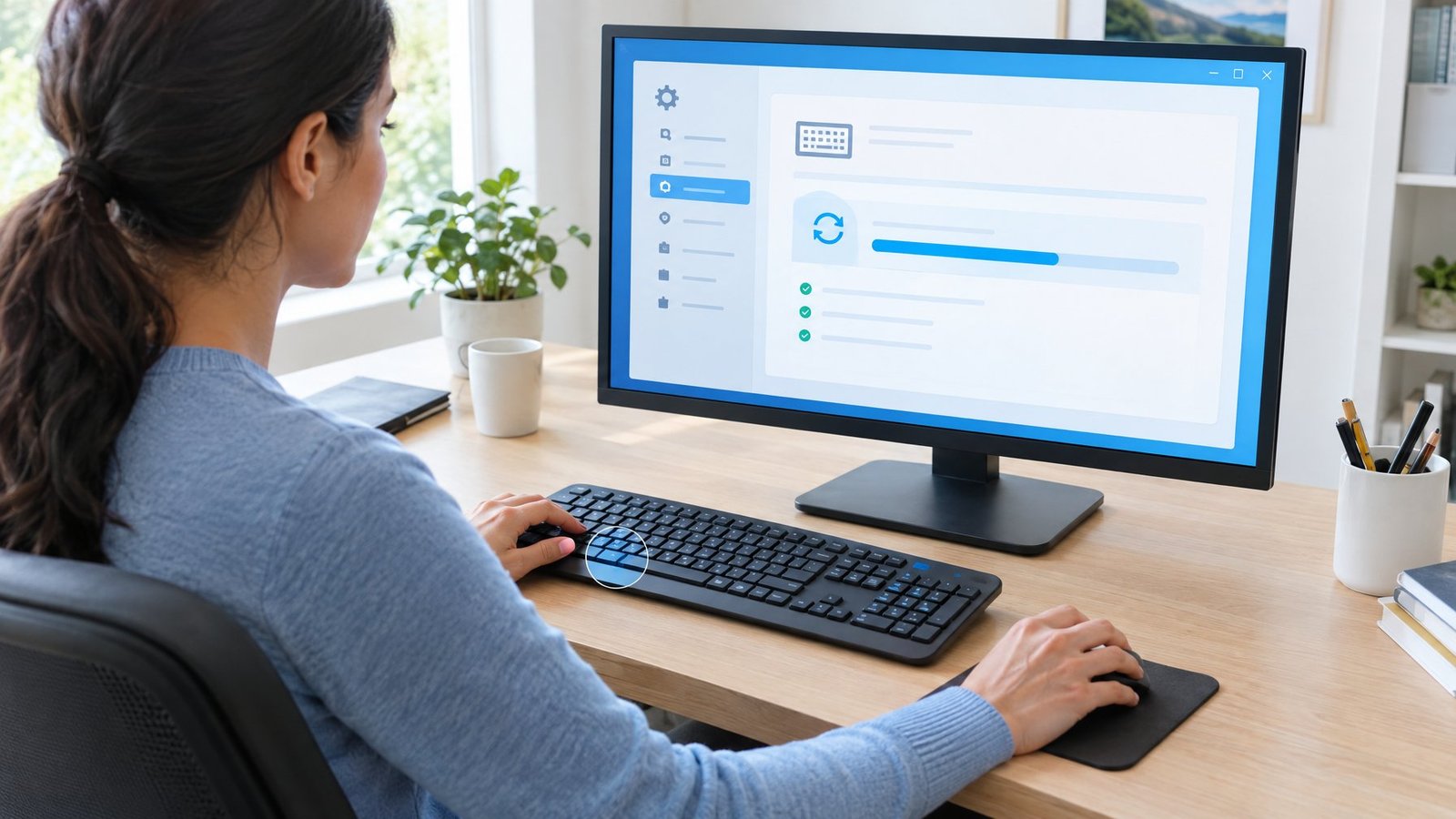
Filter Keys can make Windows ignore quick or repeated key presses, which sometimes blocks the Windows key from registering. Go to Start > Settings > Accessibility > Keyboard and turn off the Filter Keys toggle.
While you’re there, check Sticky Keys too. It’s meant to help with pressing multiple keys at once, but an odd configuration can interfere with Windows key shortcuts. Toggle it off, restart the keyboard shortcut test, then toggle it back on only if you actually use it.
Restart Windows Explorer
A frozen Windows Explorer process is a frequent reason the Start Menu stops responding to the Windows key, even though the rest of your PC works fine. Press Ctrl + Shift + Esc to open Task Manager, find Windows Explorer in the list, right-click it, and select Restart.
Give it a few seconds to reload, since your taskbar will briefly disappear. Test the Windows key again once the desktop returns.
Check Game Mode Only If the Problem Happens During Games
If the Windows key only fails while a specific game is running, Windows 11’s Xbox mode or a game’s exclusive fullscreen mode could be disabling certain shortcuts intentionally. Press Win + F11 to exit Xbox mode if it’s active, or alt-tab out of the game to see if the key works on the desktop. If the key works fine outside of games, there’s no need to disable anything system-wide.
Refresh Drivers and Install Available Updates
A missing or corrupted keyboard driver is one of the most common technical reasons a key stops responding. Updating, reinstalling, or rolling back the driver through Device Manager usually brings it back without any extra software.
Update or Reinstall the Keyboard Driver
Open Device Manager by right-clicking Start, expand Keyboards, then right-click your keyboard and choose Update driver. Select “Search automatically for updated driver software” and let Windows look for a newer version.
If that doesn’t find anything, try reinstalling instead. Right-click the keyboard, select Uninstall device, confirm it, then restart your PC. Windows reinstalls the driver automatically on startup in most cases.
Check Windows Update and Manufacturer Drivers
Windows Update handles driver updates for most hardware automatically, so it’s worth checking for pending updates under Settings > Windows Update. If your keyboard came from a brand with its own software, like a gaming keyboard or a laptop manufacturer, download the latest driver directly from that company’s support site for the most reliable match.
Note that Windows 10 reached its end of support on October 14, 2025, so devices still running it no longer receive security updates. If you’re troubleshooting on Windows 10, keep that in mind, since driver support from Windows Update itself may be more limited going forward.
Roll Back a Driver If the Problem Started After an Update
If the Windows key stopped working right after a driver or Windows update, rolling back is often faster than troubleshooting from scratch. In Device Manager, right-click the keyboard, choose Properties, go to the Driver tab, and select Roll Back Driver if the option is available. You’ll need administrator permissions to do this, and Windows will ask you to confirm a reason before completing the rollback.
Investigate Remapping and Repair Windows
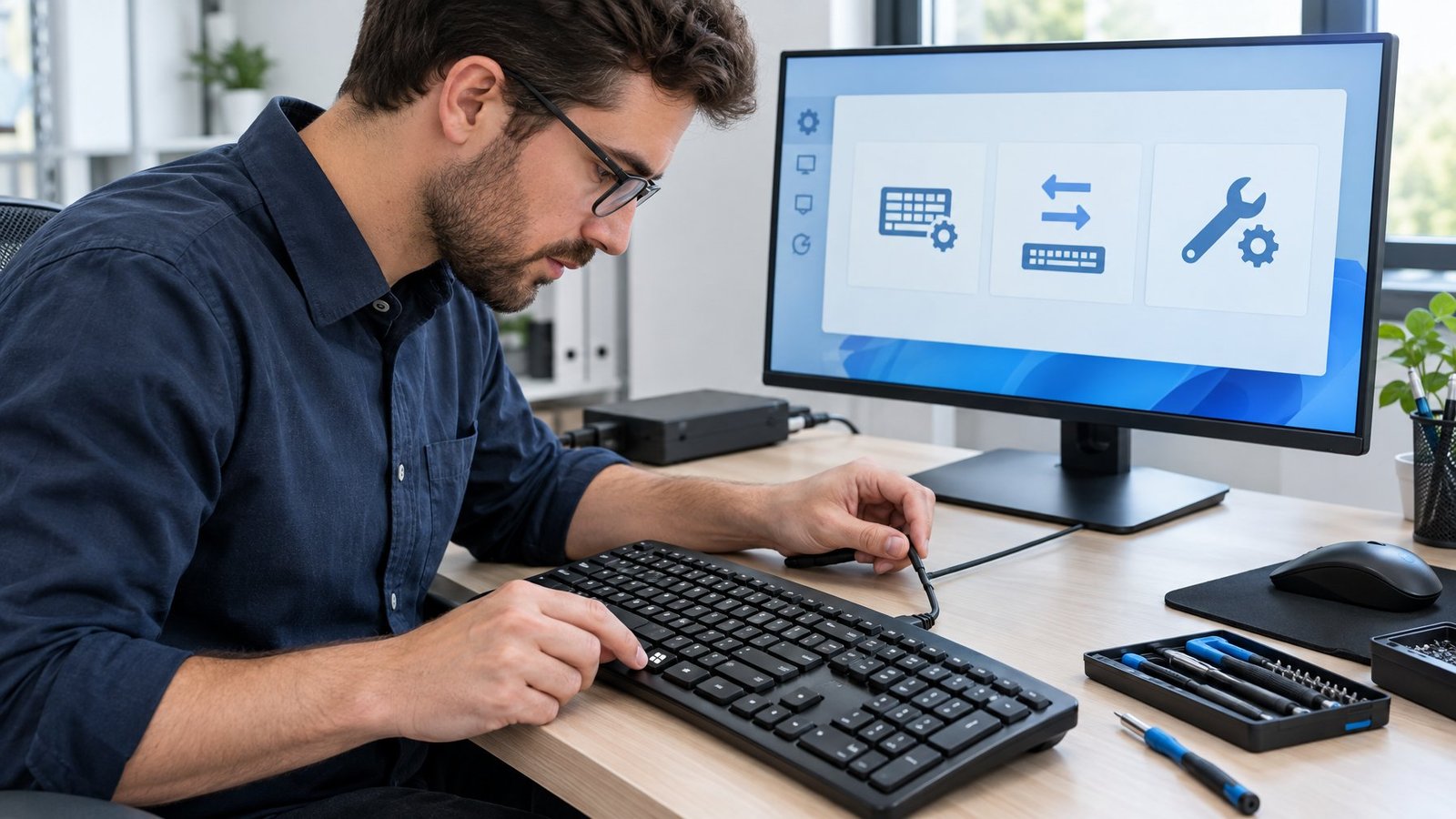
When basic fixes don’t help, the cause might be a remapping tool, a Group Policy restriction, or deeper system file corruption. These steps take more time but resolve the stubborn cases.
Remove Unwanted Keyboard Remapping Rules
Keyboard remapping software or old registry changes can quietly reassign the Windows key to do nothing. If you’ve used any keyboard remapping tool, check its profile list for a rule involving the Windows key and delete or disable it.
Check Scancode Map and Group Policy Carefully
The registry editor holds a Scancode Map value that can block or reassign the Windows key at a system level, and Keyboard Filter (available on certain Windows editions) uses similar scan code rules through Group Policy. If you or software you installed added a scancode map entry, removing it restores normal keyboard layout behavior. This step involves editing the registry directly, so back up the registry key first and proceed carefully, since mistakes here can cause other keyboard issues.
Run DISM and System File Checker
Corrupted system files can affect how Windows processes keyboard input system-wide. Open Command Prompt as an administrator and run DISM /Online /Cleanup-Image /RestoreHealth, then follow it with sfc /scannow. Each command can take several minutes, and SFC will report whether it found and repaired any corrupted files. PowerShell works as an alternative to Command Prompt for both commands if you prefer it.
Test Another User Account Before Attempting App Repairs
Create or switch to another user account and test the Windows key there. If it works fine on the second account, the problem is tied to your user profile rather than Windows itself, which points you toward profile repair instead of a full system fix.
Getting Your Windows Key Working Again
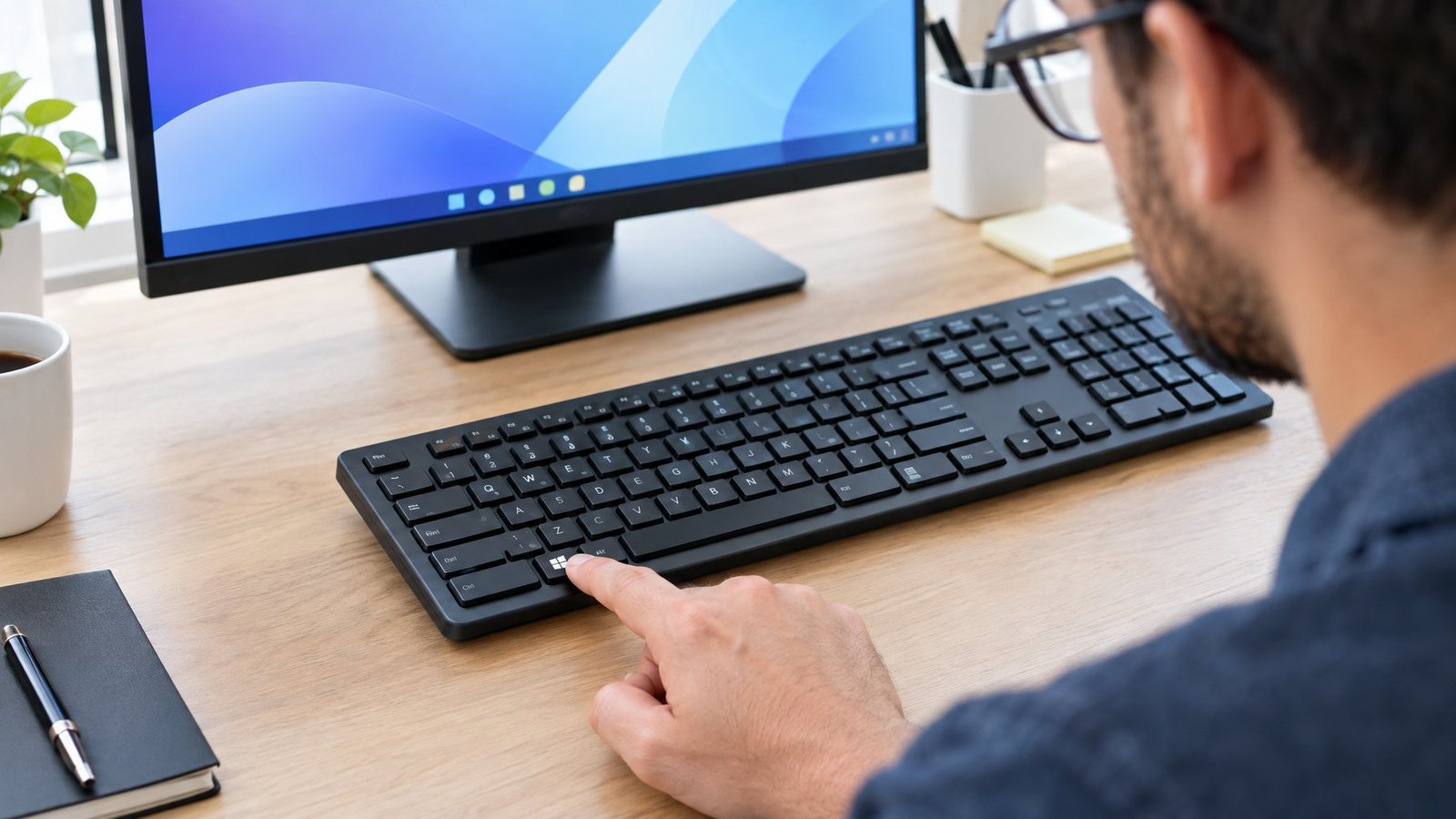
Most Windows key problems come down to three realistic causes: a gaming keyboard’s lock switch, a stuck Windows Explorer process, or an outdated driver. Working through the steps in order, starting with the physical key and ending with deeper driver and system repairs, resolves the issue for the overwhelming majority of Windows 10 and Windows 11 users without needing a new keyboard.
If you’ve worked through every step here and the key still won’t respond, that’s a stronger signal of an actual hardware fault, and testing with a second keyboard confirms it one way or the other.
Frequently Asked Questions
How do I unlock or reactivate the Windows key on my keyboard?
Check for a physical Win Lock switch or Fn + F6-style shortcut first, since many gaming keyboards disable the key this way. If you use Logitech G HUB or Razer Synapse, open the software’s key settings and re-enable the Windows key in the active profile.
Why is the Windows key not working on my external keyboard?
External keyboards often ship with their own Game Mode or lock feature that blocks the Windows key by default. Reconnecting the keyboard, checking Device Manager for a driver issue, and reviewing the manufacturer’s software for a disabled-key list usually finds the cause.
What if the Windows key works in shortcuts but does not open Start?
This points to a stuck Windows Explorer process rather than a keyboard problem. Restart Windows Explorer through Task Manager, and if that doesn’t help, check whether Start itself opens by clicking it with a mouse.
Can I fix an unresponsive Windows key without replacing the keyboard?
Yes, in most cases. Driver updates, Filter Keys and Sticky Keys adjustments, Windows Explorer restarts, and scancode map checks fix the key for the large majority of people before hardware replacement ever becomes necessary.
Do the fixes differ between Windows 10 and Windows 11?
The core steps are nearly identical, since both versions share the same Device Manager, registry editor, and accessibility settings. Windows 11’s Xbox mode and Windows 10’s Game Mode screen names differ slightly, but the underlying fix for a blocked Windows key works the same way on both.

I’m Anirban Saha, Founder & Editor of TechBullish. With a B.Tech in Electronics and Communication Engineering, and 8+ years of experience as a software developer, I have expertise in electronics, software development, gadgets, and computer peripherals. I love sharing my knowledge through informational articles, how-to guides, and troubleshooting tips for Peripherals, Smart TVs, Streaming Solutions, and more here. Check Anirban’s LinkedIn Profile here.
