
A loud laptop fan usually means one thing: your computer is working hard to cool itself down. The most common cause of a loud laptop fan is high CPU or GPU usage, often paired with dust-clogged vents that trap heat inside the case.
When the processor heats up, the fan spins faster to pull that heat out, and a blocked vent makes the fan work even harder to do the same job.

A loud laptop fan noise isn’t always a sign of trouble. Plenty of laptops ramp up their fans during video calls, game sessions, or big software updates, then quiet down once the task finishes. The problem shows up when the noise sticks around during light use, gets worse over time, or starts sounding like grinding instead of a steady whoosh.
This article walks through the usual suspects behind a loud laptop fan and gives you a path to quieter operation, whether the fix is a quick vent cleaning or a trip to a repair shop.
What Is Making the Fan Run Loud?
Fan noise almost always traces back to heat, and heat traces back to how hard your CPU or GPU is working. Checking usage levels in Task Manager or Activity Monitor tells you fast whether a busy process is the culprit or something else is going on.

When Is a Loud Fan Normal?
A fan spinning fast during gaming, video editing, or a big Windows update is doing exactly what it should. Heavy workloads raise CPU and GPU usage, which raises internal temperature, which triggers faster fan speeds to pull the heat out. As long as the laptop doesn’t freeze, shut down, or overheat, this kind of noise is just the cooling system doing its job.
Why Is It Loud During Light Use or at Idle?
A fan roaring while you’re just browsing or typing an email points to a background process eating up resources it shouldn’t. A stuck update, a runaway browser tab, or a forgotten background app can spike CPU usage even when you’re not asking much of the laptop. This is the pattern worth investigating first, since it’s often the easiest one to fix.
How to Check CPU and GPU Usage on Windows and Mac
On Windows, open Task Manager with Ctrl+Shift+Esc and click the Performance tab to see live CPU and GPU usage, or check the Processes tab to spot which app is using the most resources. On a Mac, open Activity Monitor and click the CPU tab to see System, User, and Idle percentages, broken down by process. If one app sits at the top of the list using an unusually high share of your CPU while you’re doing something simple, that app is likely behind the noise.
What Do Sudden Changes or Unusual Sounds Suggest?
A fan that suddenly gets louder after months of normal operation often means dust buildup has been accumulating gradually and just crossed a threshold. A grinding, rattling, or clicking sound is different and points to a mechanical issue with the fan itself rather than a software or dust problem. Sudden onset paired with strange sounds is the combination that deserves a closer look sooner rather than later.
How Can You Improve Airflow and Clean the Vents?
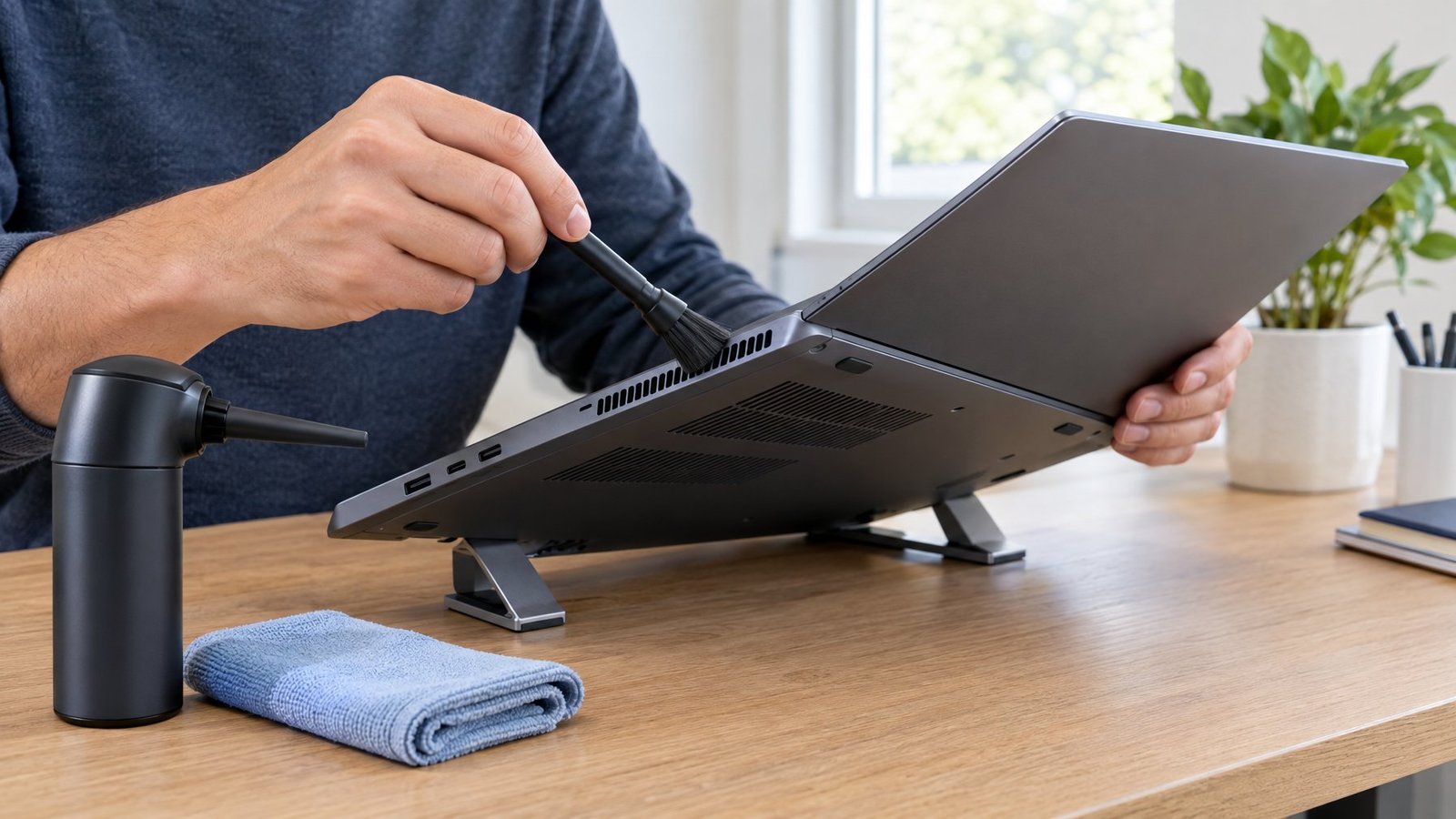
Restricted airflow forces the fan to spin faster and louder to move the same amount of heat. Dust accumulation on vents and internal fins is the most common airflow blocker, and a few minutes with compressed air often brings the noise right back down.
Move the Laptop Away from Soft Surfaces
Using a laptop on a bed, couch cushion, or your lap blocks the intake vents and traps heat inside the case. A hard, flat surface like a desk or table keeps air flowing freely underneath. Manufacturer guidance recommends keeping at least 6 inches of clearance around each vent so air has room to move.
Clean External Vents Safely
Turn the laptop off and unplug it before cleaning, then use canned compressed air to blow dust out of the vents. Hold the can upright and use short bursts rather than one long spray, since liquid propellant can damage internal parts if the can is tilted. Let the laptop sit for five to ten minutes before powering it back on so any loosened dust settles.
Consider a Stand or Cooling Pad
A laptop stand raises the machine off the desk and improves airflow underneath, while a laptop cooling pad adds extra fans to actively pull heat away. Either option supports better laptop cooling for anyone who runs demanding software for long stretches. These accessories work best alongside regular vent cleaning, not as a replacement for it.
Which Software Fixes Can Reduce Fan Noise?
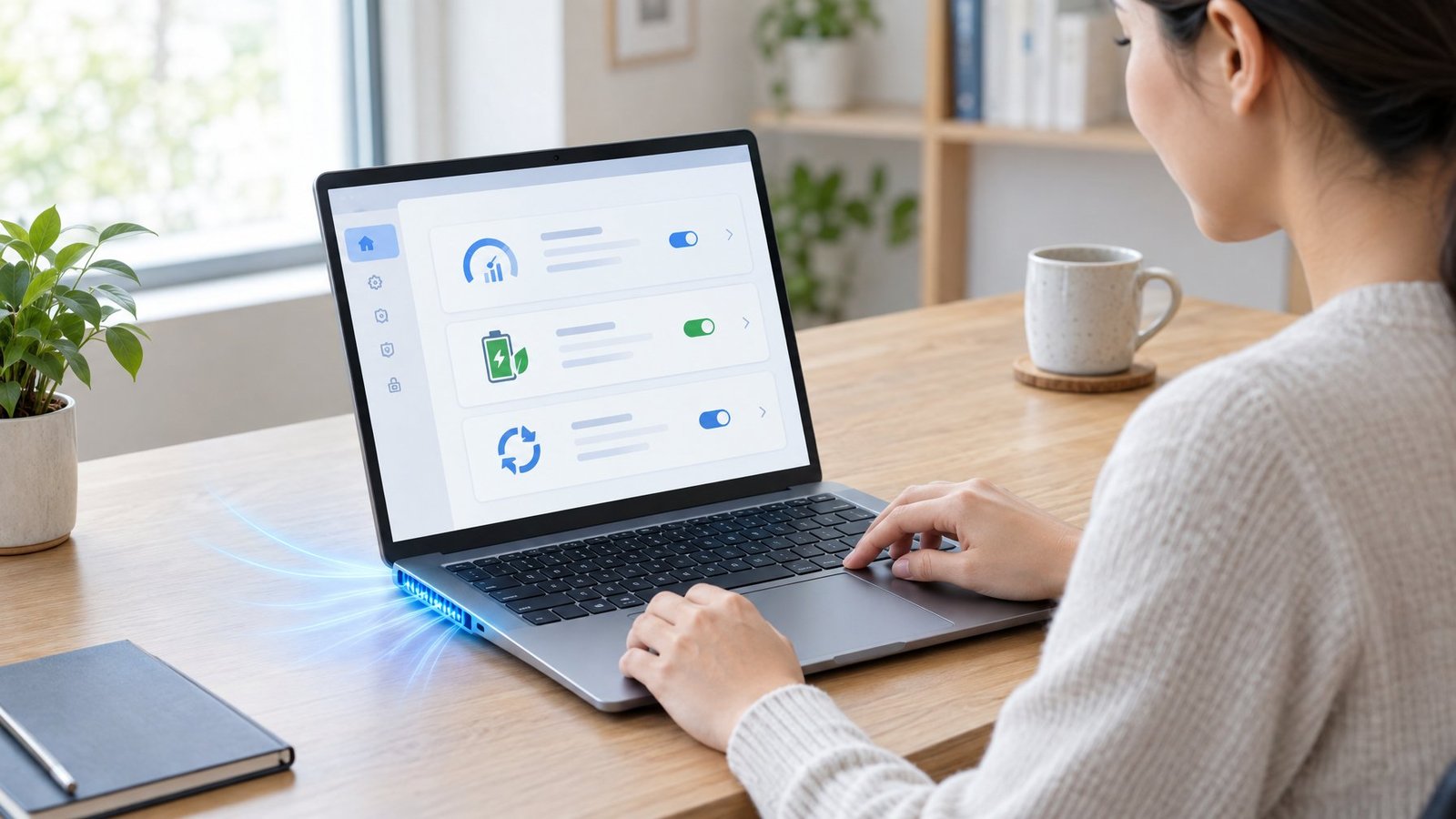
Reducing laptop fan noise often comes down to lowering the CPU workload that’s generating heat in the first place. Closing unnecessary background applications, running a malware scan, choosing a balanced power mode, and keeping drivers and the BIOS current all help the processor settle into a cooler, quieter state.
Close Unneeded Apps and Check for Malware
Background apps left open after you’re done with them keep using CPU cycles and generating heat. Closing them through Task Manager or Activity Monitor is the fastest way to cut unnecessary load. If usage stays high with nothing obvious open, run a malware scan through your antivirus software, since hidden malware can quietly consume processing power in the background.
Choose a Balanced Power Mode
Windows lets you set a power mode under Settings > System > Power & battery, with options for best power efficiency, balanced, or best performance. A balanced power mode keeps performance reasonable while avoiding the constant high CPU draw that a performance-focused setting can cause. This single change can noticeably cut down on fan activity during everyday tasks.
Install System, Driver, and Manufacturer Updates
Outdated drivers and an old BIOS version can cause inefficient power use and poor thermal management. Checking for updates through Windows Update, or through Device Manager for individual drivers, keeps hardware communicating efficiently with the system. Manufacturer tools, like HP Support Assistant, can also deliver BIOS updates that improve how the laptop manages heat and fan speed.
When Does a Noisy Fan Need Repair?
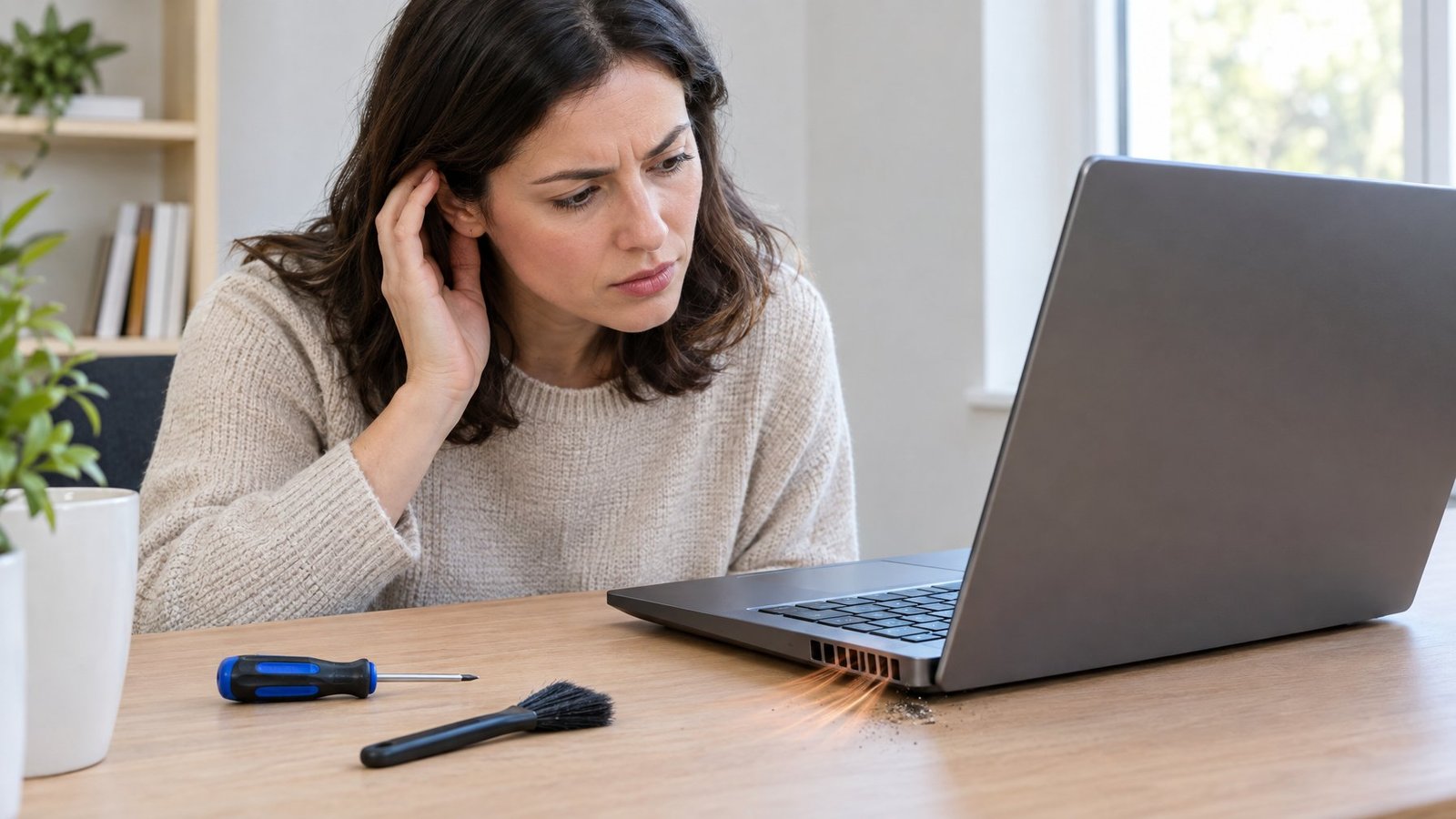
A noisy fan needs professional repair when the sound changes from a steady whoosh to grinding or rattling, or when cleaning and software fixes don’t bring the volume down. These sounds usually mean a mechanical or hardware issue rather than something you can resolve with a software setting.
Watch for Grinding, Rattling, and Overheating
A grinding or rattling noise usually means a fan blade is damaged, loose, or obstructed by something compressed air can’t remove. Pair that with a laptop that’s hot to the touch while idle, or one that freezes and restarts unexpectedly, and you’re looking at a hardware problem rather than a dust problem. These symptoms together point toward a fan that needs inspection.
Know When Internal Cleaning or New Thermal Paste May Help
Thermal paste sits between the CPU and its heat sink to transfer heat efficiently, and it dries out over several years of use. When it degrades, the processor runs hotter for the same workload, which can trigger thermal throttling, where the system deliberately slows down to avoid damage. Reapplying thermal paste and clearing internal dust that external cleaning can’t reach often resolves this kind of persistent heat buildup.
Seek Service for Persistent Noise or Performance Drops
Persistent loud noise, repeated thermal throttling, or random shutdowns after trying cleaning and software fixes call for professional service. A technician can run diagnostics that confirm whether the fan itself has failed or whether the issue sits elsewhere in the cooling system. Waiting too long on a failing fan risks further heat damage to the processor or other internal components.
A Quieter Laptop Starts with the Cause
Fan noise is a symptom, and matching the fix to the actual cause is what brings lasting quiet. Checking CPU and GPU usage first tells you whether software or hardware is driving the noise, which saves time compared to guessing at fixes.

Light, regular maintenance, cleaning vents every few months, closing unused apps, and keeping drivers current, prevents most loud-fan complaints before they start. When the noise shifts to grinding or shows up alongside overheating symptoms, that’s the signal to move from DIY steps to professional repair.
Frequently Asked Questions

Why is my laptop fan so loud when nothing is running?
A background process is likely using CPU resources even though no app is visibly open. Check Task Manager or Activity Monitor for a process using an unusually high share of CPU, since a stuck update or hidden malware often causes this pattern. A malware scan is worth running if nothing obvious shows up.
Why did my laptop fan suddenly get loud?
A sudden jump in fan noise usually means a new process started consuming more CPU, or dust buildup finally restricted airflow enough to raise internal temperature. Check which apps opened recently and look at CPU usage first. If the laptop hasn’t been cleaned in a while, dust is a strong possibility too.
Why is my laptop fan so loud while gaming?
Games push both the CPU and GPU hard, which generates more heat and triggers faster fan speeds to compensate. This is normal behavior as long as the laptop doesn’t overheat, freeze, or shut down. Lowering graphics settings or resolution can ease the load if the noise feels excessive.
Why is my laptop fan loud but not overheating?
A fan can run loud as a precaution even when the laptop isn’t dangerously hot, especially under sustained heavy use like a long update or render job. This usually reflects normal cooling behavior rather than a fault. If the laptop stays loud at idle with no heavy tasks running, that pattern deserves a closer look.
How do I quiet a loud laptop fan in Windows 11?
Start by setting the power mode to Balanced under Settings > System > Power & battery, then close unused background apps through Task Manager. Running a quick malware scan and checking for Windows updates and driver updates rounds out the software-side fixes. These steps address the most common causes of excess fan noise.
Is a loud laptop fan bad for the laptop?
A loud fan by itself isn’t harmful, since it means the cooling system is actively removing heat. The real risk comes from the heat itself if the fan can’t keep up, which can lead to thermal throttling or, over time, component damage. Persistent loud noise paired with overheating symptoms is the combination worth addressing.

I’m Anirban Saha, Founder & Editor of TechBullish. With a B.Tech in Electronics and Communication Engineering, and 8+ years of experience as a software developer, I have expertise in electronics, software development, gadgets, and computer peripherals. I love sharing my knowledge through informational articles, how-to guides, and troubleshooting tips for Peripherals, Smart TVs, Streaming Solutions, and more here. Check Anirban’s LinkedIn Profile here.
