
A dead touchpad can turn a quick task into a frustrating standoff with your own laptop. The cursor sits frozen while you tap and swipe for nothing. The good news is that most cases trace back to a handful of common causes.
If your touchpad is not working, the most likely culprits are an accidental keyboard shortcut that disabled it, a connected mouse overriding it, an outdated driver, or a setting buried in Windows or macOS. Hardware failure is possible but far less common than a software or settings issue. Working through the checks below in order usually turns up the fix within a few minutes.
This article walks through the same troubleshooting order we’d use on our own laptop, starting with the fastest checks and moving toward driver and hardware issues if nothing simple solves it.
What Should You Check First?
Before touching any settings, rule out the easy explanations. A frozen system, an accidental shortcut, or a dirty surface causes a surprising number of “broken” touchpad reports.
Is the Laptop Frozen or Just the Cursor?
Check whether the whole system has locked up, not just the touchpad. Press Caps Lock and watch for the indicator light to toggle, or try Ctrl+Alt+Delete to see if a menu appears. If nothing responds anywhere, the laptop itself is frozen and needs a restart, which is a different problem than a disabled touchpad.
Did a Keyboard Shortcut Turn Off the Touchpad?
Many laptops use a function key to toggle the touchpad on and off, often paired with an icon that looks like a rectangle with an X or a slash through it. Look along the F1 through F12 row for this icon and press it along with the Fn key. On some models, double-tapping the upper-left corner of the touchpad itself turns it off and back on.
Will Restarting and Cleaning the Touchpad Help?
A simple restart clears temporary glitches that affect the touchpad driver. Shut the laptop down completely rather than just sleeping it, wait a few seconds, then power it back on. While it’s off, wipe the touchpad surface with a dry microfiber cloth, since moisture, oil, or dust can make taps and swipes register unreliably.
Could a Setting or External Mouse Be Disabling It?
Windows, Mac, and 2-in-1 laptops all have settings that can turn off the built-in pointing device on purpose. Touchpad settings, a paired bluetooth mouse, a plugged-in usb mouse, or a tablet mode toggle are common reasons a touchpad seems dead when it’s actually just switched off.
Where Are Touchpad Settings in Windows 11 and Windows 10?
In Windows 11, press Windows+I to open Settings, go to Bluetooth & Devices, then select Touchpad and confirm the toggle is set to On. In Windows 10, open Settings, click Devices, then Touchpad, and check the same switch. If you can’t click anything, use Tab to move between options and Spacebar to flip the toggle.
Does a Connected Mouse Turn Off the Touchpad?
Yes, on many laptops a setting called “Leave touchpad on when a mouse is connected” controls this behavior, and when it’s unchecked, plugging in or pairing a mouse disables the touchpad automatically. This applies to a wired usb mouse and a paired bluetooth mouse alike. Even an unused wireless mouse dongle left in a USB port can trigger this, since the laptop detects the receiver rather than the mouse’s power state.
Is a Mac Set to Ignore Its Built-In Trackpad?
A Mac can be set to ignore its built-in trackpad whenever a mouse or wireless trackpad is present. This option lives in System Settings under Accessibility, then Pointer Control, under Mouse & Trackpad options. Unchecking it restores the built-in trackpad even while an external pointing device is connected.
Is a 2-in-1 Laptop in Tablet Mode?
Convertible and 2-in-1 laptops often disable the touchpad automatically when folded into tablet or tent mode, since touch input takes over. Folding the screen back to a standard laptop position typically restores touchpad function right away.
How Do You Fix Touchpad Driver Problems?
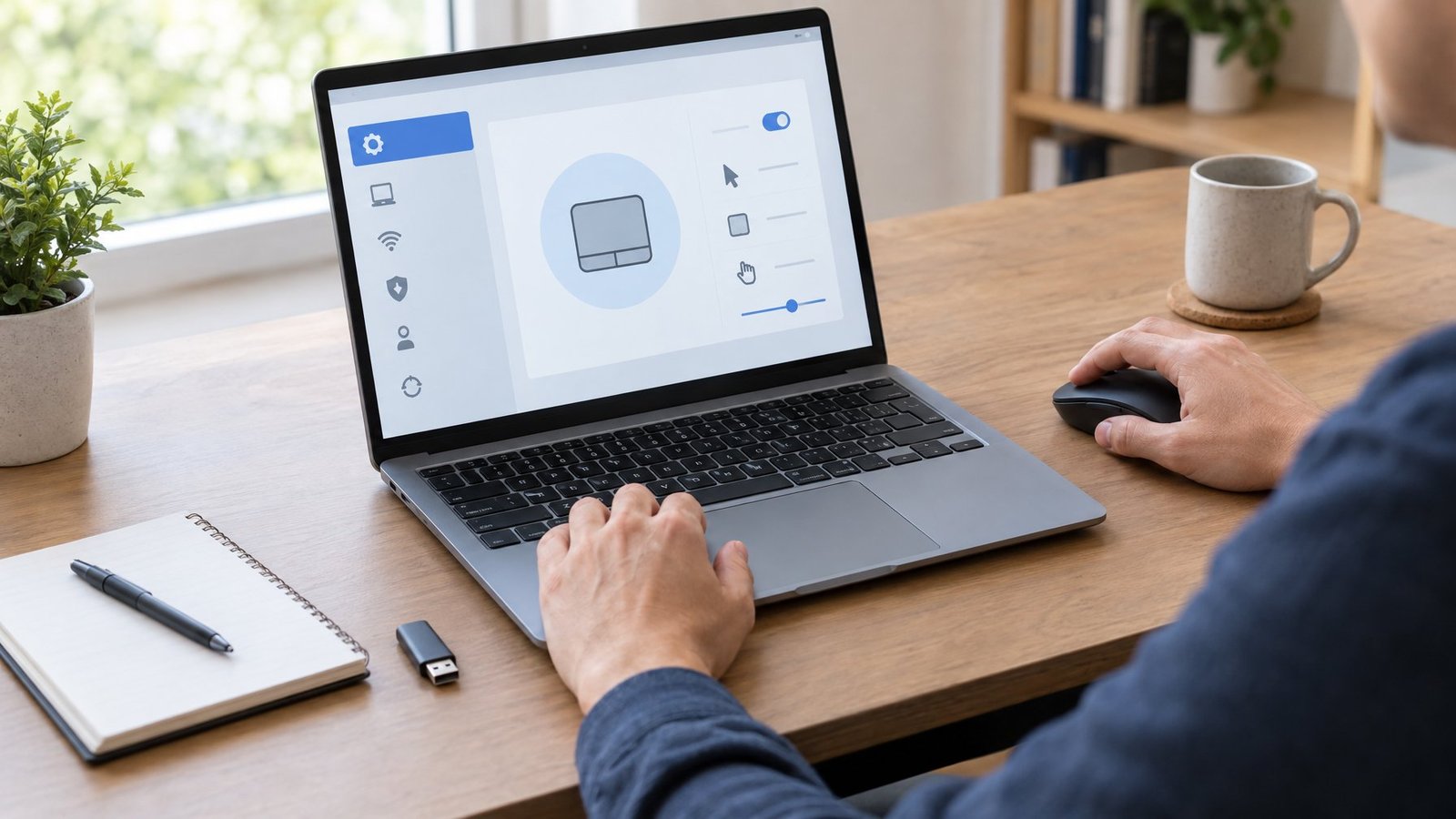
Outdated or corrupted touchpad drivers are one of the most common software causes of a dead touchpad. Windows Update and Device Manager give you the tools to update, roll back, or reinstall the driver without needing a mouse.
Update Windows and the Touchpad Driver
Search for “Check for updates” in the Windows search bar and install anything pending, since Windows Update often bundles touchpad driver updates automatically. After installing updates, restart the computer even if it isn’t required, since touchpad drivers sometimes need a fresh boot to load correctly.
Find the Touchpad in Device Manager
Open Device Manager by searching for it in the Start menu. Look under two possible categories: human interface devices and mice and other pointing devices. The touchpad may appear as a generic “HID-compliant touchpad” or under the laptop manufacturer’s brand name.
Roll Back or Reinstall a Problem Driver
If the touchpad stopped working after a recent update, right-click the device entry, choose Properties, go to the Driver tab, and select Roll Back Driver if the option is available. If that option is grayed out, uninstall the device instead, then restart the computer so Windows reinstalls a fresh copy of the driver automatically.
What If the Touchpad Is Missing from Device Manager?
A touchpad that doesn’t appear anywhere in Device Manager points to a disabled device or a deeper hardware fault. Click the View menu and select “Show hidden devices,” since a disabled touchpad sometimes hides from the default view. If it still doesn’t show up anywhere, the next steps involve checking BIOS settings and hardware, covered below.
When Might the Problem Be Hardware?
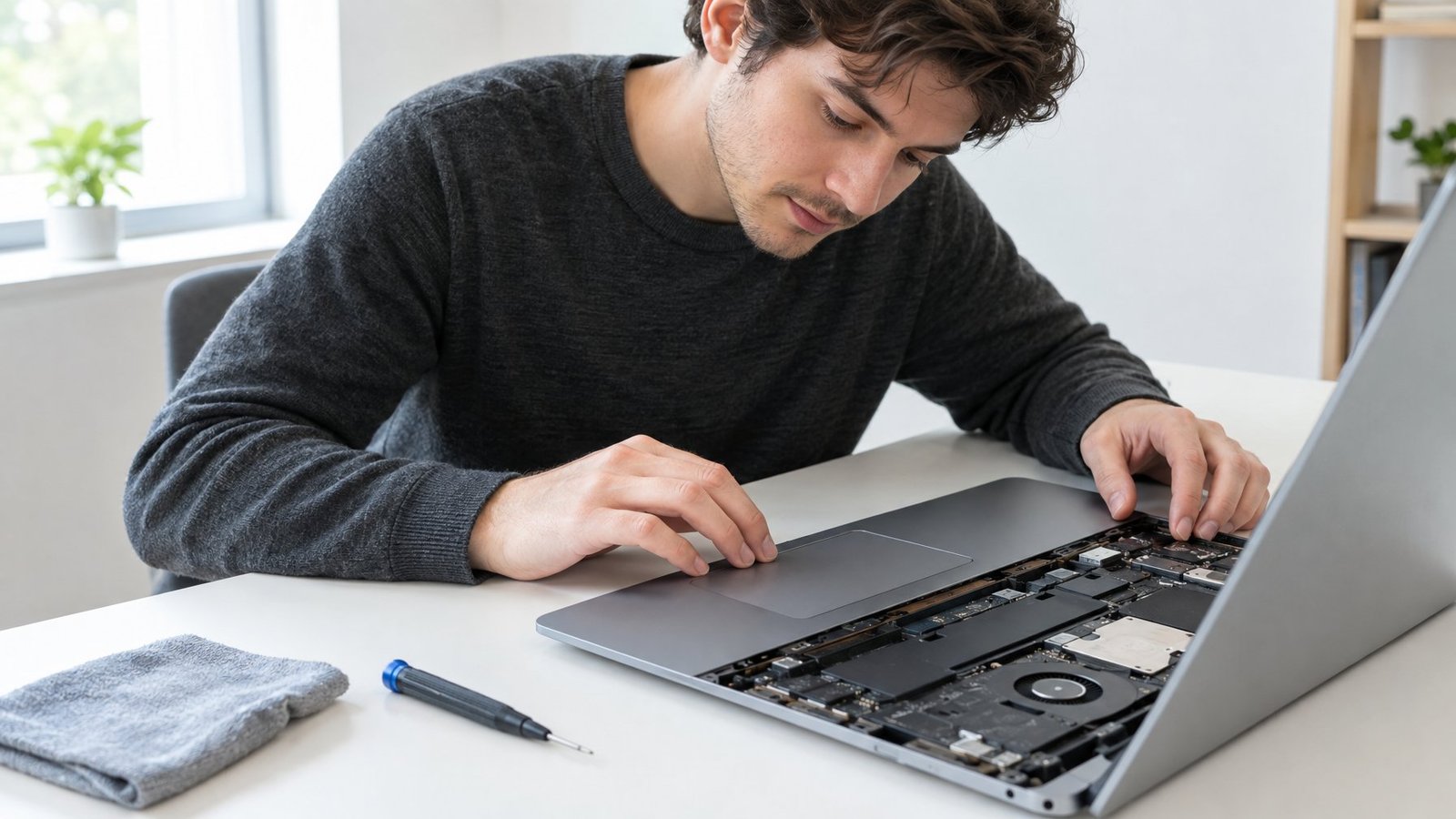
A touchpad disabled at the firmware level, physically damaged, or sitting near battery damage won’t respond to software fixes. These cases are less common than settings or driver issues, but worth ruling out before assuming a full repair is needed.
Check the BIOS or UEFI Touchpad Setting
Some laptops include a touchpad on/off setting inside the BIOS or UEFI firmware, separate from anything in Windows. Restart the computer and press the key shown at startup (often F2 or Esc, followed by F2) to enter setup, then look through the system configuration menu for a pointing device or touchpad option. If the touchpad not working issue started after a BIOS update, check this menu first, since updates occasionally reset custom settings back to default.
Look for Damage, Liquid Exposure, or a Swollen Battery
A cracked, dented, or spongy-feeling touchpad surface points to physical damage. A touchpad that stopped responding after a spill may have liquid damage underneath. A keyboard or touchpad area that feels raised, warped, or oddly firm can signal a swollen battery underneath, which is a safety concern. Stop using the laptop and avoid pressing on the area if you notice swelling, since a damaged lithium-ion battery can be unstable.
Know When to Run a Manufacturer Diagnostic or Seek Repair
Manufacturer diagnostic tools can confirm whether the touchpad hardware itself has failed. HP’s PC Hardware Diagnostics, for example, includes a Component Test that runs a dedicated check on the mouse and touchpad. When a diagnostic tool flags a hardware failure, or you suspect a swollen battery, professional repair is the safer next step rather than continuing to use the laptop as-is. This is also worth checking if your touch screen not working alongside the touchpad, since that combination often points to a shared internal connection issue.
Getting Your Touchpad Working Again
Most touchpad problems resolve with a quick shortcut check, a driver update, or a settings change, in roughly that order of likelihood. Start with the keyboard shortcut and restart, move to Windows or Mac settings if a mouse is connected, then work through Device Manager if the driver looks suspect. Hardware causes are the least common explanation, but swelling or liquid damage are signs to stop using the laptop and get it looked at. Keeping a spare option on hand, like a wireless mouse or USB mouse, makes it easier to navigate the laptop while working through each step.
Frequently Asked Questions

How do I turn my laptop touchpad back on without a mouse?
Use the Tab key to move between options in Settings, then press Spacebar to toggle the touchpad switch on. In Windows, press Windows+S, type “touchpad settings,” and press Enter to open the right menu using only the keyboard. Many laptops also have a dedicated Fn key shortcut that works without needing to open any menu at all.
Why does my touchpad stop working when I connect a mouse?
A setting called “Leave touchpad on when a mouse is connected” controls this, and when it’s turned off, the touchpad disables automatically whenever a mouse is detected. This happens with both wired and bluetooth mice, and even an idle wireless receiver plugged into a USB port can trigger it. Unchecking that setting in Touchpad settings keeps both devices active together.
Why is my touchpad not working in Windows 11 or Windows 10?
The most common causes are a toggled-off setting in Bluetooth & Devices (Windows 11) or Devices (Windows 10), an outdated driver, or a connected mouse overriding it. Checking the Touchpad toggle first, then running Windows Update, resolves the majority of these cases. If the touchpad still won’t respond, Device Manager lets you reinstall the driver directly.
What should I try if my Lenovo, Dell, or HP touchpad is not working?
Start with the Fn key shortcut on the function row, since all three brands use this to toggle the touchpad on many models. Dell advises against disabling the touchpad unless an external mouse or touch screen is in use, so check Dell’s touchpad settings menu if it seems unexpectedly off. HP’s support tools include a hardware diagnostic test specifically for the touchpad if settings and drivers don’t fix it.
Why is my Mac trackpad not responding?
A Mac can be set to ignore its built-in trackpad whenever an external mouse or wireless trackpad is connected, which is a setting found in Accessibility under Pointer Control. Disconnecting the external device or unchecking that option restores the built-in trackpad. A full restart also clears temporary glitches that affect trackpad response on a Mac.

I’m Anirban Saha, Founder & Editor of TechBullish. With a B.Tech in Electronics and Communication Engineering, and 8+ years of experience as a software developer, I have expertise in electronics, software development, gadgets, and computer peripherals. I love sharing my knowledge through informational articles, how-to guides, and troubleshooting tips for Peripherals, Smart TVs, Streaming Solutions, and more here. Check Anirban’s LinkedIn Profile here.
