
A single stripe running down your monitor usually points to one of four things: a loose cable, outdated graphics drivers, a failing GPU, or physical damage inside the display panel. The quickest way to tell these apart is checking whether the line shows up in the monitor’s on-screen menu before Windows even loads: if it does, the panel or cable is at fault, and if it only appears after the desktop loads, software is the more likely culprit.
Lines on computer screens are one of the most common display complaints we hear about, and they rarely mean the same thing twice. A thin colored stripe that wiggles when you nudge the laptop lid tells a different story than a thick black bar that’s been frozen in place for a week. Figuring out which category applies to your monitor saves time, money, and a possibly unnecessary trip to a repair shop.
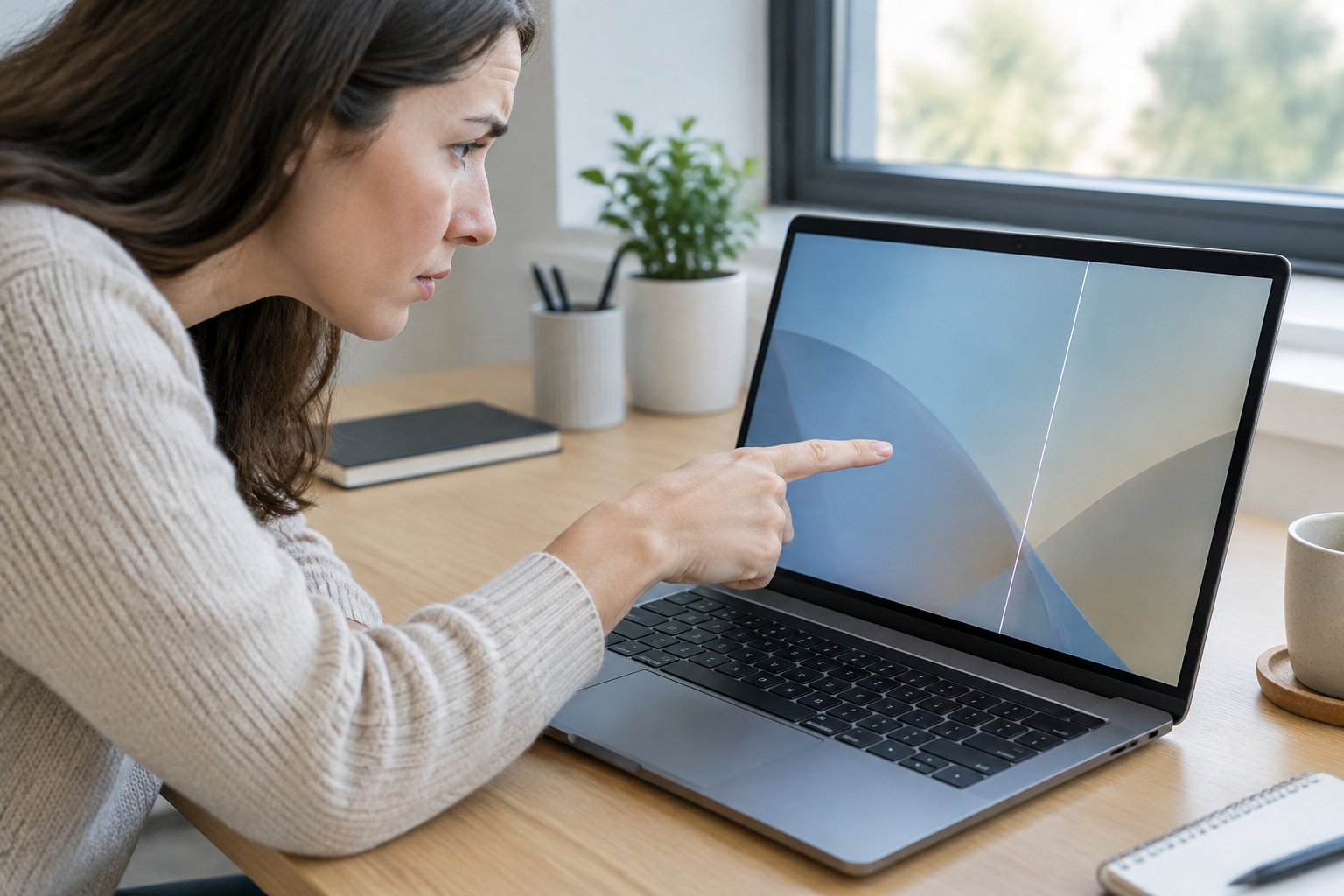
Some lines clear up with a driver update in five minutes. Others signal a cracked LCD panel that needs professional replacement. The goal here is to help you tell which situation you’re actually in before you spend money on the wrong fix.
What Does the Line’s Appearance Tell You?
The shape, color, and behavior of the line narrow down the cause before you touch a single setting. A static white line behaves differently from a flickering green one, and neither should be confused with a cluster of dead pixels.
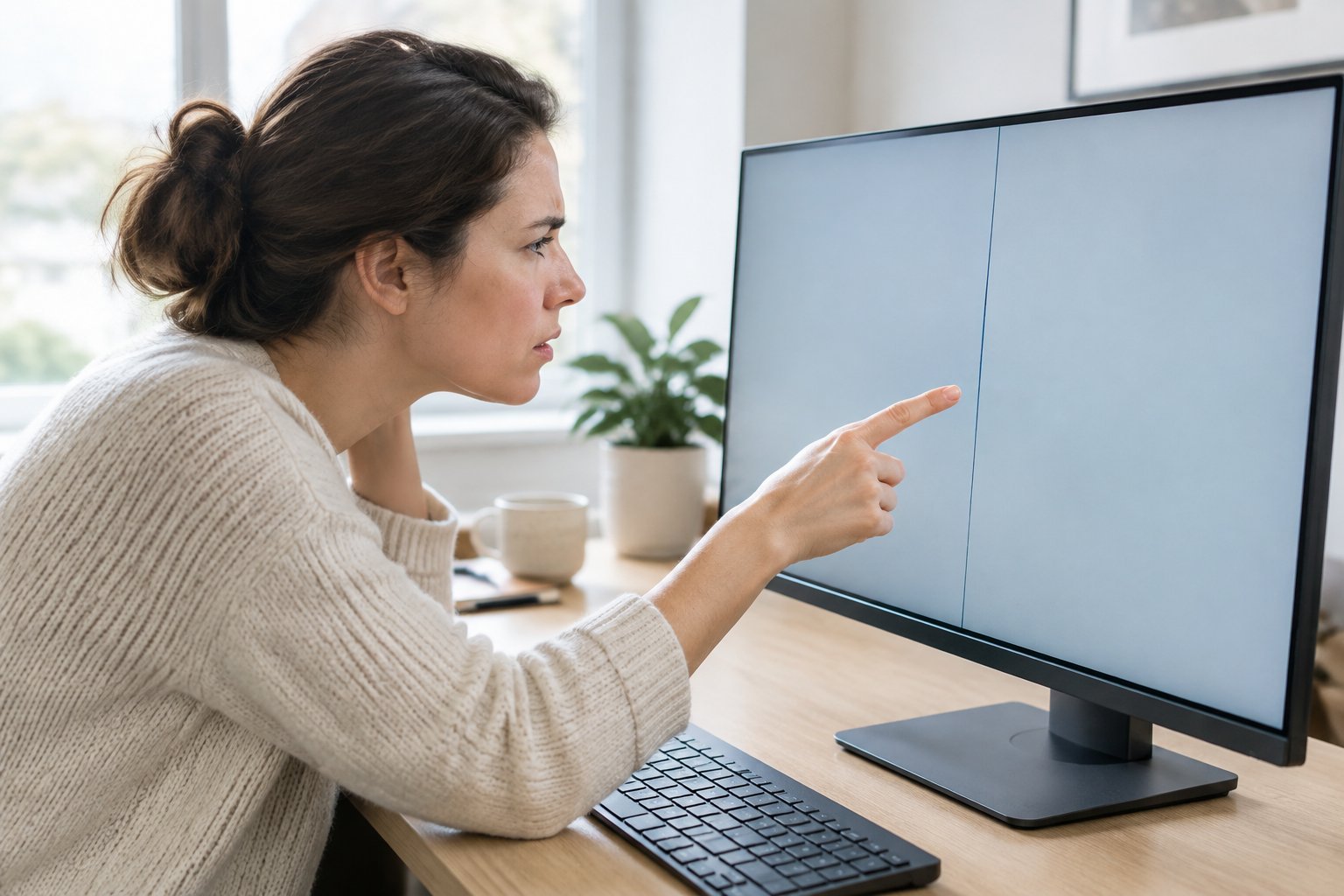
What Can a Single Vertical or Horizontal Line Indicate?
A single vertical line running top to bottom often points to a damaged internal cable, a failed column driver inside the panel, or a loose video connection. Horizontal lines tend to show up with signal interference, panel defects, or an unstable connection between the graphics card and the display.
Neither orientation guarantees a specific cause on its own. The direction gives a starting clue, but testing (covered in the next section) confirms what’s really going on.
Do the Line’s Color and Flickering Matter?
Color carries real diagnostic weight. A white line on screen frequently traces back to a stuck pixel row or a T-con board problem, while a green line on screen is commonly tied to a loose display cable or an outdated graphics driver, something reported often enough on Windows laptops that it’s worth checking drivers first.
Flickering changes the picture again. A line that pulses or flashes, rather than sitting still, usually means an unstable signal, a refresh rate mismatch, or screen flickering caused by a failing backlight. A line that never moves and never changes brightness is more consistent with permanent panel damage.
How Are Lines Different from Dead Pixels?
Dead pixels are tiny, isolated, and usually square. A line is linear and spans a large portion of the screen.
Dead pixels stay fixed to one spot and one color, often black. Display lines can shift with cable movement, change color depending on what’s on screen, or vanish and reappear, behavior that points to a signal or connection issue rather than a single failed pixel.
How Can You Pinpoint the Cause?
Separating software, cable, GPU, and panel causes comes down to three quick checks you can run in a few minutes each. Working through them in order narrows the list fast, since each test either rules out or confirms a whole category of problems.
Check this first because it splits hardware from software instantly. Restart the computer and watch the BIOS or boot screen, or open your monitor’s built-in menu (accessed with the buttons on the bezel) without any cable connected to a computer at all.
If the line shows up in that menu or before Windows loads, the monitor itself or its cable is responsible, not your operating system or drivers. If the line only appears once the desktop loads, a display driver problem or a screen test tool can help confirm a software cause.
Does It Follow the Computer or Stay with the Screen?
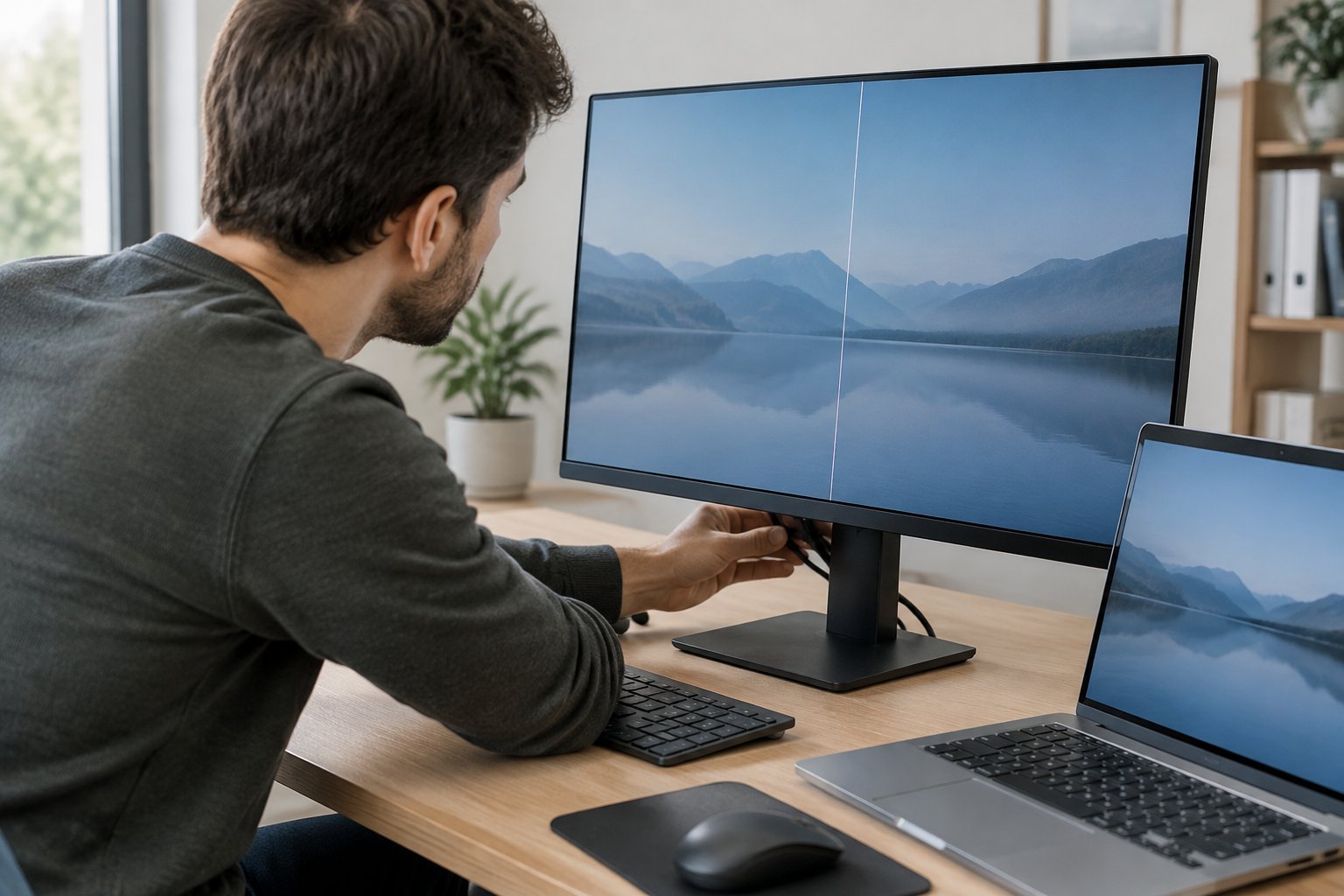
Swapping hardware tells you which side of the connection is failing. Connect a different monitor to the same computer: if the line disappears, the original screen is the problem.
Then try the reverse. Connect the same monitor to a different computer or laptop. If the line reappears there too, suspect the display cable, the graphics card, or deeper hardware issues rather than the screen itself.
Does Changing the Cable or Laptop Lid Angle Affect It?
Physical movement exposes loose connections fast. On a laptop, slowly open and close the lid while watching the line; if it appears, disappears, or shifts at specific angles, a damaged ribbon cable near the hinge is a strong suspect.
On a desktop, unplug and firmly reseat the video cables, whether HDMI, DisplayPort, or VGA, and inspect each connector for bent pins or fraying. If the line changes as you wiggle the cable at the port, you’ve found a loose or damaged connection worth replacing before assuming the worst about the monitor.
Which Simple Fixes Should You Try First?
Start with restarts, resolution settings, and driver updates before assuming hardware failure. These three steps resolve a large share of line complaints because they address the most common software-side triggers.
Restart and Check the Video Connection
A full restart clears temporary display glitches more often than people expect. Shut the computer down completely, unplug the video cable (HDMI, DisplayPort, or VGA), inspect it for bent pins or fraying, then reconnect it firmly before powering back on.
Also glance around the desk for electromagnetic interference sources. Speakers, routers, or other electronics sitting close to the monitor or its cables can occasionally introduce visual artifacts.
Check Resolution and Refresh Rate Settings
A mismatched screen resolution or refresh rate setting can produce lines that look like hardware damage. Open display settings and confirm the resolution matches the monitor’s native, recommended setting.
From there, check the refresh rate under advanced display settings. Switching to the panel’s supported rate, and confirming G-Sync or FreeSync settings aren’t conflicting with the current configuration, often clears up flickering lines within seconds.
Update or Reinstall Graphics Drivers
Outdated graphics drivers cause a noticeable share of line complaints, especially after a recent system update. Open Device Manager, expand Display Adapters, right-click the graphics card, and choose Update Driver.
If the problem started right after a driver update, rolling back to the previous version through the Driver tab’s “Roll Back Driver” option often works just as well. Installing pending system updates afterward closes out most remaining display driver problems.
When Does the Screen Need Repair or Replacement?
A line that survives every software fix and shows up before Windows loads usually means internal hardware damage. At that point the question shifts from “how do I fix this” to “what’s broken and is it worth fixing.”
Signs of LCD Panel or Internal Cable Damage
Permanent lines following a drop, pressure on the closed lid, or liquid exposure point to physical display panel damage. These lines typically don’t move, don’t change color, and show up consistently across every input source and every piece of content on screen.
Lines that shift with lid angle on a laptop, instead, suggest a damaged or loose internal ribbon cable rather than the LCD panel itself, which is a meaningfully cheaper repair.
When to Suspect the T-Con Board or Graphics Card
The t-con board (timing control board) manages how signals translate into the image on an LCD panel. T-con board issues often produce wide bands, scrambled sections, or lines that shift unpredictably across the whole display rather than a single thin stripe.
A GPU issue shows a different pattern: colored lines, screen artifacts, or distorted blocks that appear on both the built-in screen and an external monitor connected to the same graphics card. If the external display shows the identical problem, the graphics card is the more likely suspect over the panel or t-con board.
How to Decide Between Repair and Replacement
| Scenario | Likely Fix | Typical Cost Tier |
|---|---|---|
| Loose or damaged cable | Reseat or replace cable | Low |
| Outdated graphics drivers | Driver update or rollback | Free |
| Damaged LCD panel | Screen replacement | Moderate to high |
| Faulty t-con board | Board repair or replacement | Moderate |
| Failing graphics card | GPU repair or replacement | Moderate to high |
A screen replacement only makes sense once the panel itself is confirmed as the source. Replacing a display when the real fault sits in the cable or graphics card wastes money and leaves the original line in place.
Use the Test Result to Choose Your Next Step
The diagnostic path narrows down to four clear outcomes once testing is finished. If the line disappeared after a driver update or resolution change, the issue was software and no further action is needed.
If the line only showed up on one monitor, regardless of which computer it was connected to, the monitor or its internal panel needs attention, pointing toward monitor repair or a screen replacement. If the line followed the computer across multiple displays, the graphics card deserves a closer look, possibly through reseating it in its slot or scheduling a hardware check.
If the line shifted with cable movement or lid angle, a damaged cable or connector is the likely fix, often cheaper than replacing the entire screen. Whatever category applies, that result tells you exactly where to spend the next hour, rather than guessing.
Frequently Asked Questions
Why did a line suddenly appear on my computer screen?
A sudden line usually follows a recent driver update, a dropped or bumped device, a loose cable, or a Windows update that changed display settings. Check whether anything physically happened to the computer or monitor right before the line appeared, since that timing is often the biggest clue.
What does a single vertical line on my monitor mean?
A single vertical line often points to a damaged internal cable, a failed column driver inside the LCD panel, or a loose video connection. Testing with a different monitor and a different cable quickly narrows down which of the three applies.
What causes horizontal lines on a laptop screen?
Horizontal lines commonly result from signal instability, outdated graphics drivers, a loose display cable near the hinge, or physical panel damage. If the line only shows up at certain lid angles, the cable is the more likely cause over the panel itself.
Why does the line appear only when I move my laptop lid?
This pattern points directly to the display cable, since it runs through or near the hinge where repeated opening and closing puts stress on the connection. Avoid repeatedly flexing the lid to “fix” it, since that can worsen an already damaged cable.
Can a Windows 11 update cause lines on my screen?
A recent system update can trigger display driver problems that show up as lines, especially if the update changed graphics settings or installed an incompatible driver version. Rolling back the graphics driver or installing the latest pending system updates typically resolves lines tied to a recent update.

I’m Anirban Saha, Founder & Editor of TechBullish. With a B.Tech in Electronics and Communication Engineering, and 8+ years of experience as a software developer, I have expertise in electronics, software development, gadgets, and computer peripherals. I love sharing my knowledge through informational articles, how-to guides, and troubleshooting tips for Peripherals, Smart TVs, Streaming Solutions, and more here. Check Anirban’s LinkedIn Profile here.
