
A dead remote during your favorite show is one of those small frustrations that feels bigger than it is. The good news: most of the time, the fix takes less than five minutes and doesn’t need a repair shop.
If your TV remote stops working, start by swapping in fresh batteries and checking that nothing blocks the signal between the remote and the TV’s sensor, since weak batteries and blocked line-of-sight cause the vast majority of remote problems.
From there, you can work through pairing resets, firmware updates, and button repairs depending on what type of remote you have. We’ll walk through each check in order, starting with the simplest and moving toward the fixes that take a bit more time.
What Should You Check First?
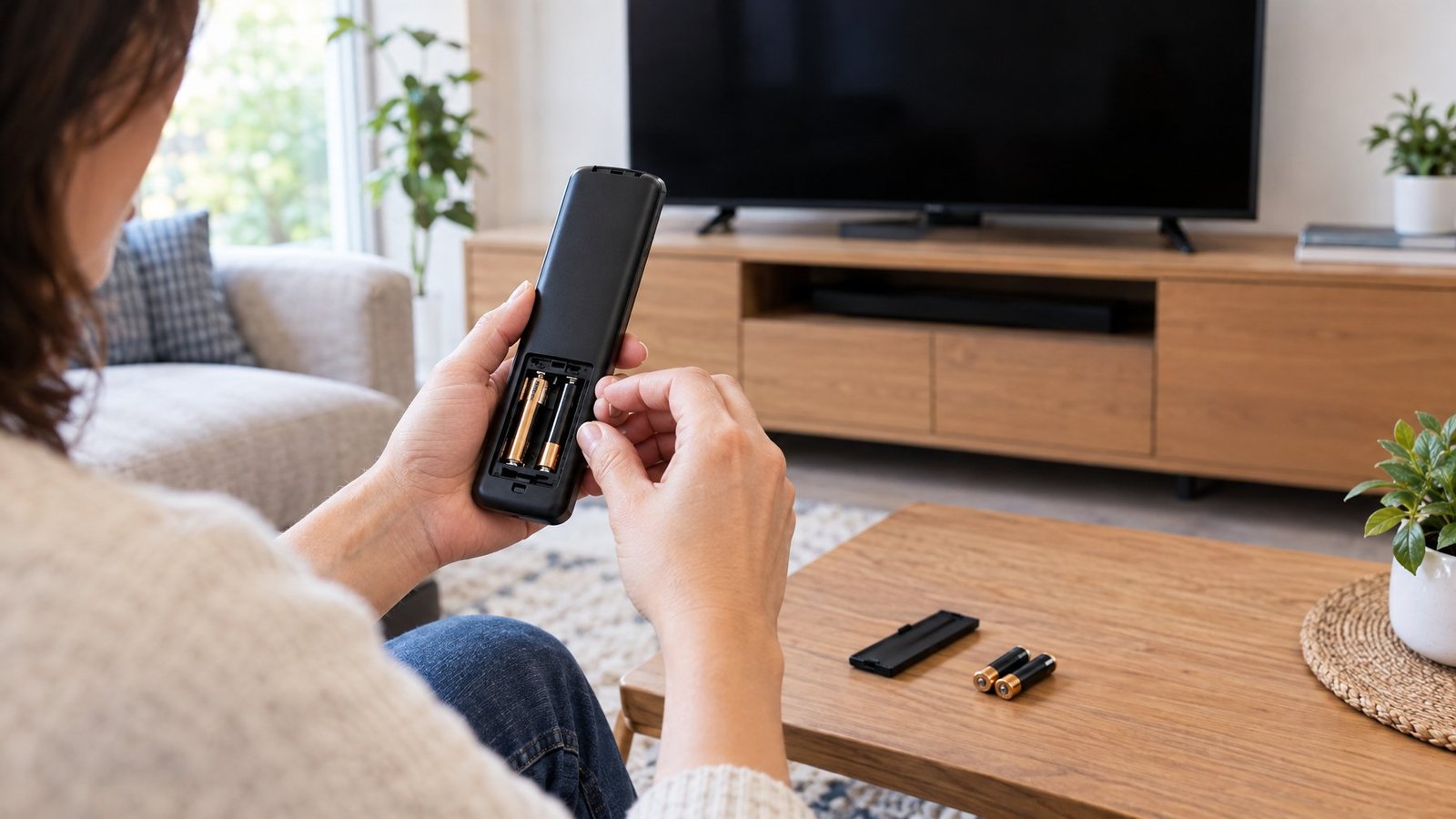
A dead or dirty battery connection causes most remote failures, so start there before assuming anything is broken. The battery contacts, the path between remote and TV, and basic cleaning solve the issue in the majority of cases.
Replace or Recharge the Batteries
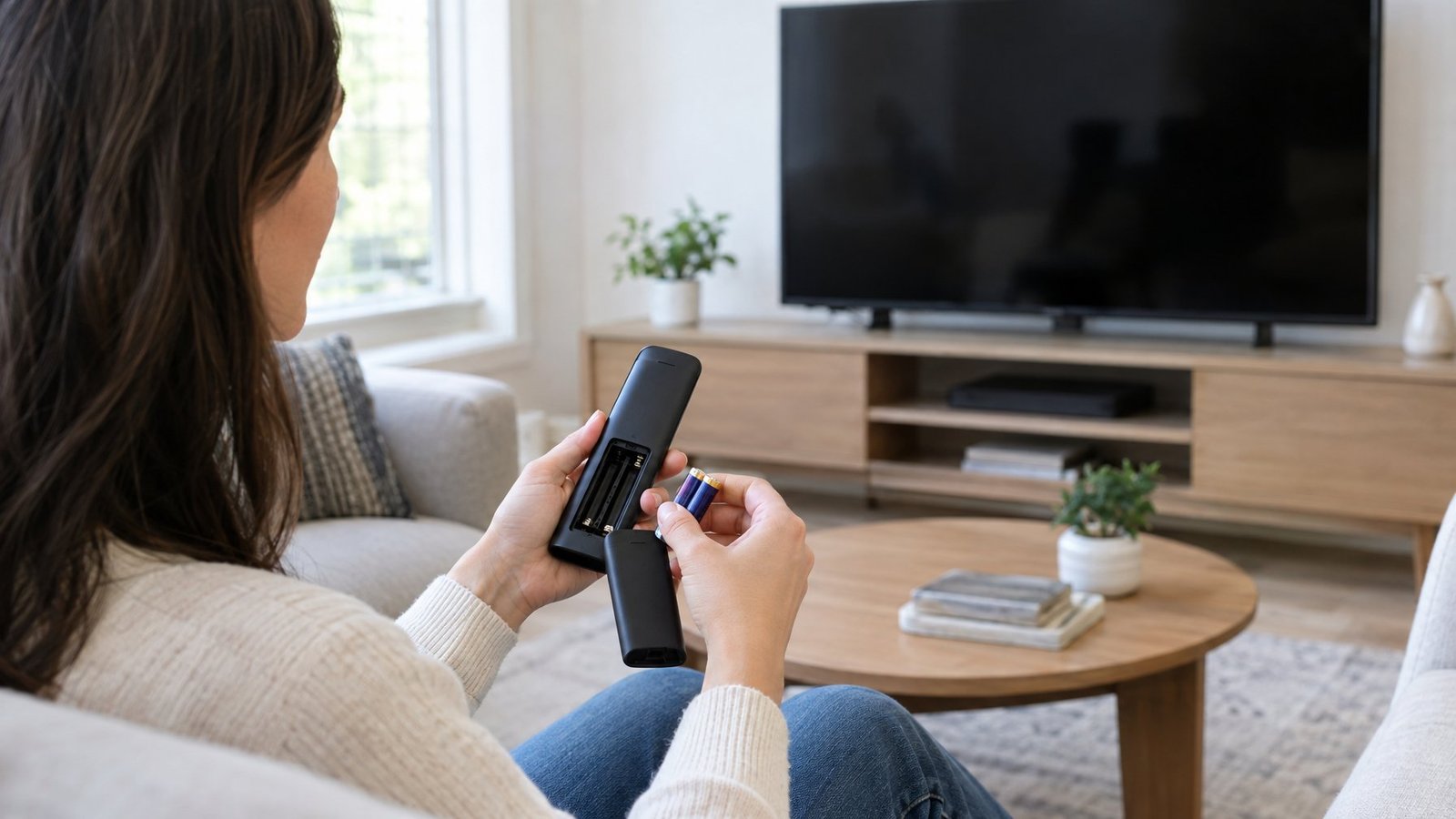
Swap in a fresh, matching pair of batteries, even if the old ones seem to have some life left. Mixing old and new batteries, or mixing brands, can cause weak or inconsistent signals. If your remote has a USB-C port on the bottom, it’s rechargeable, so plug it in instead of hunting for batteries.
After inserting new batteries, press any button to see if the TV responds. Some remotes also need a quick reset: remove the batteries, press and hold the power button for a few seconds, then reinsert the batteries and try again.
Inspect and Clean the Battery Contacts
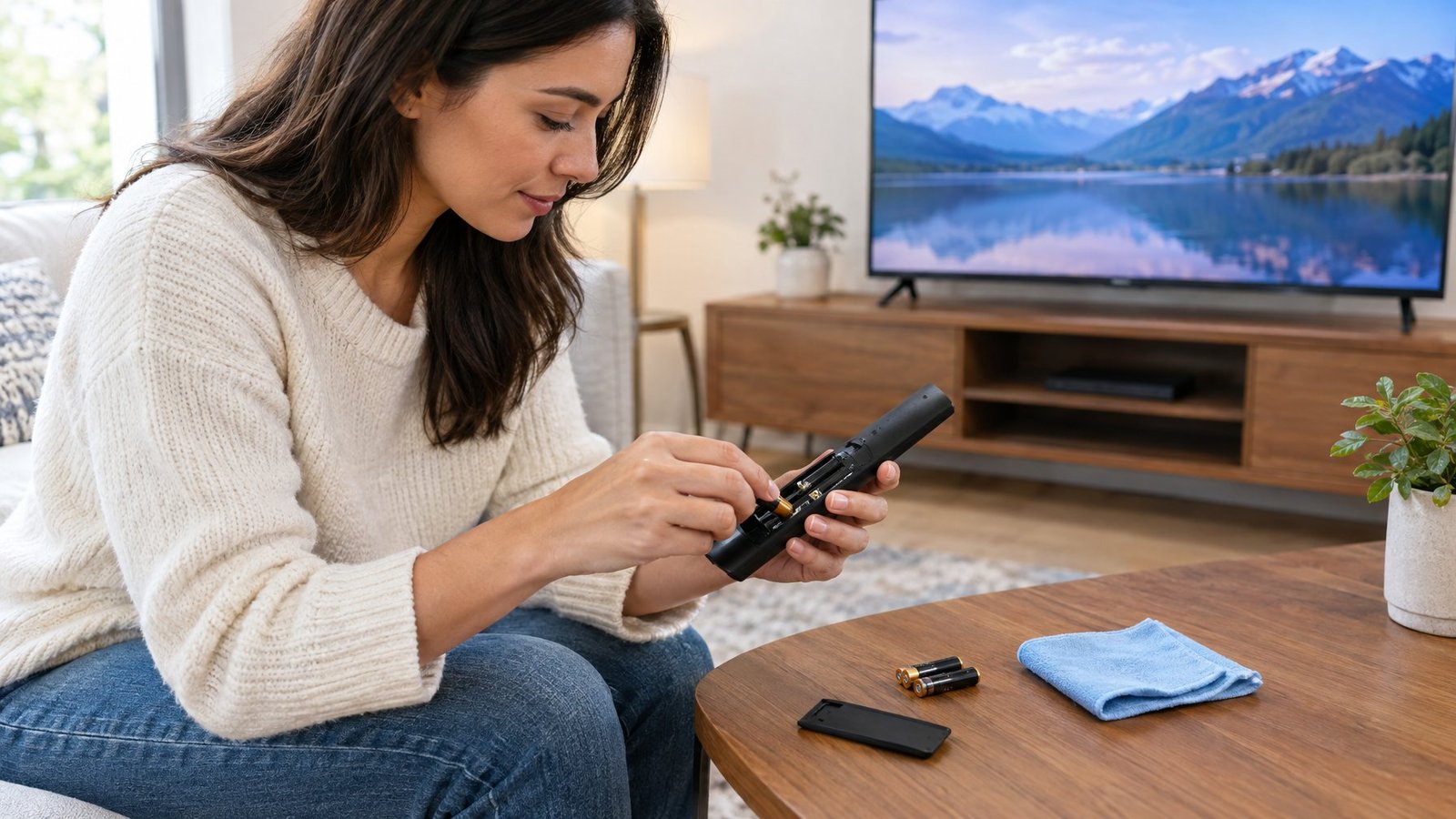
Corrosion or grime on the battery contacts inside the compartment can block the connection even with brand-new batteries. Dip a cotton swab or soft cloth in a small amount of rubbing alcohol and gently wipe the metal contacts. Let them dry fully before putting the batteries back in.
Clear the Path to the TV Sensor
Infrared remotes need a straight, unobstructed path to the sensor on your TV. Check for soundbars, plants, or decor sitting in front of the sensor, and move your TV away from direct sunlight or fluorescent lighting, since these light sources can interfere with the infrared signal.
Is the Problem the Remote or the TV?
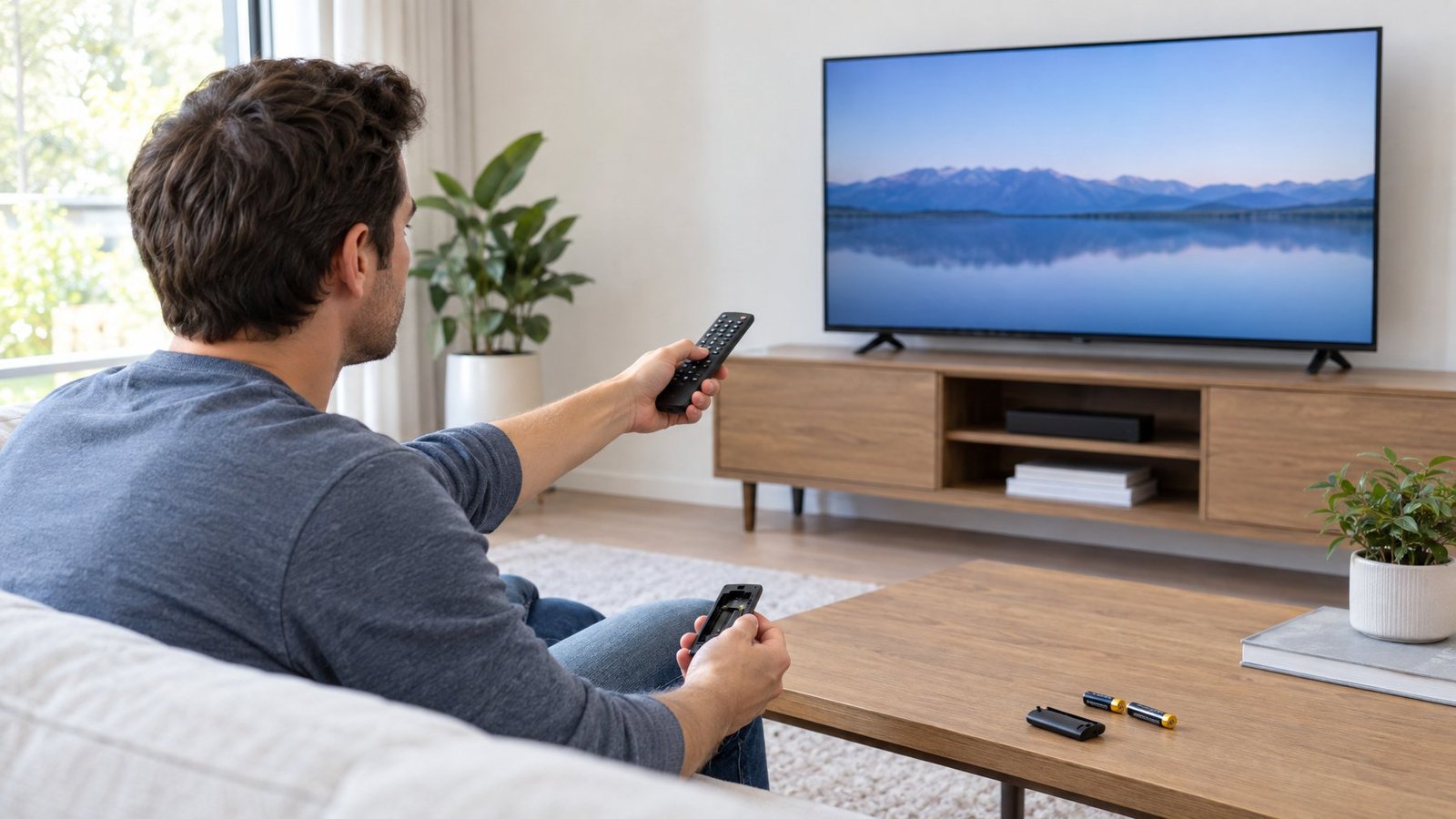
A quick camera test tells you in seconds whether the remote or the TV is at fault. From there, testing the TV’s own buttons and ruling out signal interference narrows down the real cause.
Test an Infrared Remote with a Phone Camera
Most phone cameras can see infrared light that your eyes can’t. Open your phone’s camera app, point the remote at the lens, and press and hold the power button while watching the screen. A flickering light on screen means the remote is sending a signal; no light suggests dead batteries or a failed remote.
If you see the light but the TV still won’t respond, the TV itself is more likely the problem. This same test works for any infrared remote, including a universal remote you use with a cable box or streaming device.
Press the power or volume buttons directly on the TV itself. If the TV responds to its own buttons but not the remote, the remote or its signal path is the culprit. If you have access to a second remote for the same TV, or a universal remote already programmed to it, try that too.
Power-Cycle the TV and Check for Interference
Unplug the TV from the wall, wait about two minutes, then plug it back in. This clears temporary glitches that can make a TV ignore remote signals entirely. While you’re at it, remove any new furniture, speakers, or glass panels that showed up near the TV recently, since these can block or scatter the infrared signal.
How Do You Restore a Smart Remote Connection?
Smart remotes connect wirelessly instead of relying only on infrared, so a lost connection usually means the pairing needs a reset. Nearby wireless devices and outdated TV software can also interrupt that connection.
Re-Pair an LG Magic Remote or Samsung Smart Remote
An lg magic remote pairs through the TV’s own menu system, and unpairing or re-pairing it clears most connection glitches. For a samsung smart remote, point it at the sensor on the lower right or bottom center of the TV, then press and hold the Return and Play/Pause buttons together for at least three seconds until a message confirms the connection. If pairing fails, unplug the TV for 30 seconds before trying again.
Reduce Wireless Interference
Wireless interference from nearby routers, cordless phones, and other 2.4 GHz devices can disrupt a smart remote’s Bluetooth connection. Move other wireless gadgets farther from the TV, and keep metal objects and thick walls out of the signal path, since metal and concrete block wireless signals more than wood or glass.
Check for TV Firmware Updates
Outdated software can cause a smart remote to lose its pairing or respond slowly. To update tv firmware on most smart TVs, open Settings, then Support, then Software Update, and select Check for Updates. Keep the TV plugged in during the update, since interrupting it can cause errors.
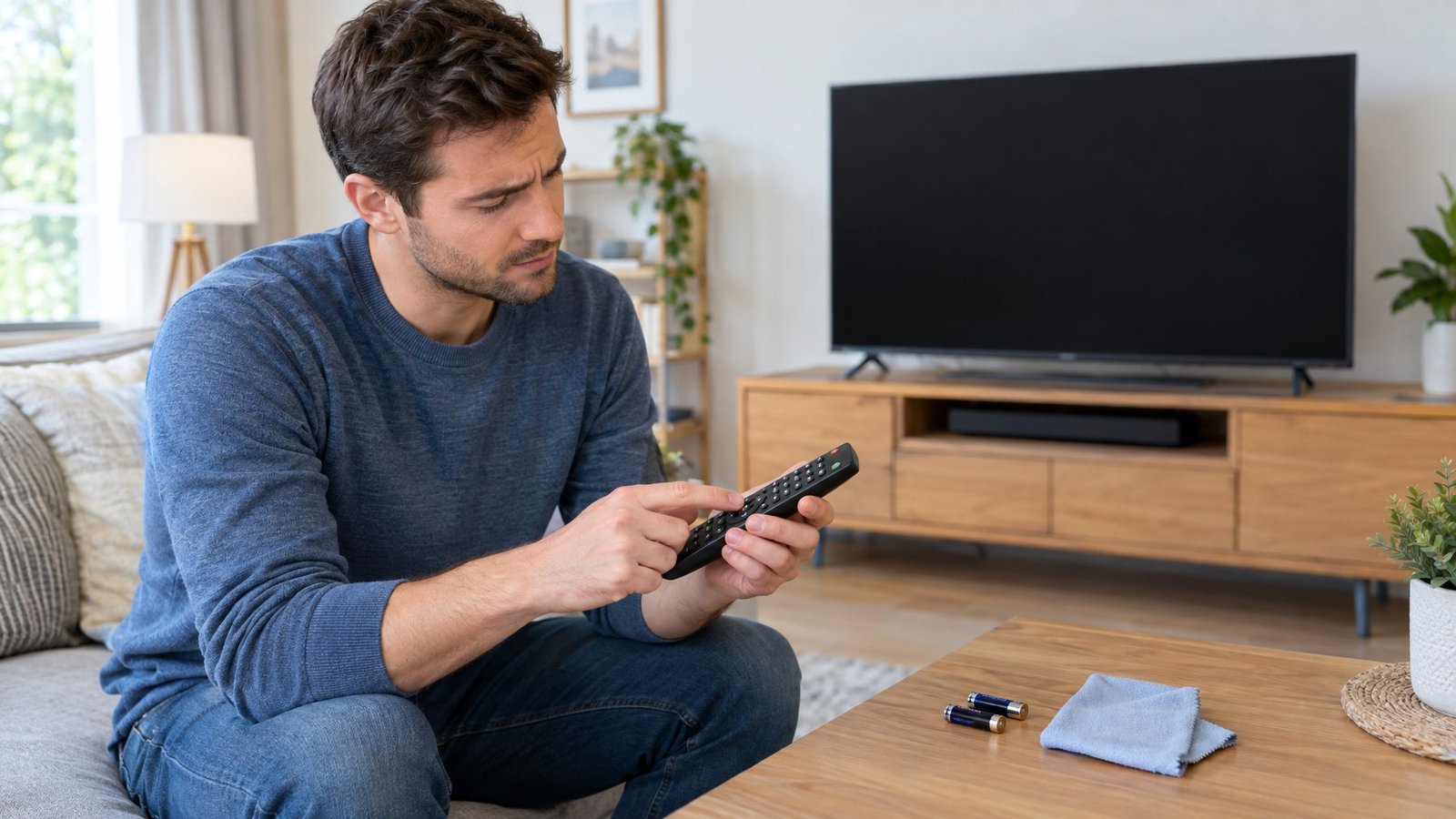
Worn-out or sticky buttons need physical cleaning or repair, not just a battery swap. Opening the remote, cleaning the contacts, and rebuilding worn button pads can bring an old remote back to life.
Press each button twice to check for sticking, then remove the batteries and wipe the outside with isopropyl alcohol. If buttons still stick, carefully pry the remote open along its seam (the screws are often hidden under the battery cover or a label). Clean the rubber pad and circuit board with alcohol on a lint-free cloth or swab, and let everything dry before reassembling.
Buttons that still don’t register after cleaning likely have worn-down conductive paint on the underside of the rubber pad. A rubber keypad repair kit includes contact cleaner and conductive coating that restores the connection on worn spots. Apply a thin, even coat with the included swab, then let it cure for about 24 hours before testing.
Know When to Replace the Remote or Seek TV Repair
If the circuit board still doesn’t respond when pressed directly with a stylus, the internal circuitry has likely failed, and replacing the remote makes more sense than repairing it. If the TV itself won’t respond to its own buttons after a power cycle, the TV may need professional repair instead.
Getting Your TV Responding Again
Most remote problems trace back to batteries, blocked signals, or a connection that needs resetting. Working through the checks in order, fresh batteries first, then line of sight, then pairing and firmware, solves the issue for the vast majority of households without a trip to the repair shop.
If your particular remote keeps acting up, checking model-specific guidance helps, since brands like Samsung, Roku, and others each handle pairing and resets a little differently. For deeper troubleshooting on a specific device, our guide to Samsung TV remote not working and our guide to Roku TV remote not working cover brand-specific steps in more detail. If the remote turns out to be the problem rather than the TV, a worn keypad or dead circuit board usually means it’s time for a replacement.
Frequently Asked Questions
Why is my TV remote not working with new batteries?
New batteries can still fail if they’re inserted with the wrong polarity, if the battery contacts inside the compartment are dirty, or if the batteries themselves are weak despite being new. Clean the contacts with a cotton swab dipped in rubbing alcohol and double-check the plus and minus orientation. If the remote still doesn’t respond, test it with a phone camera to confirm it’s sending an infrared signal at all.
Why does my remote light blink but the TV does not respond?
A blinking light usually means the remote is sending a signal, so the issue likely sits with the TV or the path between them. Check for anything blocking the TV’s sensor, confirm the TV is plugged in and powered, and try a power cycle by unplugging it for two minutes. If the TV still ignores the signal, it may need professional repair.
How do I reset my TV remote?
Remove the batteries, press and hold the power button for about eight seconds, then reinsert the batteries. For a solar or rechargeable Samsung remote, hold the Return and Enter buttons together for about ten seconds instead. After resetting, you may need to re-pair the remote with the TV before it works normally again.
Why is my Samsung TV not responding to its remote?
This usually comes down to dead batteries, a remote that needs re-pairing, or dirty contacts on the TV’s sensor. Try resetting the remote first, then re-pair it by pointing it at the sensor and holding Return and Play/Pause for a few seconds. If pairing still fails, unplug the TV for 30 seconds and try the pairing steps again.
Unplug the TV from the wall outlet, wait about two minutes, and plug it back in to rule out a temporary glitch. Check the power cord connection and confirm the TV’s power light comes on. If the TV still won’t respond to its own buttons after a power cycle, the TV likely needs professional repair rather than a remote fix.

I’m Anirban Saha, Founder & Editor of TechBullish. With a B.Tech in Electronics and Communication Engineering, and 8+ years of experience as a software developer, I have expertise in electronics, software development, gadgets, and computer peripherals. I love sharing my knowledge through informational articles, how-to guides, and troubleshooting tips for Peripherals, Smart TVs, Streaming Solutions, and more here. Check Anirban’s LinkedIn Profile here.
