
If you are dealing with a PCOM arrow key not functioning in Windows, the issue is usually caused by emulator mapping conflicts or profile misconfigurations. Follow this guide to quickly diagnose keyboard faults and restore smooth arrow-key navigation in your host sessions.
When your arrow keys move the cursor fine in Notepad but do nothing inside an IBM Personal Communications (PCOM) session, the problem is almost always the emulator’s keyboard mapping, not your hardware.
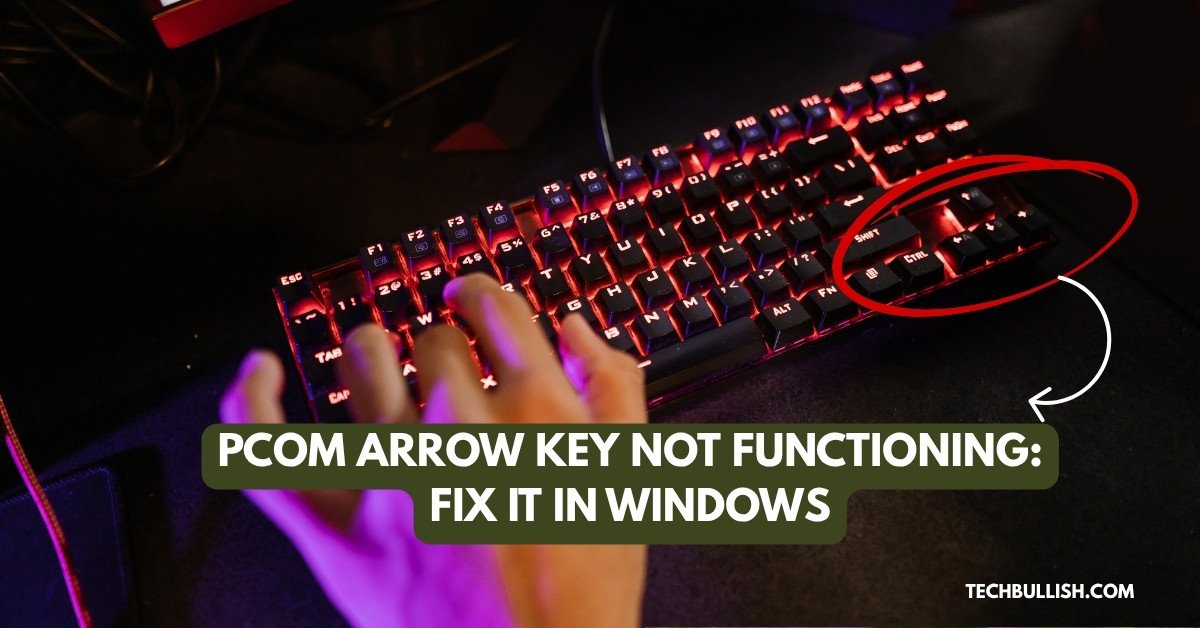
PCOM translates every keystroke into a host function before the mainframe ever sees it, so a changed session profile or a remapped key file can silently break directional movement while the rest of Windows behaves normally.
Start by testing the same four keys in a Windows app, then in your PCOM session: if they work in one place and fail in the other, you have a mapping or profile issue, and no amount of driver reinstalling will help. That single test saves most people an hour of guesswork.
If the keys fail everywhere, including before Windows loads, you are looking at a Windows-level fault or a physical keyboard problem, and the repair path changes completely. Either way, the checks below run in order from safest to most invasive, so you can stop as soon as the arrows come back.
Key Takeaways
- Test the arrow keys inside and outside PCOM first; where they fail tells you which fix to use.
- Emulator keyboard setup, session profiles, and host-key mappings change arrow behavior in PCOM only.
- Scroll Lock, accessibility toggles, drivers, and dust each cause system-wide failures with their own separate fixes.
Confirm Whether the Issue Is Limited to PCOM
Three quick tests tell you where the fault lives: another Windows app, the BIOS screen, and a second keyboard. Each one narrows the problem down a level, and together they separate an emulator setting from a Windows fault from broken hardware.
Test Arrow Keys in Another Windows App
Open Notepad and type a few lines, then press each arrow key. The text cursor should move one character or one line per press.
Next, open File Explorer and use the up and down keys to move through a file list. Testing in several places is worth the extra minute, since arrow keys that work in some apps but not others point to an application-specific setting instead of a broken key.
If all four arrows work in Notepad and File Explorer but fail in your host session, skip ahead to the PCOM section. Nothing in Device Manager will fix that pattern.
Test the Keys in BIOS or Pre-Boot Diagnostics
Restart the computer and press the setup key your manufacturer uses (commonly F2, F10, or Delete) during the first few seconds of boot. BIOS menus are navigated almost entirely with directional keys, so you will know within seconds.
Arrow keys that fail in BIOS point to the keyboard itself or its connection, because Windows and PCOM are not running yet. This is the fastest way to rule out software entirely.
On a work laptop, check with IT before changing anything in BIOS. Look and exit without saving.
Compare the Built-In Keyboard With an External USB Keyboard
Plug a wired USB keyboard into the machine and try the same tests. Windows loads a generic driver automatically, so you can test within seconds of plugging it in.
Working arrows on the external keyboard and unresponsive arrows on the laptop keyboard point to the built-in unit: dust, a failed membrane, or a loose ribbon cable. If both keyboards fail the same way, the cause sits in Windows or in the app you are testing.
Keep a spare wired keyboard in your desk drawer. It is the single most useful diagnostic tool for input problems, and it doubles as a stopgap while you wait on a repair.
PCOM sends keystrokes to the host through a keyboard map file, and that file can be edited, replaced, or loaded from a shared profile. Changes to the map, the session’s keyboard layout, or a managed configuration all produce the same symptom: arrows that work everywhere in Windows except the green screen.
Check the PCOM Keyboard Setup and Session Profile
Open your session, then go to Edit > Preferences > Keyboard to see which keyboard map file the session is using. PCOM ships default map files for 3270 and 5250 sessions, and switching back to one of those is the quickest way to test whether a custom map broke your cursor keys.
Note the current map file name before you change anything, so you can put it back. In IBM’s documentation on Personal Communications keyboard setup, the Enter function is assigned to the Ctrl key by default, which shows how far PCOM’s defaults sit from standard PC behavior.
Also check which session profile (.ws file) launched the window. A colleague’s profile or an older saved profile can carry a keyboard map you never chose.
Verify the Keyboard Layout and Host Key Mapping
In the keyboard setup dialog, choose Customize and click the up, down, left, and right keys on the on-screen layout. Each one should show a host function such as Cursor Up or Cursor Left.
If an arrow shows something else, like Mark Right or Field Exit, the key was remapped. On PCOM, holding Shift with an arrow key is mapped to text-selection functions such as MARK RIGHT by design, so test the arrows without any modifier held down.
Reassign the key to its cursor function, save the map, and reconnect the session. Some changes only take effect on a fresh connection.
Reset a Customized PCOM Configuration Safely
Back up first. Copy your current .kmp (keyboard map) and .ws (workstation profile) files to a folder on your desktop before you reset anything.
Then load the default keyboard map in the setup dialog and test the arrows again. If they work, the custom map was the cause, and you can rebuild only the specific keys you need instead of restoring the whole file.
Resetting a PCOM keyboard map affects that emulator session only. Your Windows keyboard settings stay untouched, which makes this a low-risk step.
When SSO or a Managed PCOM Profile Requires IT Help
Stop and open a ticket if your session launches from a shortcut you cannot edit, if the keyboard setup options are grayed out, or if profiles load from a network share. Those signs mean group policy or a deployment tool controls the configuration.
Single sign-on (SSO) components sit between your credentials and the host, and some setups inject or intercept keystrokes. Removing or reinstalling SSO software on a work machine can block your access of the host entirely.
Give your support team the specific details: the map file name, the session profile name, and the result of your Notepad test. That turns a vague ticket into a fast fix.
Rule Out Scroll Lock and Windows Key Settings
A stuck Scroll Lock and Windows accessibility toggles both make arrow keys behave strangely without breaking them. These settings affect every app on the machine, including PCOM, so clear them before you touch drivers or hardware.
Turn Off Scroll Lock in Microsoft Excel
Scroll Lock is the classic culprit when arrows scroll the whole sheet in Microsoft Excel. With Scroll Lock on, pressing an arrow key moves the entire worksheet instead of the selected cell.
Press the Scroll Lock key once. On keyboards without one, hold Fn and press the key labeled ScrLk, often shared with F14, Insert, or C.
Look at Excel’s status bar at the bottom of the window. If it reads “Scroll Lock,” the toggle is still on.
Use the On-Screen Keyboard to Check Lock States
Press Win + Ctrl + O to open the On-Screen Keyboard, or search for it from the Start menu. It shows lock keys as highlighted, which is the easiest way to see the true state of Scroll Lock and Num Lock.
Click ScrLk on the on-screen keyboard to toggle it off. This works even when the physical key is missing or damaged.
While it is open, click each arrow key and watch whether the cursor moves in your target app. Working on-screen arrows with non-functioning physical arrows point straight at the hardware.
Disable Filter Keys, Sticky Keys, and Toggle Keys
Go to Settings > Accessibility > Keyboard in Windows 11, or Settings > Ease of Access > Keyboard in Windows 10. Switch off Filter Keys, Sticky Keys, and Toggle Keys.
Filter Keys is the one that bites most often. It ignores brief or repeated keystrokes, which makes arrows feel non-functioning or laggy when you tap them quickly in a host session.
Holding Shift for eight seconds turns Filter Keys on by accident. Disable the shortcut in the same settings page so it does not come back.
Check Num Lock and Laptop Function-Key Modes
On compact laptop keyboards, the number pad shares keys with letters, and Num Lock changes what those keys send. Press Num Lock once and retest.
Some business laptops also have an embedded numeric keypad where 8, 4, 6, and 2 double as arrows. If Num Lock is on, those keys type digits.
Check your Fn-lock state too. Many models toggle it with Fn + Esc, which changes how the top row and some navigation keys report to Windows.
Repair Windows Keyboard and Driver Problems
Work through these steps only when the arrows fail across Windows, not just in PCOM. The built-in troubleshooter, a driver refresh in Device Manager, and a clean boot cover the software faults that affect the whole system.
Run the Windows Keyboard Troubleshooter
Press Win + I, then go to System > Troubleshoot > Other troubleshooters and click Run next to Keyboard. The tool checks driver state and service configuration on its own, and it is the safest first step for a misbehaving keyboard.
Follow the prompts and restart if it asks. The whole run takes about a minute.
Newer Windows 11 builds moved some troubleshooters into the Get Help app. If Keyboard is missing from the list, search Get Help for “keyboard troubleshooter.”
Update Keyboard Drivers in Device Manager
Press Win + X and pick Device Manager, then expand Keyboards. Right-click your keyboard entry and choose Update driver > Search automatically for drivers.
Standard PS/2 and HID keyboards use generic Microsoft drivers that rarely need updating. Gaming and programmable keyboards are different, since vendor software handles remapping and can break arrow behavior on its own.
If you use Logitech, Corsair, or similar utilities, close them and retest. Keyboard customization tools intercept keys before Windows or PCOM sees them, a pattern that also shows up when Logitech G Hub stops detecting a keyboard.
Uninstall Device and Reinstall the Keyboard Driver
In Device Manager, right-click the keyboard and select Uninstall device, confirm, then restart the computer. Windows detects the hardware and reinstalls the driver during boot, a standard fix for arrow keys that stopped working in Windows 11 and 10.
Have a spare USB keyboard or the On-Screen Keyboard ready before you uninstall, in case the reinstall needs a nudge. On a laptop, a touchpad and the On-Screen Keyboard are enough to recover.
This step touches Windows drivers only. Your PCOM session profiles and keyboard maps stay exactly as they were.
Check Windows Update and Use a Clean Boot for Conflicts
Install pending updates from Settings > Windows Update. If the arrows stopped right after a specific update, note the KB number and report it to IT before uninstalling anything on a managed machine.
For a clean boot, run msconfig, check Hide all Microsoft services, disable the rest, and restart. Working arrows after a clean boot mean a background program is intercepting them, and you can re-enable services in halves to find it.
Leave corporate security agents and management clients enabled. Disabling them may break network access or trigger a compliance alert.
Clean or Replace a Faulty Keyboard
Physical faults are likely when the arrows fail in BIOS and on the On-Screen Keyboard test. Dust and crumbs cause most of these failures, and the rest come down to a worn membrane, a loose ribbon cable, or liquid spill issue.
Remove Dust Around the Directional Keys
Power down, then hold a compressed air duster upright and blast short bursts around each arrow key at an angle. Tilt the keyboard so debris falls out rather than settling deeper.
Arrow keys collect more grit than most keys because they sit at the bottom edge where crumbs land. Cleaning the space around the keys is worth doing before any driver work, since it takes two minutes.
For sticky keys, dampen a lint-free cloth with 70% isopropyl alcohol and wipe the key surfaces. On a mechanical board, the same routine applies when you clean mechanical keyboard switches, though you can pull the keycaps off first.
Recognize Signs of a Defective Keycap or Keyboard Membrane
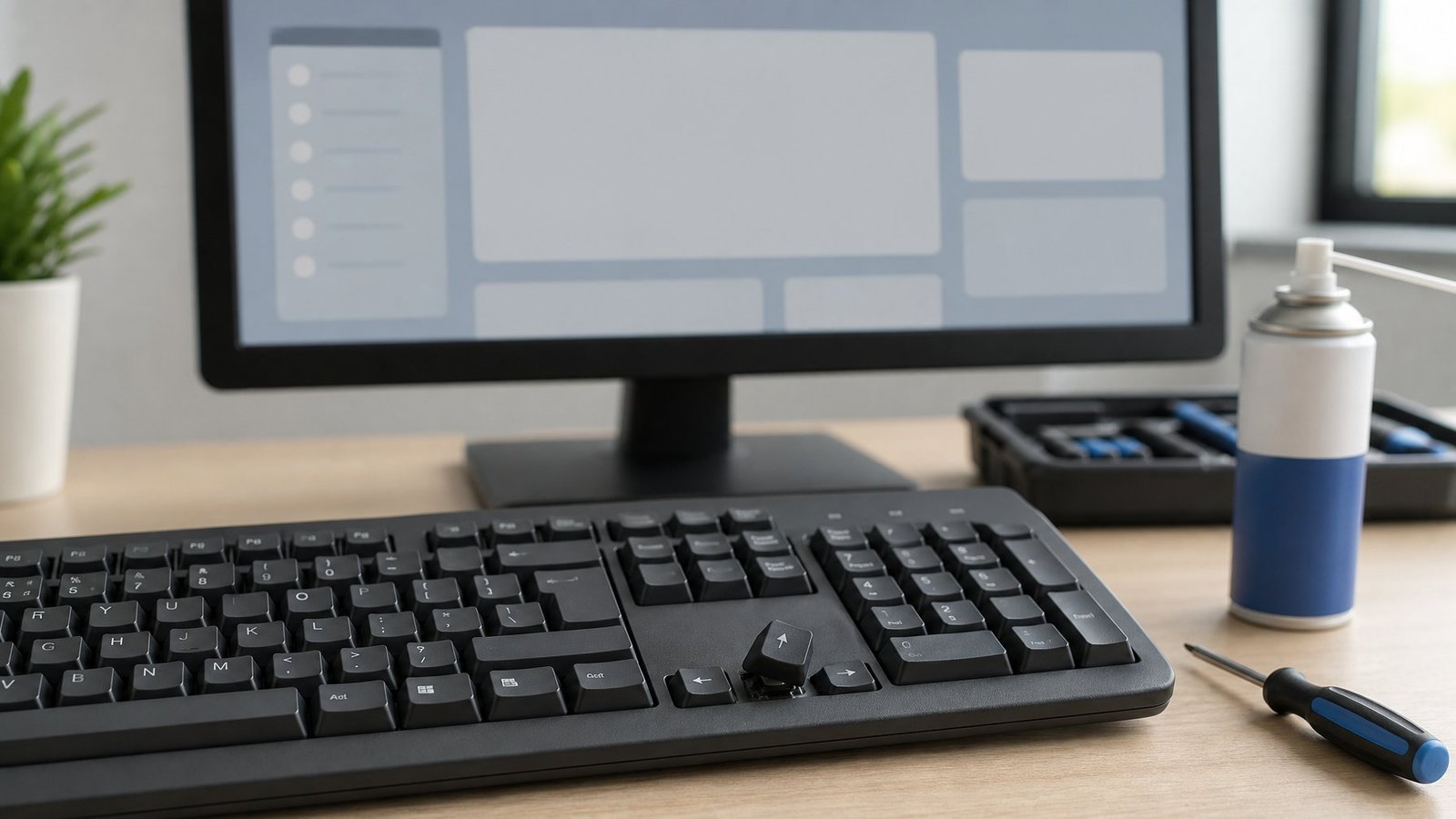
A keycap that wobbles, sits lower than its neighbors, or clicks without registering points at broken retainer clips. Lift the cap gently with a plastic spudger and inspect the scissor mechanism underneath.
Membrane wear looks different. The key presses normally and feels right, but nothing registers no matter how hard you push, and the same key fails in BIOS.
Test a few nearby keys too. If Home, End, Page Up, and the arrows all fail together, one section of the membrane trace has likely worn through.
When a Worn Ribbon Cable or Liquid Spill Needs Repair
A ribbon cable connects the keyboard assembly to the motherboard, and a partly seated cable knocks out whole rows or clusters of keys. Reseating it means opening the chassis, which voids the warranty on many business laptops.
Liquid spills need immediate action. Power off, unplug, remove the battery if it is accessible, and let the machine dry for at least 48 hours before powering on.
Send warranty machines to the manufacturer or your IT desk. Corrosion from a spill spreads over weeks, so document the date it happened.
Choose a Temporary External Keyboard or Keyboard Replacement
A basic wired USB keyboard gets you back into your host session today for under $20 and needs no driver install. Plug it in, confirm the arrows work in PCOM, and keep working while the repair is scheduled.
For a permanent desk setup, a full-size or tenkeyless layout gives you dedicated arrow keys instead of Fn combinations. Compact 60% boards drop the arrow cluster entirely, so check keyboard sizes before buying if you live in terminal sessions all day.
Laptop keyboard replacement runs from a simple bottom-cover swap to a full palmrest assembly depending on the model. Get a quote before deciding between repair and an external board.
Use the Test Results to Choose the Right Fix
Match what you observed to the matching repair path below.
| What you observed | Most likely cause | Where to fix it |
|---|---|---|
| Arrows work in Windows, fail in PCOM | Keyboard map or session profile | PCOM keyboard setup |
| Arrows scroll the sheet in Excel | Scroll Lock is on | Scroll Lock key or On-Screen Keyboard |
| Arrows fail in every app, work on-screen | Windows driver or accessibility setting | Troubleshooter, Device Manager |
| Arrows fail in BIOS too | Hardware fault | Cleaning, repair, or keyboard replacement |
| External USB keyboard works, built-in does not | Built-in keyboard hardware | Repair or external keyboard |
Fix the layer where the symptom lives. A driver reinstall does nothing for a remapped PCOM key, and resetting a keyboard map does nothing for a failed membrane.
When the answer points to a managed PCOM profile, SSO, or a corporate machine, hand it to IT with your test results attached. When it points to hardware, a spare external USB keyboard keeps you in your session while the repair happens.
Frequently Asked Questions
PCOM converts each keystroke into a host function using its own keyboard map file, so a changed or custom map can drop the cursor functions while Windows keeps working normally. Open the keyboard setup dialog and confirm each arrow is assigned to its Cursor function. A different session profile can also load a different map without any warning.
Copy your current .kmp file to a safe folder, then load the default keyboard map from Edit > Preferences > Keyboard and reconnect the session. Testing the default map first tells you whether the custom file caused the problem. On a managed workstation, check with IT before replacing a shared map file.
Scroll Lock is on. Press the Scroll Lock key once, or click ScrLk on the Windows On-Screen Keyboard if your keyboard lacks the physical key. Excel’s status bar shows “Scroll Lock” while the toggle is active.
Yes. Uninstalling and reinstalling a keyboard driver in Device Manager changes Windows hardware settings only and leaves your PCOM session profiles and keyboard maps untouched. Keep the On-Screen Keyboard or a spare USB keyboard available so you can navigate during the restart.

I’m Anirban Saha, Founder & Editor of TechBullish. With a B.Tech in Electronics and Communication Engineering, and 8+ years of experience as a software developer, I have expertise in electronics, software development, gadgets, and computer peripherals. I love sharing my knowledge through informational articles, how-to guides, and troubleshooting tips for Peripherals, Smart TVs, Streaming Solutions, and more here. Check Anirban’s LinkedIn Profile here.
