
A white patch glowing in the middle of a dark desktop or a pinpoint of light sitting stubbornly on a spreadsheet: both get lumped under the same complaint, “white spots on monitor,” but they rarely share the same cause. Some fade with a firmware reset or a careful screen test. Others point to physical damage inside the panel that no software can touch.
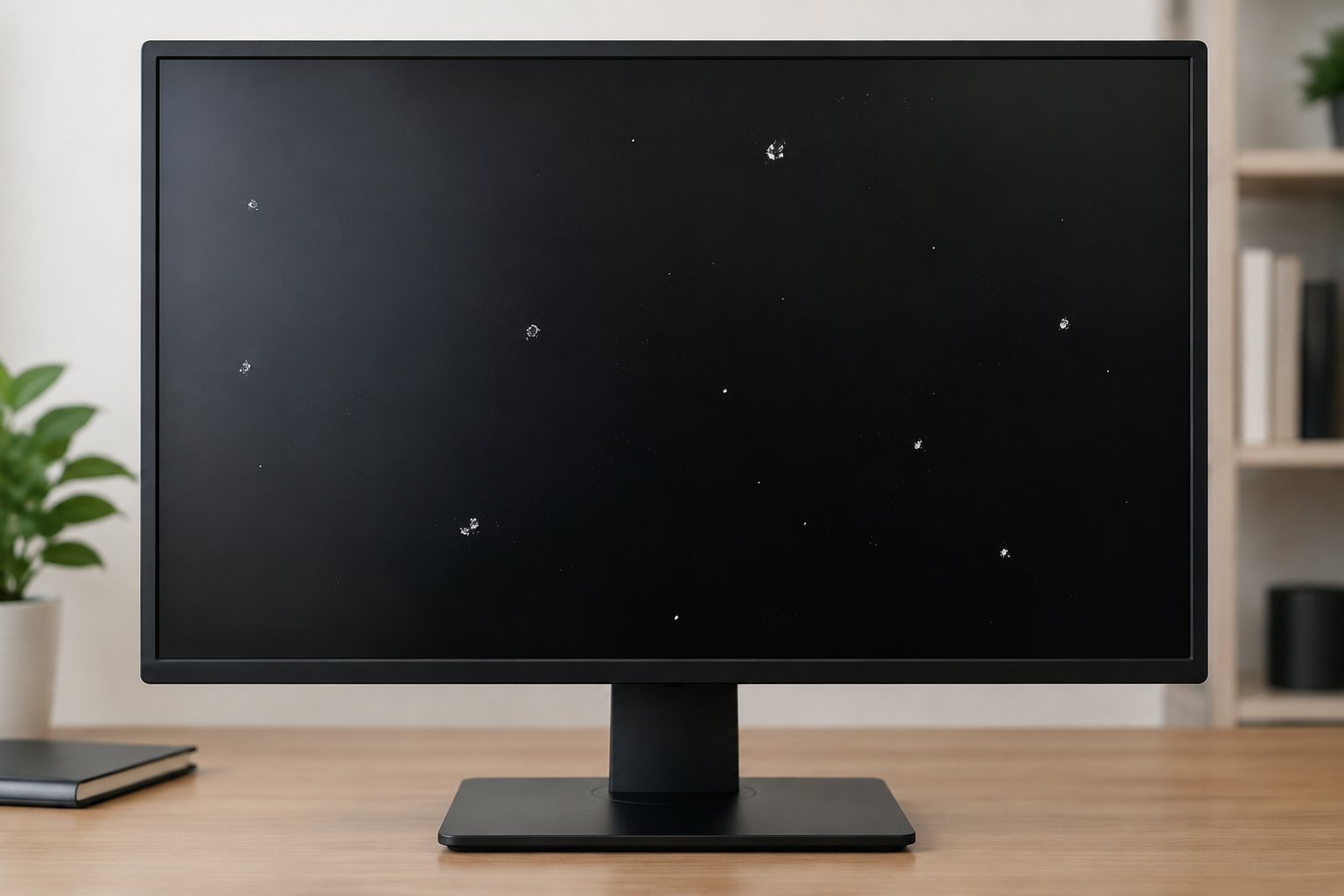
Most white spots on monitor screens trace back to one of four things: a stuck or dead pixel, a hot pixel, backlight bleed or IPS glow, or physical pressure damage to the internal LCD layers, and a short series of on-screen tests tells you which one you’re facing before you spend any money. The fixes differ sharply by cause. A stuck pixel might respond to twenty minutes of pixel-fixing software. A pressure mark almost never does, and gentle massage comes with real risk of making it worse.
We’ll walk through how to tell these apart using nothing but solid-color screens, a screenshot, and your own eyes, then match each diagnosis to the repair path that actually works for it.
What Kind of White Spot Are You Seeing?
The shape, sharpness, and background-sensitivity of a white spot on monitor displays tell you almost everything before you touch a single setting. A pinprick that stays the exact same color on every background behaves differently than a soft cloudy patch that only shows up against dark images.
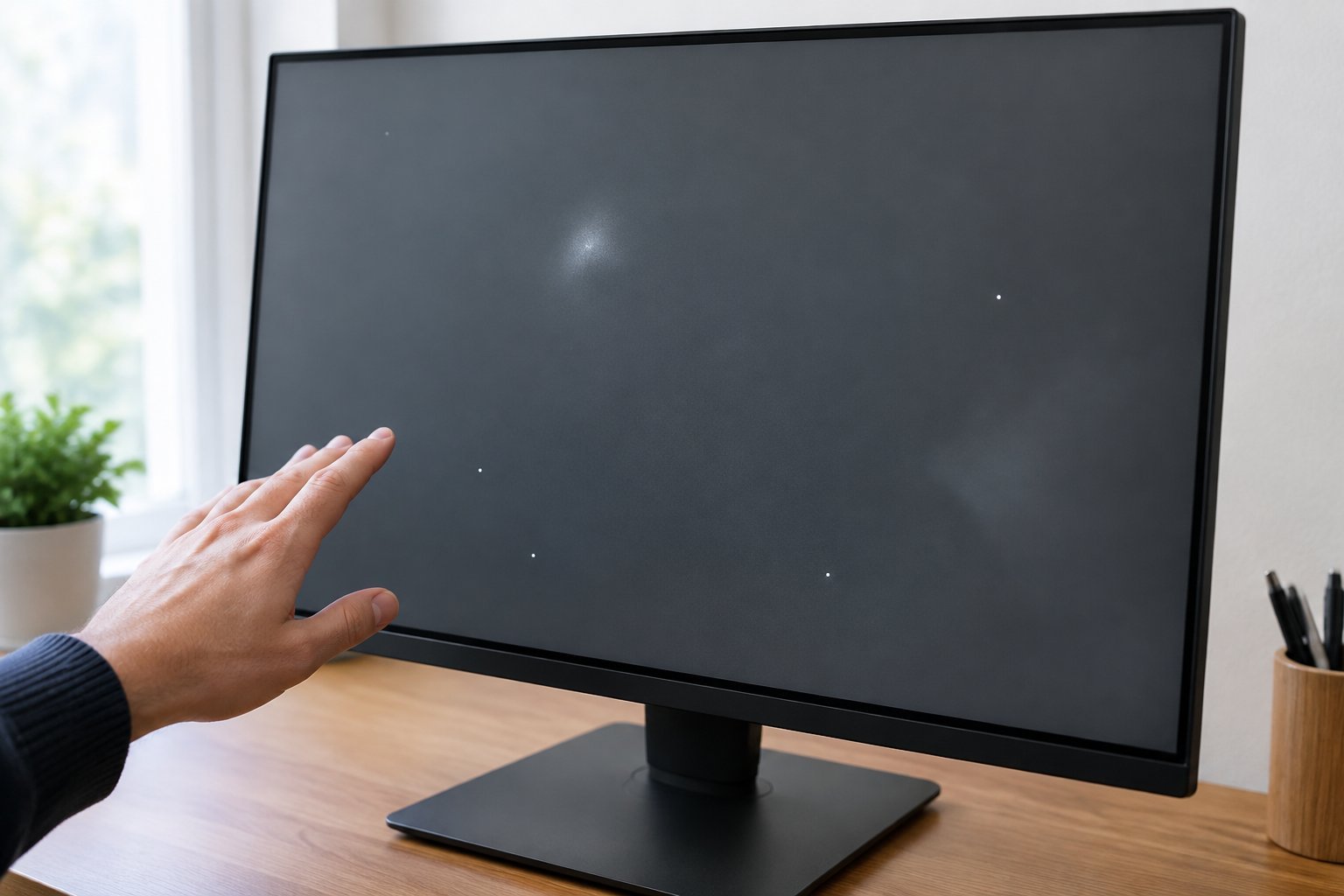
Is It a Sharp Bright Dot or a Cloudy Patch?
A sharp, pinpoint dot with clean edges usually means a pixel-level fault. A soft-edged, irregular patch that spreads over several millimeters points to something happening behind the liquid crystal layer, in the backlight or diffuser.
Size is a useful first filter. Pixel defects measure a fraction of a millimeter. Pressure marks and backlight clouding commonly span 3mm to 20mm or more.
How Are Bright, Stuck, and Dead Pixels Different?
These three terms get used interchangeably, but each behaves in a distinct way:
- Bright pixel / hot pixel: a single pixel that’s always fully lit, usually white, visible mainly against a black screen.
- Stuck pixel: a subpixel locked on one color (red, green, or blue) regardless of what’s displayed behind it.
- Dead pixel: a pixel that never lights up at all, showing as a tiny black dot on any background.
Stuck pixels respond to pixel-fixing software more often than hot or dead pixels do, because the subpixel transistor is misfiring rather than fully failed.
Is It Backlight Bleed or IPS Glow?
Backlight bleed shows up as uneven brightness, usually in streaks or blotches near the screen edges, and it’s most visible on a black screen in a dark room. IPS glow is a related but separate phenomenon tied to IPS panel technology. It appears as a soft, often bluish or yellowish haze in the corners when you view the screen at an angle, and it shifts or fades as you change your viewing position. Neither one is a defect in the traditional sense. Both are inherent traits of how LCD panels handle light at the edges, though severe bleed can indicate a loose panel or frame.
Entities: a single bright dot that never changes color is a stuck or dead pixel; a patch that grows or shrinks as you tilt the monitor is IPS glow; a patch that stays fixed regardless of angle is backlight bleed or physical damage. Our backlight bleed guide covers how to separate normal edge glow from an actual panel fault in more detail.
What Causes Bright Patches on an LCD?
Bright patches on an LCD monitor come from three main sources: physical pressure on the internal layers, a fault in the backlight or diffuser system, or a defect introduced during manufacturing. Each leaves a slightly different fingerprint on the screen.
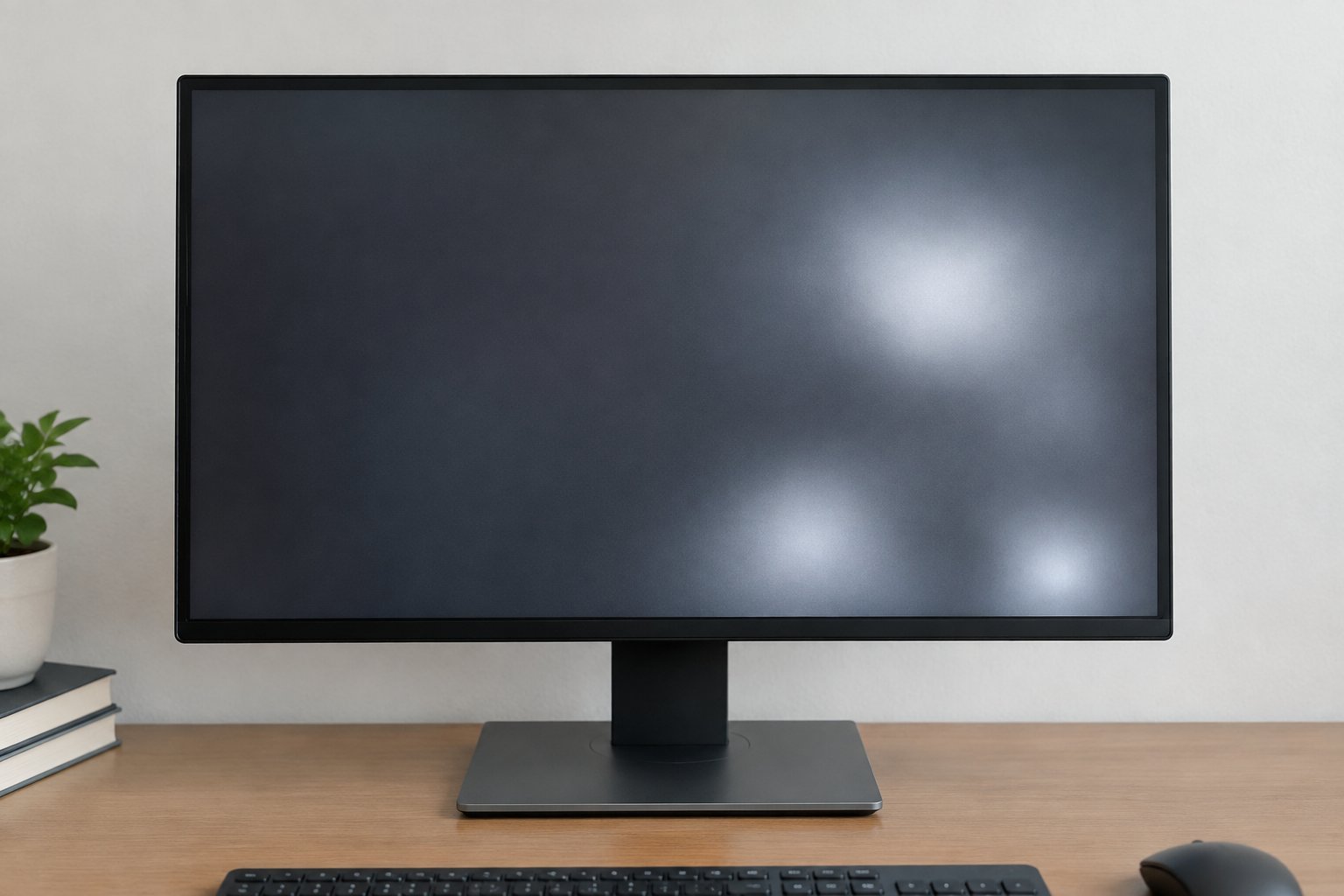
Pressure Damage to Internal Display Layers
Pressure damage happens when force compresses the liquid crystal layer, knocking the crystals out of alignment so light leaks through unevenly. A monitor doesn’t need a dramatic impact to suffer this. Leaning the screen against a wall during a move, pressing too hard while cleaning, or mounting it with uneven bracket tension can all leave a lasting bright mark.
The resulting spot is typically irregular in shape, sometimes with a faint rainbow halo at the edges. It rarely responds to pixel-fixing tools because no pixel has failed; the optical layer itself has shifted.
Backlight, Diffuser, and Panel Faults
Backlight and diffuser faults create bright spots when the layer that spreads LED light evenly across the panel shifts, degrades, or gets damaged. In edge-lit monitors, the light guide plate and diffuser sheets sit in a thin plastic frame, and thermal expansion or a knock during shipping can nudge them out of place. Light then pools in one area instead of spreading evenly, producing a patch that stays the same size and position no matter what’s on screen, including a pure black test image. LED hot spots, where a single backlight diode overdrives or its local diffuser fails, look similar but tend to be rounder and more centered.
Manufacturing Defects and Aging
Manufacturing defects on TFT LCD displays stem from contamination, uneven adhesive bonding, or component aging rather than anything the owner did. Dust trapped between the diffuser and glass during assembly creates a pressure point that shows up as a bright spot from day one. Uneven optical clear adhesive thickness can trap tiny air gaps that expand into visible patches over time, especially under temperature swings. Manufacturers producing displays for demanding environments, including automotive displays, lean on automated optical inspection (AOI) and cleanroom assembly to catch these flaws before shipping, but no process catches every unit. Aging components, worn adhesive, a fading backlight, add a slower, cumulative version of the same problem.
How Can You Diagnose the Spot Safely?
The safest diagnosis starts outside the monitor, not inside it: rule out dirt and software before assuming hardware damage. Three checks, done in order, usually confirm the cause within ten minutes.
Clean the Surface and Check a Screenshot on Another Device
Wipe the screen gently with a dry microfiber cloth first. Dust or a dried liquid residue can mimic a white spots on screen complaint and disappears instantly with cleaning.
If the spot survives cleaning, take a screenshot of that exact area and open it on a different device. A spot that’s missing from the screenshot is a rendering or graphics driver issue, not a panel fault. A spot that shows up in the screenshot too confirms the problem lives in the hardware.
Display a pure black image, then a pure white image, then cycle through solid red, green, and blue. A spot that only appears on black points to a hot pixel or backlight bleed. One that appears on every single color, including black, points to physical panel damage rather than a pixel fault. Many monitors include a built-in diagnostic mode in the on-screen menu that cycles these test patterns automatically; a dedicated screen test tool or website does the same job if the monitor lacks one.
Compare Viewing Angles, Brightness, and Video Inputs
Tilt your head and view the screen from a steep angle. If the spot fades or shifts position, it’s IPS glow rather than a fixed defect. Lower the brightness to around 50 percent; a spot that becomes far less visible is more likely a backlight hot spot than a true panel fault.
Finally, switch video inputs or swap the cable. A spot that disappears on one input but not another points to a signal or port issue rather than the panel itself.
Which Fixes Are Worth Trying?
Software fixes work on exactly one category of white spot on monitor screens: a single stuck pixel. Everything else, pressure marks, backlight faults, true manufacturing defects, needs either professional repair or a decision to live with it.
Try Pixel-Fixing Software Only for a Single Stuck Dot
Tools like JScreenFix cycle rapid color changes directly over a stuck pixel to nudge the subpixel back into normal operation. Run one full cycle, typically 20 to 30 minutes, check the result, and repeat up to three times before giving up. This pixel-fixing software has no effect on cloudy patches, pressure marks, or anything larger than a single dot, since those aren’t pixel failures at all.
A gentle pressure technique sometimes helps a stuck pixel too: power the display off, wrap a fingertip in a soft microfiber cloth, and apply very light circular pressure directly over the dot for ten to fifteen seconds. Never try this on a patch or a cracked area; excessive force risks turning one problem into two.
When Does a Panel Fault Need Professional Repair?
A panel fault needs professional repair when the spot is a patch rather than a dot, when it appears on every test color including black, or when it has grown since you first noticed it. Diffuser realignment and backlight unit replacement both require disassembling the bezel in a dust-free environment, since a single stray particle during reassembly creates a new spot in the process.
Pixel repair services exist for this kind of work, but the cost often approaches what a mid-range replacement panel costs, so it’s worth getting a quote before committing.
Should You Claim a Warranty, Replace the Screen, or Keep Using It?
Check the manufacturer’s dead-pixel policy before paying for anything out of pocket. Many monitor warranties cover stuck or dead pixels present from new but exclude pressure damage, since that’s treated as damage caused after purchase rather than a manufacturing defect.
A small, stable dot near the edge of the screen is safe to live with indefinitely; it’s a cosmetic issue, not a safety one. A patch that’s visibly growing, paired with a bulge or crack, warrants a faster decision toward screen replacement, since that combination can point to deeper structural failure.
How Can You Prevent New Pressure Marks?
Keeping pressure off the panel prevents most future spots. A few habits make the biggest difference:
- Never lean the monitor face-down against a wall or stack anything on top of it.
- Use even, properly torqued mounting hardware when wall-mounting or attaching a monitor arm.
- Clean the screen with a barely damp microfiber cloth and the lightest touch possible.
- Keep brightness between 60 and 80 percent for daily use, since running at maximum ages the backlight faster.
- Avoid leaving a single static image on screen for extended periods to reduce the risk of related image retention issues.
Match the Fix to the Fault
Each cause of a white spot on monitor displays has a distinct profile and a distinct best next step, and lining them up side by side makes the decision faster.
| Cause | Looks Like | Changes With Pressure/Angle? | Best Fix |
|---|---|---|---|
| Stuck pixel | Tiny colored dot | No | Pixel-fixing software, gentle massage |
| Dead/hot pixel | Tiny black or white dot | No | Pixel repair tool, often permanent |
| Backlight bleed | Edge glow or streak | No (fixed position) | Check mounting tension, professional repair if severe |
| IPS glow | Soft corner haze | Yes, fades at angle | None needed, normal panel trait |
| Pressure mark | Irregular bright patch | Sometimes shifts slightly | Warranty claim or panel replacement |
| Manufacturing defect | Patch present from new | No | Warranty claim |
Conclusion
A white spot on monitor screens almost always falls into one of a handful of categories: a stuck or dead pixel, backlight bleed, IPS glow, a pressure mark, or a manufacturing flaw. The solid-color test, the screenshot check, and the angle test together identify which one you’re dealing with in a few minutes, without opening the case.
From there the path is straightforward. A single stuck pixel is worth twenty minutes with pixel-fixing software. A patch that survives every test and shows on every color means contacting the manufacturer about warranty coverage or budgeting for a replacement panel.
Frequently Asked Questions
The fix depends entirely on the cause. A single stuck pixel sometimes clears up with pixel-fixing software like JScreenFix run for 20 to 30 minutes, while a cloudy patch from pressure damage or a shifted diffuser generally needs a warranty claim or panel replacement, since no software can repair the physical layers inside the screen.
A stable pixel defect or a single pressure bruise usually stays the same size indefinitely. A spot that’s visibly growing week over week often means ongoing physical stress, such as a cracked internal layer or a loosening mounting bracket, and is worth getting inspected sooner rather than later.
White dots on a computer screen are most often stuck, dead, or hot pixels, tiny points where a subpixel is locked on or has failed entirely. Larger, softer patches point instead to backlight bleed, IPS glow, or pressure damage to the LCD layers rather than a pixel issue.
Most manufacturer warranties cover stuck or dead pixels present from the factory, since that counts as a manufacturing defect. Pressure damage or marks caused by handling after purchase are typically excluded, so check the specific pixel defect policy in the monitor’s manual before assuming coverage.
A failing LCD panel often shows a combination of symptoms: a growing or spreading bright patch, flickering, color shifts at certain angles, or new spots appearing where none existed before. Any patch paired with a visible bulge or crack radiating outward is a sign to stop using the display and get it inspected rather than attempting a home fix.

I’m Anirban Saha, Founder & Editor of TechBullish. With a B.Tech in Electronics and Communication Engineering, and 8+ years of experience as a software developer, I have expertise in electronics, software development, gadgets, and computer peripherals. I love sharing my knowledge through informational articles, how-to guides, and troubleshooting tips for Peripherals, Smart TVs, Streaming Solutions, and more here. Check Anirban’s LinkedIn Profile here.
