
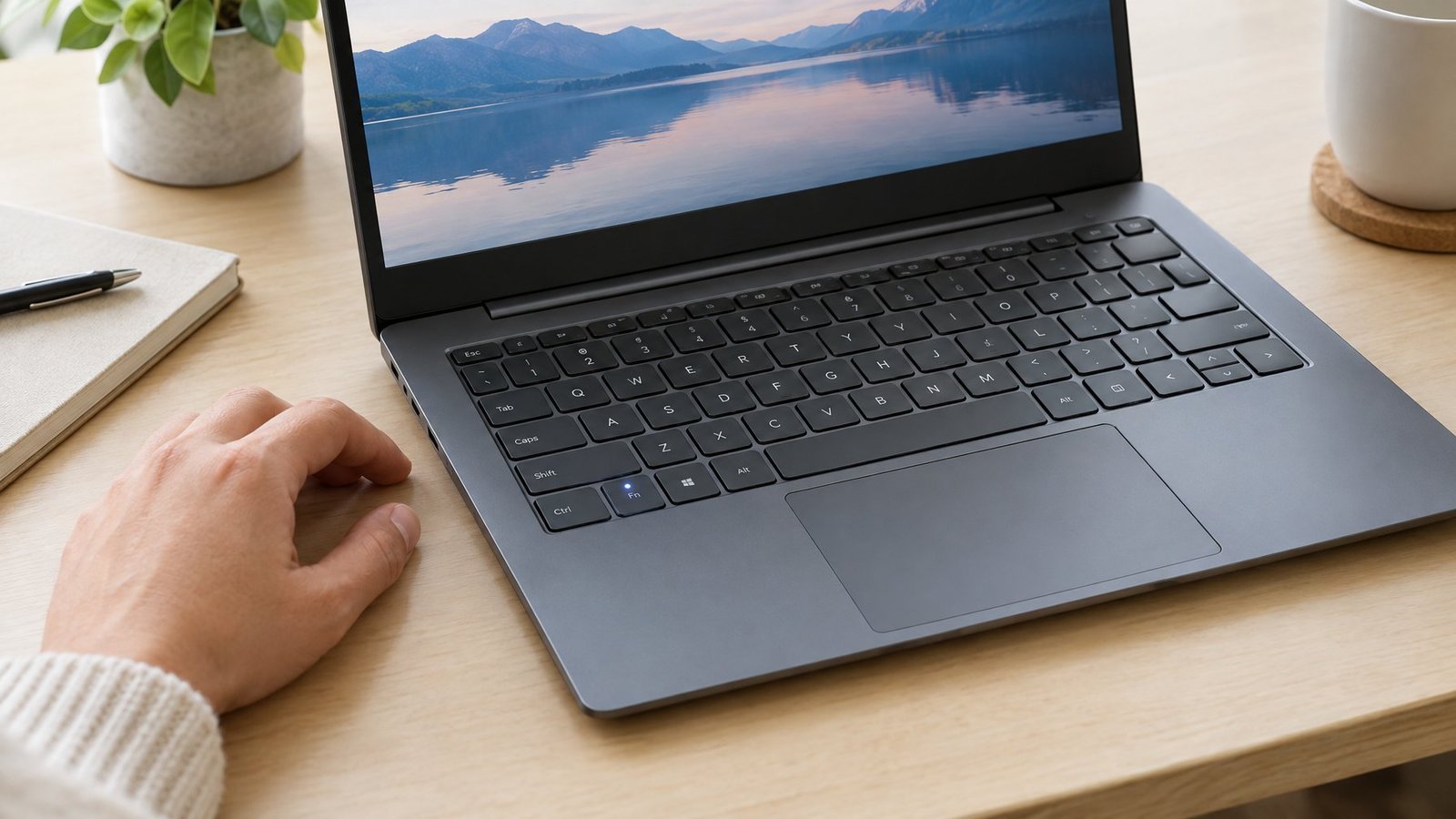
A lit Fn key almost always means Fn Lock is turned on, switching your top-row keys from media controls to standard function commands (or the other way around, depending on your laptop). It’s a setting, not a malfunction, and you can usually flip it right back with a quick key combo.
That little light next to your Fn key is a status indicator for Fn Lock, telling you which mode your top-row keys are currently in.

We’ve all glanced down at a keyboard and wondered why a key is glowing when we didn’t press anything unusual. The good news is that this light is doing its job correctly. It’s letting you know whether pressing F1 through F12 will trigger brightness, volume, or Wi-Fi shortcuts, or whether those keys will act as plain function keys for programs like games, spreadsheets, or design software.
Different brands handle this a little differently, and the fix depends on your laptop’s make and model. We’ll walk through what the light means, how to switch modes, where the deeper settings live, and what to do if the light refuses to budge.
What Does a Lit Fn Key Mean?

A lit Fn key signals that Fn Lock is active, which changes how your top-row keys behave without you needing to hold down Fn each time. The light itself usually sits on the Fn key or the Esc key, depending on the laptop brand. Lenovo machines, for example, put the indicator LED right on the Esc key since that’s part of the Fn + Esc shortcut.
How Does Fn Lock Change the Top-Row Keys?
Fn Lock swaps the primary and secondary functions of your top-row keys. On a typical keyboard, each key in that row has two jobs: one printed on the front (like F5) and one printed above it (like a brightness icon).
When Fn Lock is off, pressing a key alone triggers the icon function, like muting audio. Pressing Fn plus that key gives you the plain F-key. When Fn Lock is on, it flips: pressing the key alone gives you F1 through F12, and holding Fn brings back the shortcut.
Does the Light Mean the Same Thing on Every Keyboard?
Not quite. The general idea stays the same, but the exact behavior and light placement shift by brand. Samsung laptops, for instance, use a dedicated Fn Lock key (often F12) that toggles hotkeys like screen brightness, touchpad lock, and keyboard backlight. HP notebooks on certain EliteBook and ProBook models use Fn + Left Shift instead of Fn + Esc.
Microsoft keyboards with an F Lock key work similarly but with the light logic reversed on some models: light off means alternate functions are active, light on means standard F-keys are active. Checking your specific model’s documentation saves guesswork here.
How Do You Turn Off the Fn Key Light?
You can turn off the Fn key light by pressing the same shortcut that turned it on, which for most laptops is Fn + Esc. This toggles Fn Lock off and switches your top-row keys back to their media and shortcut functions.
Try Fn + Esc or the Key Marked Fn Lock
Fn + Esc is the standard combo on ThinkPad and many other laptops. Look for a small padlock icon on the Esc key. Pressing that combination again simply reverses whatever state Fn Lock is currently in, so if the light is on, this turns it off.
Some keyboards use a dedicated Fn Lock key instead, often layered onto F12. Samsung notebooks use this approach, letting you lock or unlock the Fn key with one press.
Check for an HP or Other Brand-Specific Shortcut
HP doesn’t always use Fn + Esc. On select ProBook and EliteBook models (like the ProBook 440 G5 or EliteBook 840 G5), the shortcut is Fn + Left Shift. Pressing it enables or disables fn mode, and when the fn key light is on, you need to hold Fn alongside a function key to get the default action.
Older HP G1 business notebooks handle this through BIOS settings instead, under a feature sometimes labeled “Fn Key switch.”
Test the Volume and Brightness Keys After Switching Modes
After toggling the shortcut, press a key like volume up or screen brightness to confirm the change took effect. If the icon function works without holding Fn, Fn Lock is off. If you still need to hold Fn for shortcuts, the lock is still active and you may want to try the combo again.
Where Else Can You Change the Setting?

You can adjust function key behavior at a deeper level through your laptop’s BIOS or its manufacturer’s keyboard software, which controls the default state before Fn Lock even comes into play. This matters if you want your preferred mode to stick permanently instead of resetting.
Check Your Laptop’s BIOS or UEFI Options
Many laptops include a function key settings menu inside the BIOS. On HP notebooks, this often appears as “Action Keys Mode” under System Configuration, letting you enable or disable the need to press Fn for shortcuts. Lenovo systems use a similar “Hotkey Mode” setting under the Configuration tab.
To get there, restart your computer and press the key your brand uses to enter BIOS (often F10 or Esc) during startup. Changes here tend to stick better than software toggles, since they apply before Windows even loads.
Look in Manufacturer Keyboard Software
Brand-specific apps give you another way to manage function key behavior without touching BIOS. Lenovo Vantage includes input settings for hotkey configuration, which matters for newer models like Yoga laptops that removed this option from BIOS entirely. Samsung Settings (or Book Settings on Galaxy Book devices) handles similar adjustments for Samsung notebooks.
These apps usually live in your Start menu or system tray. If function key settings in BIOS look grayed out or missing, checking the manufacturer software is the next logical step, since newer laptop generations often shift this control into software instead.
What If the Light Won’t Turn Off?

A stuck Fn key light usually clears up after a restart or a BIOS and software update, since this is most often a software glitch rather than a hardware fault. Work through a few checks before assuming anything is seriously wrong.
Restart and Check Whether the Key Behavior Changes
A simple restart resolves a surprising number of stuck-light cases. Shut the laptop down fully rather than just sleeping it, then turn it back on and test the Fn + Esc (or brand-specific) shortcut again.
If the combination works but doesn’t survive a restart, that’s a sign your BIOS or hotkey software needs an update.
Check Your Model’s Documentation Before Updating Keyboard Software
Look up your exact laptop model before installing any keyboard or hotkey software update. Different generations of the same product line sometimes use different shortcuts or settings menus, and installing the wrong driver package can cause more confusion. Your manufacturer’s support site is the most reliable place to confirm the correct update for your specific model.
When Could a Stuck Light Indicate a Hardware Issue?
A light that stays on through restarts, BIOS resets, and software updates might point to a hardware problem. On HP notebooks, certain blink patterns during startup (separate from the Fn light itself) signal BIOS corruption or other internal errors, and HP documents specific red and white blink codes for diagnosing these. If your Fn light behaves erratically alongside other symptoms, like keys not registering or the laptop keyboard not working correctly, that points toward a physical issue rather than a settings problem.
Keeping Your Preferred Function Key Mode

You can keep your preferred function key mode consistent by setting it in BIOS rather than relying on the Fn Lock toggle every session. BIOS-level settings tend to persist through restarts and updates more reliably than a quick key combo.
If you frequently use media shortcuts, like adjusting volume or screen brightness, disabling action keys mode (or setting Hotkey Mode appropriately) keeps those easy to reach. If you spend more time in software that relies on F1 through F12, like spreadsheets or games with function key bindings, the opposite setting saves you from holding Fn constantly.
Manufacturer software like Lenovo Vantage or Samsung Settings offers another layer of control, letting you fine-tune individual hotkey behavior beyond the simple on/off toggle. Checking these settings once after setting up a new laptop saves repeated adjustments later.
Frequently Asked Questions
What does it mean when the Fn key is lit up?
It means Fn Lock is active, which changes whether your top-row keys act as media shortcuts or standard F1 through F12 keys. The exact behavior depends on your laptop brand, but the light always signals a mode switch rather than an error.
How do I turn off the Fn key light on an HP EliteBook?
On select EliteBook models like the 830 G5, 840 G5, and 850 G5, press Fn and the left Shift key together to toggle fn mode off. Other HP models use Fn + Esc or a BIOS setting called Action Keys Mode instead, so check your specific model if that combo doesn’t work.
Why is the Fn key light on my Samsung laptop?
The light shows that Fn Lock is enabled, letting you use hotkeys like brightness and volume without holding Fn. Press the Fn Lock key (often mapped to F12) to switch back to standard function key behavior.
How do I get my keyboard out of Fn mode?
Press Fn + Esc on most laptops, or the brand-specific shortcut your manufacturer uses, like Fn + Left Shift on certain HP models. If the shortcut doesn’t stick after a restart, check your BIOS Hotkey Mode or Action Keys Mode setting.
Can I turn off the Fn key light in Windows 11?
Yes, through the same keyboard shortcut your laptop uses, since this setting lives at the hardware and firmware level rather than inside Windows itself. On Lenovo-branded devices running Windows 11, you can also adjust this through the BIOS Configuration tab or Lenovo Vantage software.
Final Thoughts
A glowing Fn key light simply means Fn Lock is turned on. In most cases, pressing Fn + Esc turns it off instantly. If it keeps coming back, a quick BIOS change or a setting in your manufacturer’s software will fix it permanently.

I’m Anirban Saha, Founder & Editor of TechBullish. With a B.Tech in Electronics and Communication Engineering, and 8+ years of experience as a software developer, I have expertise in electronics, software development, gadgets, and computer peripherals. I love sharing my knowledge through informational articles, how-to guides, and troubleshooting tips for Peripherals, Smart TVs, Streaming Solutions, and more here. Check Anirban’s LinkedIn Profile here.
