
A dead keyboard can turn a normal afternoon into a scramble, especially when a deadline is sitting in an open document you can’t finish typing. The good news: a laptop keyboard not working is usually fixable without a trip to a repair shop. Most cases trace back to a stuck key, a stray Windows setting, an outdated driver, or a loose connection, and each of those has a clear test you can run in a few minutes.

We walk through keyboard troubleshooting step by step below, starting with the fastest checks and moving toward driver fixes and hardware decisions. If you’d rather skip ahead and just get typing again, grab an external USB keyboard for now and keep reading while it keeps you productive.
What Should You Try First?
Start with the simplest explanations before touching settings or drivers. A quick restart, a check for debris, and a backup way to type will tell you a lot about what’s really wrong.
Restart and Check for Stuck Keys or Debris
Restarting clears out temporary glitches that can make a keyboard not working seem worse than it is. Shut the laptop down fully, wait a few seconds, then power it back on.
While it’s off, look closely at the keys. Crumbs, dust, or a stuck key can block input on just that key or confuse the whole keyboard. A can of compressed air aimed between the keys, followed by a gentle wipe with a dry microfiber cloth, clears most debris without opening anything up.
Use an On-Screen or External Keyboard to Keep Typing
The Windows on-screen keyboard lets you keep working while you troubleshoot. Press Windows key + Ctrl + O to open it instantly, or search “on-screen keyboard” from the Start menu.
For heavier typing, plug in an external keyboard. Any USB keyboard works as a plug-and-play backup, and most wireless or bluetooth models pair just as easily. This also answers a key question early: if the external keyboard types fine, the problem lives in the laptop’s built-in keyboard or its driver, not somewhere deeper in Windows.
Test the Built-In Keyboard Before Windows Starts
Testing the keyboard before Windows loads rules out software entirely. Restart the laptop and try to enter BIOS using the key your manufacturer lists (often F2, F10, F12, or Delete, pressed right after powering on).
If the keys respond inside BIOS setup, the hardware is fine and the problem is in Windows. If keys do nothing even in BIOS, the issue points toward hardware, like a damaged keyboard or a loose internal connection. Lenovo’s own UEFI diagnostics tool, for example, includes a dedicated keyboard test that checks every key individually, which is a useful model for how this kind of test should work. If you own a Lenovo machine, our Lenovo keyboard not working fix guide covers brand-specific steps in more detail.
Could a Windows Setting Be Blocking Your Keys?
A single accessibility setting can make a perfectly healthy keyboard seem broken. Filter keys, sticky keys, and an incorrect keyboard layout are common, easy-to-fix culprits.
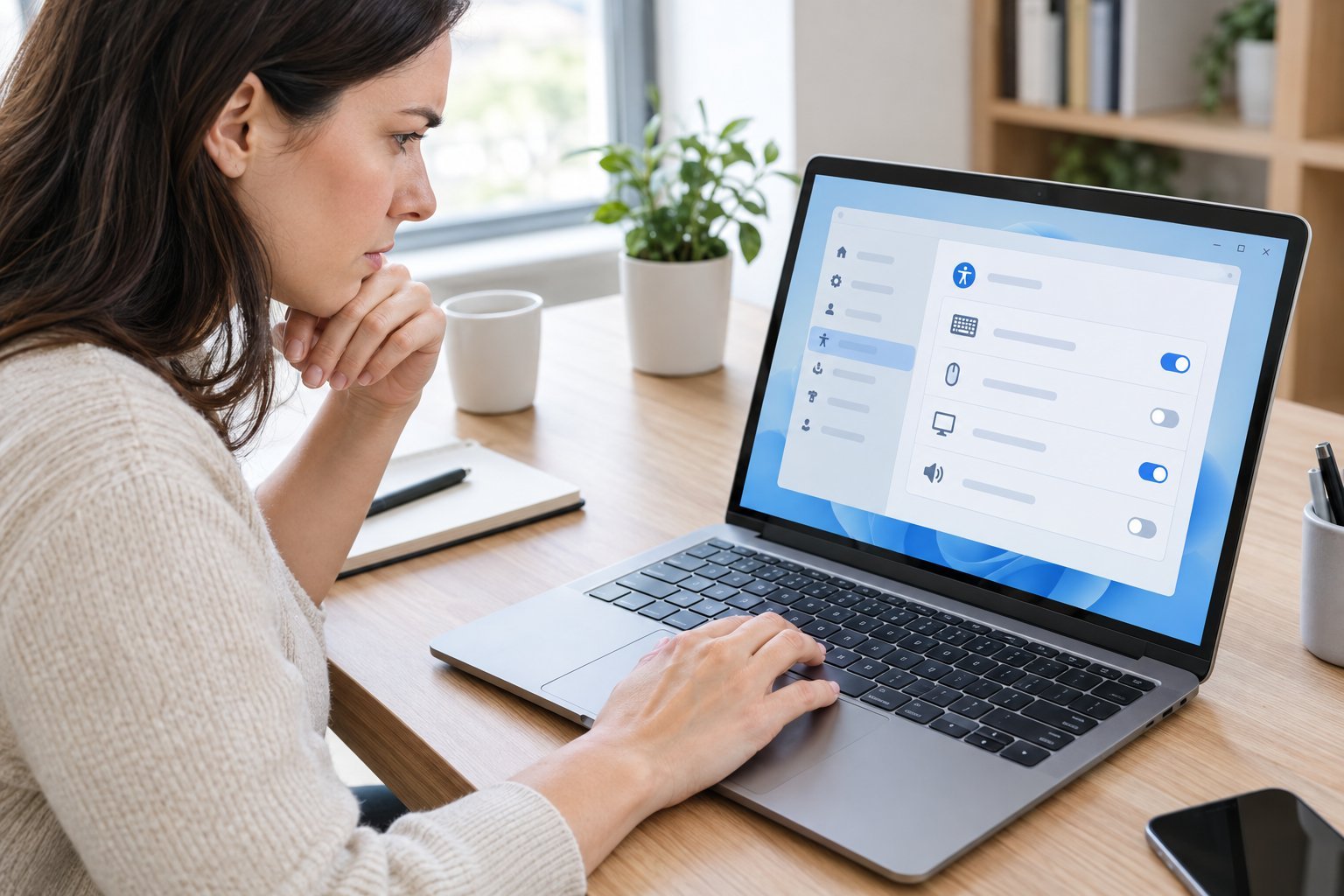
Check Filter Keys, Sticky Keys, and Toggle Keys
Filter Keys can make the keyboard ignore brief or repeated keystrokes, which feels exactly like an unresponsive keyboard. Go to Settings > Accessibility > Keyboard on Windows 11 (or Settings > Ease of Access > Keyboard on Windows 10) and check the toggles for Filter Keys, Sticky Keys, and Toggle Keys.
Sticky Keys changes how key combinations work, letting you press keys one at a time instead of together. Toggle Keys just plays a sound for Caps Lock, Num Lock, and Scroll Lock, so it won’t block typing, but it’s worth confirming none of these three got switched on by accident, often by holding a key too long.
Correct the Keyboard Layout and Function Key Settings
A mismatched keyboard layout makes keys type the wrong characters, not nothing at all, but it’s easy to mistake for a dead key. Check this under Settings > Time & language > Language & region, then open language options to confirm the correct keyboard layout is installed and selected.
Function key behavior is a separate setting, often controlled in BIOS. If your F1 through F12 keys act as media or brightness controls instead of standard function keys, pressing Fn alongside the key switches that behavior.
Check Whether the Problem Happens in Just One App
Test the keyboard in multiple programs, like Notepad and a web browser. If typing fails in one app but works everywhere else, the issue is with that app rather than the keyboard itself, and reinstalling or updating that program solves it.
How Do You Fix Drivers and Windows Issues?
Outdated or corrupted keyboard drivers are one of the most common causes of a laptop keyboard not working after an update. Reinstalling the driver, checking Windows Update, and ruling out malware usually resolves it.https://www.youtube.com/embed/9TQ4xA6yq-E
Reinstall the Keyboard Device in Device Manager
Device Manager can force Windows to reinstall a fresh keyboard driver. Right-click the Start menu, select Device Manager, and expand the Keyboards category.
Right-click your keyboard entry, often listed as a standard PS/2 keyboard or an HID keyboard device, and choose Uninstall device. Restart the laptop, and Windows reinstalls the driver automatically. If the keyboard still doesn’t register, Device Manager also lets you roll back a recently updated driver, which helps when the problem started right after an update.
Check for Windows Updates and Manufacturer Drivers
Windows Update installs most recommended drivers automatically, but it’s worth confirming. Go to Settings > Windows Update and select Check for updates; install anything available and restart.
If Windows Update doesn’t find a fix, check your laptop manufacturer’s support site for an optional keyboard driver built specifically for your model. This step matters most for laptops that got a driver issue after a major Windows update.
Try Available Diagnostics and Check Windows Security
Some laptop brands include built-in diagnostic tools that test every key individually, similar to the UEFI keyboard tests found on Lenovo systems. Running one of these, where available, quickly confirms whether every key registers correctly.
It’s also worth ruling out malware, since malicious software can interfere with input devices and overall system performance. Open Windows Security, run a quick scan, and address anything it flags before moving further down the troubleshooting list.
When Is It a Hardware or Connection Problem?
Physical damage, spills, and failed connections point to hardware rather than software. Checking individual keys, testing external keyboards separately, and deciding between repair and replacement wraps up the diagnosis.
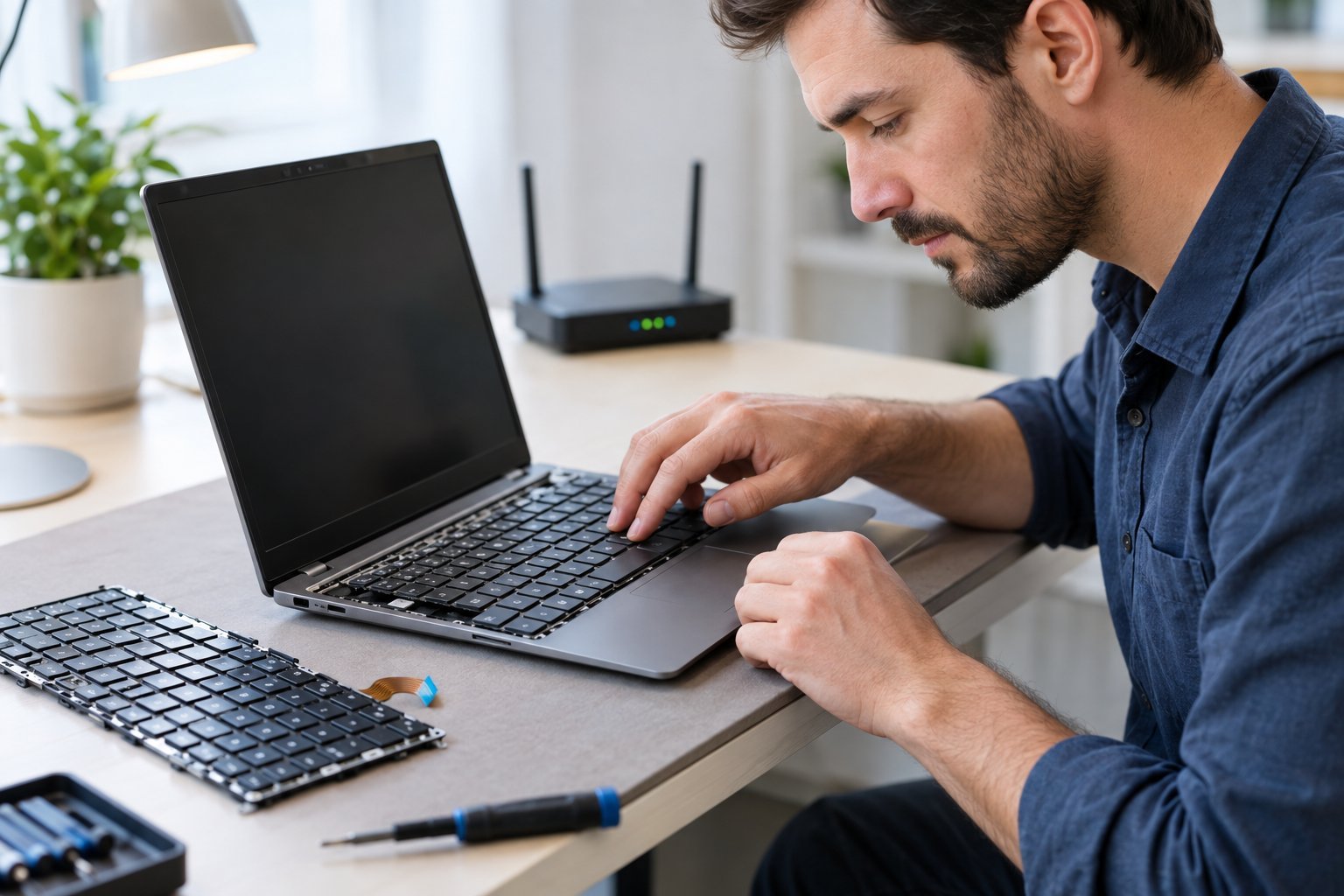
Check Individual Keys, Spills, and Visible Damage
Keys that are cracked, loose, or missing altogether point to a hardware failure rather than a software fix. Gently press any key that feels off to confirm it’s seated properly, and look for cracks around the key stems.
If liquid was spilled on the keyboard, turn the laptop off immediately, tilt it to drain excess liquid, and let it dry for at least 24 to 48 hours before turning it back on. Water often dries without lasting damage, but other liquids, like sugary drinks, can leave residue that causes ongoing problems.
Troubleshoot a USB, Wireless, or Bluetooth Keyboard Separately
External keyboards fail for different reasons than built-in ones. For a USB keyboard, try a different port, check that any USB hub has power, and confirm the cable isn’t damaged.
For a wireless keyboard, look for a reset button on the device or its USB receiver, and replace the batteries if they’re low. A bluetooth keyboard needs bluetooth turned on under Settings > Bluetooth & devices, and may need to be removed and re-paired if it stops responding.
Decide Whether to Seek Repair or Replace the Keyboard
Cracked keys, consistently dropped keystrokes, or a keyboard that fails even in BIOS usually means it’s time to replace a laptop keyboard rather than keep troubleshooting software. Laptop keyboards are replaceable components, and many manufacturers offer service options or self-repair guides depending on warranty status.
Before committing to replacement, weigh the cost against simply using an external keyboard full time, which is often the more practical short-term fix.
Choose the Fix That Matches the Test Results
The right fix depends entirely on what your tests showed in the sections above, not on guesswork. A keyboard that fails before Windows loads points to hardware, while one that works in BIOS but not in Windows points to drivers or settings, and matching your test result to the right fix saves time and money.
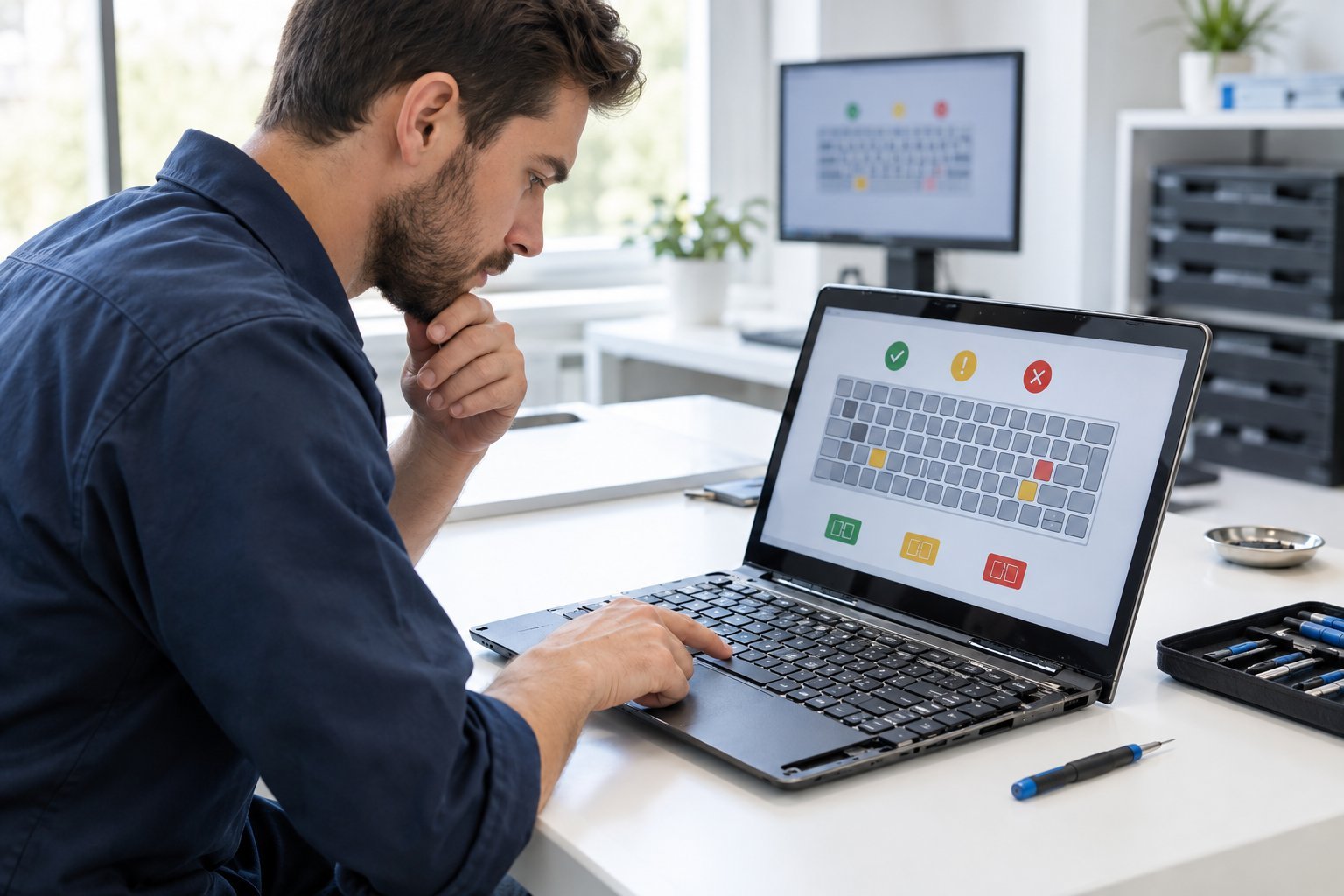
Use this quick reference to connect your results to the right next step:
| What You Found | Likely Cause | Next Step |
|---|---|---|
| Works in BIOS, fails in Windows | Driver or software issue | Reinstall driver, check for updates |
| Fails in BIOS too | Hardware fault | Repair or replace keyboard |
| Only certain keys fail | Debris or physical damage | Clean keyboard, inspect for cracks |
| Wrong characters appear | Keyboard layout setting | Fix layout in language settings |
| External keyboard works fine | Built-in keyboard or its driver | Treat as hardware/driver issue |
If keys type the wrong letters instead of nothing, that’s a layout problem, and our guide on keyboard keys typing the wrong letter covers that scenario in detail. For Microsoft Surface owners, keyboard and Type Cover issues often involve different steps than a standard laptop, covered in our Microsoft Surface keyboard not working guide. A Chromebook follows its own troubleshooting path too, detailed in our Chromebook keyboard not working article.
Conclusion
A laptop keyboard not working almost always points to one of a few causes: debris, a misapplied accessibility setting, an outdated driver, or genuine hardware damage. Working through restart checks, Windows settings, driver reinstalls, and hardware tests in order narrows down the cause quickly.
Once you know which category fits your laptop, the fix is usually quick, whether that’s a driver update, a settings change, or a keyboard replacement. Keeping a USB or wireless keyboard on hand means a dead keyboard never has to stop you from getting work done.
Frequently Asked Questions
Why is my laptop keyboard not typing letters?
This usually means a driver issue, a stuck accessibility setting like Filter Keys, or debris under the keys. Start by restarting the laptop and checking Settings > Accessibility > Keyboard for Filter Keys or Sticky Keys turned on by mistake. If that doesn’t help, reinstall the keyboard driver through Device Manager.
How do I unlock my laptop keyboard if I locked it accidentally?
Most “locked” keyboards are actually affected by Filter Keys or Sticky Keys being enabled. Open Settings > Accessibility > Keyboard on Windows 11 or Settings > Ease of Access > Keyboard on Windows 10, and turn those toggles off. Restarting the laptop afterward confirms the change took effect.
Why are only some keys on my laptop keyboard not working?
A few unresponsive keys usually points to debris, a stuck key, or localized physical damage rather than a driver problem. Clean around the affected keys with compressed air and a soft cloth, and check whether the keys feel loose or cracked. If the same keys keep failing after cleaning, the keyboard likely needs repair.
What should I do if my laptop keyboard makes a sound but does not type?
A click or beep with no text usually means Toggle Keys is turned on, which plays a sound for Caps Lock, Num Lock, and Scroll Lock without affecting typing. Check whether the issue is tied to a specific key like Caps Lock rather than the whole keyboard. If regular letter keys make sounds but don’t type, that points to a driver or hardware fault instead.
Can I use an external keyboard instead of replacing my laptop keyboard?
Yes, a USB, wireless, or bluetooth keyboard works as a full replacement for a failed built-in keyboard. This is often more practical than a repair, especially for older laptops where replacement parts cost more than a new external keyboard. Plug-and-play USB keyboards need no extra setup, while bluetooth models just need pairing through Settings > Bluetooth & devices.

I’m Anirban Saha, Founder & Editor of TechBullish. With a B.Tech in Electronics and Communication Engineering, and 8+ years of experience as a software developer, I have expertise in electronics, software development, gadgets, and computer peripherals. I love sharing my knowledge through informational articles, how-to guides, and troubleshooting tips for Peripherals, Smart TVs, Streaming Solutions, and more here. Check Anirban’s LinkedIn Profile here.
