
Most keyboards that type the wrong letter aren’t broken. In most cases, you fix keyboard keys typing the wrong letter on Windows by switching back to the correct keyboard layout (press Windows + Space or pick it from the taskbar), then checking Num Lock, Fn Lock, and any key remapping tools. Hardware faults, spills, and bad drivers are real causes too, but they come later in the checklist.
A single stray shortcut can swap your whole layout. After that, pressing Q gives you A, or Shift + 2 gives you a quote mark instead of the @ sign. On laptops, one tap of Num Lock can turn the U, I, O, J, K, and L keys into numbers. Work through the checks below in order, and you’ll know within a few minutes whether you’re facing a settings slip or a keyboard that needs repair.
Is the Wrong Keyboard Layout Selected?
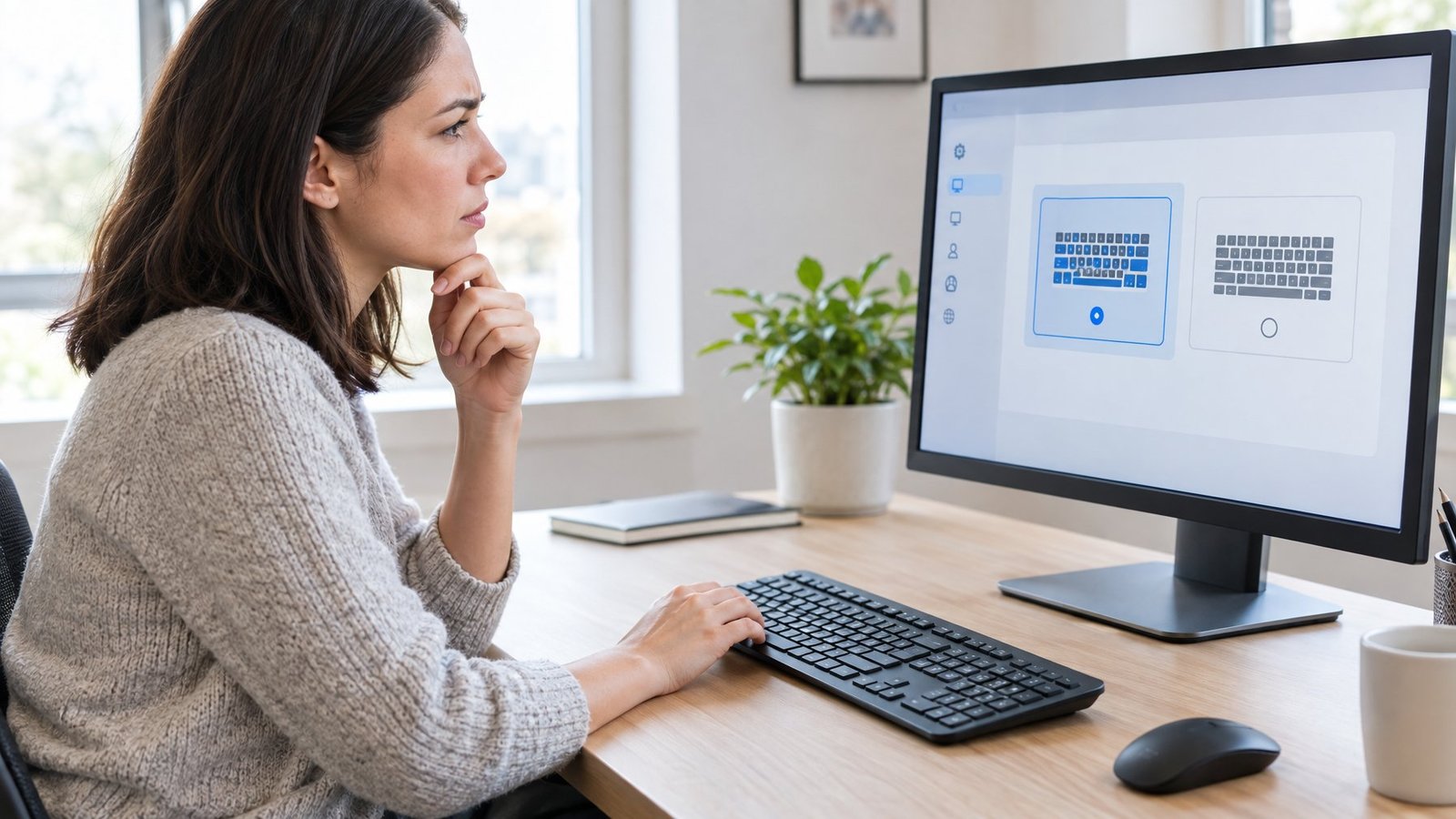
A wrong keyboard layout is the most common reason keys type the wrong characters. If symbols land in the wrong place (like @ and ” swapped) or Y and Z trade spots, Windows is reading your keys through a different layout map. The fix is to switch back, confirm the right layout in Settings, and remove any extras you don’t use.
Switch Layouts with the Taskbar or Windows + Space
Look at the right side of your taskbar near the clock. The input language icon shows your current layout, such as ENG US or ENG UK. Click it and choose the layout that matches your physical keyboard.
You can also use keyboard shortcuts:
- Windows + Space cycles through every installed layout. Tap Space while holding the Windows key until the right one shows.
- Left Alt + Shift switches input language on many setups. It’s easy to press by accident while typing fast.
If Windows + Space does nothing, only one layout is installed. In that case, the problem is somewhere else, or the one installed layout is the wrong one.
If the input icon is missing from the taskbar, the old desktop language bar may be turned on. Go to Settings > Time & language > Typing > Advanced keyboard settings and uncheck Use the desktop language bar when it’s available to bring the icon back.
Set the Correct Layout in Windows 11 or Windows 10
Most US keyboards use the US layout under English (United States). Here’s how to confirm it.
Windows 11:
- Open Start > Settings > Time & language > Language & region.
- Under Preferred languages, click the three dots next to your language and pick Language options.
- Under Keyboards, check that US is listed. If not, select Add a keyboard and choose it.
Windows 10:
- Open Start > Settings > Time & language > Language.
- Select your language under Preferred language, then Options.
- Add or confirm the correct keyboard under Keyboards.
Microsoft ended Windows 10 support on October 14, 2025, so the steps still work there, but Windows 10 PCs no longer get free updates.
Remove Unwanted Layouts and Input Languages
Extra layouts are the reason shortcuts can switch you by mistake. Removing them stops the problem from coming back.
- In Language & region, open Language options for each language.
- Under Keyboards, click the dots next to a layout you don’t need and select Remove.
- To delete a whole input language, click the dots next to it and choose Remove.
If Remove is grayed out, that layout is the only one for your display language. Add the correct layout first, then remove the wrong one. Layouts can also hide under a language you don’t expect, so check every language in the list.
Are Num Lock or Other Key Modes Changing What You Type?
Key modes are the next suspect when letters turn into numbers or keys act strangely. Num Lock, Fn Lock, accessibility features like Sticky Keys and Filter Keys, and remapping apps such as Microsoft PowerToys can all change what a key sends without any warning on screen.
Turn Off Num Lock When Laptop Letters Become Numbers
Many compact laptops skip the separate number pad. Instead, they share a number keypad with letter keys in the middle of the keyboard. When Num Lock is on, U, I, O become 4, 5, 6, J, K, L become 1, 2, 3, and M becomes 0.
To turn it off:
- Press the Num Lock key (often labeled NumLk or NmLk).
- If there’s no separate key, try Fn + F7, Fn + F8, or Fn + Insert. Lenovo places it on these keys on many models.
- Look for a small Num Lock light. If it’s lit, the mode is on.
On a keyboard with a full number pad, the Num Lock key only affects that pad. If your letters still turn into numbers there, look at the other causes below. For problems where Shift + number keys give odd symbols, see our guide on keyboard typing symbols instead of numbers.
Check Fn Lock and Accessibility Settings
Fn Lock flips the top row between F1 to F12 and media functions like volume. On some Microsoft keyboards, pressing Fn + Caps Lock toggles Fn Lock. Others use an F Lock key with a light: light on means standard F-keys, light off means alternate commands like Undo or Help.
Accessibility tools also cause odd behavior:
- Sticky Keys keeps Shift, Ctrl, or Alt “held” after one press, so your next letter comes out capitalized or triggers a shortcut. Pressing Shift five times turns it on.
- Filter Keys ignores quick or repeated presses, which feels like missing or delayed letters. Holding right Shift for eight seconds turns it on.
Turn both off in Settings > Accessibility > Keyboard on Windows 11, or Settings > Ease of Access > Keyboard on Windows 10.
Disable Unwanted Key Remapping
Remapping software can make one key type a totally different letter. The PowerToys Keyboard Manager, for example, can swap A for B across all of Windows, and it keeps doing so as long as PowerToys runs in the background.
To check:
- Open PowerToys Settings and select Keyboard Manager.
- Open Remap a key and Remap a shortcut, then delete any mappings you didn’t mean to set.
- Or turn Keyboard Manager off, or quit PowerToys, and test again.
Also check keyboard apps from your brand, such as Microsoft Mouse and Keyboard Center, plus any gaming software with a keyboard macro feature. These can assign new actions to keys too.
Does the Problem Come from an App or the Keyboard Itself?
A few quick comparisons tell you whether software or hardware is to blame. If typing works in one place but not another, it’s a setting. If the same key fails everywhere, even on a second keyboard test, the hardware or its connection is the likely cause.
Compare Typing in Different Apps and the On-Screen Keyboard
Open Notepad and type every letter and number. Then try the same in your browser and in the app where you noticed the problem. If only one app misbehaves, check that app’s own shortcuts, autocorrect, or language settings.
Next, open the on-screen keyboard. On Windows 11, go to Settings > Accessibility > Keyboard and turn on On-Screen Keyboard, or press Windows + Ctrl + O. On Windows 10, it’s under Ease of Access > Keyboard.
Click letters with your mouse:
- On-screen letters come out wrong too: the layout or a remapping tool is the cause.
- On-screen letters are right but physical keys are wrong: the keyboard, its driver, or its connection is at fault.
Test for Stuck Keys, Spills, and Ghost Typing
A free online keyboard tester lights up each key as you press it. Press every key one at a time and watch for keys that don’t register, light up twice, or trigger a different key.
Signs of hardware trouble include:
- Letters appearing when you aren’t touching anything (ghost typing)
- One key that feels sticky, mushy, or stays down
- A row of keys failing together, which points to a damaged ribbon or circuit after a spill
To clean it, unplug the keyboard or remove the batteries first. Turn it upside down and tap gently, then blow between the keys with compressed air.
Wipe the surface with a lint-free cloth lightly dampened with 70% or weaker isopropyl alcohol, and never pour liquid on the keys.
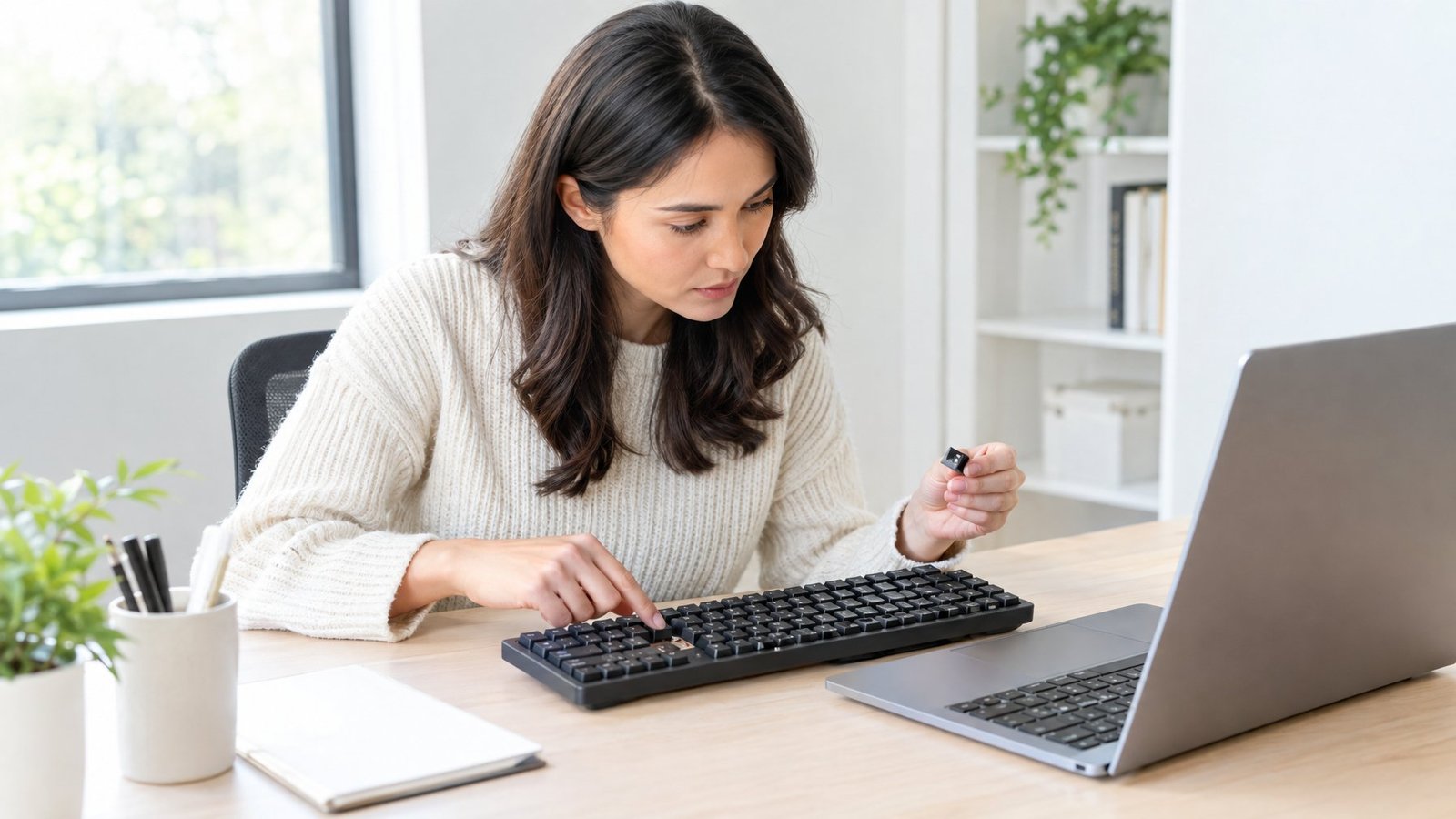
On a mechanical keyboard, you can remove the keycaps to clean under a sticky key. If extra keys drop out when you press several at once, read about keyboard ghosting, which is a different issue.
Reconnect a USB or Wireless Keyboard
Loose connections cause missed and garbled input more often than people expect.
For a USB keyboard:
- Unplug it, wait about 10 seconds, and plug it back in.
- Try a different USB port.
- Skip any USB hub and plug straight into the PC.
- Look for bent pins or a frayed cable.
For a wireless keyboard:
- Replace or recharge the batteries.
- Unplug the USB receiver for 10 seconds, then reconnect it.
- Press the Reset or pairing button if there is one.
- For Bluetooth, remove the keyboard in Settings > Bluetooth & devices, then pair it again.
- Turn off other Bluetooth devices that may interfere.
An Apple Magic Keyboard on Windows is a special case. Its keys are laid out for Mac, so symbols like @ and ” often land in odd places. Choosing the right layout or adding a remap fixes this. Testing any keyboard on a second PC also helps: if it fails there too, it’s the keyboard.
What If the Keys Still Type the Wrong Characters?
Driver and system fixes are the last software steps before repair. A damaged or outdated keyboard driver can make Windows read keys wrong, and a recent update can bring in a bad one.
Update or Reinstall the Keyboard Driver in Device Manager
Reinstalling the driver gives Windows a clean start with your keyboard.
- Save your work and close apps.
- Right-click Start and choose Device Manager.
- Expand Keyboards.
- Right-click your keyboard (often Standard PS/2 Keyboard or HID Keyboard Device) and choose Uninstall device, then confirm.
- Restart the PC. Windows reinstalls the driver on its own.
To update instead, right-click the keyboard and choose Update driver > Search automatically for drivers.
If the trouble began right after an update, try a rollback. Right-click the keyboard, choose Properties > Driver > Roll Back Driver, pick a reason, and confirm.
You need admin rights for this. For branded laptops, get drivers only from the maker’s site. We cover brand-specific steps in our Lenovo keyboard not working fix and Microsoft Surface keyboard not working guides.
Check Windows Update and Available Troubleshooters
Windows Update delivers most keyboard driver fixes.
Open Settings > Windows Update and select Check for updates. Then open Advanced options > Optional updates and install any keyboard or input driver listed there. Restart even if Windows doesn’t ask.
Microsoft has retired the old Keyboard troubleshooter on newer Windows 11 releases.
On those versions, head to Settings > System > Troubleshoot > Other troubleshooters, or open the Get Help app and describe the problem.
For a Bluetooth keyboard, the Bluetooth troubleshooter in Get Help is still available. Older Windows 11 versions (22H2 and earlier) and Windows 10 may still show the legacy keyboard troubleshooter.
If nothing works and the on-screen keyboard types correctly, the keyboard itself has likely failed. A replacement or repair is the next step.
Get Your Keyboard Typing Normally Again
You can fix keyboard typing wrong letters on most PCs by working from the quickest checks to the slowest. Our recommended order:
- Layout: press Windows + Space or pick the right layout from the taskbar, then remove extras.
- Key modes: turn off Num Lock, Fn Lock, Sticky Keys, and Filter Keys.
- Remapping: clear PowerToys or brand-app key mappings.
- App vs. hardware: test in Notepad, the on-screen keyboard, and a keyboard tester.
- Connection: reseat USB, swap batteries, or re-pair Bluetooth.
- Driver and updates: reinstall or roll back in Device Manager and run Windows Update.
Steps 1 and 2 solve the problem for most people. If the on-screen keyboard types fine but the physical keys still fail after step 6, plan on cleaning, repair, or a new keyboard.
Frequently Asked Questions
Why does my laptop keyboard type numbers instead of letters?
Num Lock is on and has turned part of your letter keys into a number pad. Press Num Lock, or Fn plus F7, F8, or Insert on laptops without a separate key, to turn it off.
How do I reset my keyboard keys back to normal in Windows 11?
Set the right layout in Settings > Time & language > Language & region, and remove any others. Then turn off Sticky Keys and Filter Keys, and clear any PowerToys mappings. If keys still act up, reinstall the keyboard driver in Device Manager.
Why does pressing one key type a different letter in Windows 10?
A different keyboard layout or a remapping tool is almost always the cause. Press Windows + Space to cycle layouts, and check apps like PowerToys for key swaps. If only that one key fails in every test, it may be physically damaged.
What if my keyboard types the wrong letters in only one app?
The problem lies in that app’s settings, since Windows and the keyboard work fine elsewhere. Look at its autocorrect, custom shortcuts, or language options. Some apps can also hold their own input language, so check the taskbar icon while that app is open.
How can I tell whether ghost typing is a hardware problem?
Unplug or turn off the keyboard and watch the screen. If the stray typing stops, the keyboard is at fault, often from a spill, debris, or a stuck key. If it keeps going with no keyboard connected, look at software or another input device.

I’m Anirban Saha, Founder & Editor of TechBullish. With a B.Tech in Electronics and Communication Engineering, and 6+ years of experience as a software developer, I have expertise in electronics, software development, gadgets, and computer peripherals. I love sharing my knowledge through informational articles, how-to guides, and troubleshooting tips for Peripherals, Smart TVs, Streaming Solutions, and more here. Check Anirban’s Crunchbase Profile here.
