
A silent printer is one of the most frustrating tech problems around, mostly because the fix is usually small but hard to spot. Most of the time, a printer that won’t print is stuck on one of four things: a paper or ink problem, a lost connection, a stuck print queue, or an outdated driver. We’ve chased down this exact issue more times than we can count, and the cause is rarely dramatic.
The good news is that printer problems follow a pattern. A wireless printer that worked fine yesterday and suddenly won’t respond today almost always points to a connection hiccup, not a broken machine. An inkjet spitting out blank pages usually means clogged nozzles, not a dead unit. Working through the checks below in order will get most printers printing again without a service call or a trip to the store.
What Should You Check First When Nothing Prints?
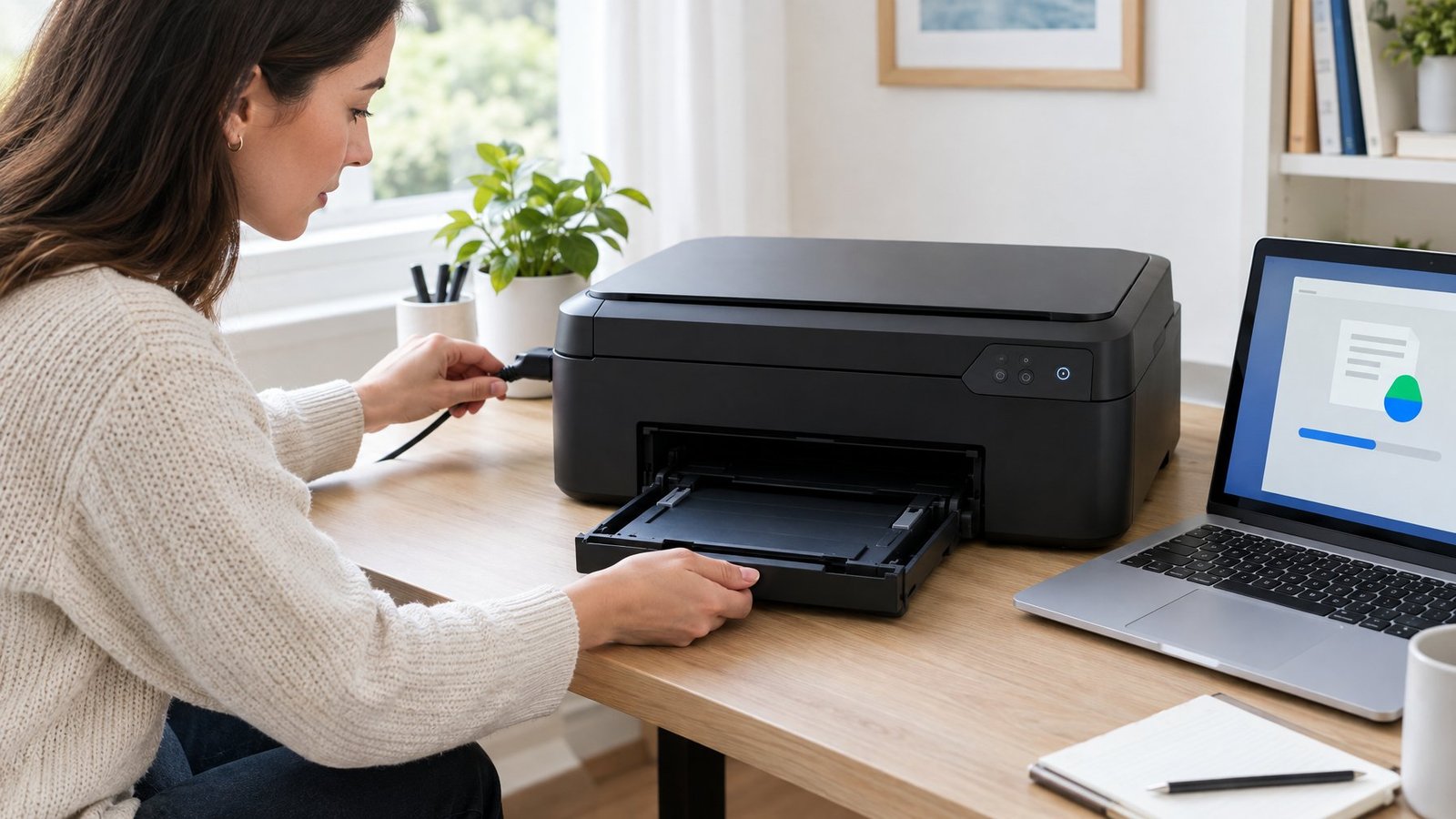
Before touching any settings on your computer, rule out the printer itself. A paper jam, low ink and toner levels, or a printer stuck mid-error can all stop jobs cold, and these problems show up on the printer, not the PC.
Can the Printer Print Its Own Test Page?
Most printers can print a test page straight from their own control panel, without any help from a computer. If that page prints fine, the printer hardware works and the problem lives in the connection or software. If no test page comes out, focus on the printer itself before touching Windows settings.
Is There a Paper Jam or Printer Error?
Open every access door and check the paper path, the output tray, and the area around the toner or ink cartridge for stuck sheets or scraps. Pull jammed paper straight out instead of at an angle, since pulling at an angle can tear the sheet or damage internal rollers. Small scraps left behind cause repeat jams, so check twice before closing the printer back up. You can refer to this article regarding how to fix printer jam issue.
Are the Paper and Ink or Toner Ready?
Confirm the paper tray has paper loaded correctly and that it matches the size selected in your print settings. Then check ink or toner levels. For toner cartridges, also check for leftover packing material, orange shipping tabs, or protective tape left on a new cartridge. Those are a common cause of “install cartridge” errors that stop printing entirely.
Will Restarting the Printer Help?
Power-cycling solves more printer problems than most people expect. Turn the printer off, unplug it from the wall for about 60 seconds, then plug it back in and turn it on. This clears temporary errors and forces the printer to reset its internal state, often fixing an issue that wouldn’t resolve with buttons alone.
Why Does a Connected Printer Still Ignore Print Jobs?
A printer that’s powered on and plugged in can still refuse jobs if your computer isn’t actually talking to it. The usual suspects are a wrong default printer, a printer that’s gone offline on Wi-Fi, a stuck print queue, or a print spooler service that’s frozen.
Is Your Computer Sending Jobs to the Right Printer?
If you have more than one printer installed, your document might be sending to the wrong one, or to an old, disconnected printer. Open Settings > Bluetooth & Devices > Printers & Scanners, select the printer you want to use, and set it as the default. If you don’t see a Set as Default option, turn off Let Windows Manage My Default Printer first.
Is the Printer Offline or Disconnected from Wi-Fi?
A wireless printer shown as “offline” is usually just disconnected from the network, not broken. Check that the printer and your computer are on the same Wi-Fi network, since separate guest networks or extenders can split devices onto different connections. Also check that Use Printer Offline isn’t accidentally turned on in the print queue settings, which keeps the printer from accepting jobs even when it’s connected.
Is a Stuck Job Blocking the Print Queue?
One failed print job can block every job behind it. Open the print queue from Printers & Scanners, right-click any stuck documents, and cancel them. If jobs won’t cancel normally, the spooler itself likely needs a reset, which is covered next.
Does the Windows Print Spooler Need a Restart?
The print spooler is the Windows service that manages every print job, and it can freeze or crash. Press Windows key + R, type services.msc, find Print Spooler, and restart it. If jobs still won’t clear, stop the spooler, delete the files inside C:\Windows\System32\spool\PRINTERS, then start the spooler again.
Why Are Pages Blank, Incomplete, or Slow?
Printing something that looks wrong is a different problem than printing nothing at all. Blank pages usually trace back to clogged print heads or print settings, missing text and faded colors point to dried ink in the nozzles, and sluggish printing often comes down to quality settings or a tired USB connection.
Why Is the Printer Feeding Blank Pages?
Blank pages often come from clogged print head nozzles, low ink, or a document that genuinely contains blank pages your print software didn’t catch. Check that the printer sits on a flat, stable surface, since a tilted printer can misfire the print mechanism. A nozzle check pattern, available in most printer software, will show exactly which nozzles are clogged.
Could a Clogged Print Head Be Causing Missing Text or Colors?
Missing text or streaky colors almost always mean clogged print head nozzles from ink that’s dried out, especially after the printer sat unused for a while. Running a standard print head cleaning cycle from the printer’s maintenance menu usually clears minor clogs. If regular cleaning doesn’t help, a deeper power cleaning cycle uses more ink but can clear stubborn blockages that a standard clean leaves behind.
What Causes Slow Printing?
Slow printing usually comes from high-quality print settings, Quiet Mode being switched on, or a connection bottleneck. Switching the print quality to Draft or Normal speeds things up noticeably. A printer connected through a USB hub instead of directly to the computer, or printing continuously until it overheats and throttles itself, will also slow things down.
What If the Basic Fixes Do Not Work?

When power cycling, queue clearing, and spooler restarts haven’t fixed anything, the issue is likely the printer driver or the printer’s installation in Windows. A built-in troubleshooter, a driver update, or a clean reinstall solves most of what’s left.
Can the Windows Printer Troubleshooter Find the Problem?
Windows includes an automated printer troubleshooter in the Get Help app that runs diagnostics and attempts fixes on its own. It’s worth running before manually digging through driver files, since it catches common configuration issues automatically. If it can’t resolve the problem, move on to the driver itself.
Should You Update or Reinstall the Printer Driver?
An outdated or corrupted printer driver is a common cause of printers that stop responding after a Windows update. Check Windows Update for a newer driver first, since that’s the method Microsoft recommends. If nothing new shows up there, download the latest driver directly from the printer manufacturer’s support page instead of relying on an old installation disc, which may carry outdated software.
When Should You Remove and Add the Printer Again?
If updating the driver doesn’t help, remove the printer entirely and add it back. Go to Printers & Scanners, select the printer, choose Remove, then use Add Device to reinstall it. This forces Windows to pull a fresh driver and rebuild the connection from scratch, which often resolves issues that persist through every other fix.
Find the Fault Before Replacing the Printer
Most printers that seem dead are suffering from something fixable, not a hardware failure. Work through the checks in order: paper and ink first, then the connection and print queue, then print quality issues, then drivers. A printer that fails its own self-test page, even after a full power cycle and a fresh cartridge, is the clearer sign of an actual hardware fault worth servicing or replacing.
Keep track of what you’ve already tried. If a problem reappears right after you fix it, that’s a clue. A print queue that keeps jamming points to a spooler issue worth resolving at the source, and a wireless printer that drops offline repeatedly points to a Wi-Fi or router problem rather than the printer itself. Many of the same troubleshooting instincts apply across home office gear generally. If you’re also dealing with unresponsive devices nearby, the same logic that fixes a stuck print queue often applies to why a wireless mouse stops working or why a keyboard won’t type, since loose connections and driver conflicts cause similar symptoms across peripherals.
Frequently Asked Questions
Why did my printer stop printing all of a sudden?
A sudden stop is usually caused by a dropped Wi-Fi connection, a stuck print job blocking the queue, or a driver that broke after a Windows update. Power cycling the printer and checking the print queue solves most sudden failures. If the printer shows an error light, check for paper jams or low ink first.
Why is my printer connected but not printing?
A connected printer that won’t print often has a stuck job clogging the print queue or the print spooler service frozen in the background. Canceling pending jobs and restarting the Print Spooler service through Windows Services usually clears it. If that doesn’t work, check whether Use Printer Offline got switched on by accident.
Why is my printer not printing even though it has ink?
Full ink or toner doesn’t rule out clogged print head nozzles, a paper jam, or a driver issue. Run a nozzle check pattern to see if ink is actually reaching the page. Also check the print queue and spooler service, since full cartridges don’t matter if the job never reaches the printer.
Why is my printer not printing from my phone?
Phone printing failures usually come down to the phone and printer being on different Wi-Fi networks, or the printer not supporting mobile printing standards like AirPrint. Confirm both devices share the same network before anything else. If the printer supports AirPrint, select it directly from the share menu rather than a saved or cached printer entry.
Why is my printer not printing everything on the page?
Missing margins, cut-off text, or partial pages usually trace back to incorrect paper size settings or margin settings in the print dialog. Check that the paper size selected in your printing program matches what’s loaded in the tray. A print preview, available in most printer software, shows exactly how the page will look before it prints.

I’m Anirban Saha, Founder & Editor of TechBullish. With a B.Tech in Electronics and Communication Engineering, and 8+ years of experience as a software developer, I have expertise in electronics, software development, gadgets, and computer peripherals. I love sharing my knowledge through informational articles, how-to guides, and troubleshooting tips for Peripherals, Smart TVs, Streaming Solutions, and more here. Check Anirban’s LinkedIn Profile here.
