
A frozen app, a blue screen, or a cryptic error code can turn a normal afternoon into a troubleshooting headache. The good news is that most issues on Windows 10 and Windows 11 trace back to a handful of causes: a stuck update, a corrupted file, a driver conflict, or low storage space.
Fixing most common Windows errors comes down to a simple sequence: identify the exact error, run the built-in repair tools, and only escalate to recovery options if those don’t work. That order matters because jumping straight to a system reset can cost you hours when a two-minute scan would have solved it.

We’ve organized this guide by symptom: update failures, app crashes and slow performance, and boot problems. Each section gives you the specific tool to run first, so you can skip the guesswork and get back to work.
Where Should You Start When Windows Shows an Error?

Start by writing down the exact wording or code Windows shows you, then check whether a simple restart clears it before digging into Event Viewer or Device Manager. This short diagnostic routine saves time because it tells you whether you’re dealing with a one-time glitch or a repeating problem tied to a specific driver or file.
Record the Exact Message or Error Code
Common Windows error codes look like strings of letters and numbers, such as 0x80070005 or 0xA. Write down the full code, not just part of it. That code is the fastest way to find the right fix instead of guessing based on symptoms alone.
Try a Restart and Check What Changed Recently
A restart clears temporary memory issues and often resolves one-off errors on its own. If the problem returns, think about what changed recently: a new app, a driver update, or a Windows update that installed overnight. Common Windows problems often line up with a recent change.
Use Event Viewer and Device Manager to Narrow Down the Cause
Event Viewer logs system, application, and security events with timestamps, so you can match an error to the exact moment it happened. Device Manager shows driver problems directly. Right-click the Start menu, open Device Manager, and look for a yellow exclamation mark next to any device. That icon points to a driver conflict worth updating or rolling back.
When Should You Start Windows in Safe Mode?
Safe Mode loads Windows with only essential drivers and services, which helps you tell whether a default Windows setting or a third-party program is causing the issue. If a problem doesn’t show up in Safe Mode, the cause is likely a driver, startup app, or service running under normal conditions. Use it when crashes happen often or when you can’t tell what’s triggering an error.
How Do You Fix Windows Update Failures?
Most Windows Update errors clear up after running the built-in troubleshooter and confirming you have enough storage and a stable connection. When those steps don’t work, clearing the update cache or repairing update components usually finishes the job.
Check Your Connection and Available Storage
A stable internet connection matters for downloading update files without interruption. Low storage space is just as common a culprit. Feature updates typically need 6 to 11 GB of free space, while quality updates need 2 to 3 GB or more. Use Settings > System > Storage to review Cleanup recommendations and free up room before trying again.
Run the Windows Update Troubleshooter
Go to Start > Settings > System > Troubleshoot > Other troubleshooters, then run the Windows Update troubleshooter. It runs diagnostics automatically and fixes many update errors without extra steps. Restart your device once it finishes, then check for updates again.
What Does Error 0x80070005 Mean?
Error 0x80070005 points to an access denied issue, usually caused by insufficient permissions. Make sure you’re signed in with an administrator account, or ask whoever holds admin rights on the device to install the update. This one-code difference from similar errors (like 0x8007000d, which points to cache corruption) is why recording the exact code matters.
Repair Update Components If Simpler Fixes Fail
If the troubleshooter and permission check don’t solve it, clear the Windows Update cache manually. Open Command Prompt as administrator, stop the Windows Update service, rename the SoftwareDistribution folder, then restart the service. For deeper corruption, run DISM.exe /Online /Cleanup-image /Restorehealth followed by sfc /scannow, both from an elevated Command Prompt.
How Do You Repair Crashes, Missing Files, and a Slow PC?
Application crashes, missing DLL files, and a sluggish PC usually trace back to corrupted system files, overloaded startup programs, or a drive that needs checking. DISM and System File Checker fix most file corruption, while chkdsk and memory diagnostics catch hardware-level problems.
Close a Frozen App and Investigate Repeated Crashes
Open Task Manager with Ctrl+Shift+Esc, select the frozen app, and choose End Task. If the same app keeps crashing, try a clean boot: this starts Windows with a minimal set of drivers and startup programs, which helps you isolate whether another app or service is interfering.
Repair Corrupted System Files with DISM and SFC
System corruption often shows up as random freezes or missing features. Open Command Prompt as administrator and run DISM.exe /Online /Cleanup-image /Restorehealth first, since DISM supplies the files System File Checker (SFC) needs for repairs. Once that finishes successfully, run sfc /scannow and let it reach 100% before closing the window. SFC scans protected system files and replaces damaged ones with a cached copy automatically.
Check the Drive and Memory for Errors
Check disk (chkdsk) scans your drive for logical and physical errors. Run chkdsk /f C: from an elevated Command Prompt to fix errors; you’ll likely be asked to schedule the check for your next restart if the drive is in use. For suspected memory issues, type mdsched in the Run dialog to launch Windows Memory Diagnostic, which tests your RAM and reports results after restart.
Reduce Startup Load and Free Up Storage
Too many startup apps slow down a slow PC noticeably. Open Task Manager’s Startup apps tab and disable anything with Medium or High impact that you don’t need running immediately. Disk Cleanup and Storage Sense clear temporary files and free space, which also helps Windows Search index faster and keeps Windows Defender or other antivirus software scans from dragging on longer than necessary.
Troubleshoot Slow Internet and Other Network Issues
Slow internet and network issues often respond to the Network troubleshooter in Settings > Network & Internet > Status. If that doesn’t help, flush the DNS cache with ipconfig /flushdns or renew your IP address with ipconfig /release followed by ipconfig /renew, both run from an elevated Command Prompt. For connection drops tied to peripherals, check out our guide on bluetooth mouse not working fix if a wireless accessory seems to interfere with your network adapter’s performance.
What If Windows Blue-Screens or Will Not Start?
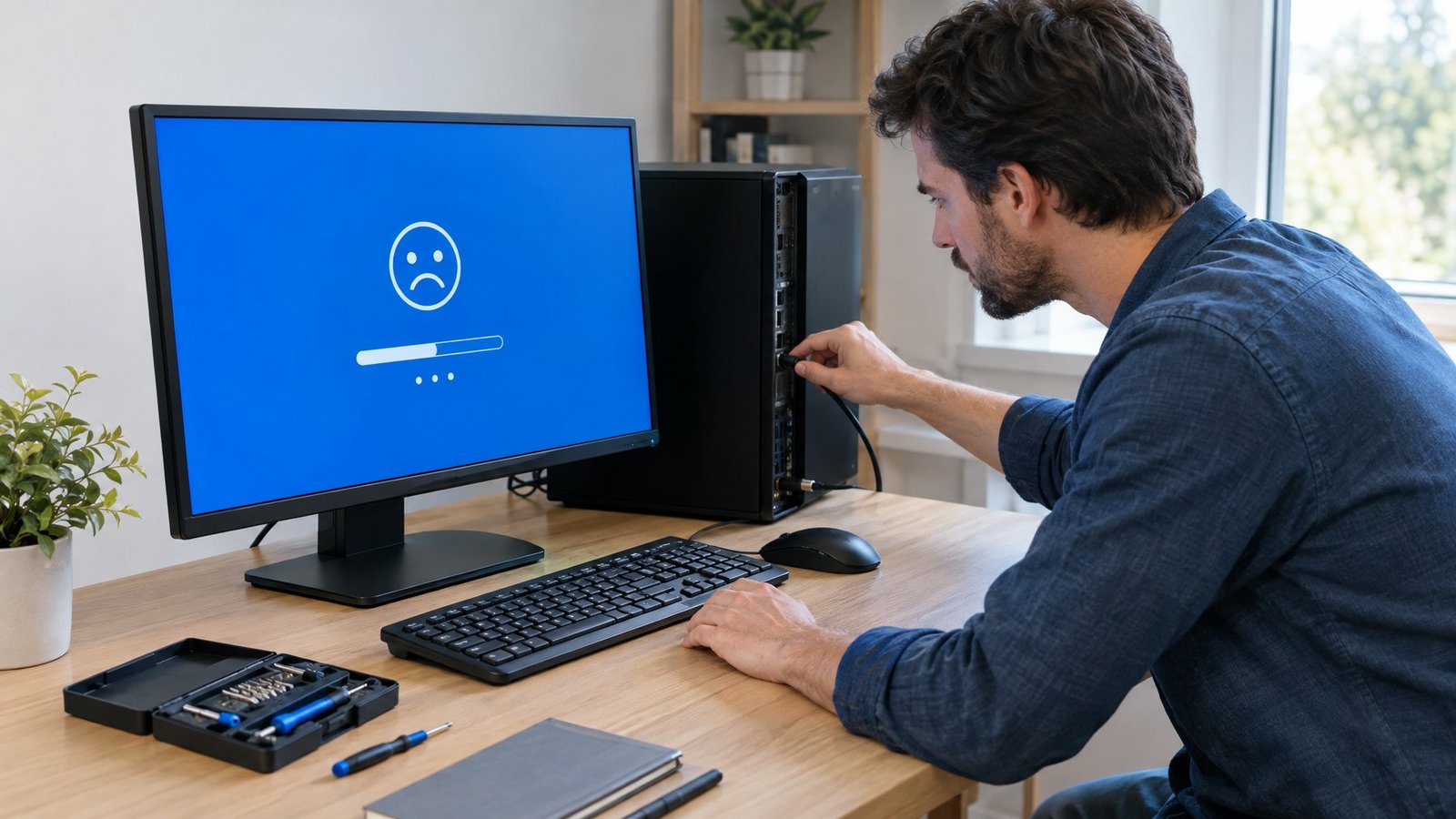
A blue screen of death (BSOD) or a PC that won’t boot calls for the Windows Recovery Environment, where Startup Repair, System Restore, and command-line tools can fix most boot problems. The stop code shown on the blue screen tells you where to focus your repair effort.
Use the Stop Code to Investigate a Blue Screen
Every BSOD displays a stop code, such as PAGE_FAULT_IN_NONPAGED_AREA or IRQL_NOT_LESS_OR_EQUAL. These codes point to a driver, memory, or hardware problem. Update drivers through Device Manager first, since outdated or faulty drivers are the most common trigger behind these errors.
Enter the Windows Recovery Environment and Try Startup Repair
If Windows fails to start three times in a row, it automatically enters the Windows Recovery Environment. From there, select Troubleshoot > Advanced options > Startup Repair. This tool scans for missing system files, damaged boot configuration data, and registry errors, then attempts automatic fixes.
Address an Inaccessible Boot Device Error
An inaccessible boot device error usually means Windows can’t access the drive containing its system files, often due to a driver conflict or corrupted boot configuration. Try Startup Repair first. If that doesn’t resolve it, check for recently added hardware and remove it, since new storage drivers frequently trigger this exact error.
When Are Bootrec Commands Appropriate?
Bootrec commands come into play when Startup Repair can’t fix boot configuration damage. Open Command Prompt from the Windows Recovery Environment and run bootrec /fixmbr to repair the master boot record, bootrec /fixboot to repair the boot sector, and bootrec /rebuildbcd to rebuild the boot configuration data. Run them in that order, restarting between attempts if needed.
Use System Restore If Startup Repairs Do Not Help
System Restore rolls your system files, registry, and installed programs back to an earlier restore point without touching personal files. Access it from Windows Recovery Environment by selecting Troubleshoot > Advanced options > System Restore. This works well when the problem started right after installing a driver or program.
Match the Fix to the Error Before Trying More

Common Windows errors respond best when you match the fix to the specific symptom instead of running every tool at once. An update failure needs the Windows Update troubleshooter, a corrupted file needs DISM and SFC, and a boot failure needs Startup Repair. Running chkdsk on a problem that’s really a driver conflict wastes time without fixing anything.
Keep track of the Windows error codes you’ve already tried fixing and what worked. Many errors repeat over months, especially on older hardware, and a quick note saves you from retracing the same steps. If your troubleshooting routine often starts with a peripheral acting up rather than the OS itself, it helps to rule out hardware first: a misbehaving keyboard or mouse can look like a system error when it’s really a device issue. Our guide on how to fix keyboard not typing covers that kind of mix-up.
Frequently Asked Questions

How do I fix common Windows errors in Windows 11?
Start with the built-in troubleshooters under Settings > System > Troubleshoot, which cover Windows Update, network, and other common issues automatically. For file corruption, run DISM followed by sfc /scannow from an elevated Command Prompt. Device Manager and Event Viewer help you pin down driver-related errors specific to your hardware.
Do the same troubleshooting steps work in Windows 10?
Yes, DISM, SFC, chkdsk, Safe Mode, and the Windows Recovery Environment all work the same way on Windows 10. The main difference is menu location: Windows 10 often routes these tools through Update & Security instead of the System menu used in Windows 11. Support for Windows 10 ended on October 14, 2025, so devices without the Extended Security Updates program no longer receive new security fixes.
How do I run SFC /scannow and fix the problems it finds?
Open Command Prompt as administrator, run DISM.exe /Online /Cleanup-image /Restorehealth first, then type sfc /scannow and press Enter. Let the scan reach 100% before closing the window. If it reports files it couldn’t repair, check the CBS.log file for details on which files need manual replacement.
What should I do if Windows keeps showing a blue screen?
Note the exact stop code shown on screen, then update your drivers through Device Manager since outdated drivers cause most repeat blue screens. If updating drivers doesn’t help, run Windows Memory Diagnostic to rule out a RAM issue. Persistent blue screens after these steps often call for System Restore or a trip into the Windows Recovery Environment.
What if Startup Repair says it could not repair my PC?
Try the bootrec commands next: bootrec /fixmbr, bootrec /fixboot, and bootrec /rebuildbcd, run in that order from Command Prompt in the Windows Recovery Environment. If the boot problem persists, System Restore can roll your PC back to a point before the issue started. Resetting the PC while choosing to keep personal files is the next option when restore points aren’t available.

I’m Anirban Saha, Founder & Editor of TechBullish. With a B.Tech in Electronics and Communication Engineering, and 6+ years of experience as a software developer, I have expertise in electronics, software development, gadgets, and computer peripherals. I love sharing my knowledge through informational articles, how-to guides, and troubleshooting tips for Peripherals, Smart TVs, Streaming Solutions, and more here. Check Anirban’s Crunchbase Profile here.
