
A keyboard that stops typing on Windows usually has a simple cause: a loose connection, a dead battery, an accessibility setting like Filter Keys, or a driver that failed to load. To fix a keyboard not typing, restart Windows, reconnect the keyboard (or recharge and re-pair it if it is wireless), turn off Filter Keys, and then update or reinstall the keyboard driver in Device Manager.
Work from the quickest checks to the slower ones. Most keyboard problems end within the first few steps, and each test tells you whether the fault sits in Windows or in the keyboard itself.
If the keyboard works on a second computer but not on yours, you have a Windows problem you can fix. If it fails everywhere, you can stop changing settings and start weighing a repair or a new keyboard.
What Should You Check First?
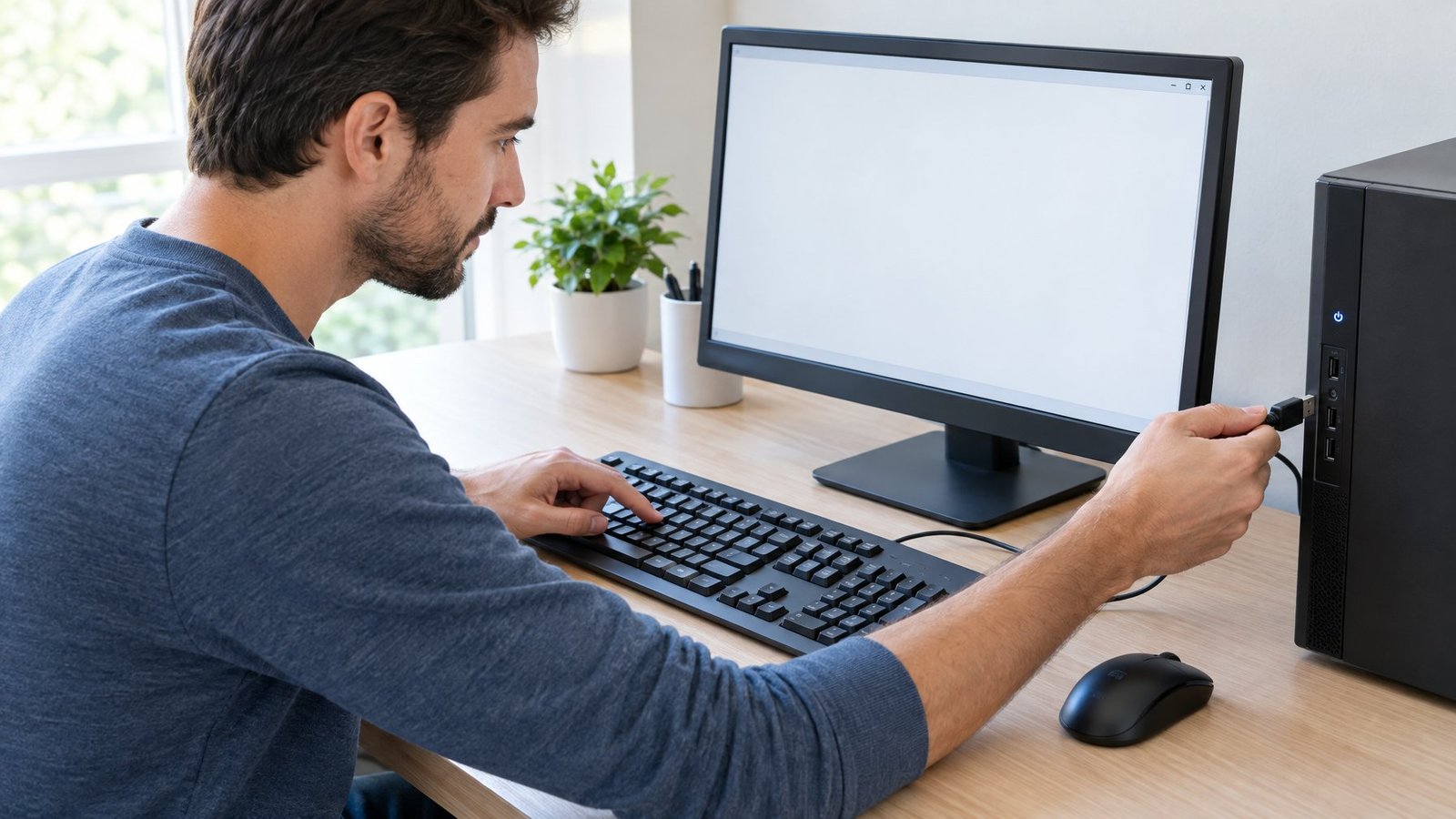
Start keyboard troubleshooting with the physical basics and a restart, since these clear most typing failures in a couple of minutes. You will confirm whether the problem is limited to one app, then check the cable or port, and then check power and pairing for wireless models.
Test Typing in Another App and Restart Windows
Open Notepad and try typing. If letters appear there but not in a browser or chat app, the problem is that one app, not the keyboard.
Also check where the cursor is. A text box that lost focus looks like a dead keyboard. Click inside the box and try again.
If nothing types anywhere, restart the PC. Go to Start, select the Power button, and choose Restart. A restart reloads drivers, which helps after a recent update.
Reconnect a Wired Keyboard and Try Another USB Port
For a wired keyboard, follow these steps:
- Unplug the USB cable.
- Wait about 10 seconds so Windows unloads the driver.
- Plug it into a different USB port, ideally one directly on the PC.
If you use a USB hub, make sure the hub has power. Better yet, remove the hub and plug the keyboard straight into the computer. Look over the cable for kinks, cuts, or a bent plug. Front-panel ports on desktops fail more often than rear ones, so a rear port is a good test.
Check Wireless Power, the Receiver, and Bluetooth Pairing
Wireless keyboards stop typing most often because of low batteries. Replace or recharge them first. Some keyboards show a blinking red light, or no light at all, when power is low.
For a keyboard with a USB receiver, unplug the receiver, wait about 10 seconds, and plug it back in. Look for a Reset button on the bottom of the keyboard or on the receiver.
For a Bluetooth keyboard, try this:
- Hold the pairing button for 5 to 7 seconds until the light blinks.
- Remove the keyboard from Bluetooth & devices in Settings, then pair it again.
- Turn airplane mode on for 10 to 15 seconds, then off.
- Disconnect other Bluetooth devices that might interfere.
If the pairing light flashes three times and turns off, the keyboard is still paired to another nearby PC. Remove it from that computer first. The same steps help with our guides on a Bluetooth mouse not working and a wireless mouse not working.
Which Windows Settings Can Stop or Change Typing?
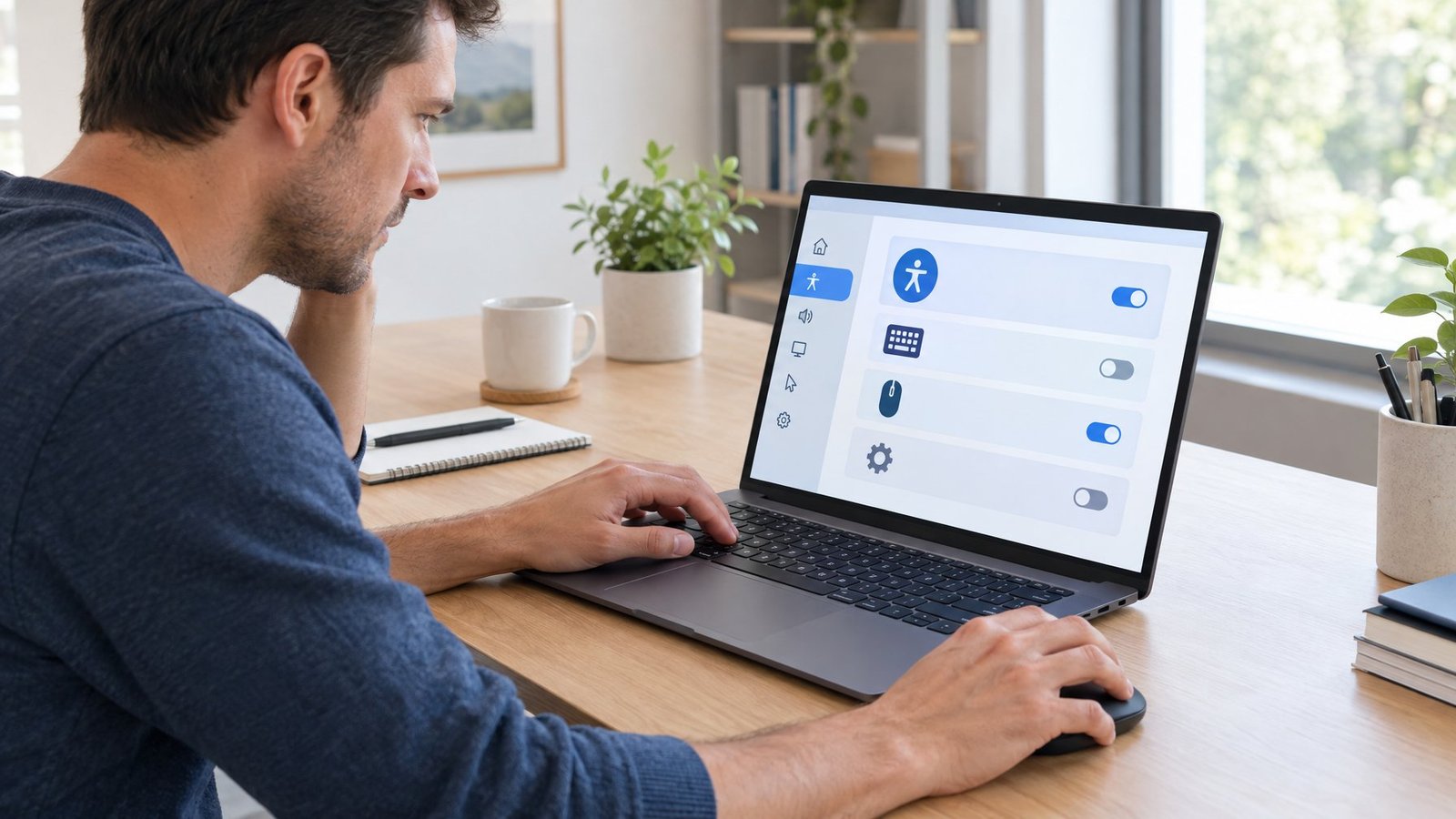
Filter Keys is the Windows setting most likely to make a working keyboard seem dead, because it tells Windows to ignore brief keystrokes. Num Lock and the wrong keyboard layout do not stop typing, but they change what appears on screen, and the on-screen keyboard gives you a way to type while you fix things.
Disable Filter Keys and Check Other Accessibility Settings
Filter Keys sets the keyboard to ignore quick or repeated presses. If it is on, normal typing shows nothing. It often turns on by accident when someone holds the right Shift key for about eight seconds.
To disable Filter Keys:
- Windows 11: Press Windows + U (or go to Settings > Accessibility), select Keyboard, and turn off Filter keys.
- Windows 10: Go to Settings > Ease of Access > Keyboard and turn off Filter Keys.
While you are there, check the other switches:
| Setting | What it does | Effect on typing |
|---|---|---|
| Sticky Keys | Lets you press shortcuts one key at a time | Shift or Ctrl can seem “stuck” |
| Toggle Keys | Plays a sound for Caps, Num, and Scroll Lock | Sound only, no blocking |
| Filter Keys | Ignores brief or repeated keystrokes | Can make keys seem dead |
Check Num Lock and the Keyboard Layout
If the number pad does nothing, press Num Lock. Many laptops use a Fn combo for it. With Num Lock off, the number keys act as arrow and navigation keys.
If you press one key and get a different character, the layout is wrong. Go to Settings > Time & language > Language & region and make sure the keyboard layout matches your keyboard, such as US English. A mismatch is the usual cause of a keyboard typing symbols instead of numbers. Also watch the input language icon on the sign-in screen, since the layout there affects your password.
Use the On-Screen Keyboard While You Troubleshoot
Press Windows + Ctrl + O to open the on-screen keyboard, or turn it on under the Keyboard page in Accessibility settings. You click keys with the mouse, and no touchscreen is needed.
This helps when you need to type a password, a search term like “Device Manager,” or a web address. From the sign-in screen, select the Accessibility button in the lower-right corner and choose On-Screen Keyboard.
Run the Keyboard Troubleshooter If Your Version Includes It
Microsoft retired the old Keyboard troubleshooter in newer Windows 11 releases. Windows 10 and Windows 11 version 22H2 or older still include it.
- Windows 10: Go to Settings > Update & Security > Troubleshoot > Additional troubleshooters > Keyboard.
- Windows 11 (22H2 or older): Go to Settings > System > Troubleshoot > Other troubleshooters and run Keyboard.
If your list has no Keyboard option, skip ahead to the driver steps. Keep in mind that Windows 10 support ended on October 14, 2025, so it no longer gets free updates.
How Do You Fix a Keyboard Driver Problem?
You fix a keyboard driver problem in Device Manager by updating the driver first, then reinstalling it if the update does not help. Windows Update and your PC maker’s support site fill in any driver Windows cannot find on its own.
Update the Keyboard Driver in Device Manager
- Right-click Start and select Device Manager.
- Expand Keyboards.
- Right-click your keyboard (often “HID Keyboard Device” or “Standard PS/2 Keyboard”) and choose Update driver.
- Select Search automatically for drivers.
A yellow warning icon next to the keyboard points straight at a driver fault. If typing broke right after an update, open the device’s Properties, go to the Driver tab, and choose Roll Back Driver. You need administrator rights for that.
Reinstall the Keyboard Driver and Restart
- Save your work and close apps.
- In Device Manager, right-click the keyboard and select Uninstall device.
- Confirm with Uninstall.
- Restart the PC.
Windows reinstalls the keyboard driver on its own during startup. Keep a mouse handy, since you will need it to restart with the keyboard removed. If you see several keyboard entries, reinstall each one that shows a warning.
Check Windows Update and Your PC Manufacturer’s Support Page
Windows Update supplies most keyboard drivers. Go to Settings > Windows Update > Advanced options > Optional updates and install any driver updates listed, then restart.
Laptop keyboards sometimes need a driver or chipset update from the maker. Download these only from the official support page for your exact model. Our Lenovo keyboard not working fix and Microsoft Surface keyboard not working guides cover brand-specific steps. Keyboards that rely on companion software have their own quirks, as our Logitech G Hub not detecting keyboard fix explains.
When Is the Keyboard Itself the Problem?
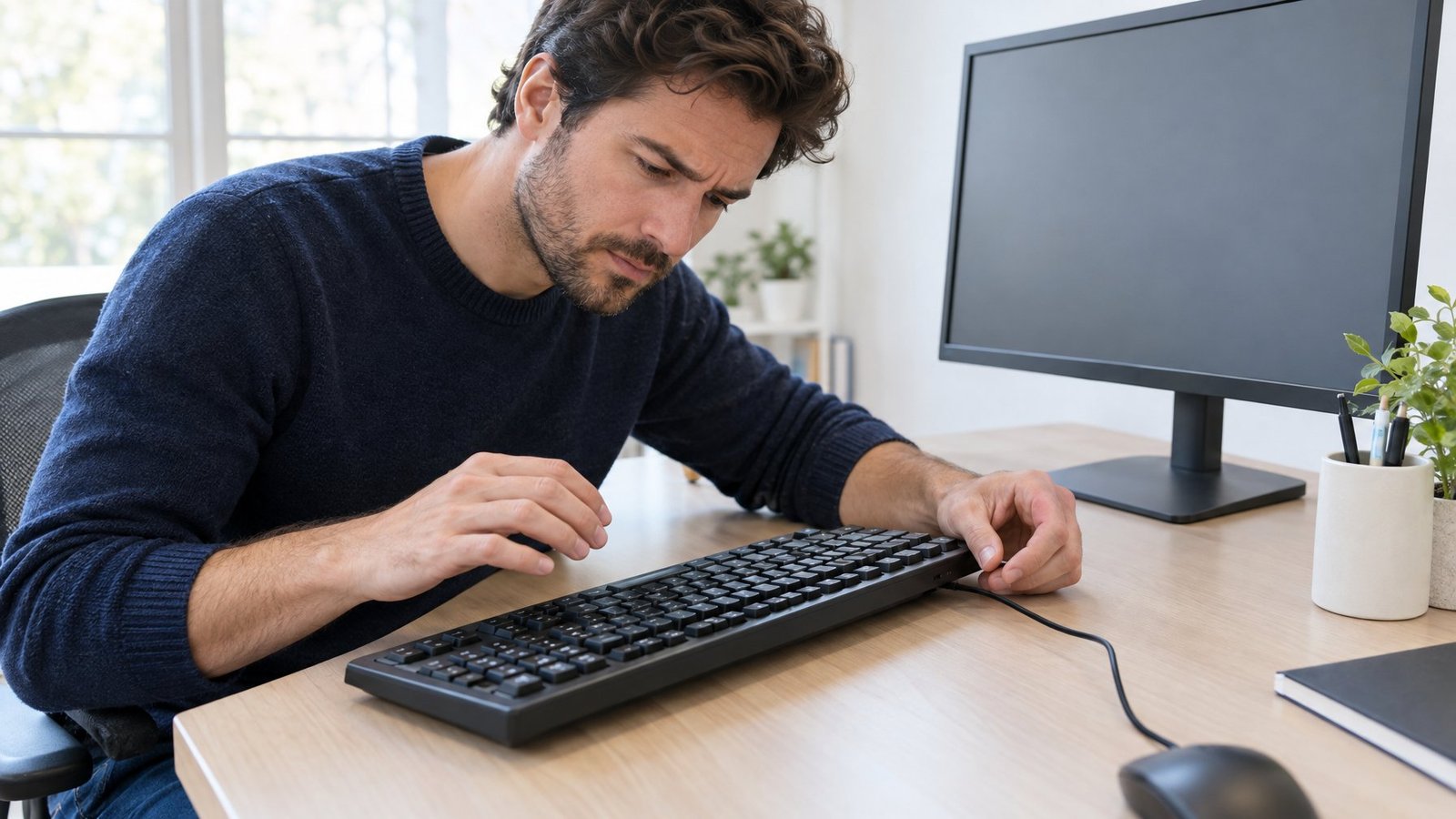
The keyboard itself is the problem when it fails on every computer you try, or when only certain keys fail after settings and drivers check out. Dirt, liquid, and worn parts cause most of these cases, and the fix ranges from a quick cleaning to keyboard replacement.
Investigate Keys That Stick or Do Not Respond
When a few keys fail, look for crumbs, dust, or hair under the keycaps. Turn the keyboard upside down and tap it gently, or blow compressed air at an angle between the keys.
Use an online key tester to see which keys register. If a whole row or cluster fails together, the cause is often a damaged circuit, not dirt. Keys that drop when pressed together point to keyboard ghosting. For a single broken group, see our guide to arrow keys not working.
Test the Keyboard on Another Computer or Try an External Keyboard
Plug your keyboard into a second computer. If it types there, the keyboard is fine and the problem sits in your PC’s settings, drivers, or ports.
For a laptop, plug in a cheap USB keyboard. If the external one works and the built-in one does not, the laptop keyboard or its internal cable has likely failed. Some keyboards need their own driver, so install it on the test PC first. DIY builders can go deeper with our steps on how to test a keyboard PCB.
Assess Spills, Physical Damage, and Repair Options
After a spill, unplug the keyboard or shut down the laptop right away. Turn it upside down and let it dry for at least 24 to 48 hours before powering it on. Sugary drinks leave sticky residue that often needs a proper cleaning.
Weigh keyboard repair against cost:
- Desktop keyboard: Replacing it usually costs less than repairing it.
- Laptop keyboard: Check the warranty first. Makers like Microsoft offer out-of-warranty service and in-person support in the US.
- Physical damage: Cracked cases or bent connectors almost always need new parts.
Back up your files before sending a laptop out for service.
Use the Test Results to Choose Your Next Step
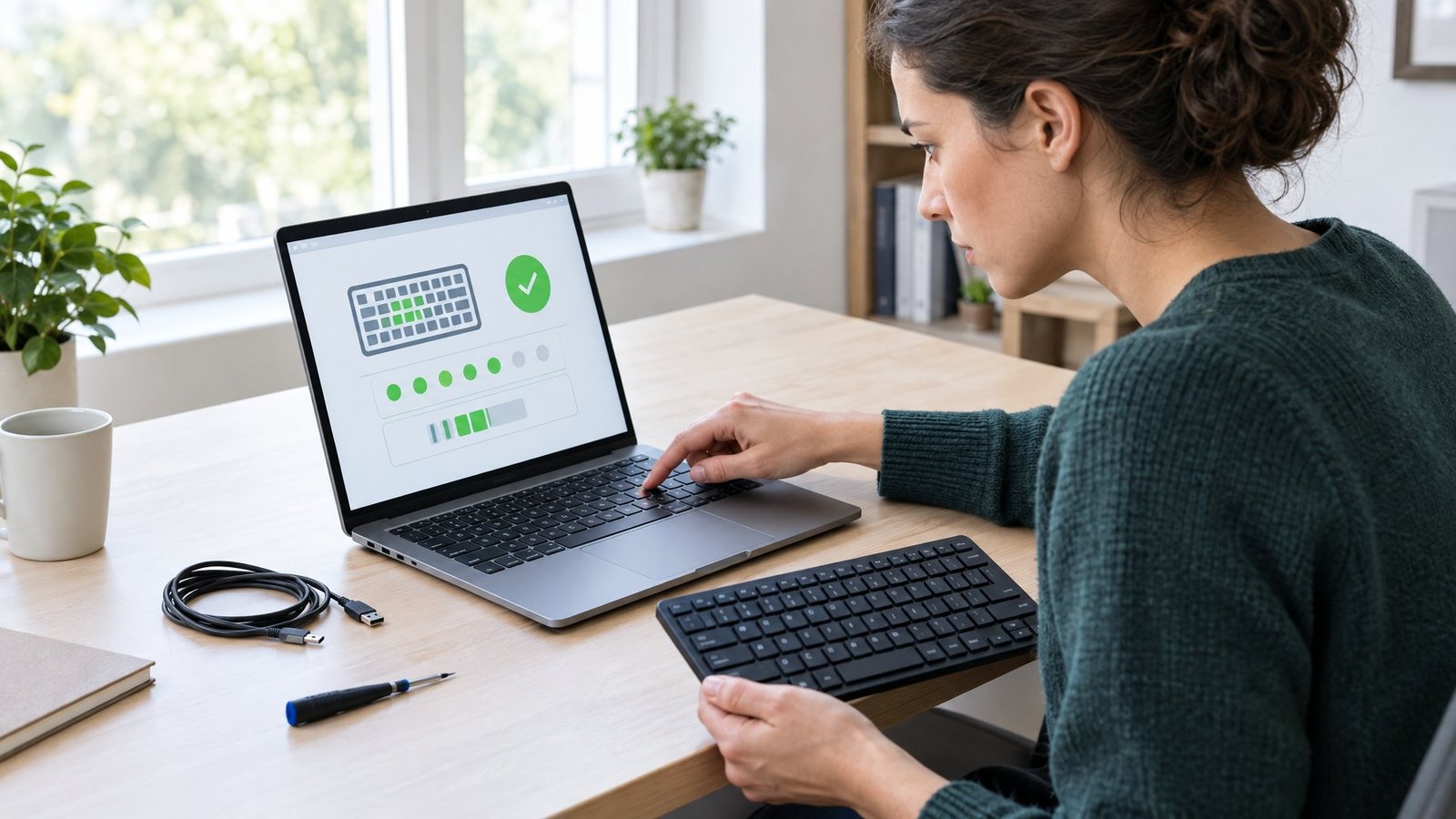
Your test results point to one clear next step. Match what you saw to the table below.
| What you found | Likely cause | Next step |
|---|---|---|
| Types in Notepad, not in one app | App issue | Restart or update that app |
| Works after reconnecting or new port | Loose cable or bad port | Keep using the working port |
| Wireless works after new batteries | Low power | Keep spare batteries or charge often |
| Works after turning off Filter Keys | Accessibility setting | Avoid holding right Shift |
| Wrong characters appear | Layout or Num Lock | Fix the layout in Settings |
| Yellow icon in Device Manager | Driver fault | Update, roll back, or reinstall |
| Fails on every computer | Hardware failure | Repair or replace the keyboard |
| External works, laptop keyboard fails | Built-in keyboard fault | Check warranty and service options |
Use the on-screen keyboard or a spare USB keyboard to keep working while you wait on a repair.
Frequently Asked Questions
Why is my laptop keyboard not typing letters?
Filter Keys, a stuck driver, or a failed internal keyboard are the usual causes. Turn off Filter Keys in Accessibility settings, then reinstall the keyboard driver in Device Manager. If an external USB keyboard works and the built-in one still does not, the laptop keyboard likely needs service.
How do I unlock my keyboard for typing?
Turn off Filter Keys, which is the setting that most often “locks” typing. In Windows 11, open Settings > Accessibility > Keyboard; in Windows 10, open Settings > Ease of Access > Keyboard. Some laptops also have a keyboard lock key combo listed in the maker’s manual.
Why did my keyboard stop working after I pressed some keys?
Holding the right Shift key for about eight seconds turns on Filter Keys, which makes the keyboard ignore normal presses. Pressing Shift five times can turn on Sticky Keys. Switch both off in Accessibility settings.
What should I do if only some laptop keys do not work?
Clean under the dead keys first, then test them with an online key tester. If Num Lock or the layout is not the cause and a whole row still fails, the keyboard circuit is probably damaged and needs repair.
Why is my keyboard still not typing after I restart Windows?
A restart does not undo settings like Filter Keys or fix a bad port, dead batteries, or a broken driver. Work through reconnecting, checking power, turning off Filter Keys, and reinstalling the driver. If the keyboard fails on another PC too, it has a hardware fault.

I’m Anirban Saha, Founder & Editor of TechBullish. With a B.Tech in Electronics and Communication Engineering, and 8+ years of experience as a software developer, I have expertise in electronics, software development, gadgets, and computer peripherals. I love sharing my knowledge through informational articles, how-to guides, and troubleshooting tips for Peripherals, Smart TVs, Streaming Solutions, and more here. Check Anirban’s LinkedIn Profile here.
