
Most screen flickering on Windows comes from one of three places: a graphics driver, an app that clashes with Windows, or a loose or failing piece of hardware. To fix screen flickering, first press Windows key + Ctrl + Shift + B to reset the graphics driver, then open Task Manager to see whether the problem is a driver or an app, and fix that cause directly. Most people can sort it out in under 30 minutes without opening the case.
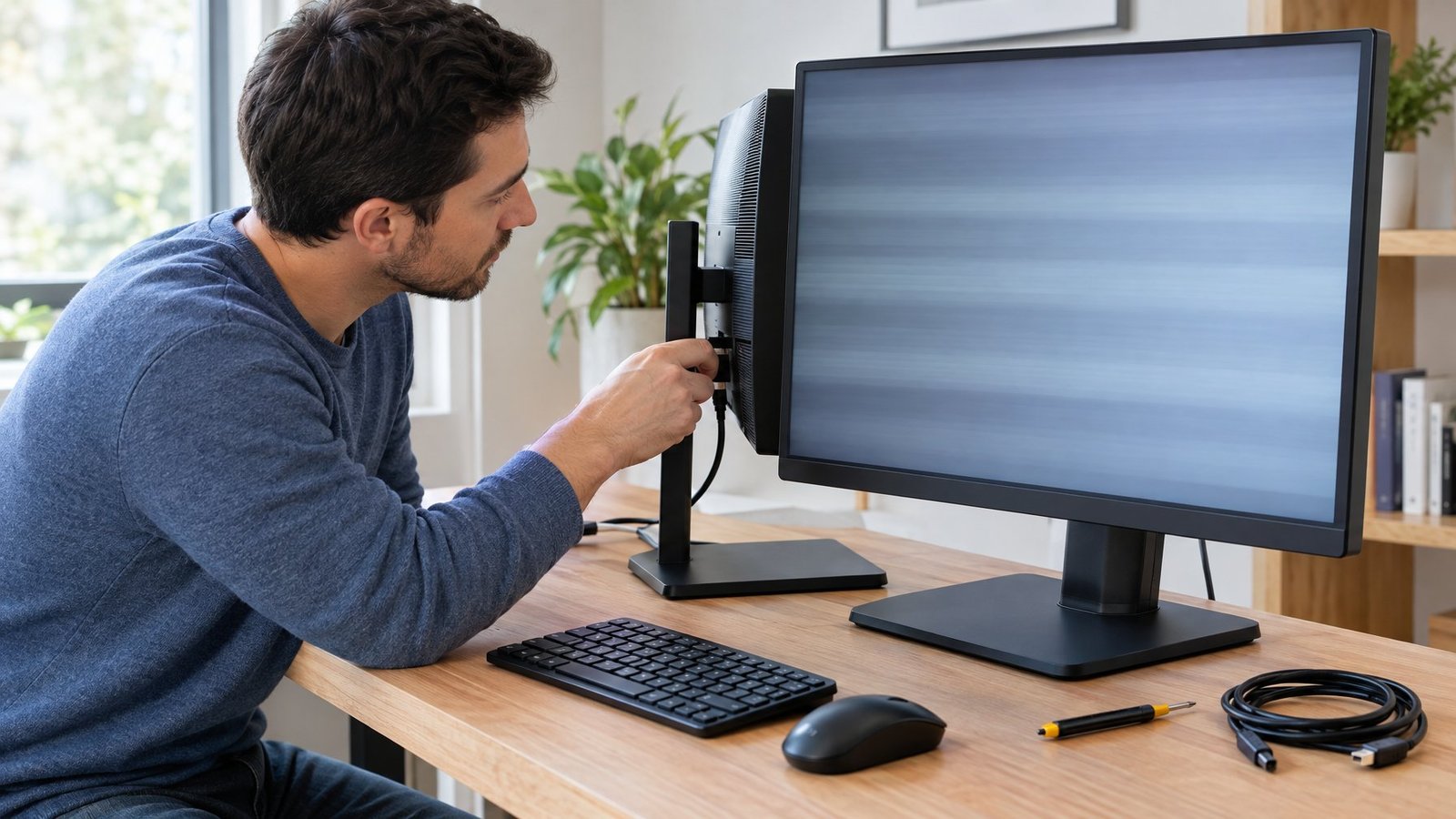
Screen flickering in Windows 11 often shows up right after a driver or system update. Laptop screen flickering has its own common causes, such as power settings, graphics switching, and worn hinge cables. A quick test tells you which group you are in, so you skip the fixes that won’t help.
If you follow the checks in order, you can tell whether you need a two-minute settings change, a driver reinstall, or a repair shop.
Start with a Quick Diagnosis
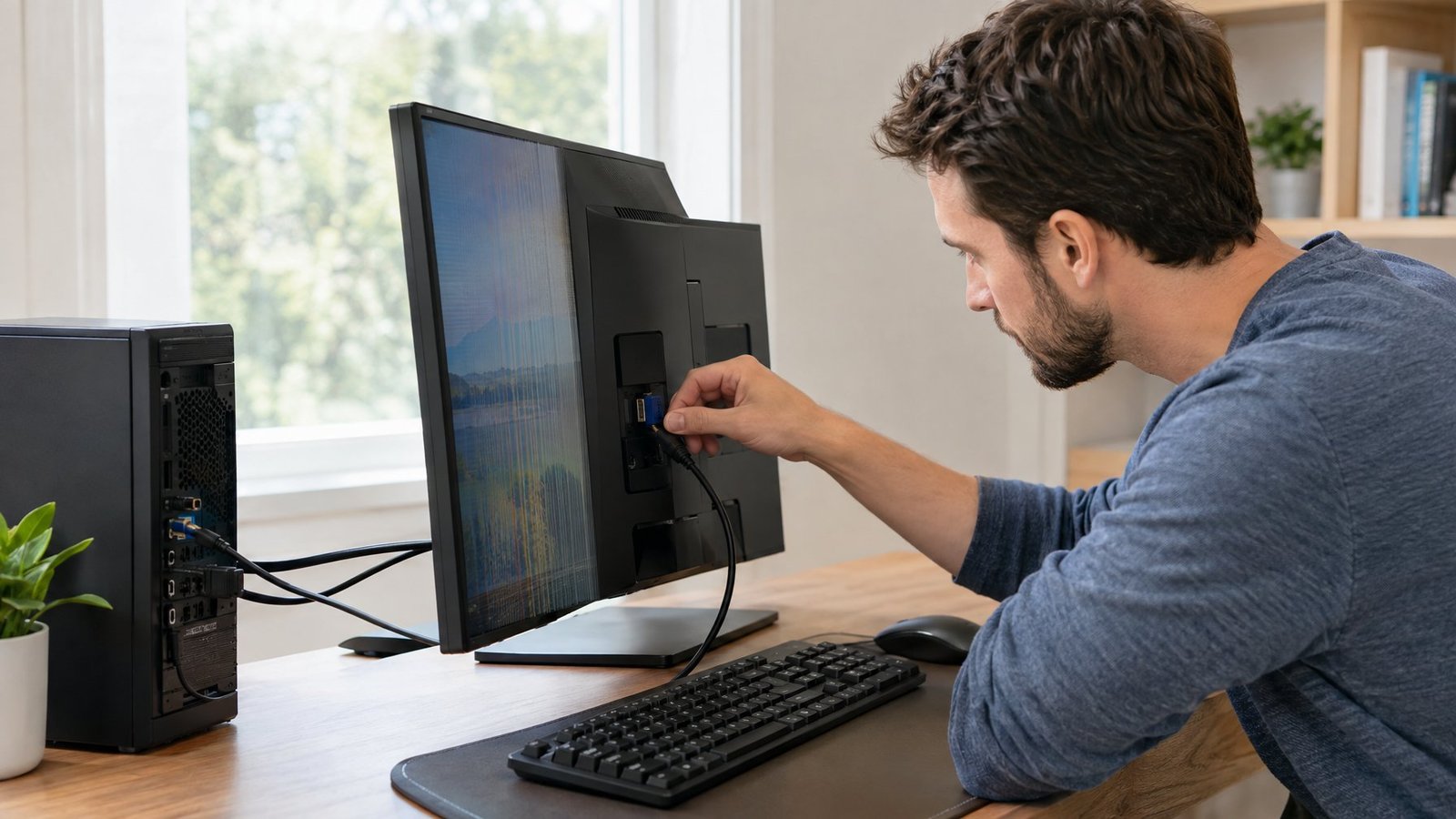
Three fast checks narrow down the cause before you change anything. A keyboard shortcut restarts the graphics driver, Task Manager separates driver trouble from app trouble, and Safe Mode shows whether the flicker survives with only basic drivers loaded.
Reset the Graphics Driver and Restart
Press Windows key + Ctrl + Shift + B at the same time. The screen goes black for a second, you may hear a short beep, and Windows reloads the graphics driver. Your open apps and files stay put.
If the flicker stops, a glitch in the driver was the cause. Save your work and do a full restart to clear anything left over. We treat this as the first move every time because it takes about five seconds.
If the flicker comes back within a few minutes, move on to the Task Manager test.
What Does the Task Manager Test Tell You?
The Task Manager test shows whether you have a display driver issue or an incompatible app. Press Ctrl + Shift + Esc to open Task Manager, then watch it for a minute.
- Task Manager flickers along with the rest of the screen: the cause is most likely the display driver or hardware. Go to the driver fixes below.
- Everything flickers except Task Manager: an incompatible app is the likely cause. Focus on apps you installed or updated recently.
This one check saves a lot of wasted effort. There’s no reason to reinstall drivers when a single app is the trouble.
When Should You Try Safe Mode?
Try Safe Mode when the flicker makes Windows hard to use, or when the Task Manager test gives an unclear result. Safe Mode starts Windows with a small set of files and basic drivers. If the flicker disappears there, your default settings and basic drivers are fine, and the cause is a full graphics driver, an app, or a startup service.
To get there:
- Open Settings > System > Recovery.
- Next to Advanced startup, select Restart now.
- Choose Troubleshoot > Advanced options > Startup Settings > Restart.
- Press 4 for Safe Mode or 5 for Safe Mode with Networking if you need to download a driver.
If your drive is encrypted, have your BitLocker recovery key ready. Option 3, low-resolution video, is also useful: it starts Windows at a low resolution and refresh rate so you can reset display settings that caused the flicker.
Resolve Driver and App Conflicts
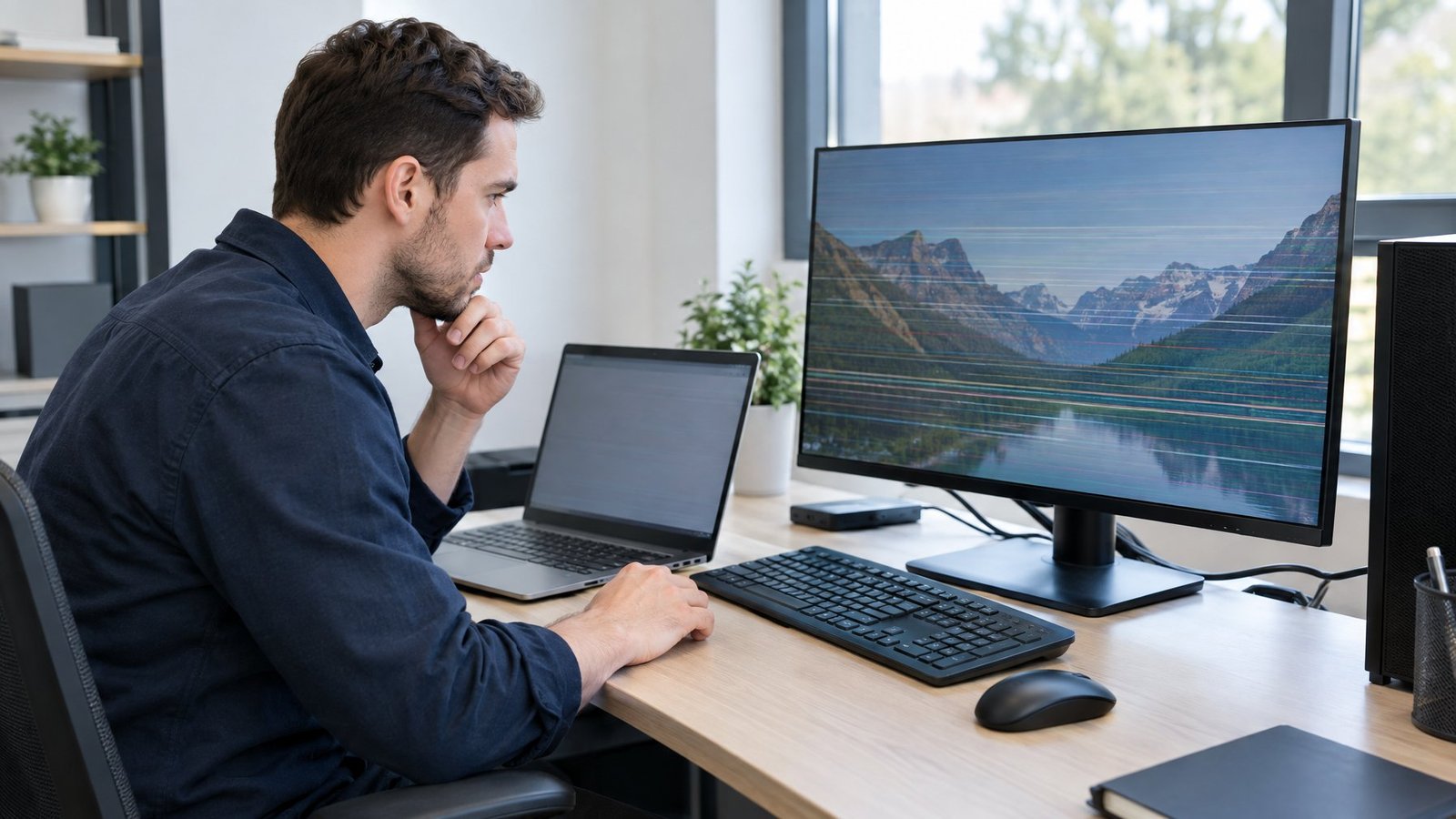
Driver and app problems cause most flicker we see on Windows machines. The fix is either going back to an older driver, installing a clean new one, updating or removing a bad app, or turning off features like hardware acceleration that clash with your graphics setup.
Roll Back a Driver After an Update
If the flicker began right after Windows Update installed something, roll back the display driver first.
- Right-click Start and open Device Manager.
- Expand Display adapters.
- Right-click your graphics adapter and choose Properties.
- On the Driver tab, select Roll Back Driver and pick a reason.
- Restart the PC.
If the Roll Back button is grayed out, Windows has no older driver saved. In that case, reinstall a known good version from your PC or GPU maker instead.
Update or Reinstall the Display Driver
An old or damaged driver is just as likely as a new one to cause flicker. To update the display driver, check Settings > Windows Update > Check for updates, and look under Advanced options > Optional updates for driver updates.
For the newest graphics drivers, go straight to the maker’s site: NVIDIA, AMD, Intel, or your laptop brand. Laptop makers sometimes ship tuned display drivers, so their version is the safer pick on a laptop.
When a normal update doesn’t help, reinstall display drivers from scratch:
- In Device Manager, right-click the adapter and select Uninstall device.
- Check the box to remove the driver software if it appears.
- Restart. Windows loads a basic driver.
- Install the fresh driver you downloaded.
For stubborn cases, many technicians use Display Driver Uninstaller (DDU) in Safe Mode to wipe every trace of old display drivers before installing new ones. It works well when switching between GPU brands.
Update or Remove an Incompatible App
If the Task Manager test pointed to an app, think about what changed recently. Security tools, screen recorders, overlays, and older utilities are frequent causes of flicker.
For apps from the Microsoft Store, open the Store, go to Library > Get updates, and install anything pending. For other apps, check the developer’s site for a newer version.
If an update doesn’t help, remove the app. Go to Settings > Apps > Installed apps, select the three dots next to the app, and choose Uninstall. Restart and watch the screen. You can reinstall later once the developer ships a fix.
Test App Acceleration and Startup Conflicts
Flicker that shows up only in a browser, chat app, or video player often comes from hardware acceleration. In Chrome or Edge, open Settings > System and turn off Use graphics acceleration when available, then restart the browser. Apps like Discord and Slack have a similar switch in their advanced settings.
If you can’t pin it on one app, run a clean boot. It starts Windows with only essential drivers and startup programs:
- Search msconfig and open System Configuration.
- On the Services tab, check Hide all Microsoft services, then Disable all.
- On the Startup tab, open Task Manager and disable each startup app. Write down what you turned off.
- Restart.
If the flicker is gone, turn items back on in halves and restart each time until the culprit shows up. When you’re done, return to Normal Startup in msconfig and re-enable everything.
Correct Display and Graphics Settings
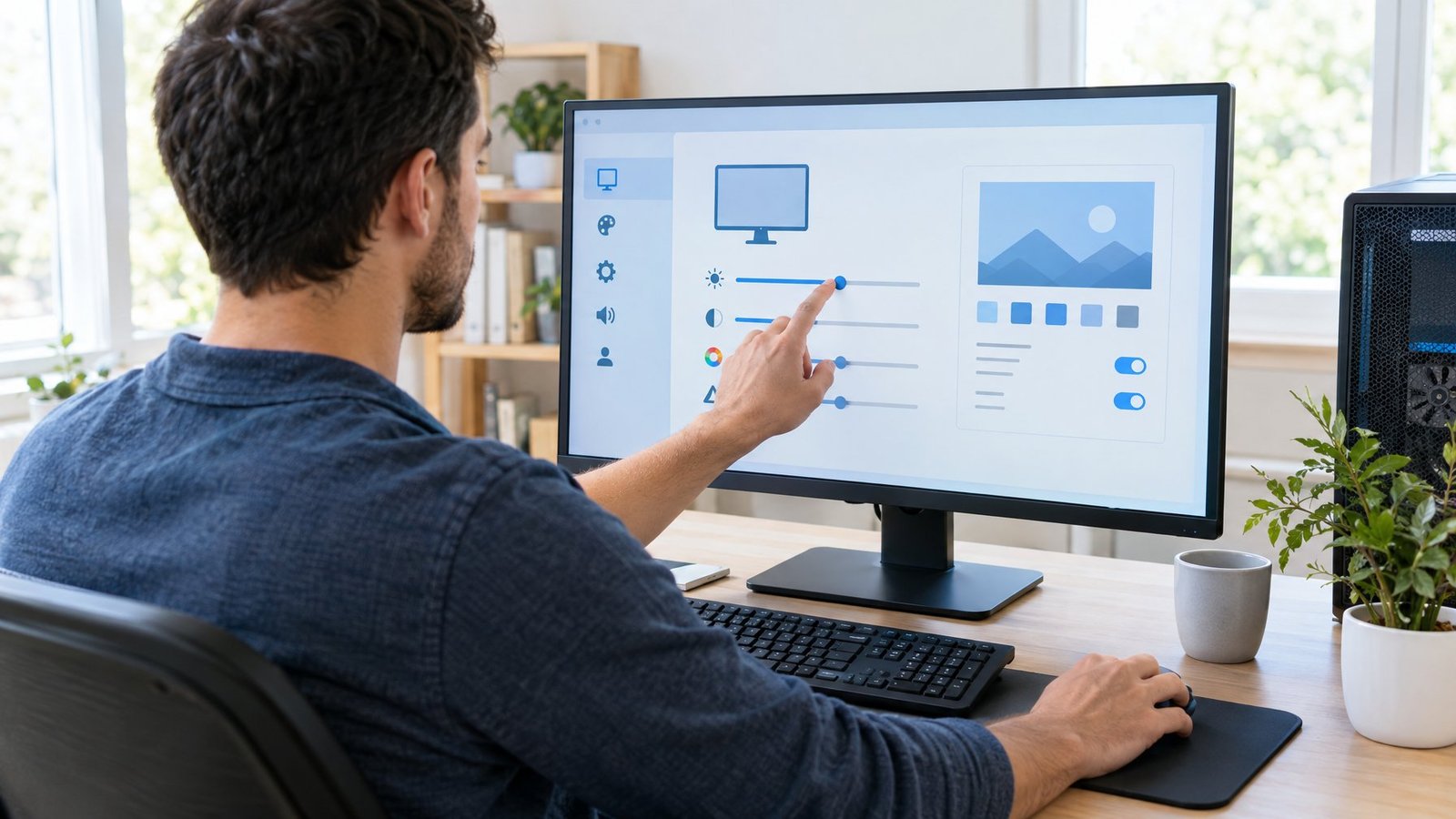
Wrong display settings cause flicker even when drivers are healthy. Setting the right resolution and refresh rate, testing variable refresh features, and checking laptop power options clear up a large share of cases.
Set the Recommended Resolution and Refresh Rate
Open Settings > System > Display and set Display resolution to the option marked Recommended. That is your screen’s native resolution. Games sometimes change resolution and fail to restore it after a crash, which leads to odd behavior.
Next, open Advanced display. The panel lists your current screen refresh rate and whether the display supports variable refresh rate. Under Choose a refresh rate, pick your monitor’s native refresh rate, such as 60Hz, 144Hz, or 165Hz.
Watch for rates marked with an asterisk (*). Those don’t work at your current resolution, and picking one changes the resolution. For a full walkthrough, see our guide on how to check and change monitor refresh rate. A rate set above what your cable supports is a classic flicker trigger.
Test Variable Refresh Rate and GPU Options
Variable refresh rate features like G-Sync and FreeSync smooth out games, but they cause brightness flicker on some panels, especially at low frame rates or on loading screens. Turn G-Sync off in the NVIDIA Control Panel, or FreeSync off in AMD Software and your monitor’s menu, then test.
Windows 11 also has Dynamic refresh rate under Advanced display. It changes the refresh rate based on what you’re doing and needs a VRR screen that runs at 120Hz or more. If flicker appears when you scroll or stop scrolling, switch it off.
Two more settings to test:
- Hardware-accelerated GPU scheduling: found in Settings > System > Display > Graphics > Advanced graphics settings. Toggle it and restart.
- Reset GPU settings: restore defaults in NVIDIA Control Panel, AMD Software, or Intel Graphics Command Center to undo overclocks or custom color profiles.
If flicker shows up as horizontal splits during motion, you may be seeing screen tearing, which has different fixes. Gamers can also review our best monitor settings for gaming to find a stable setup.
Check Laptop Power and Graphics Switching
Laptop screen flickering often ties back to power-saving features. Go to Settings > System > Power & battery and set Power mode to Balanced or Best performance while plugged in. If you can’t change it, open Control Panel > Power Options and select Balanced.
Laptops with two GPUs use automatic graphics switching to move apps between the Intel or AMD chip and the dedicated GPU. That handoff can cause flicker. In Settings > System > Display > Graphics, pick the app, select Options, and set it to High performance or Power saving so it stays on one chip.
Also look for panel power features in your graphics software, such as Intel’s Panel Self Refresh or AMD’s Vari-Bright. Turning them off stops flicker that only happens on battery.
Check Cables, Screens, and Other Hardware
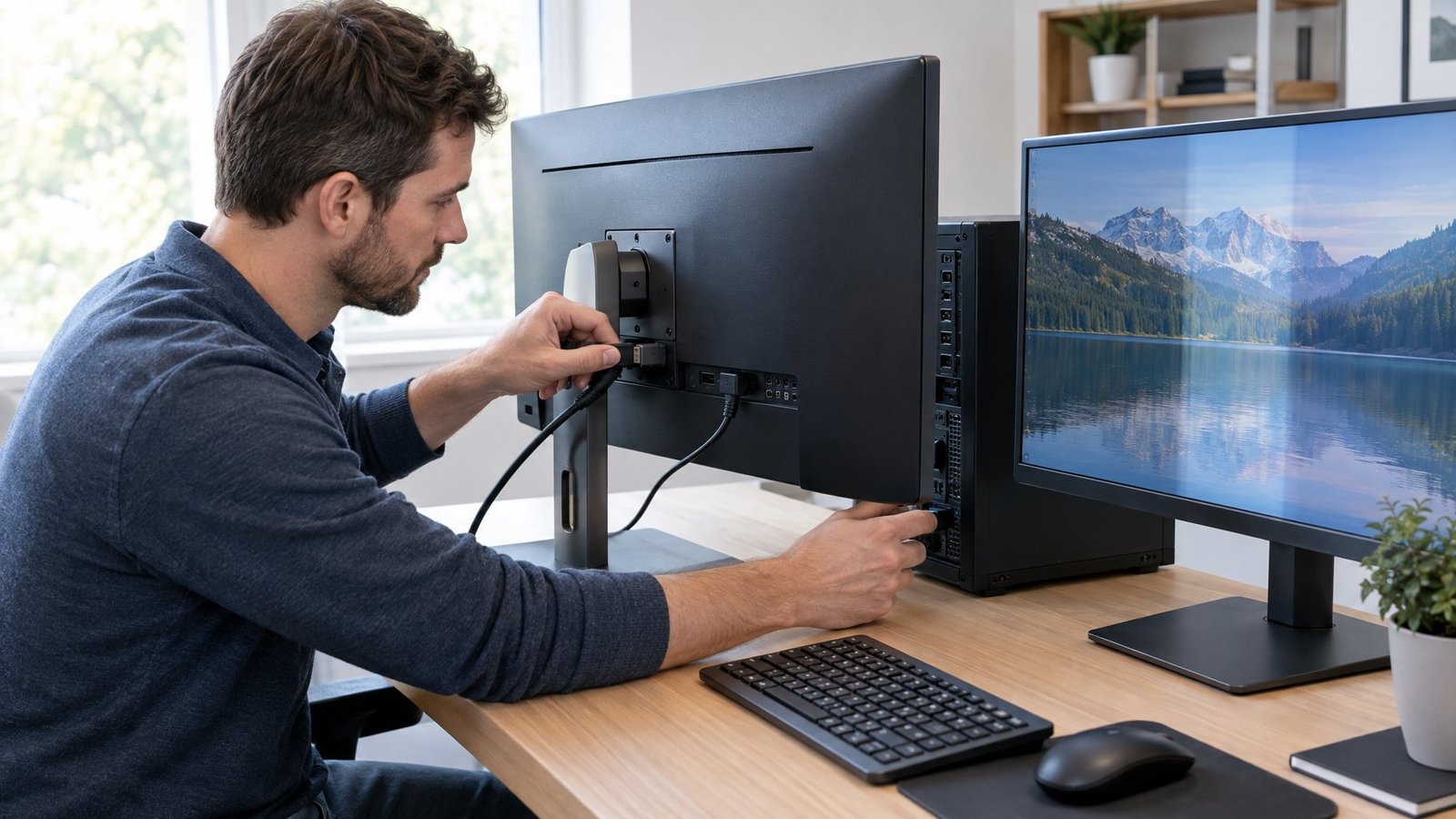
Hardware causes flicker that no setting can fix, and a few quick swaps show whether that’s your situation. Start with cables, then compare screens, then look for signs of a failing part.
Reseat or Replace an External Monitor Cable
Unplug the display cable at both ends, check the pins for dust or bends, and plug it back in firmly. A monitor cable that’s half seated causes flicker, black flashes, and dropouts. Screw-in and latch connectors should click or tighten fully.
If reseating doesn’t help, swap in a different HDMI cable or DisplayPort cable. Cheap or old cables often can’t carry high refresh rates. For 1440p at 144Hz or 4K at 60Hz and above, use a certified High Speed HDMI or DisplayPort 1.4 cable.
Try another port on the graphics card and on the monitor too. If one port works and the other doesn’t, our guide on DisplayPort not working while HDMI works covers that case. Adapters are another weak spot, so skip them while testing if you can. Owners of MSI panels can check our tips on fixing MSI monitor flickering.
Compare a Laptop Screen with an External Monitor
This test is the heart of how to fix a flickering laptop screen. Connect the laptop to an external monitor or TV and watch both screens.
| What you see | Likely cause |
|---|---|
| Both screens flicker | Driver, settings, or GPU |
| Only the laptop screen flickers | Internal display cable, panel, or hinge wiring |
| Only the external monitor flickers | Cable, port, or the monitor itself |
If only the built-in screen flickers, open and close the lid slowly. Flicker that changes with the lid angle points to loose internal connections near the hinge, which is a repair job.
Recognize Signs That Hardware Needs Repair
Some symptoms point clearly to failing parts:
- A scrambled screen, colored lines, or blocks that appear even on the startup logo
- Flicker that gets worse as the PC heats up, a sign of GPU overheating or a failing graphics card
- Flicker that starts when other devices on the same outlet turn on
- Lines that stay put when you take a screenshot and the screenshot looks clean
Clean dust from vents and fans and watch GPU temperatures with your graphics software. Plug the PC into a quality surge protector to rule out power trouble. Many brands also include built-in diagnostics, such as HP PC Hardware Diagnostics, which tests video memory. If a test fails or the symptoms above continue, contact the maker or a repair shop, especially while the device is under warranty.
Match the Fix to the Cause
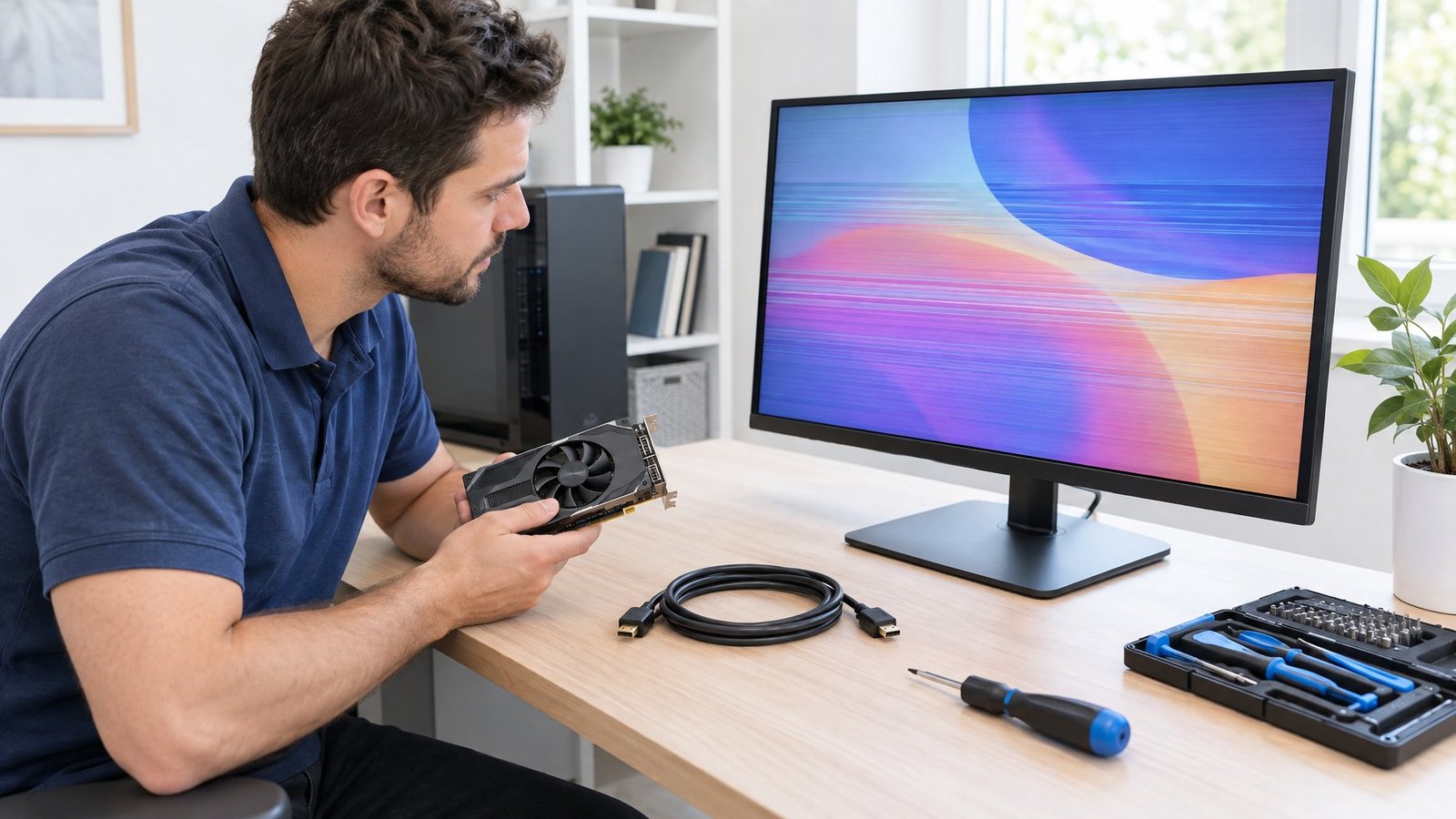
The quickest way to fix screen flickering on Windows is to confirm the cause first and then apply only the fix that fits it. Use this table as a recap of the checks above:
| Clue | Cause | Fix |
|---|---|---|
| Task Manager flickers too | Display driver | Reset with Win + Ctrl + Shift + B, roll back, or reinstall |
| Task Manager stays steady | Incompatible app | Update, turn off acceleration, or uninstall |
| Started after an update | New driver or patch | Roll back driver |
| Flicker at high refresh rate | Settings or cable limit | Native resolution and rate, better cable |
| Only during games or scrolling | VRR or dynamic refresh | Toggle G-Sync, FreeSync, or DRR |
| Laptop on battery only | Power features | Balanced mode, disable panel power saving |
| Changes with lid angle | Hinge cable | Repair |
| Lines before Windows loads | Hardware | Diagnostics and repair |
Start with the driver reset and the Task Manager test, since those two steps point you to the right row in minutes. If you reach the hardware rows, stop changing software settings and back up your files before sending the device in.
Frequently Asked Questions
Why does my screen flicker only in one app?
One app flickering usually means that app clashes with your graphics driver or uses hardware acceleration badly. Update the app first, then turn off its hardware acceleration setting. If the flicker continues, uninstall it and check the developer’s site for a fix.
How do I stop my laptop screen from flickering when I move the lid?
Laptop screen flickering that changes with the lid angle points to a worn or loose display cable running through the hinge. Software can’t fix it, so plug in an external monitor as a workaround and have the laptop repaired. Avoid opening it yourself if it’s still under warranty.
Why did my screen start flickering after a Windows update?
A Windows update can install a new display driver that doesn’t suit your hardware. Roll the driver back in Device Manager, or install the version your PC or GPU maker recommends. You can pause updates briefly in Windows Update settings while you wait for a fixed driver.
What should I do if my monitor flickers or shows lines before Windows starts?
Flicker or lines on the boot logo or BIOS screen mean a hardware problem, since Windows drivers haven’t loaded yet. Swap the cable, try another monitor, and run your maker’s hardware diagnostics. If the problem follows the PC, the graphics card or laptop panel likely needs repair.
Can a malware scan or Windows repair fix persistent flickering?
Yes, in rare cases where damaged system files or malware interfere with display processes. Run a full malware scan in Windows Security > Virus & threat protection > Scan options. Then open Command Prompt as administrator and run DISM.exe /Online /Cleanup-image /Restorehealth followed by the System File Checker command sfc /scannow.

I’m Anirban Saha, Founder & Editor of TechBullish. With a B.Tech in Electronics and Communication Engineering, and 8+ years of experience as a software developer, I have expertise in electronics, software development, gadgets, and computer peripherals. I love sharing my knowledge through informational articles, how-to guides, and troubleshooting tips for Peripherals, Smart TVs, Streaming Solutions, and more here. Check Anirban’s LinkedIn Profile here.
