
Most screen ghosting on an LCD monitor comes from pixels that change color too slowly, so a moving object drags a faint dark trail behind it. It shows up most in fast games, while scrolling text, and on dark scenes. The good news is that it leaves no permanent damage, and a few settings changes clear it up on most displays.
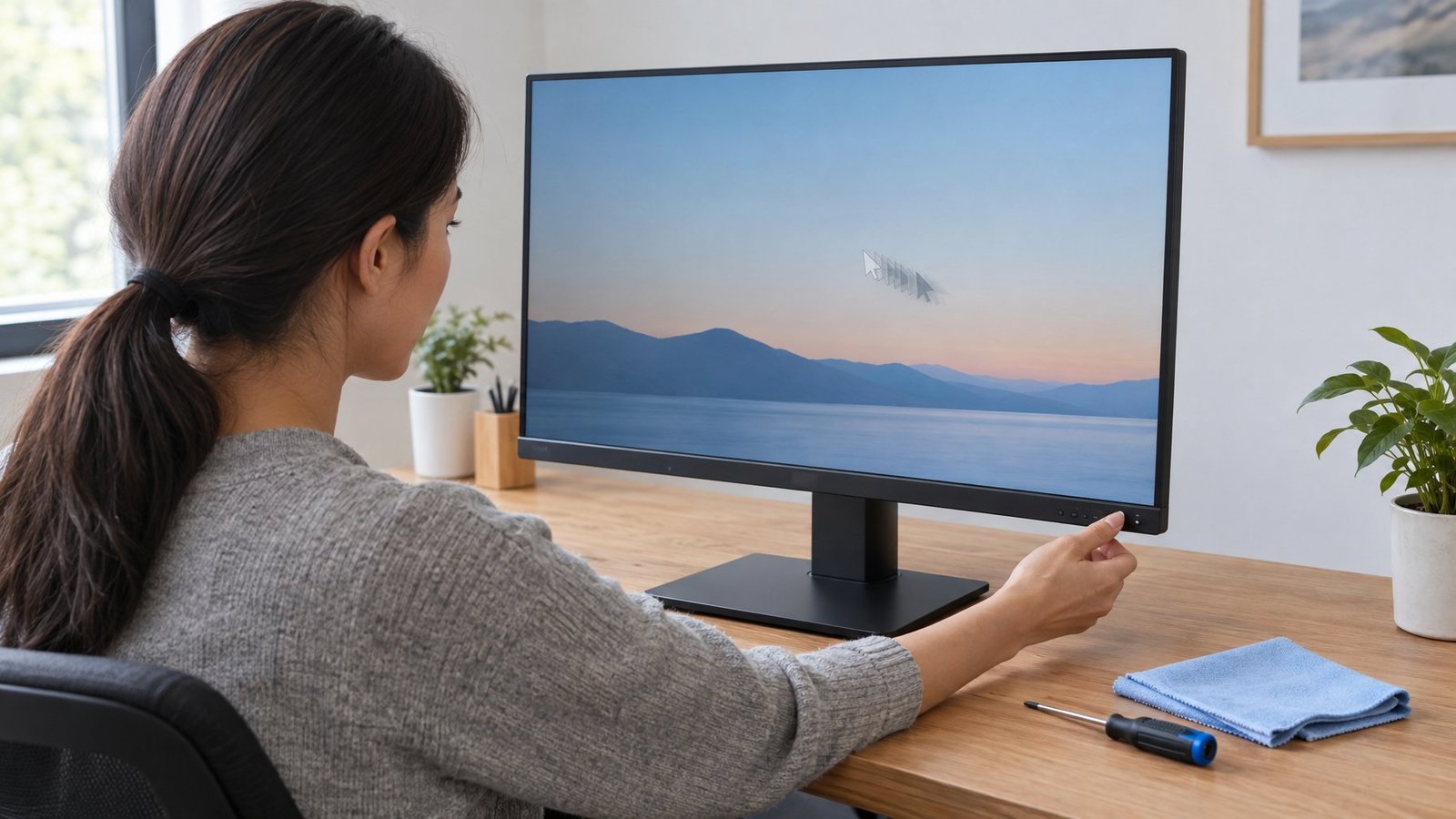
To fix ghosting, run the UFO ghosting test at testufo.com, then raise your monitor’s overdrive (response time) setting one step at a time until the dark trail fades without a bright halo appearing. After that, confirm Windows is running your native refresh rate and that adaptive sync behaves well with your overdrive level.
If trails remain after those steps, the panel itself may be the limit. Once you know which artifact you have, you can tell a settings problem from a hardware ceiling and choose the right fix for your gaming monitor.
Is It Ghosting or a Different Screen Artifact?
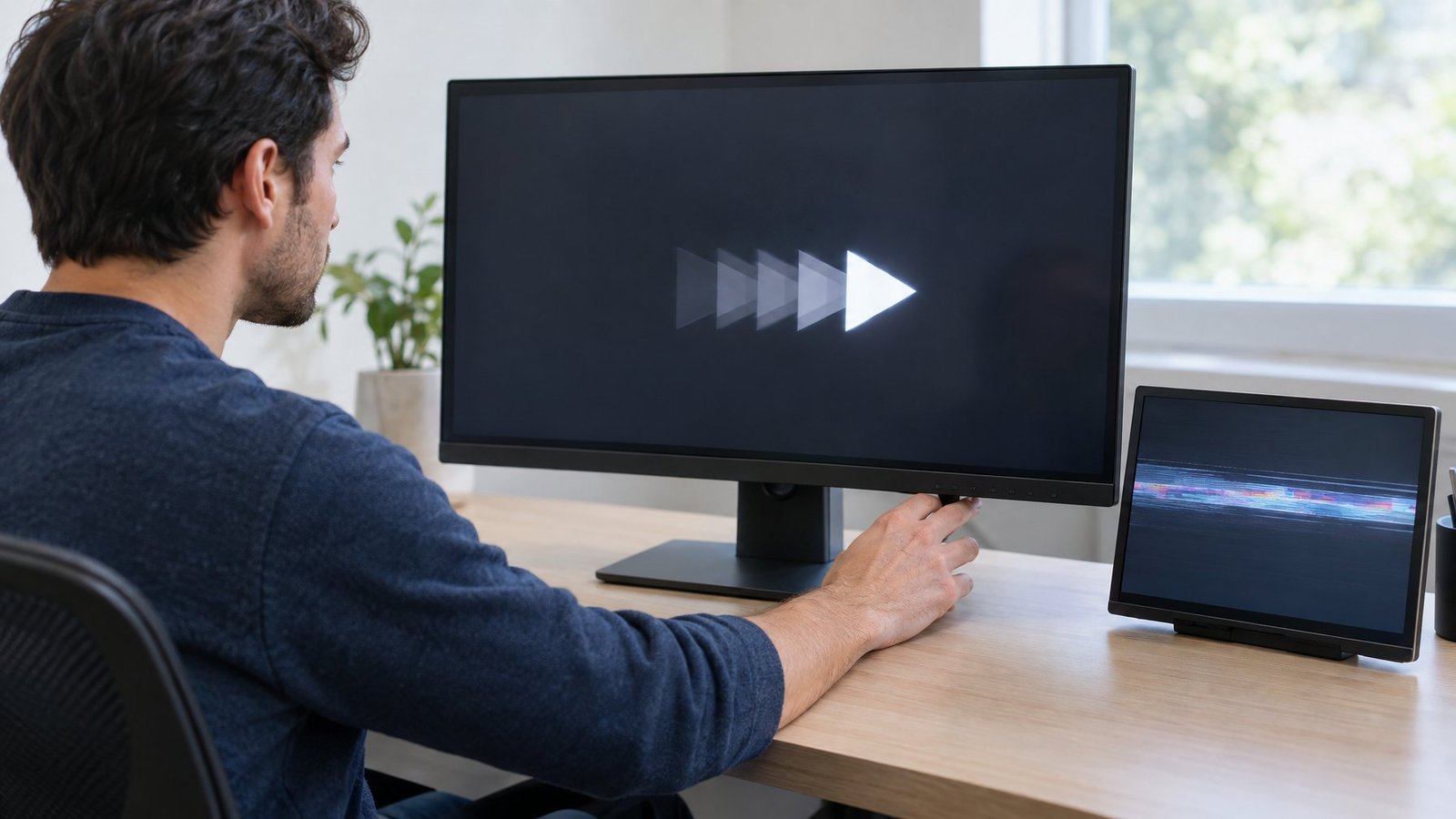
Ghosting is a trail on one side of a moving object, and it is only one of several motion artifacts. Blur on both edges, bright outlines, and faint leftover images on a still screen each have a different cause and a different fix.
What Does Monitor Ghosting Look Like?
Monitor ghosting looks like a faded copy or smear stuck to the trailing edge of a moving object. The leading edge stays fairly sharp.
It happens because LCD pixels switch from one color to another faster in one direction than the other. A dark gray to light gray change might finish quickly, while the return trip lags behind. That lag leaves a shadow behind the object.
You will notice it most in these cases:
- Dark objects moving over bright backgrounds
- Fast camera pans in shooters and racing games
- Scrolling white web pages with dark text
- Dark scenes on VA panels
How Do You Run a Reliable UFO Ghosting Test?
The Blur Busters UFO ghosting test at testufo.com/ghosting scrolls UFO shapes across the screen at 960 pixels per second, which makes trails easy to spot. A shaky setup gives misleading results, so prepare first:
- Close every other browser tab and app. Background software adds stutter.
- Use your primary monitor. Unplug or disable extra monitors if you can.
- On a laptop, plug into AC power and switch to a performance mode.
- Let the monitor run for about 30 minutes. Cold panels respond slower and ghost more.
- Check that the test shows your real refresh rate. If a 144Hz screen reads 60, fix that before judging anything.
Now follow one UFO with your eyes. Look at its back edge against each background row. Dark smears mean ghosting. Bright white or colored outlines mean too much overdrive.
How Can You Tell Ghosting from Motion Blur or Image Retention?
Each artifact has its own signature. This table helps you sort them:
| Artifact | What you see | Main cause |
|---|---|---|
| Ghosting | Dark trail on the back edge only | Slow pixel response |
| Inverse ghosting (coronas) | Bright halo behind the object | Overdrive set too high |
| Motion blur | Even softness on both edges | Sample-and-hold display, eye tracking |
| Image retention | Faint image stays on a static screen | Image persistence in the panel |
| PWM artifacts | Repeated copies of the object | Backlight dimming at low brightness |
Motion blur is symmetric, so both edges look soft. Overdrive barely changes it; higher refresh rates or backlight strobing improve motion clarity instead. Image retention shows up after the motion stops, which makes it a separate problem from ghosting altogether.
If you see repeated copies only at very low brightness, raise brightness and test again.
Adjust Overdrive Without Creating Bright Halos
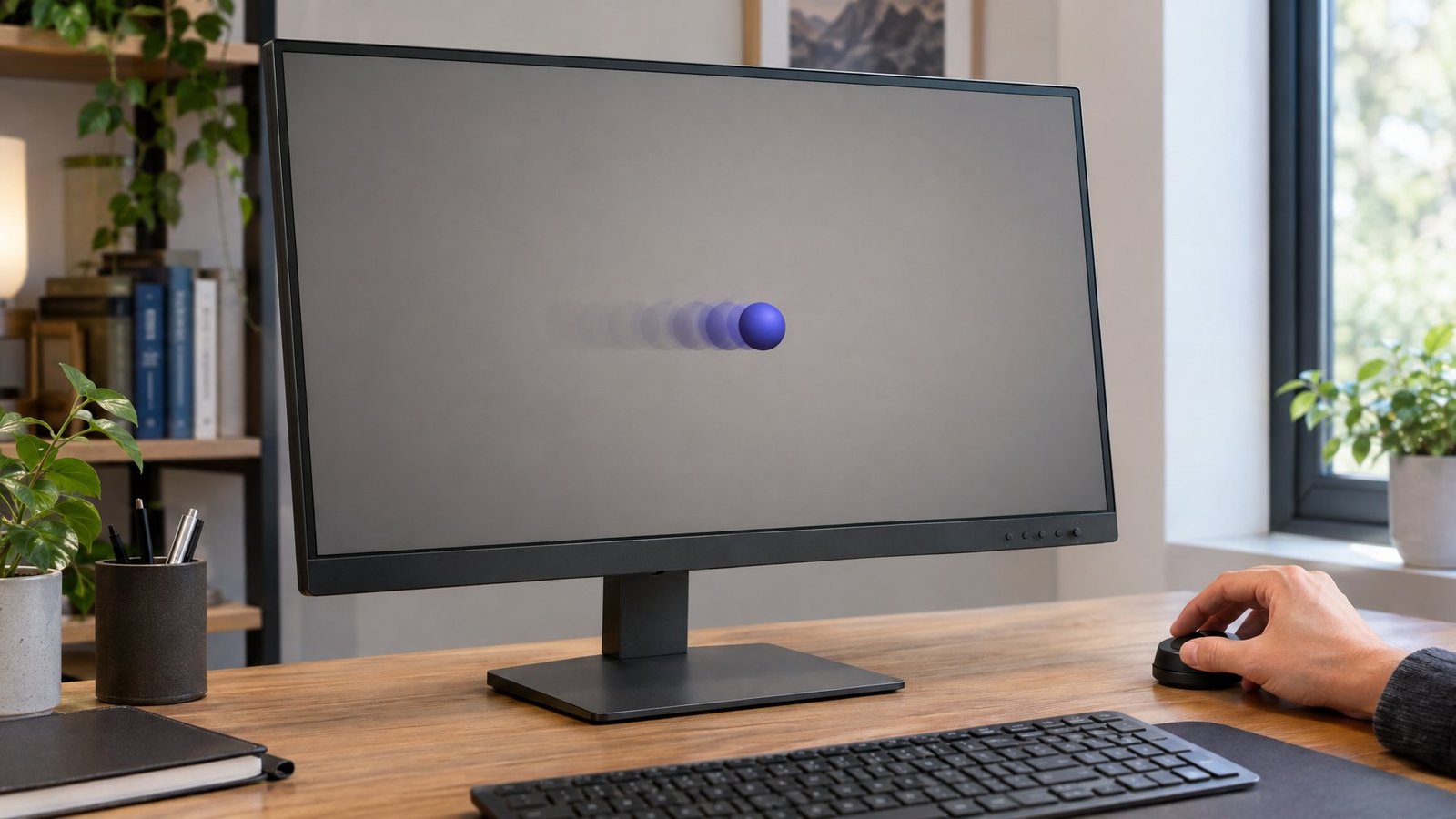
Overdrive is the single biggest lever to reduce monitor ghosting, because it pushes extra voltage into pixels so they change color faster. Too little leaves dark trails, and too much makes pixels overshoot and glow.
Where Is the Response Time Setting?
The response time setting lives in your monitor OSD, the on-screen menu you open with the buttons or joystick on the monitor itself. Windows cannot change it.
Brands use different names for the same overdrive function:
- ASUS: Trace Free or OD
- BenQ: AMA
- Acer: Overdrive
- Others: Response Time, Pixel Response, or OD
Look under menus like Gaming, Image, or Picture. Some monitors only show the option in certain picture modes, so switch to a standard or gaming mode if it looks grayed out. While you are there, turn off extras like dynamic contrast and noise reduction during testing. Our guide to the best monitor setting for gaming covers the rest of the menu.
Which Overdrive Level Reduces Dark Trails?
The middle setting is the right answer on most monitors. Keep the UFO test open and move through the levels one at a time.
Blur Busters documented this on an ASUS monitor at 120Hz. At Trace Free 0, ghosting was very visible. At 40, it was almost gone. At 60, ghosting vanished with only a faint corona. At 80 and 100, bright coronas grew stronger. Trace Free 60 was the best balance on that model.
Your monitor will differ, but the pattern holds. Pick the lowest level where the dark trail disappears. A tiny halo you can barely see is fine. A clear glowing outline is not. For more on how pixel response time relates to Hz, see our breakdown of response time vs refresh rate.
What Should You Do If Inverse Ghosting Appears?
Step overdrive down one level as soon as you see bright coronas. Inverse ghosting means pixel overshoot: the pixel blows past its target color and bounces back.
Settings labeled “Extreme” or “Fastest” cause this often. They make spec sheets look good but add ugly halos in real games. Recheck at a few refresh rates, because overdrive strength changes with Hz. A level that looks clean at 165Hz may glow at 60Hz.
If both ghosting and coronas show at every level, the panel cannot switch fast enough for clean motion. The sections below cover what to try next.
Check Your Refresh Rate and Adaptive Sync
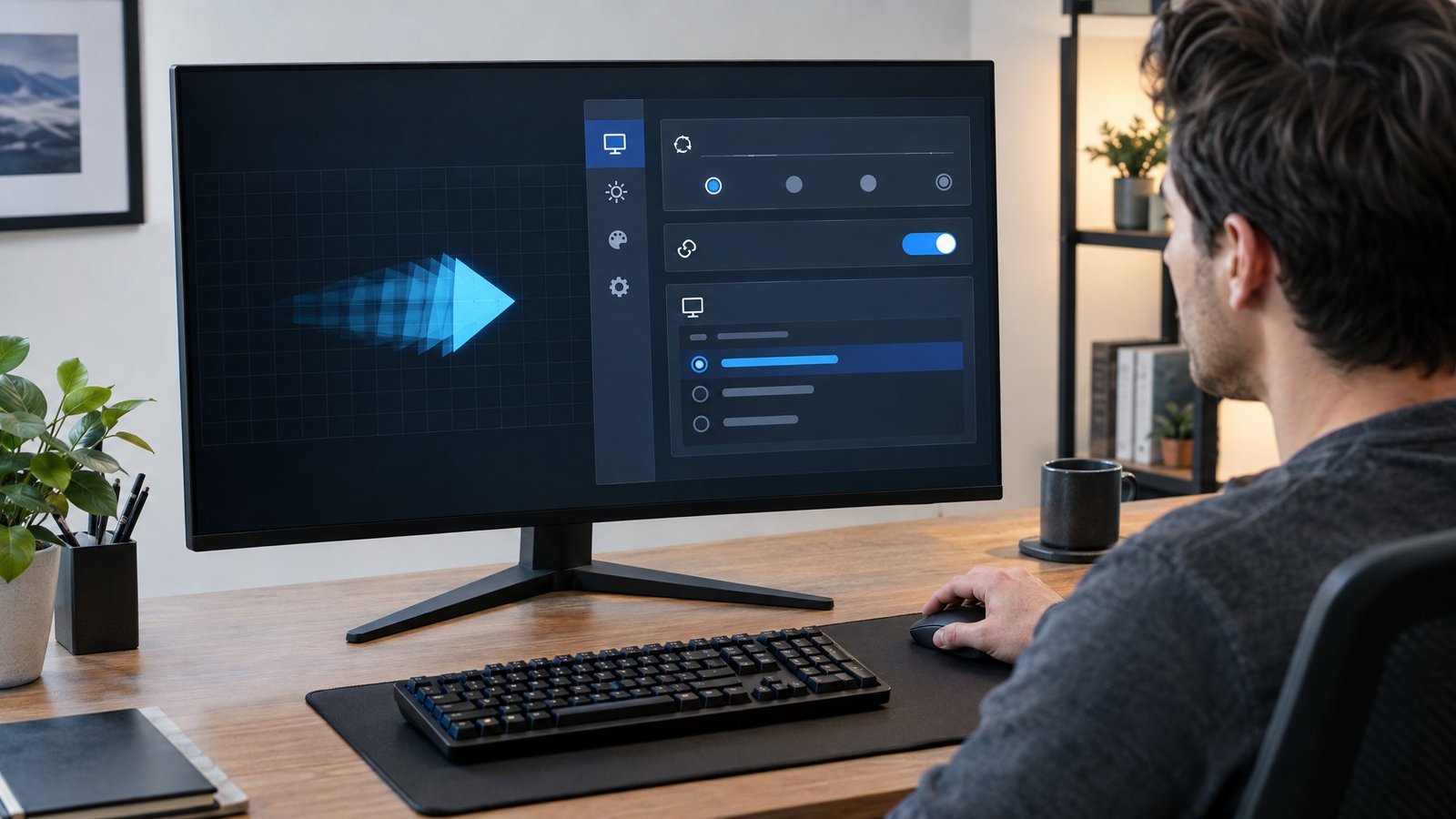
A wrong refresh rate or a poorly tuned adaptive sync mode can undo good overdrive work. Many high-refresh monitors ship running at 60Hz out of the box, and overdrive tuning often assumes the top speed.
Is Your Display Running at Its Native Refresh Rate?
Check Windows display settings first. Go to Start > Settings > System > Display > Advanced display. The panel shows your current resolution, refresh rate, and whether the screen supports variable refresh rate (VRR).
Pick the highest rate in the “Choose a refresh rate” list. If you see an asterisk next to a rate, choosing it will change your resolution, so skip it. If a 240Hz monitor only offers 60Hz, the cable or port is often the issue. Our guide on how to check and change monitor refresh rate walks through each case.
On Windows 11, a feature called Dynamic Refresh Rate can lower the rate to save power. It needs VRR and at least 120Hz. If a game feels capped, turn it off in the same menu.
A refresh rate mismatch between the game, Windows, and the monitor also causes stutter that looks like smearing. Set games to the same Hz as the desktop.
How Should You Test G-SYNC or FreeSync with Overdrive?
Test overdrive twice: once with adaptive sync on at high frame rates, and once at low frame rates. VRR changes how long each frame stays on screen, and that changes how overdrive looks.
Blur Busters explains that many older or cheaper FreeSync monitors lack variable overdrive (also called adaptive overdrive). Their fixed overdrive is tuned for top speed. Motion looks clean at high fps but gets coronas or ghosting when fps drops. Monitors with a dedicated NVIDIA G-SYNC module handle overdrive calculations in hardware to avoid this.
Here is a simple routine:
- Enable G-SYNC or AMD FreeSync in your GPU software. NVIDIA now points users to the NVIDIA app; the classic NVIDIA Control Panel stopped getting updates as of driver 610.47.
- Play a game near your max Hz and watch dark edges.
- Lower settings or cap fps to around half and watch again.
- If coronas appear only at low fps, drop overdrive one step.
Adaptive sync also fixes screen tearing, so keep it on if you can. Our comparison of G-SYNC vs FreeSync explains the differences between the two.
What If the Trails Are Still Visible?
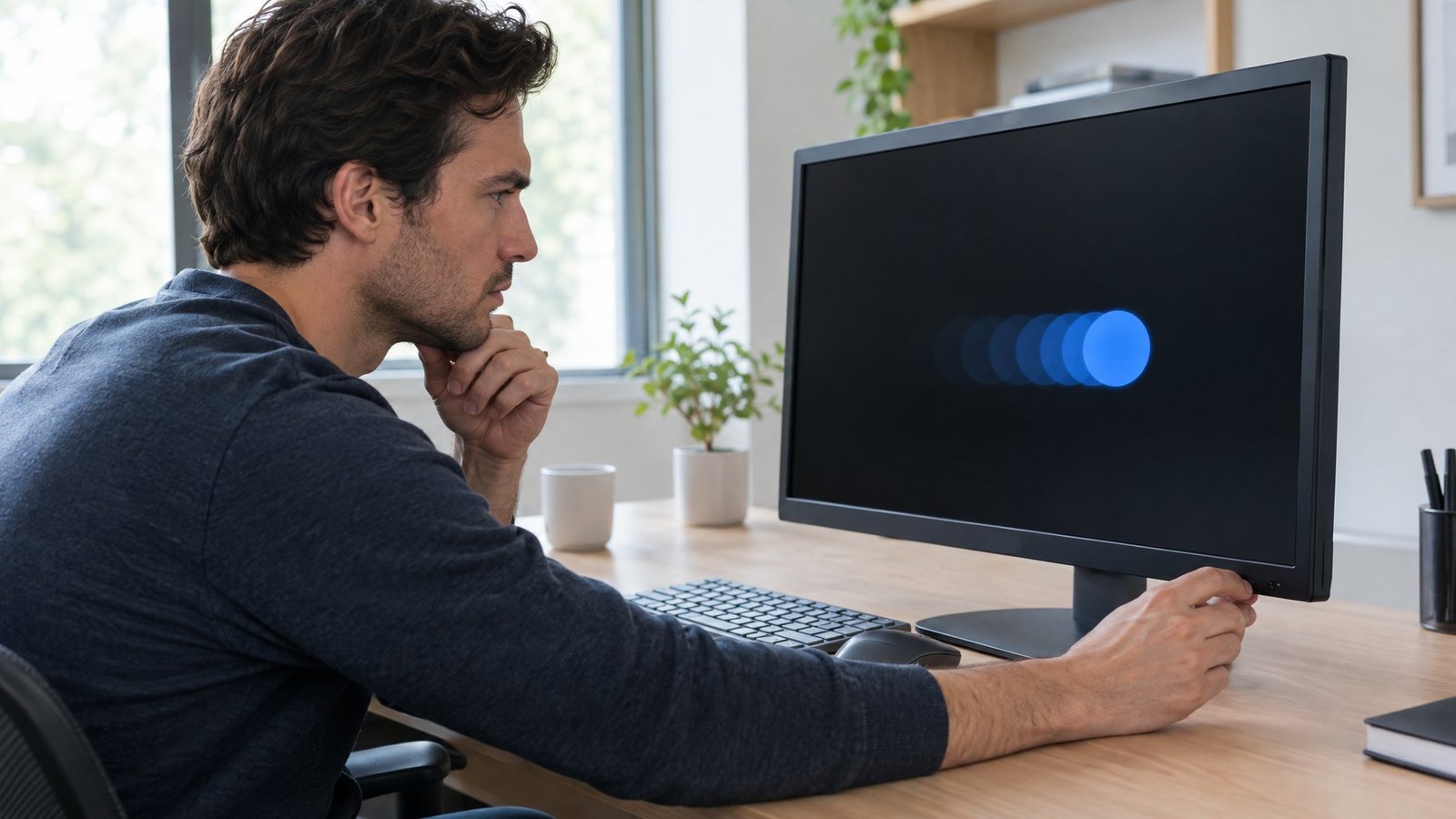
Lingering trails point to one of three things: blur that strobing can clear, a slow panel type, or a driver, firmware, or cable fault. Each one has a quick check.
Can Motion Blur Reduction Improve Clarity?
Yes, backlight strobing hides much of the pixel transition by turning the backlight off between refreshes. Brands call it ULMB, ELMB, DyAc, or simply motion blur reduction. Black frame insertion does a similar job on OLED monitors and TVs.
This matters because spec sheets can mislead. A “1ms GtG” monitor can still have about 16.7ms MPRT at 60Hz, which is far blurrier than “1ms MPRT.” MPRT measures how long each frame stays visible, which is what your eyes see as blur.
Strobing has trade-offs:
- The screen gets dimmer.
- Frame rate should match refresh rate, or you see double images.
- Strobe crosstalk can create a faint double image, often worse near the top and bottom.
- ASUS ELMB works only at fixed refresh rates. ELMB Sync works with G-SYNC or FreeSync but cannot run with HDR.
Our page on motion blur reduction covers setup in more depth.
When Is the Panel Itself the Limiting Factor?
If you tried every overdrive level and still see ghosting or coronas, the panel is the ceiling. Gray-to-gray (GtG) response time varies by panel type:
| Panel type | Typical dark-scene behavior |
|---|---|
| VA panels | Most prone to dark smearing |
| IPS panels | Fast, mild trails on some models |
| TN panels | Fast, weaker colors and angles |
| OLED / QD-OLED | Near-instant pixel changes, almost no ghosting |
VA ghosting is common in dark scenes because black-to-gray changes are slow. An OLED gaming monitor removes most ghosting but still shows sample-and-hold blur. A faster panel or higher refresh rate is the only real fix for slow pixel response time. Our 144Hz vs 240Hz comparison helps if you are thinking about an upgrade.
When Should You Check Drivers, Firmware, and Connections?
Check them when trails appear suddenly, after an update, or alongside flicker or missing refresh rates.
- Reset the driver: press Windows + Ctrl + Shift + B.
- GPU drivers: update graphics card drivers, or roll back in Device Manager if trouble started after an update.
- Firmware update: some monitor makers release fixes for overdrive and VRR behavior. Check the model’s support page.
- Cable and port: use DisplayPort 1.4 or HDMI 2.1 for high refresh rates. HDMI 2.0 often caps 1440p and 4K speeds. With a USB-C cable, confirm it supports video at your target Hz.
- Swap test: try a different cable and monitor video port on the GPU.
If DisplayPort fails while HDMI works, see our fix for DisplayPort not working while HDMI works.
Find the Cleanest Motion Your Monitor Can Deliver
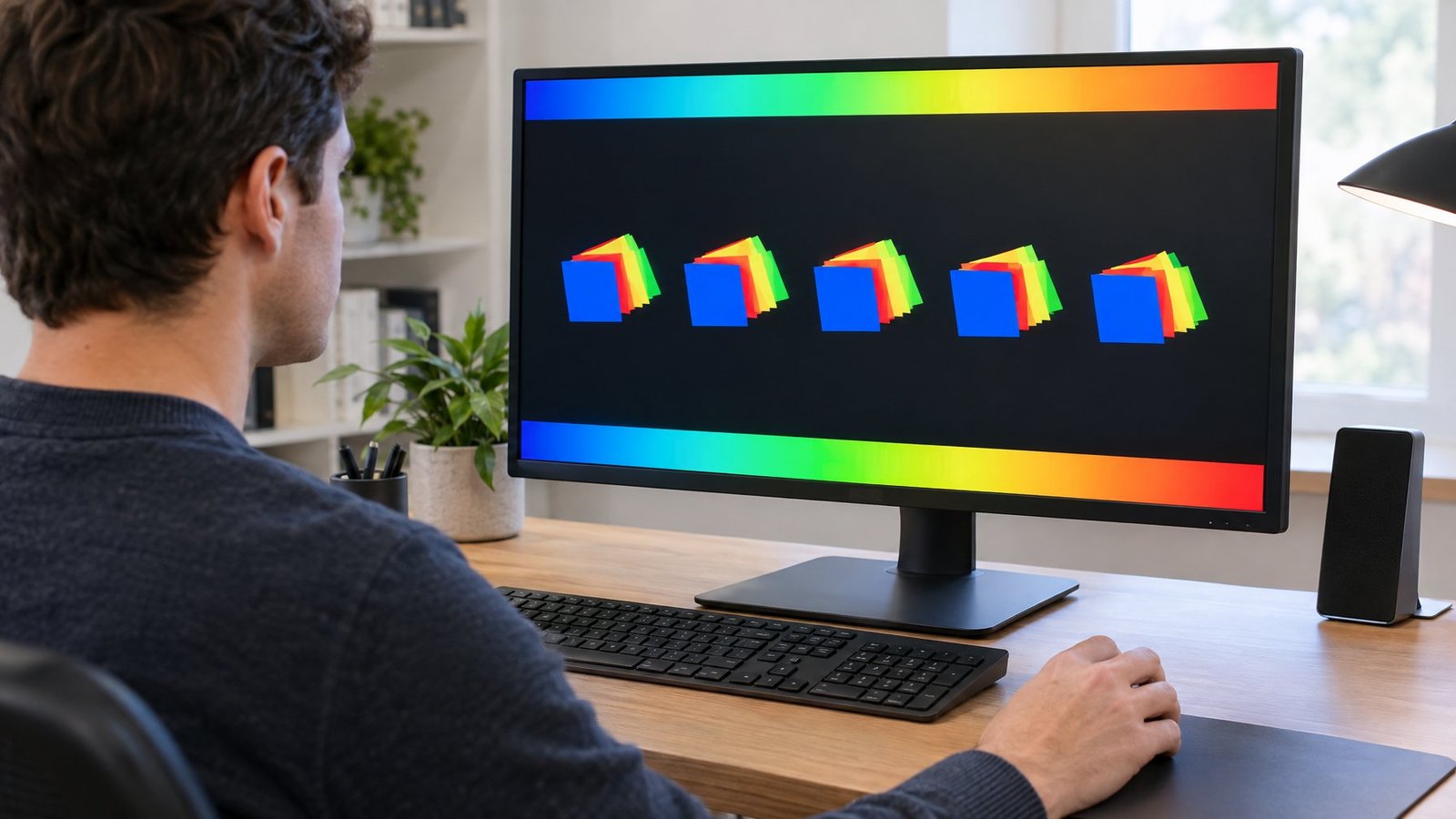
The cleanest motion comes from matching overdrive, refresh rate, and sync settings to your specific panel. Start with a warm monitor and the UFO ghosting test so you know which artifact you are chasing.
Then work in this order:
- Set the overdrive level where dark trails vanish before bright halos show.
- Confirm Windows runs your native refresh rate over a capable cable.
- Test adaptive sync at both high and low frame rates, and drop overdrive a step if coronas show at low fps.
- Try motion blur reduction for fixed-frame-rate games if you want sharper motion clarity.
- Update GPU drivers and firmware, and swap cables if problems started suddenly.
Write down the overdrive level that looks best at each refresh rate you use. If monitor ghosting survives every step, the panel type is the limit, and a faster IPS or OLED display is where the next improvement lives.
Frequently Asked Questions
Can screen ghosting be fixed on a laptop?
Often, yes, but with fewer tools. Many gaming laptops include an overdrive or panel speed toggle in the maker’s control app, and you can still set the highest refresh rate in Windows and run the UFO test on AC power.
Are the steps different in Windows 10 and Windows 11?
The steps are nearly the same, since both use Settings > System > Display > Advanced display for refresh rate. Windows 11 adds Dynamic Refresh Rate, which you may need to turn off. Windows 10 support ended on October 14, 2025.
Why do I only see ghosting in games?
Games have fast motion and dark scenes, which expose slow pixel response time far more than desktop work. Low or changing frame rates with adaptive sync can also shift how overdrive looks, adding coronas or trails only during play.
Can a TV have the same kind of ghosting?
Yes, LCD TVs show the same trails from slow pixel transitions, especially VA-based models in dark scenes. Turn on game mode, then try the TV’s motion or clarity settings, which often include black frame insertion.
Does a higher refresh rate always eliminate ghosting?
No, a higher refresh rate cuts motion blur and shortens trails, but it cannot speed up a slow panel. A 240Hz VA gaming monitor can still smear dark scenes if its pixels cannot finish changing within each frame.

I’m Anirban Saha, Founder & Editor of TechBullish. With a B.Tech in Electronics and Communication Engineering, and 8+ years of experience as a software developer, I have expertise in electronics, software development, gadgets, and computer peripherals. I love sharing my knowledge through informational articles, how-to guides, and troubleshooting tips for Peripherals, Smart TVs, Streaming Solutions, and more here. Check Anirban’s LinkedIn Profile here.
