
A missing taskbar is one of those problems that feels way bigger than it is. One second you have your Start button, search bar, and system tray at the bottom of the screen, and the next second it’s just… gone. Your open apps are still running, but you’ve lost the easiest way to switch between them.
Most missing taskbar problems come down to one of three things: a hidden taskbar setting, a stuck Windows Explorer process, or a display mode that’s pushing the taskbar to a screen you can’t see. The good news is that all three are fixable in a few minutes without any technical background. We’ll walk through the quick fixes first, then move into the deeper repairs for cases where the taskbar still won’t show up.
How Can You Bring the Taskbar Back Quickly?
A missing taskbar usually gets fixed by checking your taskbar settings, restarting Windows Explorer through Task Manager, or restarting the PC entirely. These three steps solve the vast majority of cases, and you can try them in order without needing any special tools.
Check Whether the Taskbar Is Set to Hide Automatically
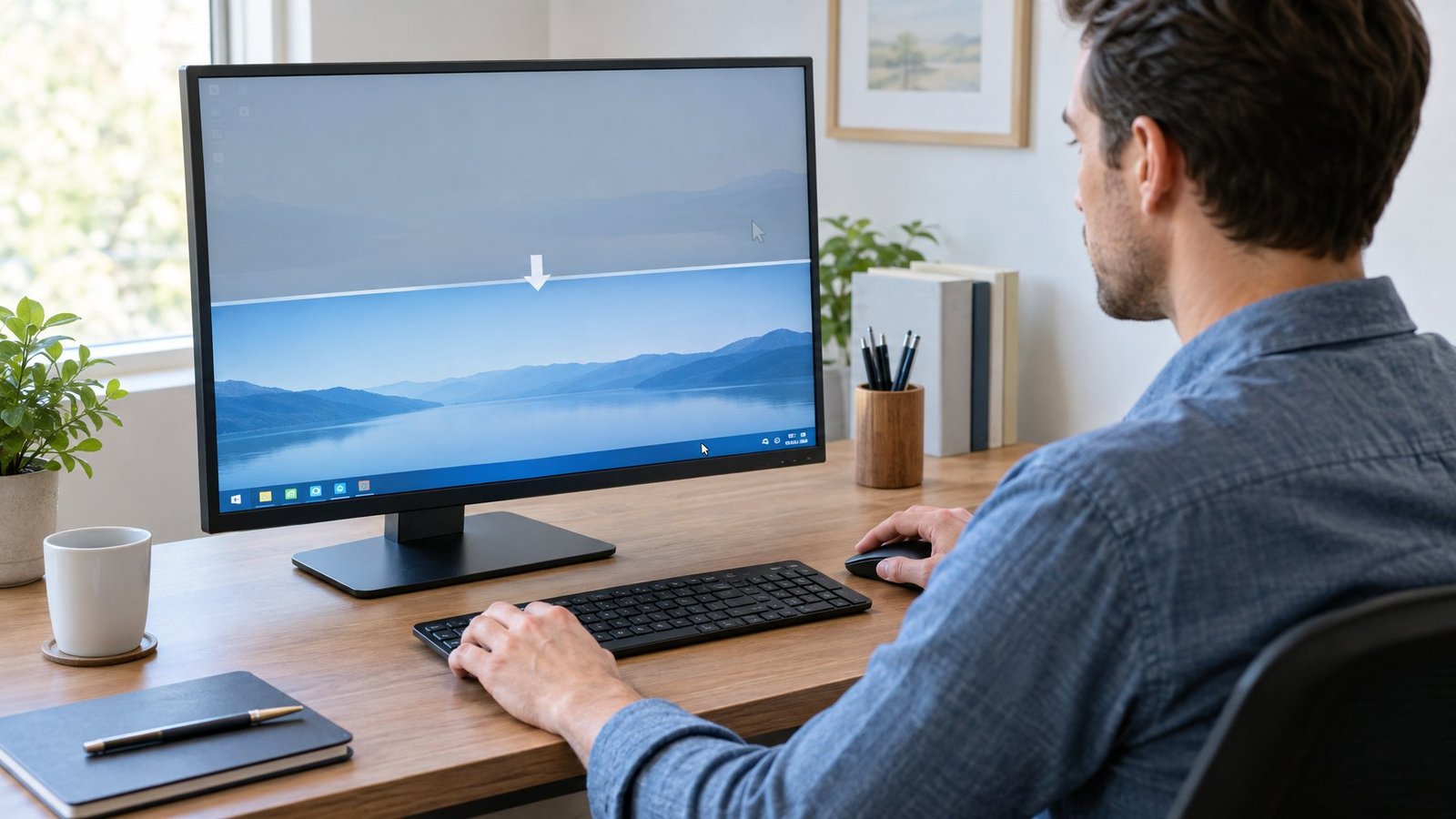
Windows lets you set the taskbar to automatically hide the taskbar when it’s not in use. If that setting got switched on by accident, your taskbar is still there, just tucked out of view.
Move your mouse to the very bottom edge of the screen and wait a second. If the taskbar slides into view, head into taskbar settings to turn the auto-hide option off. Right-click an empty spot near the bottom of your screen, choose Taskbar settings, open Taskbar behaviors, and uncheck Automatically hide the taskbar.
Restart Windows Explorer from Task Manager
Windows Explorer is the process that draws your taskbar, desktop icons, and File Explorer windows. When it crashes or freezes, the taskbar can disappear even though the rest of your system works fine.
Press Ctrl+Shift+Esc to open task manager. Look for Windows Explorer in the list of processes, right-click it, and select Restart. The screen may flicker for a moment before the taskbar reappears.
If Windows Explorer isn’t listed at all, go to File, then Run new task, type explorer.exe, and press Enter. That relaunches the process from scratch.
Restart Your PC If the Taskbar Is Still Missing
A full restart clears out temporary glitches that a simple Explorer restart can’t fix. This matters because some taskbar issues come from a stuck background process that won’t let go until the system reboots.
Save your work, restart your PC, and check the taskbar as soon as you’re back at the desktop. If it’s still missing after a restart, the cause likely sits somewhere other than a basic Explorer hiccup, and it’s worth moving on to the display and system file checks below.
Is the Taskbar on Another Screen?
A taskbar that seems to have vanished is sometimes just displaying on a monitor you’re not looking at, or Windows projection settings have switched your display mode to something unexpected. This happens a lot with laptops that get connected to a second monitor, projector, or TV.https://www.youtube.com/embed/DPjbUFhgQag
Check Projection Mode and Connected Monitors
Press the Windows key plus P to open the projection menu, which controls whether your screen shows on one display or several. If your PC thinks it’s still connected to a second screen that’s now unplugged, your desktop (and taskbar) might be rendering on a display that isn’t there.
Cycle through the options: PC screen only, Duplicate, Extend, and Second screen only. Choosing PC screen only forces everything, including the taskbar, back onto your main display.
If you use multiple monitors regularly, you can also check display settings to confirm which monitor is set as the main display, and detect any screens Windows isn’t recognizing. We’ve covered a related issue in our guide on what to do when a 2nd monitor detected but not displaying correctly.
Review Display Resolution and Taskbar Visibility
A resolution that’s too high or mismatched with your monitor can push the taskbar off the visible area of the screen. This is more common after connecting a new monitor or TV with a different native resolution than your old one.
Open display settings, check the resolution, and select the option marked Recommended for your monitor. If the display resolution was changed manually and doesn’t match the screen, lowering it to the recommended value usually brings the taskbar back into view. Readers dealing with stretched or oddly scaled screens might also find our article on screen tearing useful for related display quirks.
How Do You Repair a Taskbar That Still Won’t Appear?
Running DISM and the System File Checker repairs corrupted system files that can prevent the taskbar from loading properly. These built-in Windows tools fix damaged files without needing to reinstall anything.
Repair System Files with DISM and SFC
Open Command Prompt as an administrator by searching for it, right-clicking, and choosing Run as administrator. Type DISM /Online /Cleanup-Image /RestoreHealth and press Enter. This step can take several minutes, so let it finish completely.
Once DISM reports that the operation completed successfully, run an sfc scan by typing sfc /scannow and pressing Enter. The system file checker will scan your system files and automatically repair any it finds corrupted. When it says “Verification 100% complete,” restart your PC and check the taskbar again.
Consider PowerShell Repairs Only for Persistent Shell Problems
PowerShell commands that re-register Start menu and shell components can help when DISM and SFC don’t resolve the issue. These commands reinstall the app packages that power the taskbar and Start menu without touching your files.
This step is more advanced, and it’s meant for cases where the taskbar problem comes back repeatedly after a restart. Open PowerShell as an administrator before running any re-registration commands, since Command Prompt won’t recognize them.
Avoid Outdated IrisService Registry Fixes Unless They Apply
Older troubleshooting guides sometimes mention an irisservice registry fix for taskbar problems tied to older Windows builds. That fix targeted a specific, narrow issue and doesn’t apply to most current taskbar problems on supported versions of Windows 10 and 11.
Running registry edits meant for a different problem can create new issues instead of fixing the one you have. Stick with DISM, SFC, and Explorer restarts first, since those cover the overwhelming majority of taskbar cases.
What If the Problem Started After a Change?
A taskbar that disappeared right after an update, driver change, or new software install points to that change as the likely cause. Pinning down timing is one of the fastest ways to figure out what broke.
Check Windows Updates and Graphics Drivers
Some Windows updates have caused shell problems, including taskbar and Start menu failures, on certain enterprise and managed devices. If your taskbar vanished shortly after an update installed, check Windows Update history to see what was added, and look for a newer update that addresses the issue.
Outdated or corrupted graphics drivers can also interfere with how the taskbar renders on screen. Open Device Manager, expand Display adapters, right-click your graphics card, and choose Update driver. If the problem started right after a driver update, Roll back driver is often the faster fix.
If you’d rather remove a specific update entirely, go to Settings, then Windows Update, then Update history, then Uninstall updates, and pick the one installed around the time the taskbar disappeared.
Use System Restore to Undo a Recent Problem
System Restore reverts your PC to a point in time before the taskbar problem started, without touching your personal files. It works by rolling back system settings, registry entries, and installed programs to a saved restore point.
Search for Create a restore point, open System Restore, and pick a restore point dated before the taskbar issue began. Windows will restart automatically once the restore finishes. This is especially useful when you can’t pinpoint exactly which update or driver caused the problem, since it undoes everything from that time period at once.
Start with Visibility Settings, Then Check Windows
The fastest path to a working taskbar starts with the simple stuff before moving into deeper system repairs. Most taskbar problems trace back to a setting, not a serious system fault.
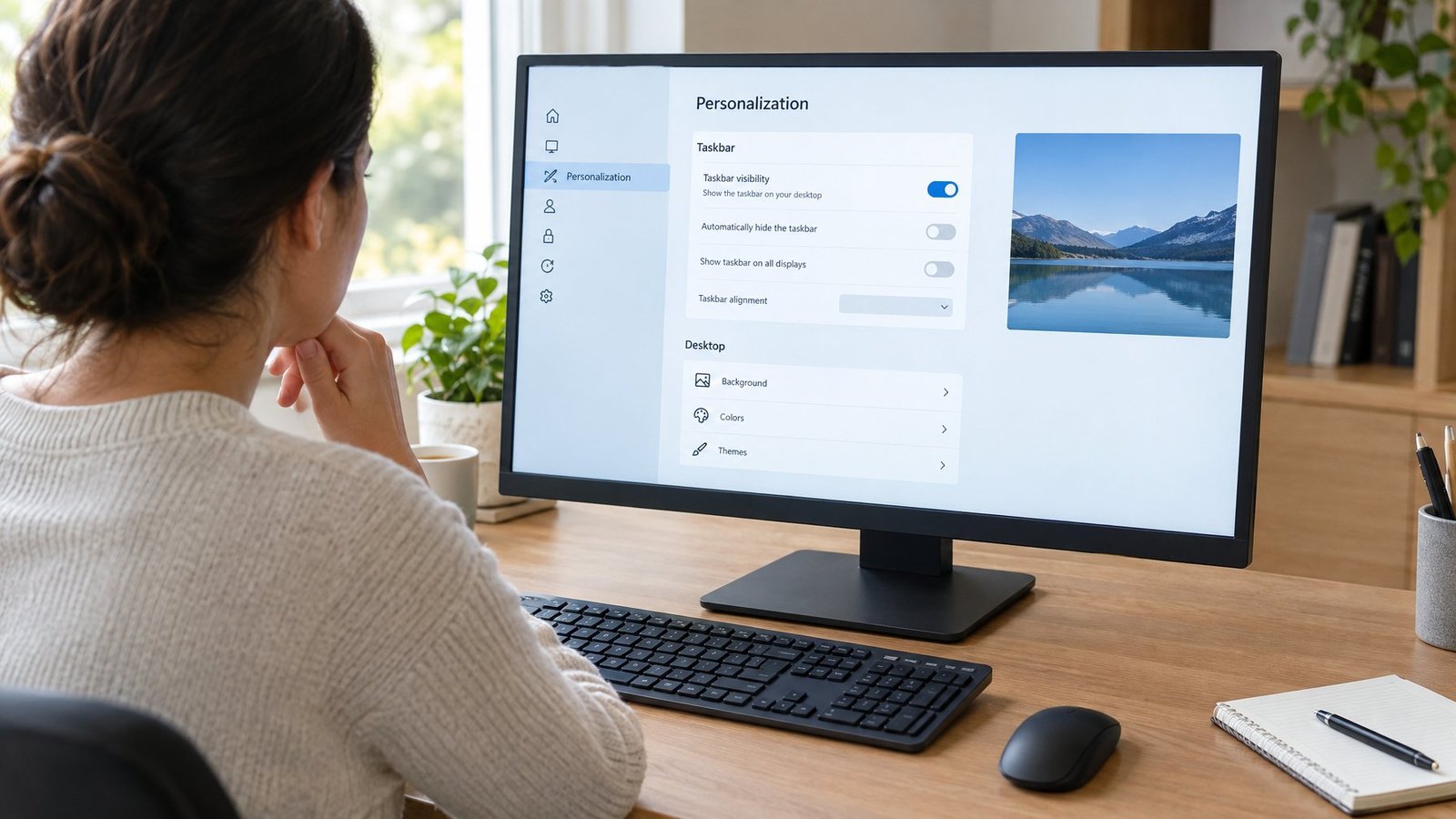
Check whether auto-hide is turned on, restart Windows Explorer from Task Manager, and confirm your display mode and resolution before touching anything more advanced. These steps take less than five minutes combined and solve the issue for most people.
If the taskbar still won’t show after that, move on to DISM and sfc /scannow to repair damaged system files. For problems that started right after an update or driver change, checking Windows Update history or rolling back a driver often finds the root cause fast.
System Restore remains a solid backup plan when nothing else works, since it undoes recent system changes without touching your documents or photos. Working through these steps in order, from simplest to most involved, saves time and avoids unnecessary system changes.
Frequently Asked Questions
Why did my taskbar suddenly disappear in Windows 11?
The most common causes are a frozen Windows Explorer process, an accidentally enabled auto-hide setting, or a recent Windows update affecting shell components. Restarting Windows Explorer through Task Manager fixes most sudden disappearances within seconds. If it keeps happening after restarts, a system file repair with DISM and SFC usually resolves it.
How do I get my taskbar back in Windows 10?
Try restarting Windows Explorer from Task Manager first by pressing Ctrl+Shift+Esc, finding Windows Explorer, and selecting Restart. If that doesn’t work, check your taskbar settings to make sure auto-hide isn’t turned on. A full PC restart also clears up many temporary glitches tied to this issue.
Why doesn’t my taskbar appear when I hover over it?
This usually means the auto-hide feature is on, but the trigger zone isn’t registering your mouse correctly. Move your cursor slowly to the very bottom pixel of the screen and pause there for a second. If it still won’t appear, turn off Automatically hide the taskbar in Taskbar settings instead of relying on hover detection.
Why are my taskbar icons missing when the bar is still visible?
Missing icons while the taskbar itself stays visible often points to a system tray setting hiding them, or a corrupted icon cache. Check Taskbar settings under System tray icons to confirm which icons are set to show. Restarting Windows Explorer also rebuilds the icon display in many cases.
Why is the taskbar missing on my laptop but visible on an external monitor?
This typically happens when the taskbar is only set to show on one display, or when the laptop screen isn’t recognized as part of the active display setup. Check display settings to confirm both screens are detected, and look at taskbar settings for the option to show the taskbar on all displays. Multiple display handling varies based on how your screens are arranged under Multiple displays settings.

I’m Anirban Saha, Founder & Editor of TechBullish. With a B.Tech in Electronics and Communication Engineering, and 6+ years of experience as a software developer, I have expertise in electronics, software development, gadgets, and computer peripherals. I love sharing my knowledge through informational articles, how-to guides, and troubleshooting tips for Peripherals, Smart TVs, Streaming Solutions, and more here. Check Anirban’s Crunchbase Profile here.
