
A black or flickering laptop screen always has a cause you can track down. Most laptop display issues trace back to one of three things: power and connections, a software or driver problem, or actual screen hardware damage.
The fastest fix usually starts with the simplest checks, like making sure the laptop has power and the display output is set correctly, before touching drivers or settings.
We’ve walked plenty of people through this exact problem, and the pattern is pretty consistent. A blank screen with a cursor points to a stalled process. A screen that goes dark right after you log in points to a display setting or profile issue. Flickering usually means a driver or app conflict. Lines, spots, or color problems often mean the panel itself needs a look.
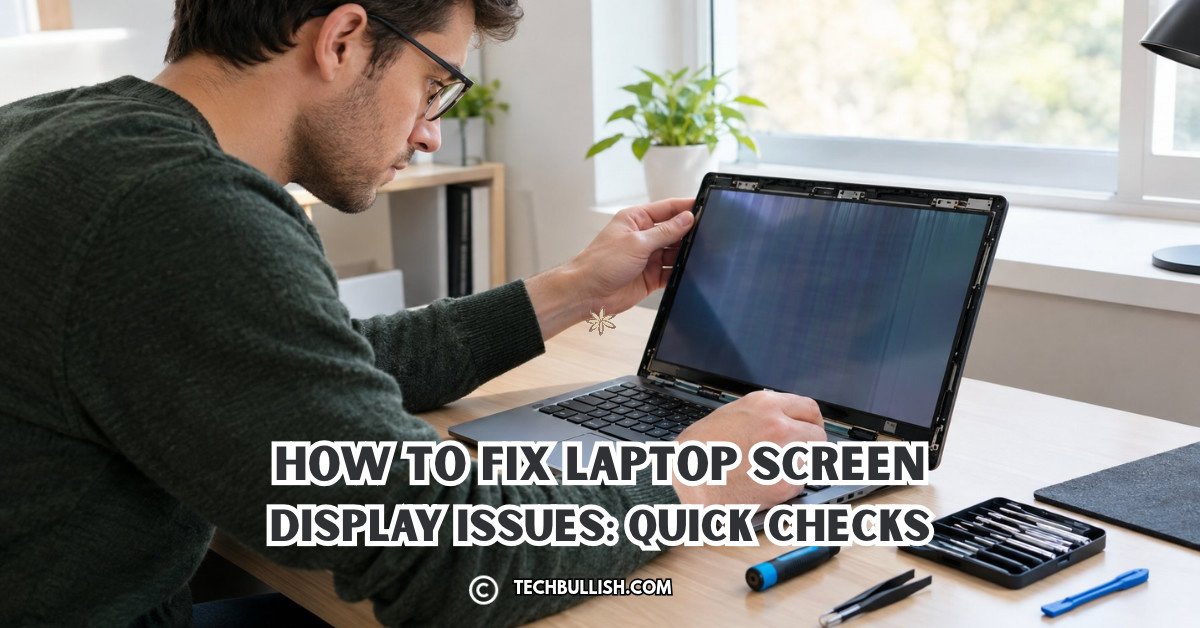
This article breaks the problem into the checks that matter most, starting with what to try the moment your screen goes black.
What Should You Try First When the Screen Is Black?
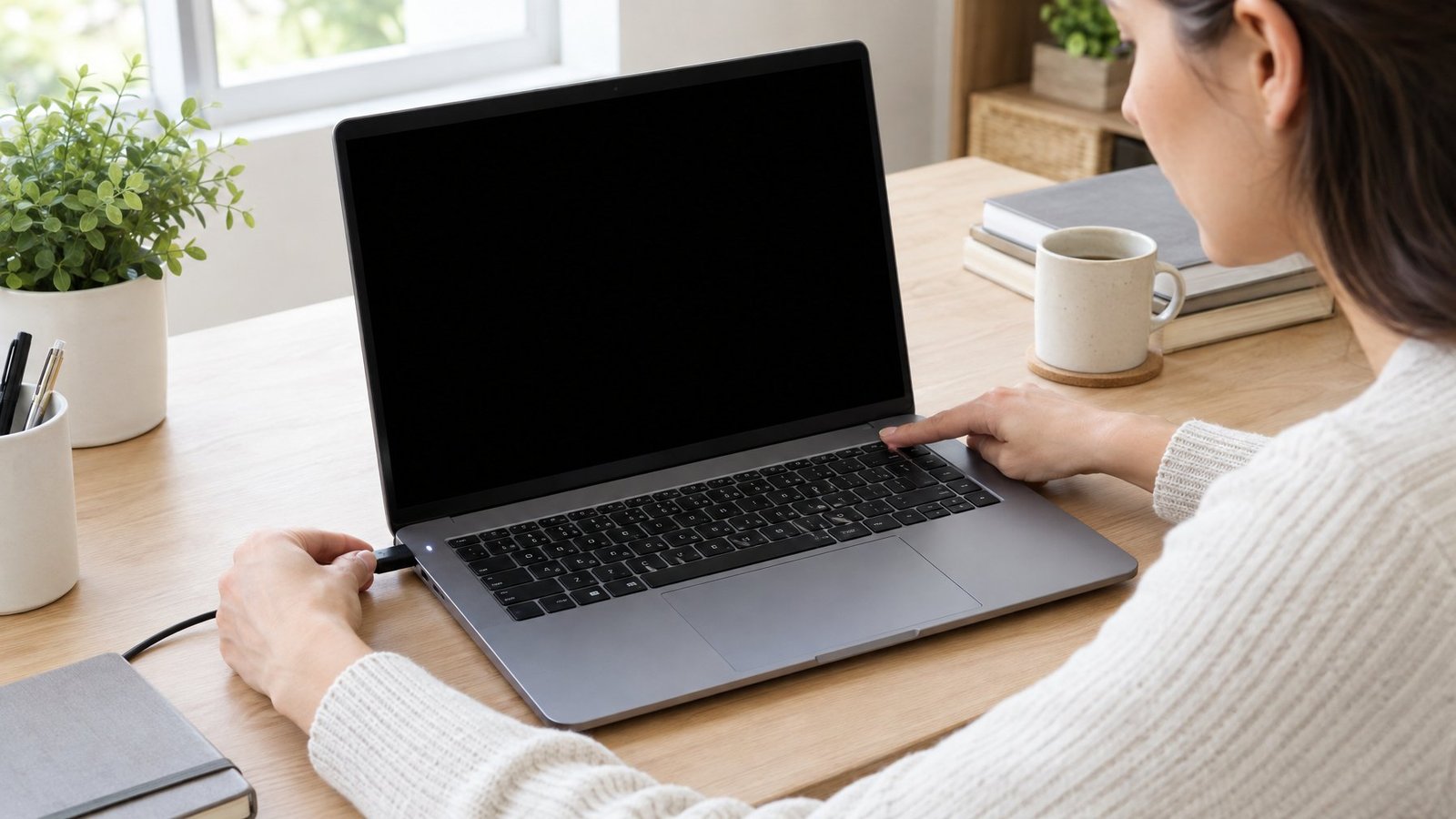
A black laptop screen is almost always caused by power settings, display output mode, or a stalled process, not a broken panel. Before assuming the worst, run through a short list of checks that fix most laptop display problems in under five minutes.
Check Power, Brightness, and Display Output
Make sure the laptop is charged or plugged in, and check the brightness level in display settings since it’s easy to accidentally dim it to zero. Also press Windows key + P to cycle through display modes, since a laptop stuck on “second screen only” with no monitor attached will look completely black.
Disconnect Accessories and Perform a Hard Reset
Unplug every external monitor, USB drive, and dock, since a bad peripheral can block the screen from waking up. Then hold the power button for 15 to 20 seconds to force a full shutdown, wait a moment, and power back on.
If the Screen Goes Black After Sign-In
This pattern usually points to a corrupted user profile or a display output mix-up rather than hardware failure. Try pressing Ctrl + Alt + Del to bring up the security screen, then open Task Manager and restart Windows Explorer from the File menu if the screen still looks blank.
Check Windows Startup
If the black screen happens every time, boot into Safe Mode to see if it clears up. Safe Mode loads only basic drivers and services, so if the screen works there, a driver or startup app is the likely cause.
Is the Problem the Screen, Windows, or the Graphics Hardware?
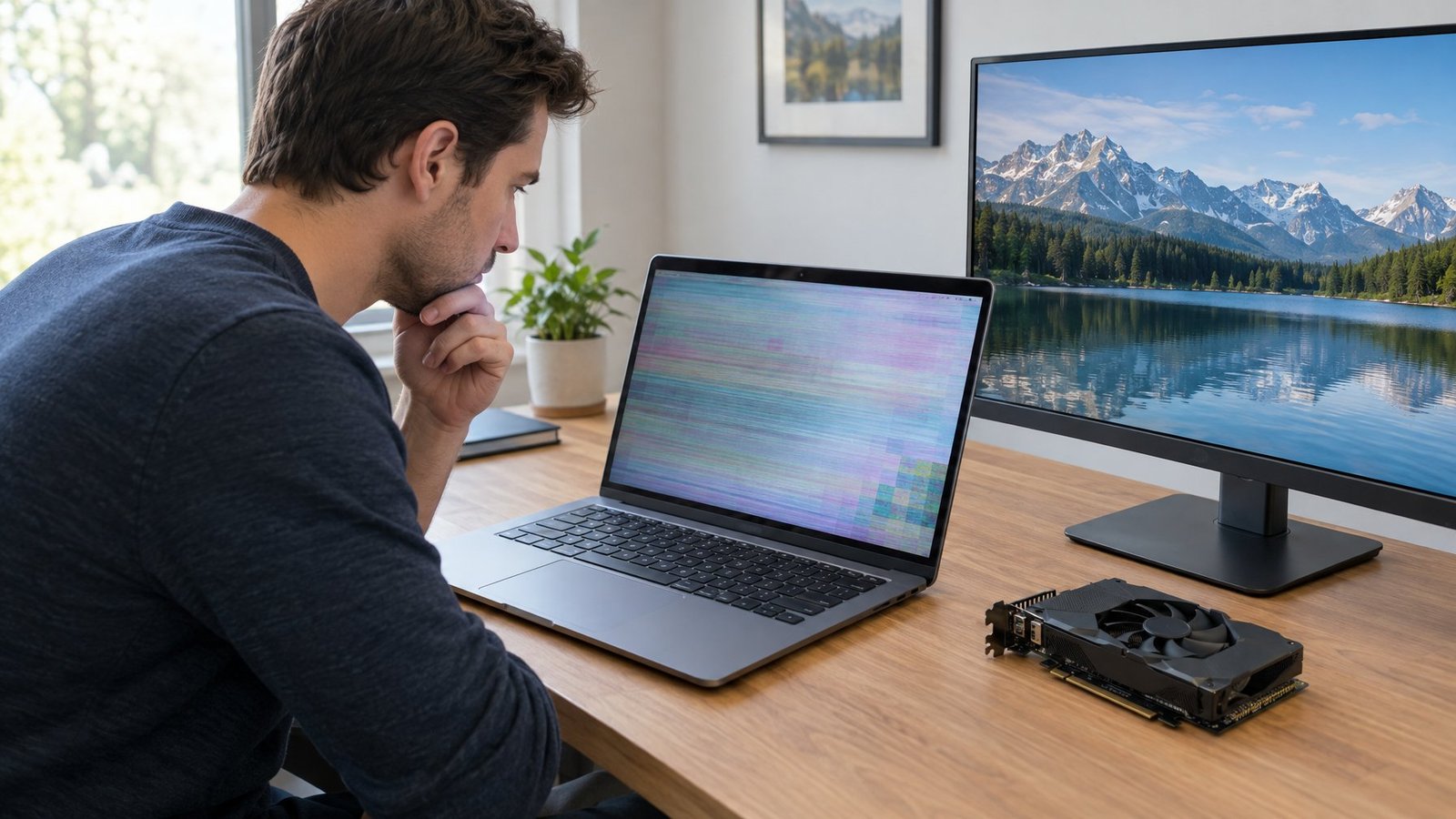
The clearest way to separate a screen problem from a software problem is to test the display before Windows even loads. If a problem shows up at the BIOS screen or in a manufacturer’s built-in diagnostic, it’s hardware. If it only shows up after Windows starts, drivers or settings are the likely culprit.
Compare the Laptop Screen with an External Monitor
Connect the laptop to an external lcd monitor using HDMI or DisplayPort, then press Windows key + P to duplicate or extend the display. If the external screen looks fine and the laptop panel still shows lines, flicker, or distortion, the built-in screen or its cable is the likely problem.
Check Whether the Problem Appears Before Windows Starts
Watch the screen during startup, before the Windows logo appears. If you see distortion, lines, or a blank screen at this stage, Windows settings and drivers aren’t involved yet, which points to a hardware issue in the panel or its connection.
Run a Screen Self-Test or Manufacturer Diagnostics
Dell laptops include an lcd built-in self-test (bist), started by holding the D key while powering on, which cycles through solid colors to reveal lines, dead pixels, or color problems independent of Windows. Dell’s SupportAssist tool and preboot diagnostics (accessed by pressing F12 at startup) can also flag hardware errors with specific codes. Safe mode is worth trying too, since a screen that behaves normally there suggests the problem lies in a driver, not the panel itself.
How Do You Stop Flickering and Other Display Glitches?
Screen flickering comes from a display driver conflict, a mismatched refresh rate, or an incompatible app, and Windows gives you a quick way to tell which one it is. Open Task Manager with Ctrl + Shift + Esc and watch it while the screen flickers. If Task Manager flickers too, the driver is the cause. If Task Manager stays steady while everything else flickers, an app is to blame.
Test the Refresh Rate and Look for App Conflicts
Go to Settings > System > Display > Advanced display to check your current refresh rate, and try switching it if the flicker lines up with a specific setting. If Task Manager stayed calm during the flicker test, uninstall recently added apps one at a time through Settings > Apps > Installed Apps to isolate the culprit. For a deeper look at refresh rate tuning, our guide on how to check and change monitor refresh rate covers the settings in more detail, and our dedicated piece on how to fix screen flickering walks through additional driver-level fixes.
Update, Roll Back, or Reinstall the Graphics Driver
Open Device Manager, expand Display adapters, right-click your graphics adapter, and choose Update driver. If the flicker started right after a driver update, pick Roll Back Driver on the same Properties screen instead. When neither works, uninstall the driver entirely (checking “Attempt to remove the driver for this device”) and restart so Windows reinstalls it fresh.
Use Recovery Options If the Problem Began After an Update
If flickering started right after a Windows update, uninstall that update through Settings > Windows Update > Update history > Uninstall updates. A system restore to a point before the issue began is another option, rolling back system files and settings without touching personal files.
How Do You Fix Blurry Images, Wrong Colors, Lines, or Spots?
Blurry text and odd colors are usually a settings problem, while persistent lines or spots point to the panel itself. Sorting out which one you’re dealing with just takes a short process of elimination.
Restore Resolution, Scaling, and Color Settings
Go to Settings > System > Display and set resolution and scale to the option marked (Recommended), since a mismatched resolution causes blur and stretching. For color issues, open Settings > System > Display > Color profile and try Calibrate display, which walks through adjusting brightness, contrast, and color balance. If colors look washed out or too warm at night, check whether Night light is turned on, since that blue light filter shifts colors toward warmer tones on purpose.
Check Whether Lines or Spots Point to Panel Damage
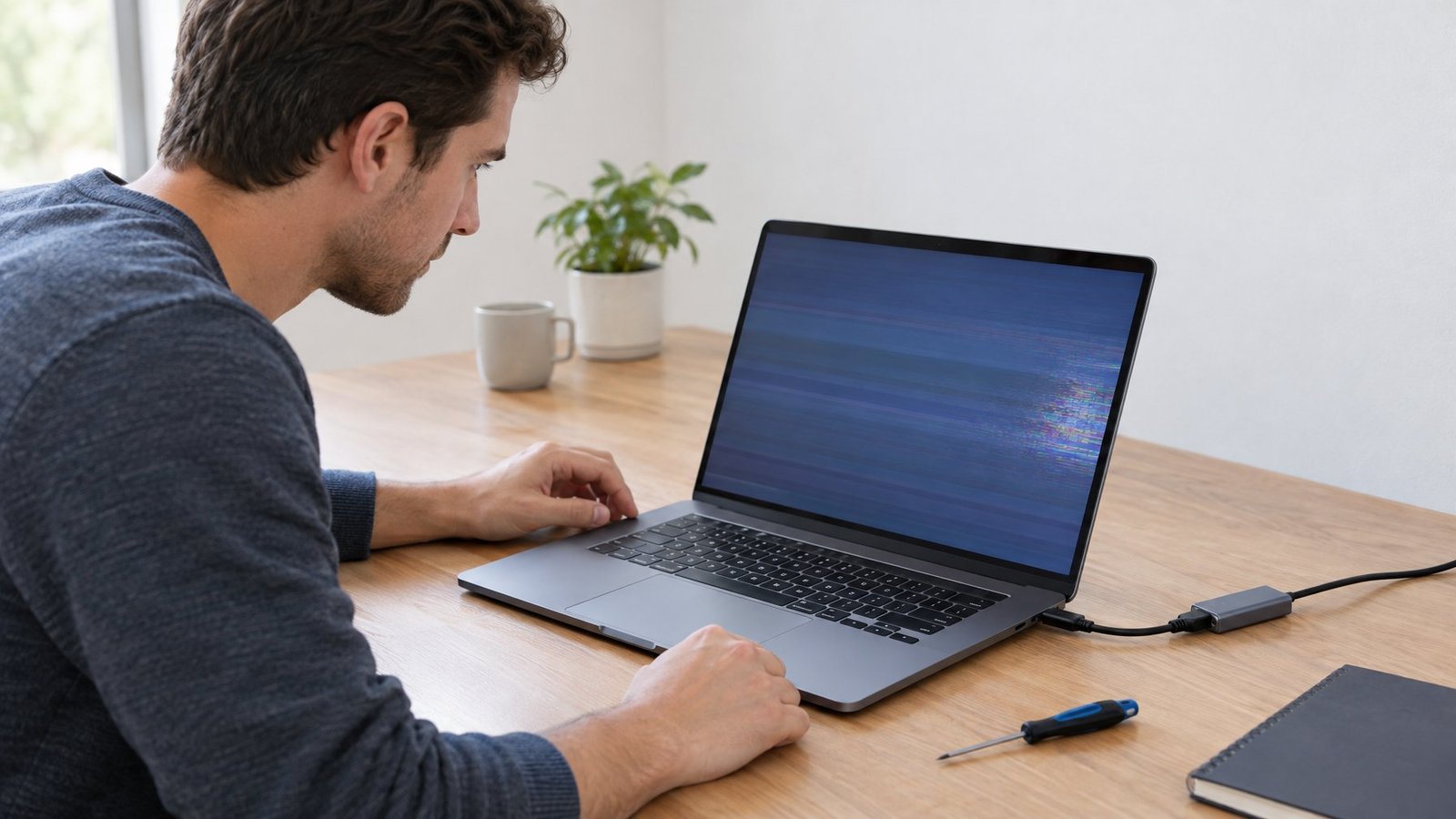
Lines running across the screen, especially ones that stay in the same spot through a reboot, usually mean a panel or cable issue rather than software. Run a self-test like Dell’s LCD BIST, or watch for the problem on an external monitor; if lines only appear on the built-in screen, the panel is the likely source. For a closer look at this specific symptom, see our guide on why is there a line on my computer screen.
Tell Stuck Pixels from Dead Pixels and Decide When to Seek Repair
A stuck pixel stays lit in red, green, blue, or white, while a dead pixel stays permanently black. Dead pixels can’t be fixed by software or any at-home method, and attempting pressure-based fixes on a stuck pixel risks cracking the screen or voiding the warranty. If you count several stuck or dead pixels within normal viewing distance, that’s worth comparing against the manufacturer’s pixel policy before requesting repair. Readers dealing with lighter discoloration across the whole panel might also check our page on computer screen discoloration for related causes.
Choosing Between a Settings Fix and a Screen Repair
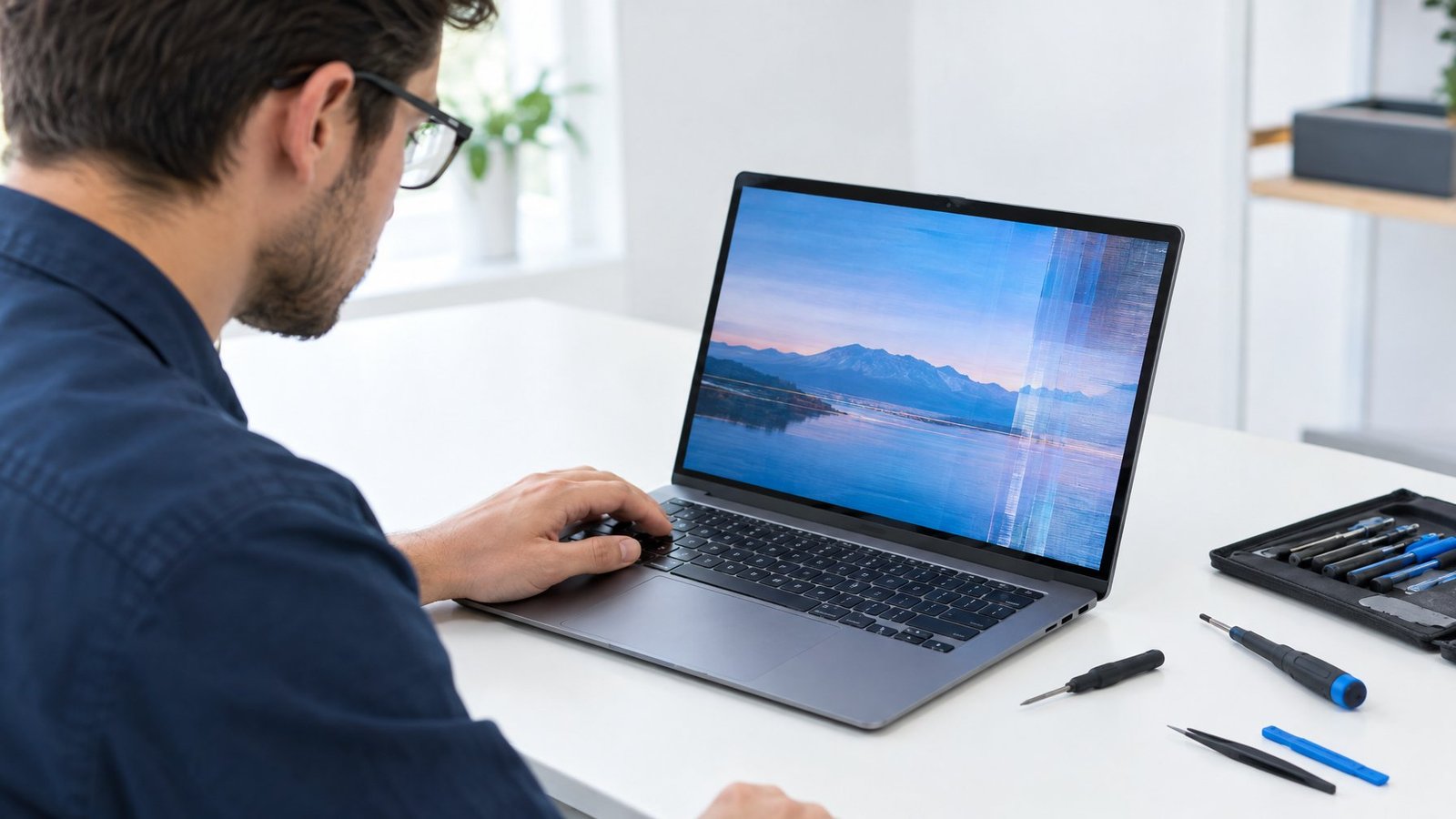
A settings fix is the right move whenever a screen self-test passes and an external monitor displays cleanly, since that confirms the panel itself works fine. Screen repair becomes necessary when a self-test reveals lines, dead pixels, or LED error flashes, or when the screen shows visible cracks or pressure marks.
Here’s a simple way to sort the signals:
| Signal | Likely Fix |
|---|---|
| Self-test passes, external monitor looks clean | Driver update or display settings |
| Lines or spots appear during self-test | Panel repair |
| Cracks or spider-web patterns on glass | Screen replacement |
| LED flashes a specific error pattern at startup | Hardware diagnosis needed |
| Flicker stops on external monitor only | Laptop screen or cable issue |
Physical damage like cracked glass typically isn’t covered under a standard warranty, though accidental damage coverage purchased separately can apply. Dell, for example, offers self-repair paths for some parts along with paid out-of-warranty repair service for laptops no longer covered. Checking your specific warranty status before paying for repair is always worth the five minutes it takes.
Frequently Asked Questions
Why is my laptop on but not displaying anything?
This usually means the laptop is in a display output mode that doesn’t match your setup, such as being set to show only on an external monitor that isn’t connected. Press Windows key + P to cycle through display modes, and check that brightness isn’t turned all the way down. If neither works, a hard reset by holding the power button for 15 to 20 seconds often clears a stalled display process.
Why does my laptop screen go black after I enter my password?
A black screen right after sign-in often points to a corrupted user profile or a stalled Windows Explorer process. Try Ctrl + Alt + Del to bring up the security screen, then use Task Manager to restart Windows Explorer. Booting into Safe Mode can also confirm whether a startup app or driver is causing the delay.
How can I tell if my laptop screen is broken?
Run a manufacturer screen self-test, like Dell’s LCD BIST (hold the D key while powering on), which cycles through solid colors without needing Windows to load. If you see lines, dark patches, or odd colors during the test, the panel hardware likely needs attention. Comparing the laptop screen against an external monitor is another reliable check.
How do I fix a flickering laptop screen in Windows 11?
Open Task Manager with Ctrl + Shift + Esc while the screen flickers to see if Task Manager flickers too, which points to a driver issue rather than an app. From there, update or roll back the graphics driver through Device Manager > Display adapters. If flickering started after a Windows update, uninstalling that update through Settings > Windows Update often resolves it.
What should I do if my Dell laptop screen stays black?
Start with a hard reset by disconnecting the power adapter and any external devices, then holding the power button for 15 to 20 seconds before powering back on. If the screen still stays black, run the LCD BIST by holding the D key during power-on to check whether the panel itself is responding. A screen that stays black even during this test, despite confirmed power, typically needs Dell Technical Support for hardware diagnosis.

I’m Anirban Saha, Founder & Editor of TechBullish. With a B.Tech in Electronics and Communication Engineering, and 8+ years of experience as a software developer, I have expertise in electronics, software development, gadgets, and computer peripherals. I love sharing my knowledge through informational articles, how-to guides, and troubleshooting tips for Peripherals, Smart TVs, Streaming Solutions, and more here. Check Anirban’s LinkedIn Profile here.
