
Choosing between Logi Tune vs Logi Options+ depends primarily on the Logitech devices you use. Logi Tune is designed for webcams and headsets, while Logi Options+ gives you greater control over mice and keyboards.
If you own a Logitech webcam or headset, you want Logi Tune. If you own an MX mouse or an MX Keys keyboard, you want Logi Options+.
That single split covers about 90% of the confusion people run into when they plug in new Logitech gear and get pushed toward two different downloads.
The overlap is real, and it trips people up. Both apps can adjust webcam settings. Both run on Windows and macOS. Both sit quietly in your system tray.
Logi Tune is built around meetings and video gear, while Logi Options+ is built around input devices and how you work with them, so the app you need follows the device you use most.
Plenty of desks need both installed at once, and that setup works fine as long as you know which app owns which device. Once you sort that out, you stop hunting through menus for a setting that lives in the other program.
Key Takeaways
- Logi Tune handles webcams, headsets, and meeting hardware; Logi Options+ handles mice, keyboards, and shortcuts.
- Running both apps together is fine when you own gear from each category.
- Logitech Options (the old app) has reached end of support, and G HUB stays the pick for gaming devices.
The Quick Choice: Which Logitech App Do You Need?
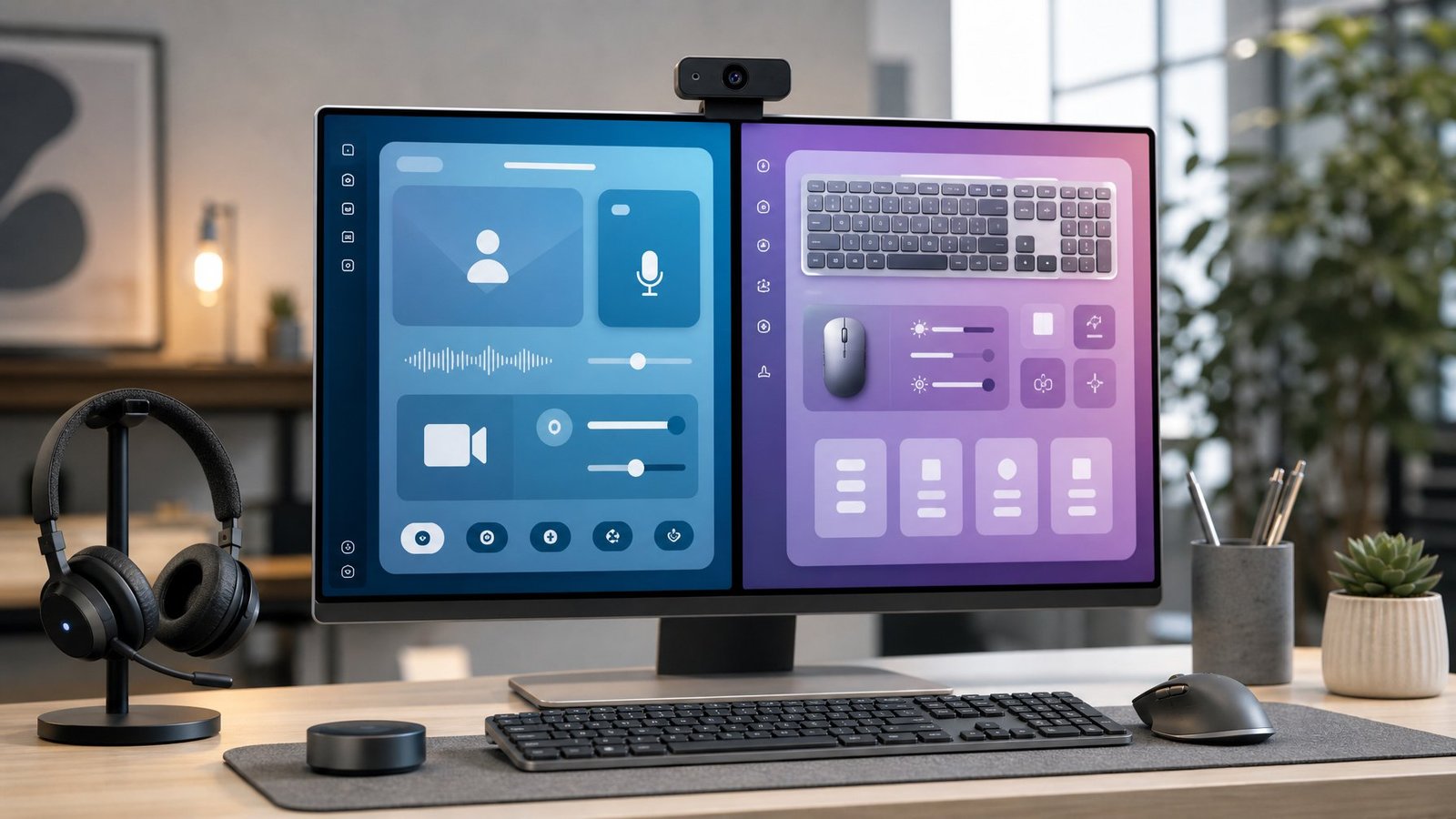
Match the app to the device category you care about most: video and audio gear points to Logi Tune, while pointing devices and typing gear point to Logi Options+. Below is how that plays out for the three most common desk setups.
| Logi Tune | Logi Options+ | |
|---|---|---|
| Main devices | Webcams, headsets, Logi Dock | Mice, keyboards, touchpads |
| Webcam image controls | Yes | Yes |
| Button and key remapping | No | Yes |
| Calendar and meeting join | Yes | No |
| Flow (cursor across computers) | No | Yes |
| Windows and macOS | Both | Both |
Choose Logi Tune for Webcams, Headsets, and Meetings
Logi Tune is the app for anyone whose Logitech gear points at their face or sits on their ears. It covers field of view, digital zoom, white balance, autofocus, and image tweaks on supported webcams, plus sidetone, EQ, and noise settings on headsets like the Zone series.
The meeting layer is the part Options+ never touches. Logi Tune connects to your calendar and gives you one-touch join buttons, and it pairs with Logi Dock and Logi Dock Flex for meeting indicators and mute controls. If your day runs on video calls, this is the app that saves you clicks.
Choose Logi Options+ for Productivity Mice and Keyboards
Logi Options+ is where you customize buttons, keys, gestures, and per-app behavior. Logitech describes it as the next generation of Logitech Options for mice, keyboards, lights, webcams, and touchpads, and it is the app that unlocks features your hardware ships with but does not expose by default.
The features worth installing for include Flow, which moves your cursor and clipboard between two computers, and app-specific profiles that change what your thumb button does when you switch from a browser to Photoshop. Smart Actions let one keypress fire off a chain of commands. None of that exists in Logi Tune.
When Installing Both Apps Makes Sense
Install both when you own devices from each category, which is most hybrid-work desks. An MX Master mouse with MX Keys and a Brio webcam is a two-app setup, and the apps run side by side without fighting each other.
One practical habit from daily use: pick one app to own your webcam and stick with it. Both can adjust the same camera, and switching back and forth is how you end up with settings that seem to reset themselves. If you spend your day in meetings, let Logi Tune own the camera. If you rarely take calls, let Options+ handle it and skip Tune entirely.
How the Apps Differ in Everyday Use
Day to day, Logi Tune is something you open before a call, and Logi Options+ is something you set up once and forget. One tunes how you look and sound; the other changes how your hands work.
Personalizing Video and Audio With Logi Tune
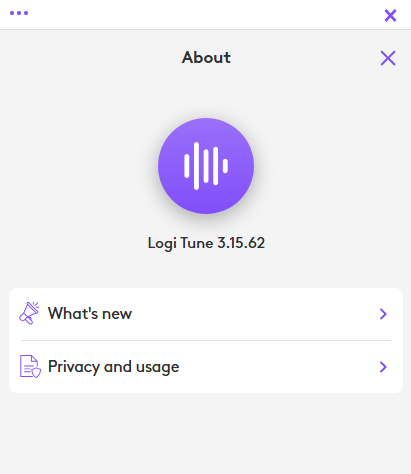
Logi Tune opens with a live camera preview, so every change you make shows up instantly. You adjust field of view, digital zoom, brightness, contrast, and white balance, then flip the video feed or grab a still image if your model supports it.
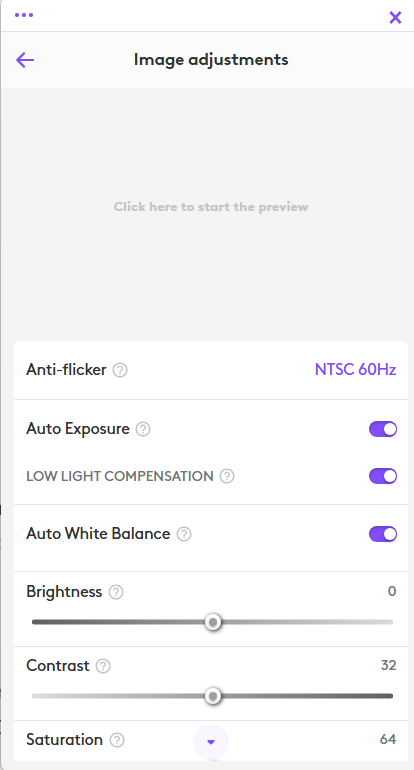
Firmware updates for your webcam and headset also land here.
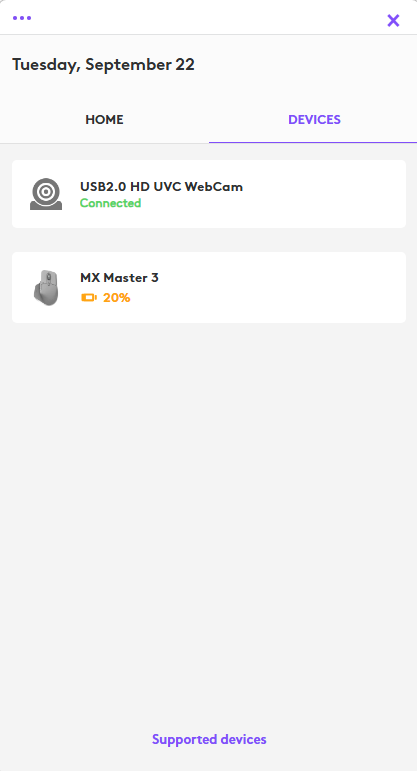
The audio side is where LogiTune earns its spot. On supported headsets you get EQ presets, sidetone level (how much of your own voice you hear), and noise-cancellation toggles. Setting sidetone properly stops the shouting problem, where you talk too loudly because your ears are covered.
Customizing Shortcuts and Workflows With Logi Options+
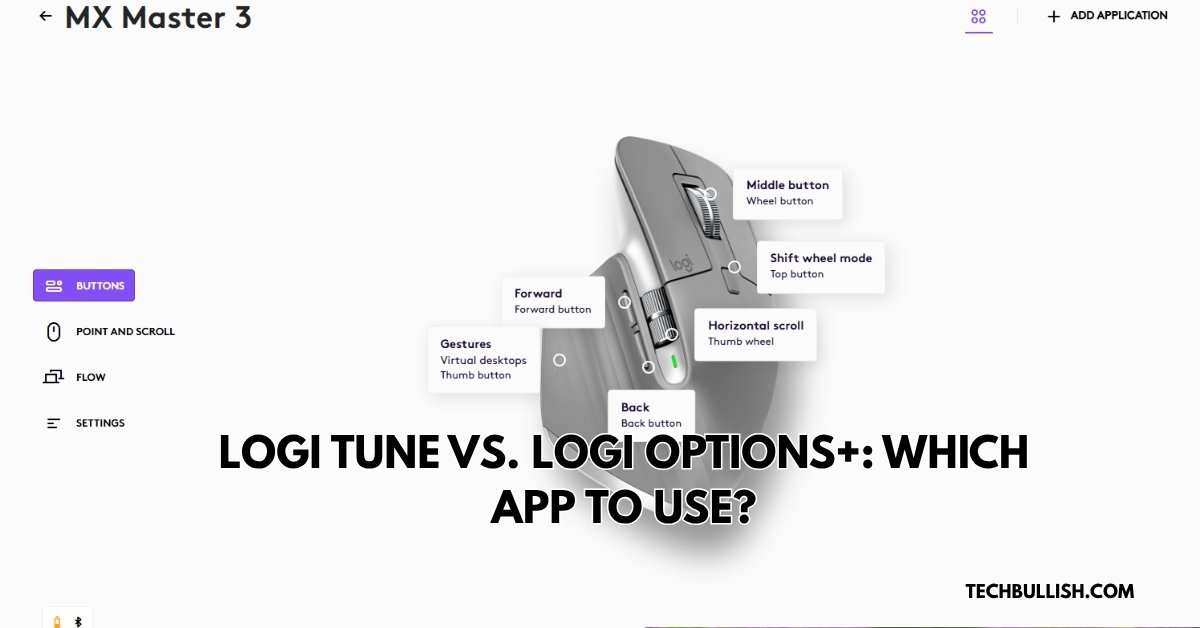
Logi Options+ is built around profiles. You assign a different set of button actions per application, so the side button on your MX Master might paste plain text in Chrome and switch brushes in an image editor. Users point to custom application profiles, Flow, and lighting control as the main upgrades over the older app.
Keyboard owners get key remapping, backlight timing, and battery readouts. For a deeper look at how the two generations of the productivity app stack up, this Logitech Options vs Options+ comparison covers the feature-by-feature differences. If you spend time building shortcuts, it also helps to know how a keyboard macro differs from a simple remap.
Meeting Features, Calendar Integrations, and Zoom
Calendar integration lives only in Logi Tune. Connect a work calendar and your next meeting appears in the app with a join button, which matters if you use a Logi Dock and want the physical join key to work.
Zoom, Teams, and Meet each carry their own camera menus, but those controls stay basic. Logitech notes that platform-level camera settings in Zoom, Teams, and OBS are somewhat limited compared with its own apps. Set your image in Logi Tune first, then leave Zoom’s video tab alone. Both apps work the same way on Windows and macOS, so a mixed-machine household does not need a different plan for each.
Webcam Controls and Video Quality Settings
Manual settings beat auto settings any time your lighting holds steady. Logitech webcams adjust exposure and focus on their own by default, and those adjustments are what cause the brightness pumping and hunting focus you see mid-call.
Adjusting Exposure, ISO, Focus, and Image Settings
Turn off auto exposure and you unlock shutter speed and ISO as separate sliders, plus low light compensation, HDR, and exposure compensation. Autofocus gets its own toggle, and you can save your focus preference as a preset.
A practical order of operations from real setup work: set white balance first, then exposure, then focus. Getting color right early stops you from over-brightening the image to fix what was really a temperature problem. If your webcam controls appear grayed out, you are on a preset and need to switch to custom before the sliders respond.
Using Pan, Zoom, Crop, Brightness, and Contrast
Crop controls handle field of view, digital zoom, and camera position, which is how you cut a messy bookshelf out of frame without moving your desk. Wide FOV shows the room; narrow FOV keeps the focus on you.
Image settings cover temperature, tint, brightness, contrast, saturation, and vibrance. Push contrast up slightly on cheap office lighting and skin tones stop looking flat. Keep saturation near default unless you know your monitor is accurate, since heavy saturation looks worse on other people’s screens than it does on yours. Camera resolution also interacts with what your call software sends, and the gap between 1280×720 and 1920×1080 is worth knowing before you blame the app.
Saving Custom Profiles for Calls, Recording, and Streaming
Save one profile per lighting situation and stop re-tuning. A common trio is a call preset with autofocus on and slightly raised exposure, a streaming preset with everything locked manually, and a recording preset tuned to whatever lamp you use for tutorials.
For streaming on Twitch or YouTube, lock exposure, white balance, and focus manually. Auto adjustments during a stream produce visible brightness shifts and refocusing that viewers notice immediately. If your settings refuse to stick, open the Logitech app before Zoom or OBS so another program does not grab the camera first.
Device Support, Operating Systems, and Administration
Both apps run on Windows and macOS, and both keep published device lists you should check before downloading. Support ranges wider than most people expect: Logi Tune covers headsets, webcams, mice, and keyboards on the business side, while Options+ covers mice, keyboards, touchpads, lights, and some webcams.
How to Verify Compatibility Before Downloading
Check the supported-device list on the app’s own product page before you install anything. Logitech maintains one for each app, and the fastest tell is your model number, printed on the underside of a mouse or on the cable tag of a webcam.
Newer business gear (Zone headsets, Brio cameras, Logi Dock) shows up in Logi Tune. Personal-workspace gear like MX Master, MX Keys, and the Lift or Ergo lines shows up in Options+. Older devices from the Unifying era may only appear in the legacy app, which is a signal it is time to replace them rather than chase software support.
Windows and macOS Requirements
Both apps are current-OS software: keep Windows 10 or 11 patched, or macOS on a recent release, and installation goes smoothly. macOS also asks for accessibility and input-monitoring permissions the first time you launch Options+, and skipping those prompts is the single most common reason button remapping silently fails on a Mac.
Restart after granting permissions. On Windows, the usual snag is a leftover installation of the old Options app, so uninstall it before installing Options+ so the two do not both try to claim the same mouse.
How Logitech Sync Supports Managed Deployments and Firmware Updates
Logitech Sync is the IT-facing tool, and Logi Tune Desktop is the piece that connects individual computers to it. Logitech publishes admin guides and release information for Tune Desktop covering both Windows and macOS deployments.
For an IT team, that means pushing firmware updates and settings to a fleet of headsets and cameras without touching every desk. Home users never need Sync. If you are managing more than a handful of meeting rooms, it is the difference between updating devices once and updating them fifty times.
Where Logitech G HUB, Logi Options, and OBS Fit
Three other programs orbit this decision, and each has a clear lane. G HUB owns gaming hardware, the old Logi Options is retired, and OBS handles anything you broadcast.
Why Logi Options Is a Legacy App
Logitech Options has reached end of support and is no longer maintained. Logitech now recommends switching to Logi Options+ for supported devices, and the company began notifying users about the retirement before the cutoff.
Keep the old app only if you own a device Options+ never picked up. Running both at once causes conflicts, where changing a global setting in one app breaks behavior in the other.
When Logitech G HUB Is the Better Match
G HUB is the app for Logitech G gear: gaming mice, mechanical keyboards, headsets, and Litra lights, plus DPI stages, per-key RGB, and onboard memory profiles. It also adjusts webcam settings, which is why some streamers skip Tune entirely and keep everything in one place.
If you own a G-series mouse and an MX keyboard, you will run G HUB and Options+ together. A side-by-side look at Logitech Options vs G HUB breaks down where the feature sets diverge. When G HUB stops seeing your hardware, fixes for G HUB not detecting a keyboard and for G HUB not loading cover the usual causes.
When OBS Adds More Than Logitech’s Apps
OBS earns its place once you need scenes, overlays, multiple sources, or a stream key pointed at YouTube or Twitch. Logitech’s apps tune the camera; OBS builds the broadcast around it.
The two work together. Set your image in Logi Tune or G HUB, then bring the camera into OBS as a video capture device and leave OBS’s own camera properties untouched. Launch the Logitech app first so your saved settings apply before OBS claims the camera. Logitech Capture, the older streaming utility, has been winding down, so new setups should start with OBS.
Pick the App That Matches Your Logitech Setup
Let your hardware decide. A Logitech webcam or headset means Logi Tune, with its live preview, image sliders, calendar joins, and firmware updates in one window. An MX Master mouse or MX Keys keyboard means Logi Options+, with per-app profiles, Flow, and key remapping.
Own both types of gear and install both apps, then give your webcam to one app and leave it there so your saved image settings hold. Skip the retired Logitech Options app, keep G HUB for G-series devices, and add OBS only when you are building an actual broadcast. Before you download anything, check the model number on your device against the supported list for the app you plan to install.
If you have both Logitech Options+ and Logi Tune app installed, if it detects a mouse connected then for that it will show “Settings managed by Logi Options+ when installed”. I tried this with my MX Master 3 mouse and found that it went to Logi Options+ for mouse configurations and customizations. However, for my laptop webcam/an audio device Logi tune was getting used.
Frequently Asked Questions
What is the difference between Logi Tune and Logi Options+?
Logi Tune manages video and audio devices such as webcams, headsets, and Logi Dock, and it adds calendar integration with one-touch meeting joins. Logi Options+ manages input devices like mice, keyboards, and touchpads, with button remapping, per-app profiles, and Flow. Webcam image control is the one area where both overlap.
Do I need Logi Options+ if I only use a Logitech webcam?
No. A webcam-only setup is served by Logi Tune, which gives you field of view, zoom, image sliders, and firmware updates. Install Options+ once you add a supported Logitech mouse or keyboard you want to customize.
Can I use Logi Tune and Logi Options+ at the same time?
Yes, and it is a normal setup for anyone with a webcam plus an MX mouse or keyboard. The apps target different device categories and run alongside each other without conflict. Pick one app to control your webcam so competing image settings do not overwrite each other.
Is Logitech Options still supported?
No. Logitech Options has reached end of support and is no longer maintained, and Logitech directs users to Logi Options+ instead. Uninstall the old app before installing Options+ so both are not trying to control the same device.
Can Logi Tune adjust Logitech webcam settings?
Yes. Logi Tune adjusts field of view, digital zoom, white balance, autofocus, brightness, and contrast on supported Logitech webcams, and it handles firmware updates. If a control appears grayed out, switch from a preset to custom settings to unlock the sliders.
Is Logitech G HUB better than Logi Tune for streaming?
G HUB is the better fit if you already own Logitech G hardware, since it keeps camera settings, lighting, and mouse profiles in one app. For streaming specifically, both are just the tuning step, and OBS handles scenes, overlays, and the stream itself. Lock exposure, white balance, and focus manually in whichever app you use.

I’m Anirban Saha, Founder & Editor of TechBullish. With a B.Tech in Electronics and Communication Engineering, and 8+ years of experience as a software developer, I have expertise in electronics, software development, gadgets, and computer peripherals. I love sharing my knowledge through informational articles, how-to guides, and troubleshooting tips for Peripherals, Smart TVs, Streaming Solutions, and more here. Check Anirban’s LinkedIn Profile here.
