
A wireless keyboard that stops responding usually comes down to one of five things: power, pairing, a blocked signal, a driver problem, or a hardware fault. Most of the time the fix takes less than five minutes once you know where to look. We’ve walked plenty of readers through this exact issue, and the pattern is almost always the same: something small gets overlooked before anyone reaches for a replacement keyboard.
This guide walks through the quick checks first, then moves into USB receiver fixes, Bluetooth pairing steps, and deeper driver troubleshooting for a keyboard that still won’t cooperate. If you’d rather just get typing again, work through the steps below in order and you’ll likely land on the fix before you reach the last section.
What Should You Check First?
Start with power, the connection mode, and a basic restart before touching drivers or settings menus. These simple checks solve the majority of wireless keyboard problems we hear about, and they take almost no time.
Check the Power Switch, Batteries, and Charging Cable
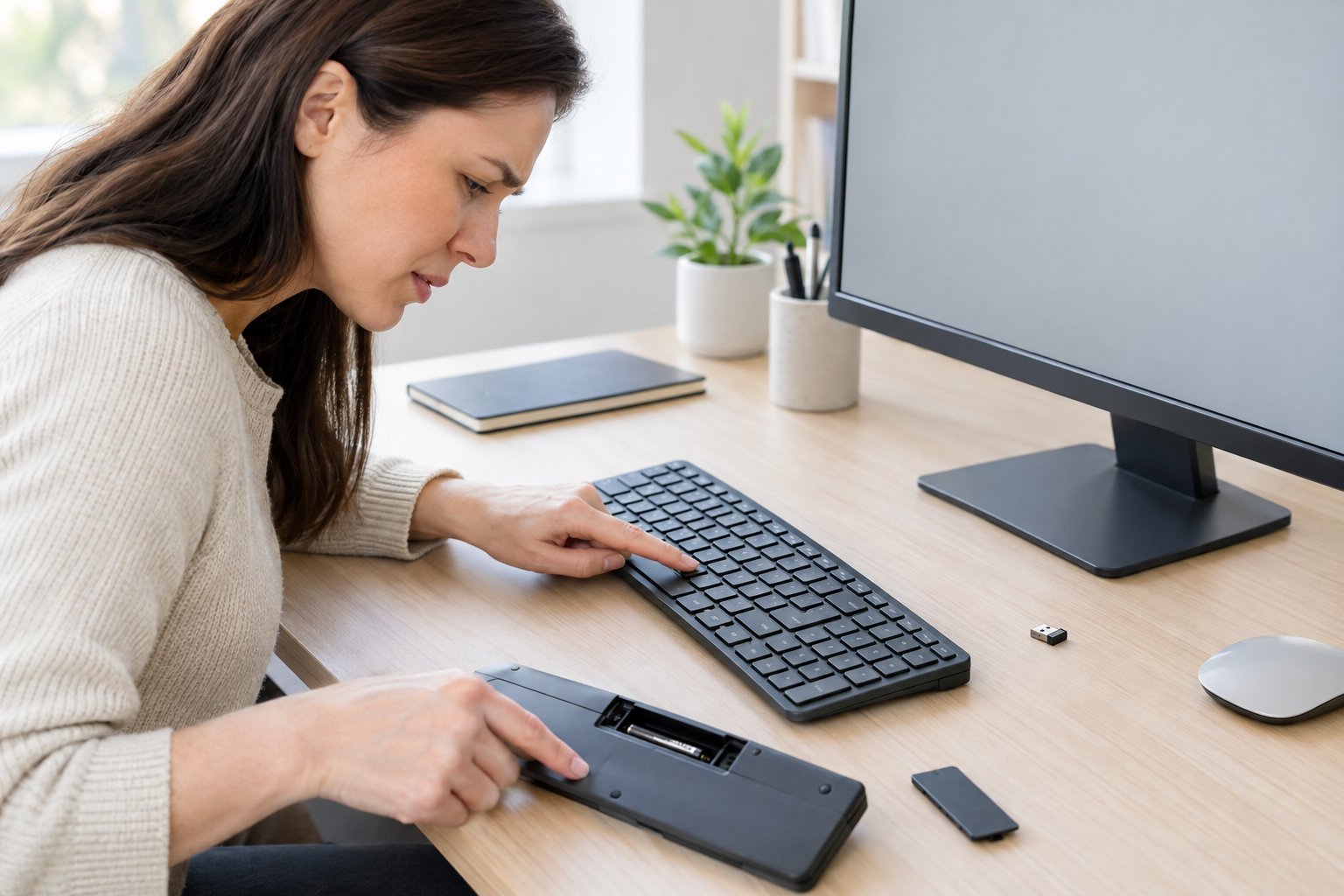
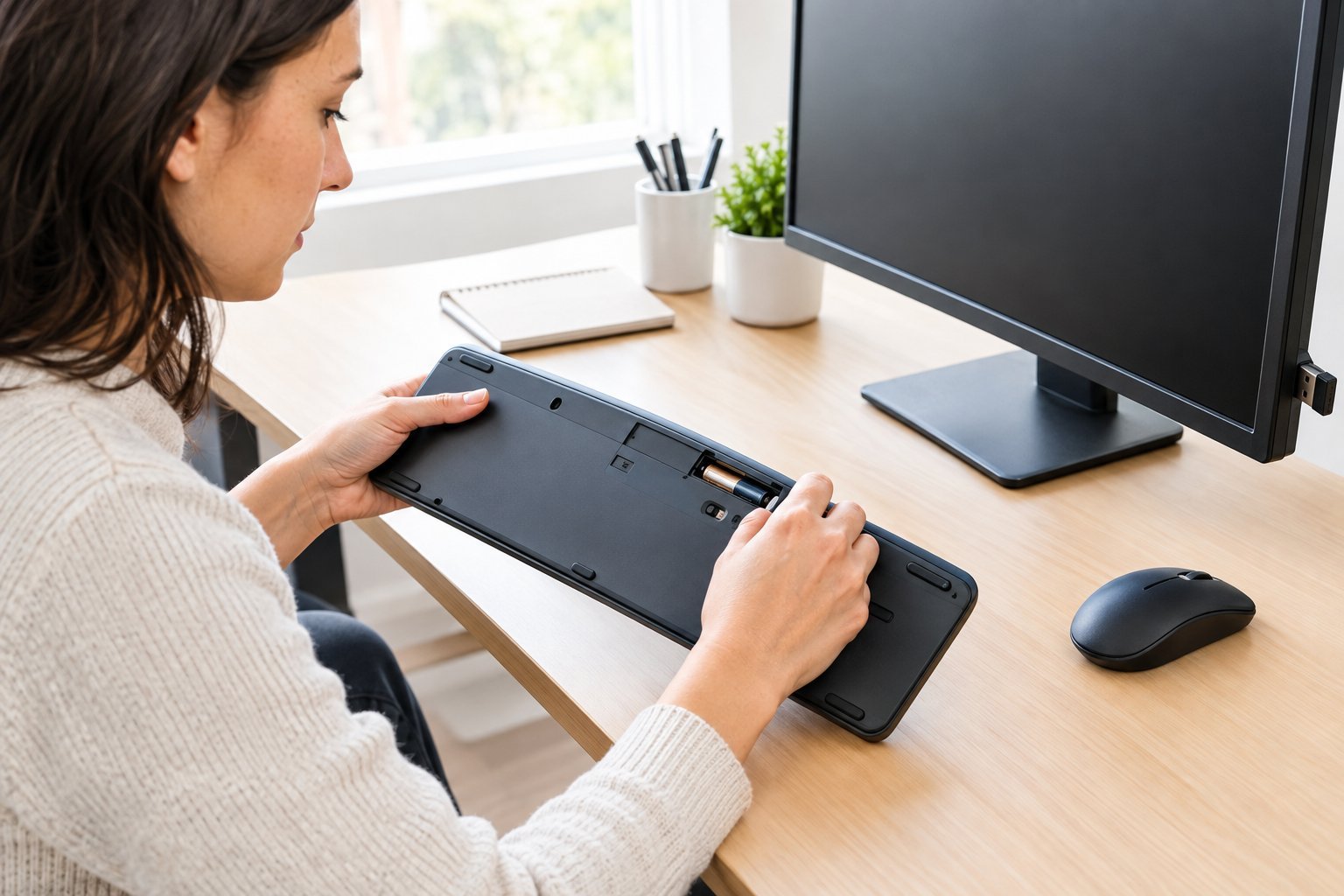
Many wireless keyboards have a physical power switch on the back or side, and it’s easy to bump it off by accident. Check that it’s set to “on,” then swap in fresh batteries even if the old ones seem fine. If your keyboard charges via cable instead, plug it in for a few minutes and try again, since a drained battery sometimes won’t respond right away even while charging.
Use Caps Lock or Num Lock to Check for a Response
Press Caps Lock or Num Lock and watch for the indicator light. If the light turns on, the keyboard has power and is sending signals, which means the problem is likely with the connection, not the device itself. No light at all points toward a power or pairing issue instead.
Restart the Keyboard and Computer
Turn the keyboard off, wait ten seconds, and turn it back on. Restart your computer too. This clears out temporary glitches in the wireless connection and often resolves a keyboard that simply stopped responding mid-session.
Confirm the Keyboard Is Set to the Right Connection Mode
Some keyboards support both Bluetooth and a USB receiver, with a switch to toggle between channels. Make sure it’s set to match whichever connection you’re trying to use, since a mismatch here looks identical to a dead keyboard.
Try a Different Device to Narrow Down the Problem
Pair or connect the keyboard to a tablet, laptop, or second computer if you have one handy. If it works elsewhere, the issue sits with your original computer’s settings or drivers, not the keyboard.
How Do You Fix a Keyboard That Uses a USB Receiver?
A loose or interfered-with USB receiver is one of the most common causes of a wireless keyboard losing its connection. Because these small dongles plug directly into a USB port, they’re easy to bump, and they’re also sensitive to what else is plugged in nearby.
Reseat the Receiver and Try Another USB Port
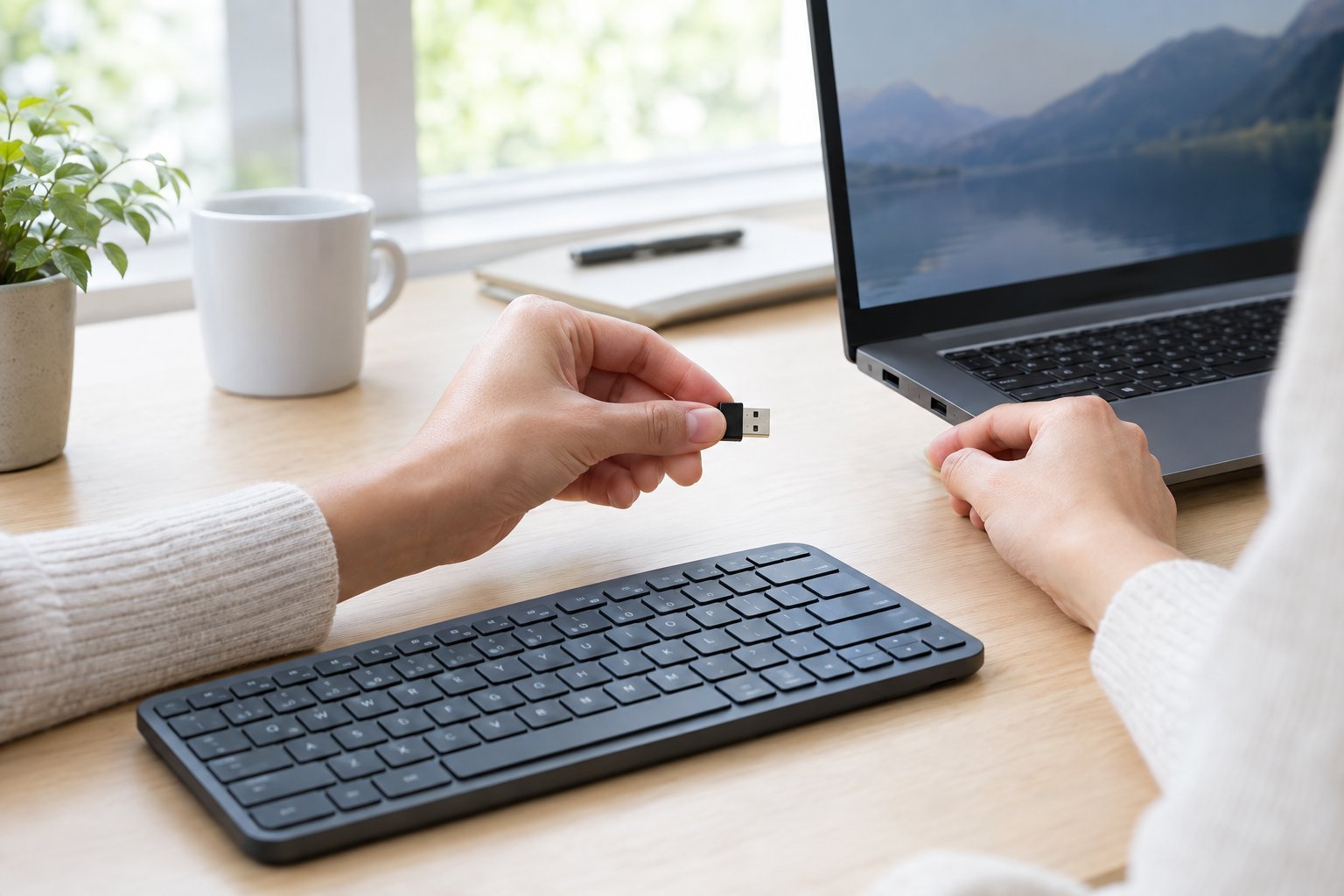
Unplug the receiver and plug it back into a different USB port, ideally one directly on your computer rather than a front-panel port on a desktop tower. A fresh connection often re-establishes the link without any further steps.
Bypass a USB Hub and Check for Signal Interference
Plug the receiver straight into your computer instead of through a USB hub. USB 3.0 ports and cables can generate radio frequency interference in the 2.4 GHz band that wireless keyboards and mice use, which can cause dropped signals or lag. Moving the receiver away from USB 3.0 devices, external hard drives, or other dongles plugged in nearby often clears this up.
Reconnect a Logitech or Other Brand-Specific Receiver
For a Logitech keyboard, check whether your receiver is a Unifying receiver or a Logi Bolt receiver, since the two are not interchangeable and a keyboard paired to one won’t connect through the other. Logitech’s Logi Options+ software handles pairing for both: plug in the receiver, open the app, select “Add Devices,” and follow the prompts after turning on the keyboard. If the receiver still won’t pair, remove it, restart your computer, and try adding the device again through the software.
How Do You Reconnect a Bluetooth Keyboard?
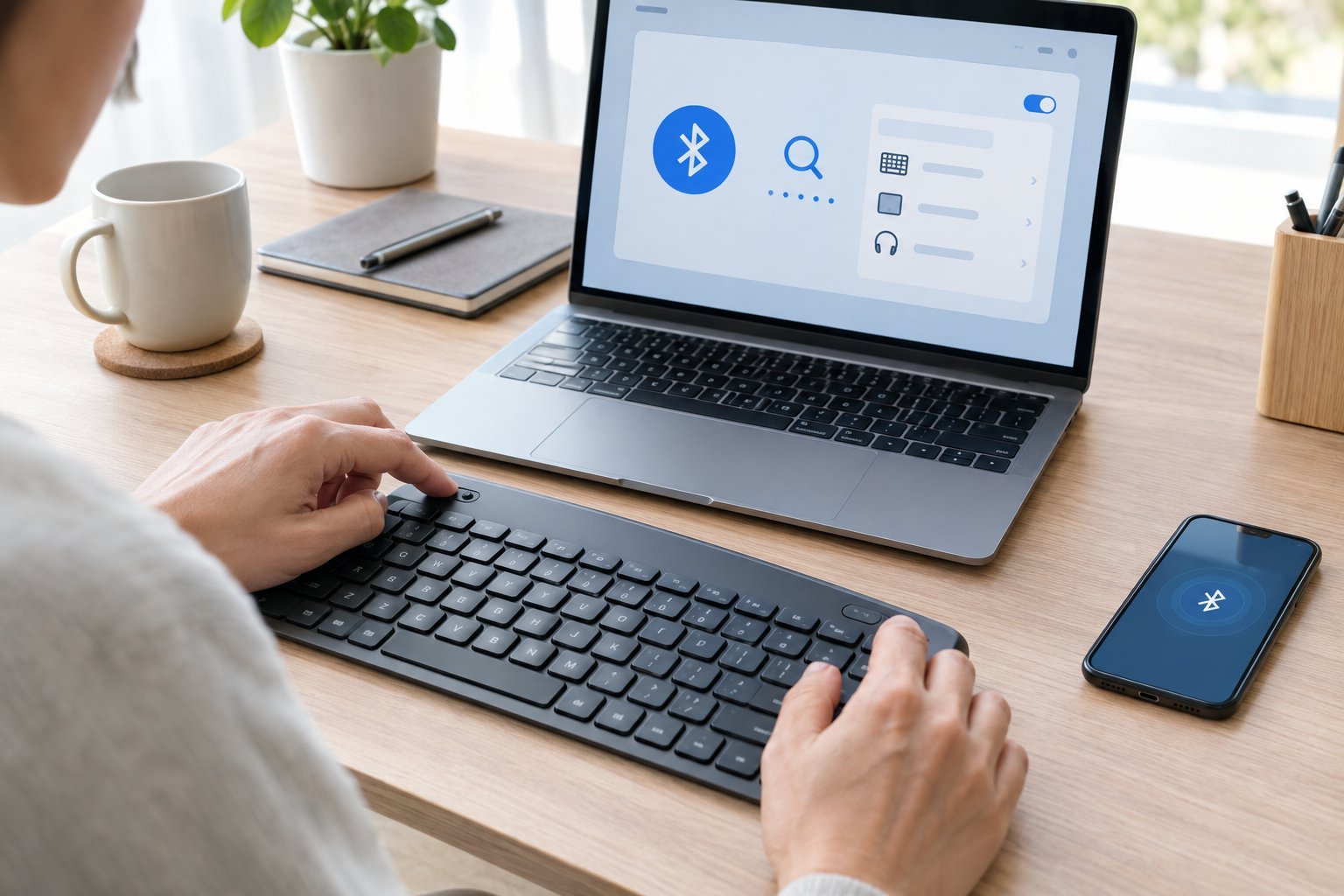
Removing the keyboard from your Bluetooth settings and pairing it again fixes most Bluetooth keyboard connection problems. Bluetooth issues tend to come from a stale pairing record rather than a damaged keyboard, so this step solves more than people expect.
Check Bluetooth Settings and the Selected Device
Open Bluetooth & devices in Windows settings and confirm Bluetooth is turned on. Look at the list of paired devices to see whether your keyboard shows up as “Connected” or just “Paired,” since the second one means Windows sees the device but isn’t actively using it.
Remove the Keyboard and Pair It Again
Select your keyboard in the Bluetooth device list, choose “Remove device,” then turn the keyboard’s pairing mode back on and add it as a new device. This clears out any corrupted pairing data that built up over time. Keep the keyboard close to your computer during this process, since a weak signal can interrupt pairing partway through.
Troubleshoot a Keyboard That Disconnects After Sleep
A keyboard that works fine but drops the connection after your computer sleeps is often affected by a power-saving setting. In Device Manager, expand the Bluetooth section, right-click your keyboard’s entry, open the Power Management tab, and uncheck “Allow the computer to turn off this device to save power.” Restarting the Bluetooth Support Service through the Windows Services app can also clear up repeated disconnects. If your mouse stays connected but the keyboard doesn’t, it’s worth comparing notes with our guide on a bluetooth mouse not working, since the underlying causes often overlap.
What If the Keyboard Still Will Not Type?
A keyboard that connects but won’t type usually points to a driver problem, which Device Manager can confirm and often fix. This is the point where it’s worth moving past basic reconnection steps and looking at what Windows itself is reporting about the device.
Reduce Lag and Intermittent Dropouts
If keys register late or drop out during typing, move the USB receiver or your computer closer to the keyboard and clear away other wireless devices nearby. Swapping to a USB port farther from other cables also helps, since crowded ports contribute to the same interference that affects dropped connections.
Check Windows Update and Keyboard Drivers
Open Windows Update and check for available updates, since Windows often ships driver fixes for input devices through this channel. A pending update can leave a keyboard driver out of sync with the rest of the system.
Inspect the Device in Device Manager
Open Device Manager and expand “Keyboards” to see if your device shows up with a warning icon. Right-click the entry and choose “Update driver,” or select “Uninstall device” and restart your computer so Windows reinstalls it fresh. If a driver update recently caused the problem, the “Roll Back Driver” option under the device’s Properties and Driver tab can undo it.
Compare It with a Wired Keyboard and Test for Hardware Failure
Plug in a wired USB keyboard and see if it types normally. If it does, the problem sits with the wireless keyboard or its connection, not your computer. This comparison test is one of the fastest ways to rule out a deeper system issue before assuming the keyboard itself has failed.

Finding the Fault Before Replacing the Keyboard
Work through power, pairing, and drivers in that order before deciding a keyboard needs replacing. Most “dead” wireless keyboards turn out to have a flat battery, a loose receiver, or an outdated driver rather than a broken circuit board.
Testing the keyboard on a second device settles the question quickly. If it works elsewhere, the fault lives in your computer’s settings, not the keyboard itself, and you can focus your troubleshooting there instead of spending money on a new one.
Keep in mind that different keyboard brands handle connection issues a little differently. If you’re working with a specific model, our guides on microsoft surface keyboard not working and lenovo keyboard not working fix cover brand-specific quirks worth checking before you give up on a unit.
Frequently Asked Questions
Why is my wireless keyboard not working even with new batteries?
New batteries fix a power problem, not a pairing or driver problem, so if the keyboard still won’t respond, check your Bluetooth settings or USB receiver connection next. Also confirm the batteries are inserted with the correct polarity, since a reversed battery looks identical to a dead one.
Why does my wireless mouse work but not my keyboard?
This usually means the two devices use separate connections, and only one of them has lost its pairing or power. Check the keyboard’s power switch and batteries first, then look at whether it’s still listed as “Connected” in your Bluetooth or receiver settings; our guide on wireless mouse not working covers the same troubleshooting from the mouse side if you need to compare.
How do I reset my wireless keyboard?
Turn the keyboard off, remove the batteries for about ten seconds, then reinsert them and turn it back on. For Bluetooth keyboards, also remove the device from your computer’s Bluetooth list and pair it again as a fresh connection.
Why isn’t my wireless keyboard typing even though it says connected?
A keyboard that shows as connected but won’t type often has a driver issue rather than a connection issue. Open Device Manager, find the keyboard under “Keyboards,” and update or reinstall its driver to resolve this mismatch.
Can I accidentally lock my wireless keyboard?
Caps Lock, Num Lock, and Scroll Lock can all make a keyboard seem broken when certain keys stop producing the expected characters. Check the Caps Lock and Num Lock indicator lights, and in Windows, the Toggle Keys accessibility setting can play a sound when these keys are pressed so you can tell right away if one is active.

I’m Anirban Saha, Founder & Editor of TechBullish. With a B.Tech in Electronics and Communication Engineering, and 8+ years of experience as a software developer, I have expertise in electronics, software development, gadgets, and computer peripherals. I love sharing my knowledge through informational articles, how-to guides, and troubleshooting tips for Peripherals, Smart TVs, Streaming Solutions, and more here. Check Anirban’s LinkedIn Profile here.
