
When pressing C, V, B, N, or M types the wrong letters, several letters at once, or nothing at all, the cause is almost always one of two things: a hardware fault in the keyboard’s bottom row, or a Windows setting that changes what those keys send.
To fix the CVBNM keyboard error, test the keys in Notepad, the On-Screen Keyboard, and an external keyboard to find out whether the problem is hardware or software, then switch the layout with Windows key + Spacebar, turn off Num Lock, Sticky Keys, Filter Keys, and remapping apps, and reinstall the keyboard driver in Device Manager.
The bottom row sits right above the laptop’s hinge area and trackpad, so it catches crumbs, spills, and pressure from a closed lid more than most keys. That same row also shares wiring paths inside many laptop keyboards. A single failing trace can knock out five neighboring keys at once.
A few quick tests take less than five minutes and tell you whether you need a settings change or a new keyboard. Once you know which side the fault is on, you can skip the fixes that won’t help.
What Happens When You Press the CVBNM Keys?
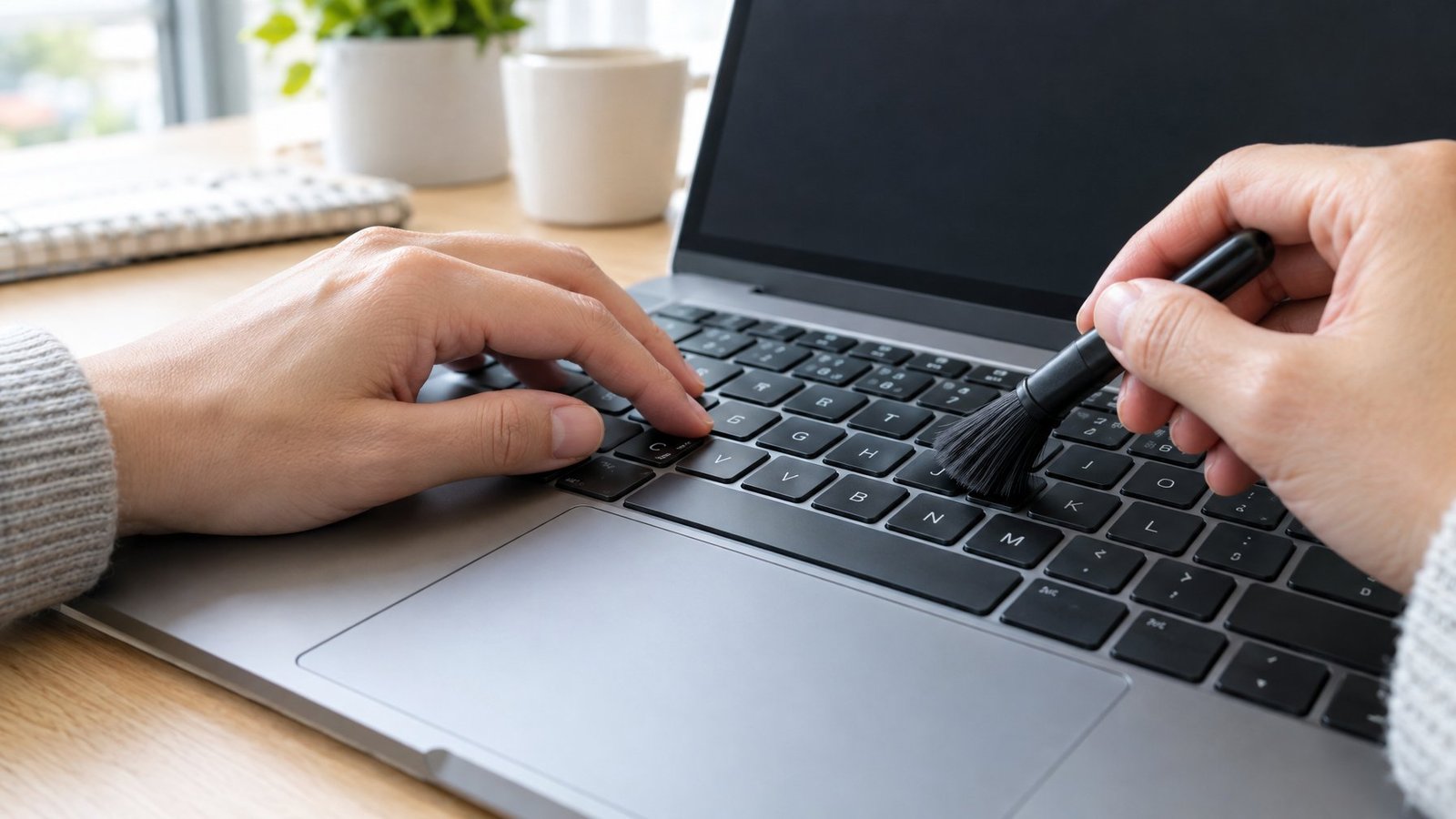
The exact symptom points to the cause, so write down what you see before changing anything. Keyboard issues that show up in every app and on one physical keyboard only point to hardware, while errors that follow Windows across every keyboard point to software.
Does One Key Type the Entire Bottom Row?
If pressing V types “cvbnm” or a string of bottom-row letters, the keyboard is sending signals from several keys at once. This pattern shows up most after a liquid spill or when a membrane layer inside the keyboard gets damaged.
Try this:
- Open Notepad.
- Press each key in the row slowly, one at a time: C, V, B, N, M.
- Note which extra letters appear with each press.
If the same group of letters appears no matter which key you press, the fault is almost certainly physical. Software settings rarely make one key send five letters. A related problem, where pressing several keys at once drops some of them, is covered in our guide on keyboard ghosting.
Does the Same Error Appear in Notepad and with the On-Screen Keyboard?
Notepad is the cleanest test because it has no shortcuts, autocorrect, or add-ons. If the keys work in Notepad but fail in a browser or game, that app’s shortcuts or extensions are the problem.
Next, open the On-Screen Keyboard with Windows key + Ctrl + O, or go to Settings > Accessibility > Keyboard and turn on the On-Screen Keyboard switch. Click C, V, B, N, and M with your mouse.
- On-Screen Keyboard types correctly: Windows is fine. Your physical keyboard is at fault.
- On-Screen Keyboard types the wrong letters too: the problem lives in Windows, such as a wrong layout or a remapping app.
Does an External Keyboard Work Normally?
Plug in any USB keyboard, or pair a wireless keyboard, and type in Notepad again. This is the fastest way to split hardware from software on a laptop.
If an external USB keyboard types CVBNM correctly, the laptop’s built-in keyboard has a hardware fault. You can keep using the external keyboard while you arrange a repair. If the external keyboard shows the same error, the fault is in Windows settings, drivers, or software. Brand-specific quirks are covered in our Lenovo keyboard not working fix and Microsoft Surface keyboard not working guides.
Check for Stuck Keys, Debris, and Connection Problems
A key that stays pressed down confuses the whole row. Run a finger across C through M and feel for a key that sits lower or doesn’t spring back.
To clean the area:
- Shut down the laptop and unplug it.
- Tilt it at about 75 degrees and tap the back gently.
- Blow short bursts of compressed air under the bottom row, moving left to right.
- Use a soft brush around key edges.
For a wireless keyboard, replace the batteries and move the receiver to a USB port closer to the keyboard. For a wired one, try a different USB port. If you use a mechanical keyboard, you can pull the keycaps and clean underneath, and our guide on how to test a keyboard PCB helps if switches still fail.
Check the Keyboard Layout and Num Lock
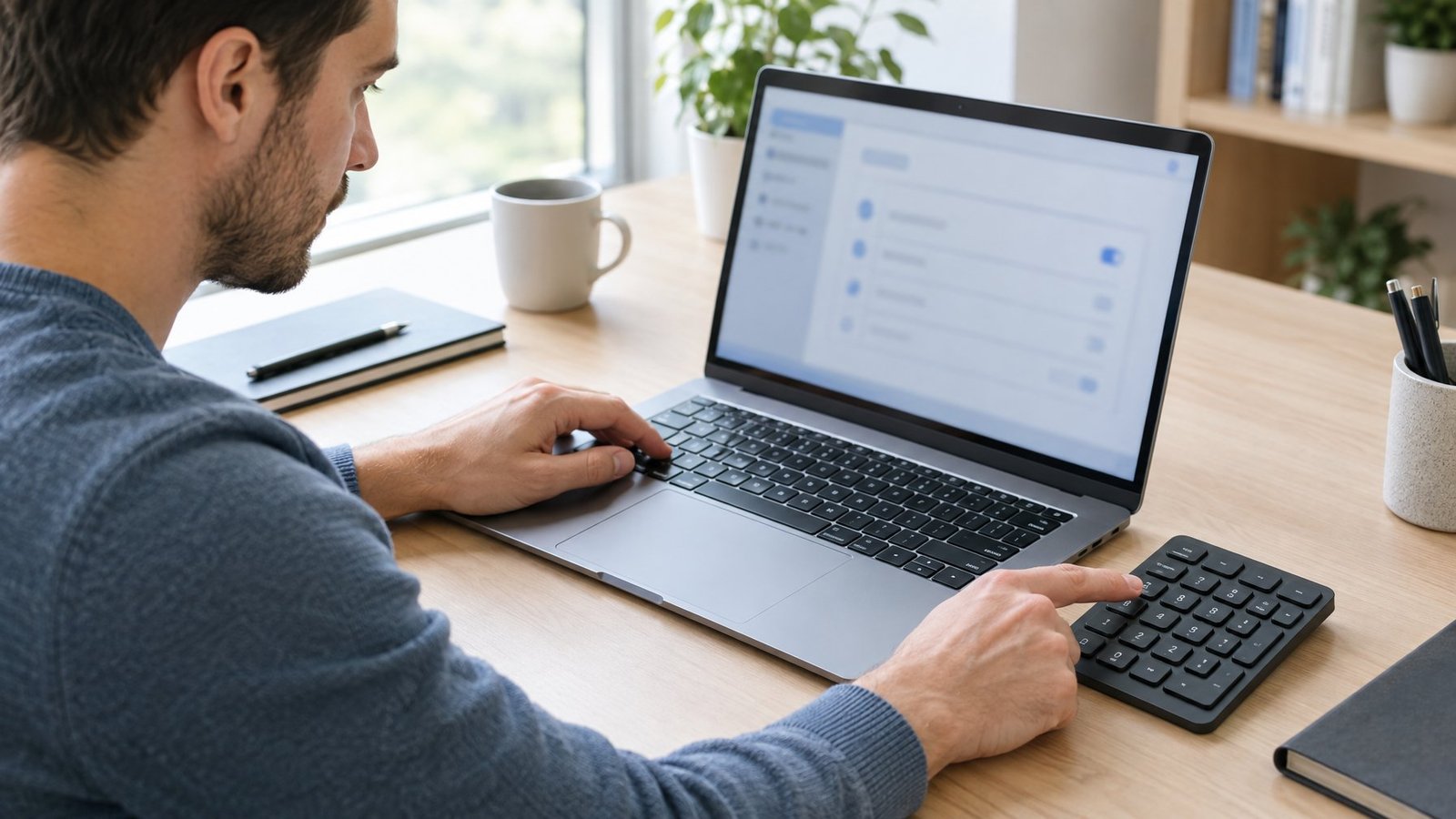
An incorrect keyboard layout is the most common software cause when CVBNM keys type different letters or symbols. Num Lock is the second, since many laptops put a hidden number pad on M, J, K, L, and nearby keys.
Switch to the Correct Layout with Windows Key + Spacebar
Hold the Windows key and tap Spacebar. Each tap moves to the next installed layout, and a small menu shows which one is active. Stop on ENG US (or whichever layout matches the letters printed on your keys).
If nothing happens when you press the shortcut, only one layout is installed. You can also click the language icon near the clock on the taskbar and pick a layout from there.
This shortcut is easy to trigger by accident while gaming or typing fast. If your keyboard suddenly starts typing symbols instead of letters, or the letters seem to shift around, a surprise layout switch is the first thing to check.
Fix Windows Language and Keyboard Layout Settings
If the wrong layout keeps coming back, clean up the keyboard layout settings so only the right one remains.
- Go to Start > Settings > Time & language > Language & region.
- Click the three dots next to your language and choose Language options.
- Under Keyboards, confirm your correct layout (for example, US) is listed. If not, click Add a keyboard and pick it.
- Click the three dots next to any layout you don’t use and select Remove.
If Remove is grayed out, that layout is the only one for that language. Add the correct one first, then remove the wrong one. Some extra layouts hide under a second language in Windows language settings, so check every language in the list.
Disable Num Lock If Letters Type Numbers
If M types 0 or other bottom-row keys type numbers, Num Lock has turned on the laptop’s built-in keypad. Press Num Lock (sometimes labeled NumLk) to disable Num Lock. On many laptops you need to press Fn + Num Lock or Fn + F11; check the small print on your function keys.
Watch for a light on the keyboard that turns off when numlock is disabled. If the problem is the reverse, with your number keys showing symbols, see our guide on keyboard typing symbols instead of numbers.
Rule Out Accessibility Features and Key Remapping
Accessibility settings and remapping tools change how Windows reads keypresses, and both can make CVBNM keys seem broken. Filter Keys can ignore quick taps, and a remapping app can send a completely different letter.
Check Sticky Keys, Filter Keys, and Toggle Keys
Press Windows key + U to open Accessibility settings, then select Keyboard. Look at these switches:
| Feature | What it does | How it looks when it goes wrong |
|---|---|---|
| Sticky Keys | Lets you press shortcut keys one at a time | Shift or Ctrl stays “held,” so letters act like shortcuts |
| Filter Keys | Ignores brief or repeated keystrokes | Quick taps on C or V don’t register at all |
| Toggle Keys | Plays a sound for Caps, Num, and Scroll Lock | Harmless, but the beeps confirm Num Lock is flipping |
Turn off Sticky Keys and Filter Keys, then test the bottom row in Notepad again. Holding Shift for about 8 seconds can switch Filter Keys on without you noticing, so it is worth checking even if you never turned it on.
Turn Off Remapping Apps and Test Again
Remapping tools such as Microsoft PowerToys, gaming keyboard software, and keyboard macro apps can quietly swap keys. In PowerToys, a key remapped from V to something else means no key types V anymore.
To stop PowerToys remaps, close PowerToys from the system tray, or open PowerToys settings and turn off Keyboard Manager. Changes take effect right away with no restart.
For other apps, right-click each tray icon and exit it, then retest. If CVBNM work with the apps closed, open the app’s key settings and delete the bad mapping. Remaps apply across every connected keyboard, which is why an external keyboard shows the same error.
Repair Windows Settings, Drivers, and Software
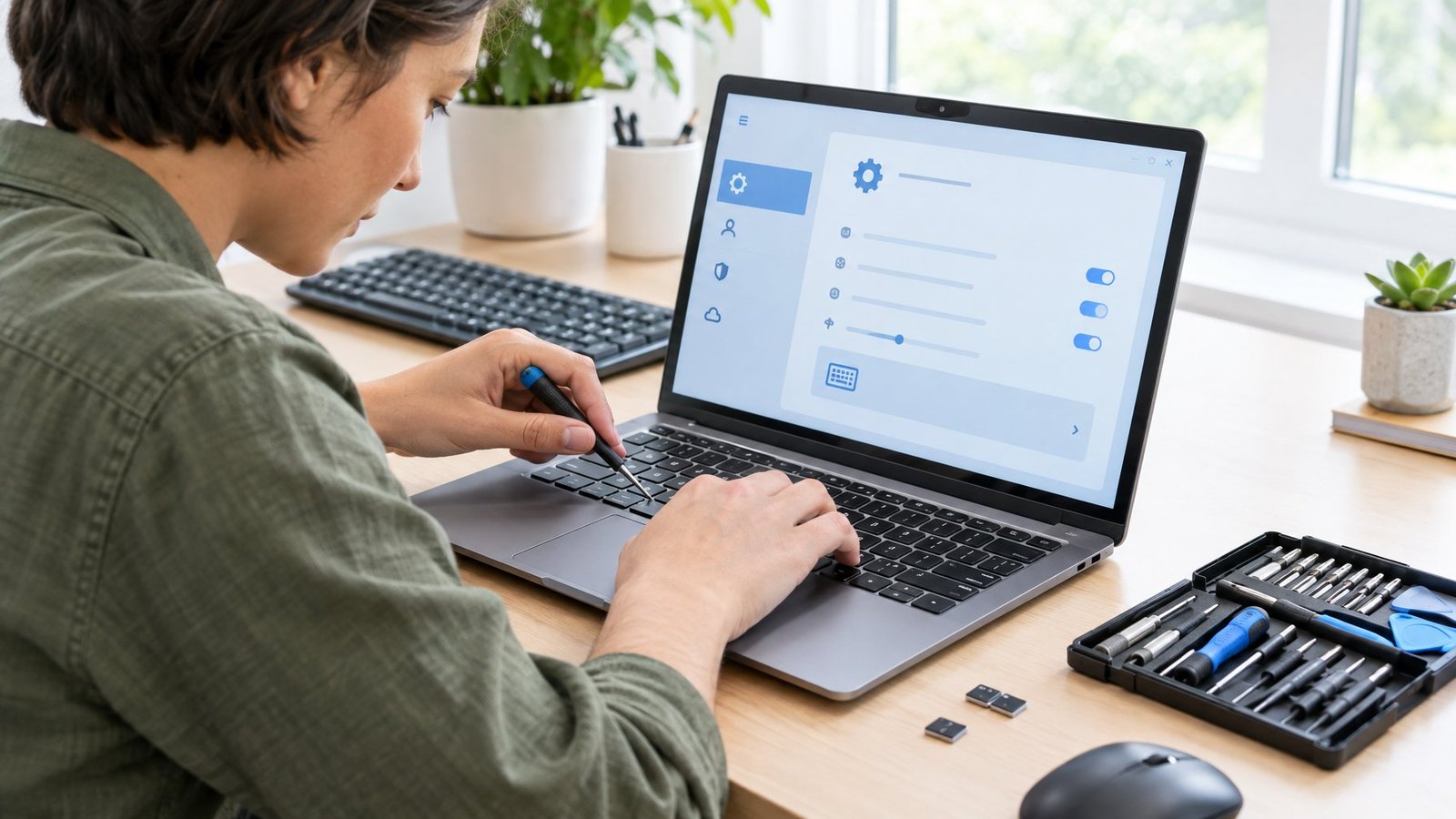
Driver and system problems cause CVBNM errors when the layout and accessibility settings check out but the fault still follows Windows. Reinstalling the keyboard driver fixes most of these cases, with updates and a malware scan covering the rest.
Run the Keyboard Troubleshooter If Available
The Windows keyboard troubleshooter still works on Windows 10 and Windows 11 version 22H2 and older. Go to Settings > System > Troubleshoot > Other troubleshooters (on Windows 10, Update & Security > Troubleshoot) and run Keyboard if you see it.
Microsoft has retired the legacy keyboard troubleshooter on newer Windows 11 releases. If it isn’t listed, open the Get Help app and search for keyboard problems. Get Help shows its findings and suggested fixes when it finishes.
Update or Reinstall the Keyboard Driver in Device Manager
An outdated keyboard driver or a corrupted one can scramble keypresses. To reinstall it:
- Save your work and close apps.
- Right-click Start and choose Device Manager.
- Expand Keyboards.
- Right-click your keyboard (often “Standard PS/2 Keyboard” on laptops) and pick Uninstall device, then confirm.
- Restart the computer. Windows reinstalls the driver on its own.
To update keyboard drivers instead, right-click the device, choose Update driver, then Search automatically for drivers. A yellow warning icon on the keyboard entry means Windows sees a driver problem; open Properties to read the error code.
Check Windows Update and Recent Changes
If the error started right after an update, roll back the driver. In Device Manager, right-click the keyboard, choose Properties > Driver > Roll Back Driver, pick a reason, and restart. You need admin rights for this.
If the problem started on its own, install pending Windows updates. On Windows 11, go to Settings > Windows Update > Check for updates. Windows Update also delivers most driver fixes. Note that free Windows 10 updates ended on October 14, 2025, so older PCs won’t receive new fixes that way.
Also think about what else changed: a new app, a new language, or new keyboard software. Uninstall recent additions one at a time and retest.
Reset Keyboard Settings and Scan for Malware
To reset keyboard settings, remove every extra layout, turn off Sticky and Filter Keys, and close remapping apps (all covered above). Then sign in to a different Windows user account. If CVBNM work there, a setting in your main profile is the cause.
Malware and viruses such as keyloggers can intercept keypresses. Open Windows Security > Virus & threat protection and run a Quick scan. If anything looks off, choose Scan options > Microsoft Defender Antivirus (offline scan). It restarts the PC and scans before Windows loads, where persistent malware has a harder time hiding.
Use the Test Results to Choose the Right Fix
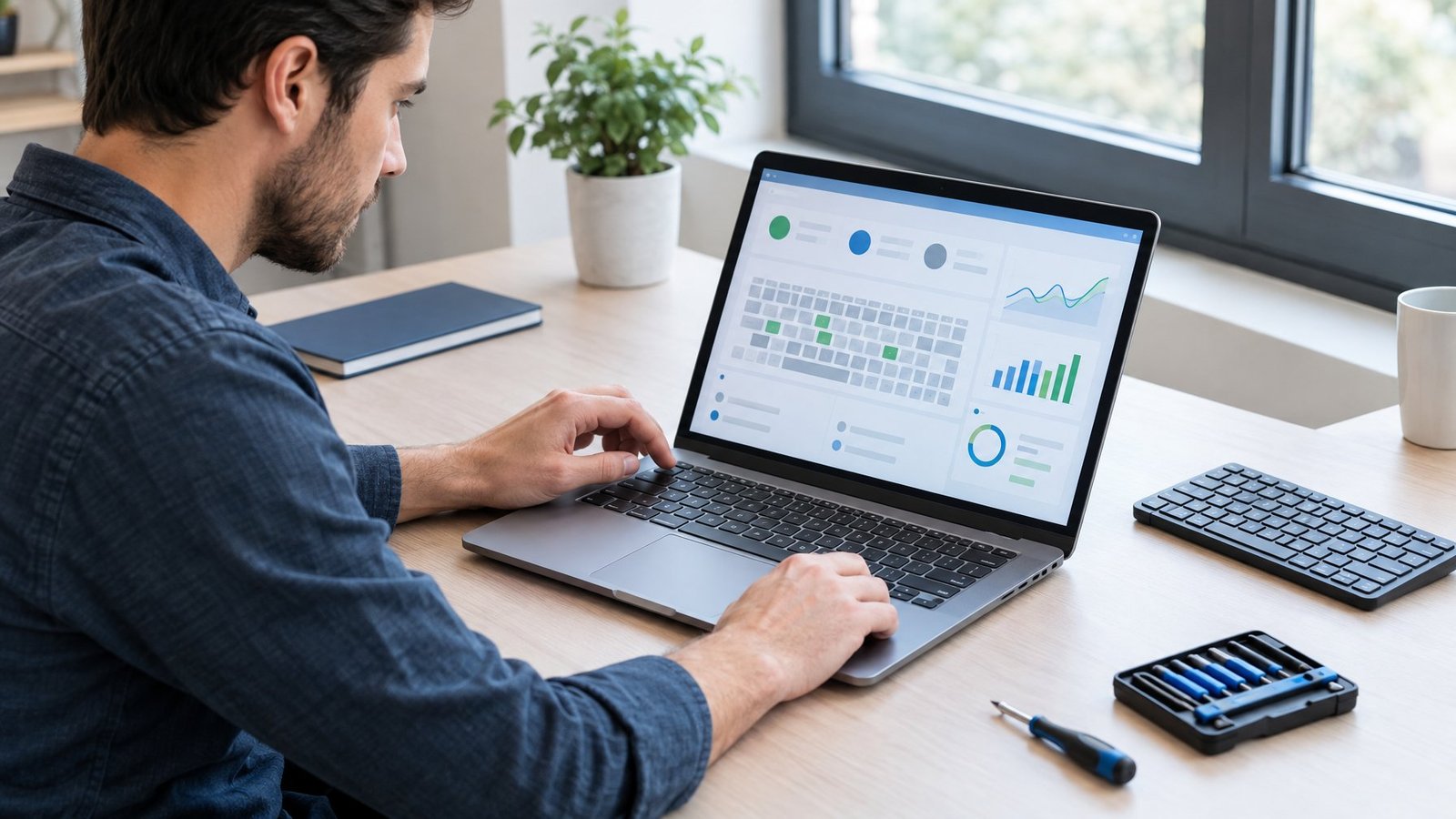
Your test results already tell you which fix to use. Match what you saw to the table below and start with that column.
| What you saw | Likely cause | Fix to try first |
|---|---|---|
| One key types the whole row | Spill or internal damage | Clean, then repair or replace the keyboard |
| On-Screen Keyboard works, laptop keys don’t | Hardware fault | Use an external keyboard, get the keyboard repaired |
| External keyboard shows the same error | Windows setting or software | Layout, Num Lock, remaps, driver |
| Wrong letters or symbols | Wrong layout | Windows key + Spacebar, remove extra layouts |
| M types 0, other keys type numbers | Num Lock keypad | Press Num Lock or Fn + Num Lock |
| Quick taps don’t register | Filter Keys | Turn it off in Accessibility > Keyboard |
| Started after an update | Driver change | Roll back or reinstall the driver |
In our experience, most bottom-row errors that follow Windows clear up after a layout fix or a driver reinstall. Errors that stay with one physical keyboard point to hardware repair. If other keys act up too, our guides on arrow keys not working and a keyboard typing backwards cover those patterns.
Frequently Asked Questions
Why does pressing one CVBNM key type the whole bottom row?
A short in the keyboard’s internal circuit, often from a spill, makes one press register on several keys. Software settings rarely cause this. Clean the keyboard and let it dry fully; if the problem stays, the keyboard needs repair or replacement.
How do I fix CVBNM keys on a Windows 11 laptop?
Test in Notepad and the On-Screen Keyboard first, then press Windows key + Spacebar to fix the layout and turn off Num Lock. Next, disable Sticky and Filter Keys, close remapping apps, and reinstall the driver in Device Manager.
Do the same fixes work on Windows 10?
Yes, nearly all of them do. Menu names differ a little: accessibility settings sit under Ease of Access, and the classic keyboard troubleshooter is still available. Windows 10 no longer receives free updates, so driver fixes through Windows Update are limited.
Why do some laptop keys stop working while an external keyboard works?
The built-in keyboard has a hardware fault, such as a damaged ribbon cable, debris, or liquid damage. Windows is working correctly if the external keyboard types fine. A repair shop or the laptop maker can replace the keyboard.
How do I reset my keyboard back to normal?
Remove extra layouts in Language & region settings, turn off Sticky Keys and Filter Keys, and disable any remapping software. Then uninstall the keyboard in Device Manager and restart so Windows installs a fresh driver.

I’m Anirban Saha, Founder & Editor of TechBullish. With a B.Tech in Electronics and Communication Engineering, and 6+ years of experience as a software developer, I have expertise in electronics, software development, gadgets, and computer peripherals. I love sharing my knowledge through informational articles, how-to guides, and troubleshooting tips for Peripherals, Smart TVs, Streaming Solutions, and more here. Check Anirban’s Crunchbase Profile here.
