
Keyboard delay on Windows almost always comes from one of four places: an accessibility setting like Filter Keys, a weak wired or wireless connection, a driver problem, or a PC too busy to process your keystrokes on time. To fix keyboard delay, turn off Filter Keys first, then reconnect the keyboard or its receiver, restart Windows, and update or reinstall the keyboard and Bluetooth drivers in Device Manager. Most lag clears up within those steps.
The tricky part is that “delay” means different things to different people. A letter that shows up half a second late is a different problem from a held key that takes too long to start repeating. Once you know which one you have, you can skip the fixes that don’t apply and get to the one that does.
What Should You Check First When Typing Lags?
Start with the free, fast checks: see where the lag happens, restart the PC, and turn off Filter Keys. These three steps solve a large share of keyboard lag cases before you ever touch a driver.
Accessibility features and heavy background apps are the usual hidden causes. Both are easy to spot once you know where to look.
Test Whether the Delay Happens in Every App
Open Notepad and type a full line quickly. Then do the same in your browser and in the app where you first noticed the lag.
- Lag only in one app: the app itself is slow. Browsers with dozens of tabs and heavy chat apps are common offenders.
- Lag everywhere: the problem sits with Windows, the keyboard, or its connection.
- Lag with a second keyboard too: the PC is the cause, not the keyboard.
The Windows on-screen keyboard makes a good comparison tool. Press Windows + Ctrl + O to open it and click a few keys. If on-screen typing is instant but physical typing lags, focus on the keyboard, cable, or wireless link.
Restart Windows and Check for Busy Background Apps
A full restart clears stuck processes and reloads input drivers. Use Start > Power > Restart (not Shut down, since Fast Startup can keep some states alive).
If slow keyboard response comes back, open Task Manager with Ctrl + Shift + Esc. On the Processes tab, sort by CPU, Memory, and Disk. Anything pinned near 100% can make keystrokes queue up.
- Close apps you are not using.
- Open Startup apps and disable programs you don’t need at boot.
- In Settings > Apps > Installed apps, open an app’s Advanced options and set background permission to Never for apps that don’t need it.
Turn Off Filter Keys and Check Other Accessibility Settings
Filter Keys is the most common cause of keystrokes that register late or get ignored. It tells Windows to ignore brief or repeated presses, which feels like lag. Holding the right Shift key for eight seconds can turn it on by accident.
To disable Filter Keys:
- Press Windows + U to open Accessibility settings (on Windows 10 this is Ease of Access).
- Select Keyboard.
- Turn Filter keys off.
While you’re there, check the others. Sticky keys lets modifier keys like Ctrl latch one at a time, and Toggle keys plays a sound for Caps Lock and Num Lock. Neither should add lag, but turning off anything you didn’t enable on purpose gives you a clean baseline. Slow Keys, the part of Filter Keys that requires holding a key before it counts, goes away when Filter Keys is off.
Adjust Held-Key Repeat Without Confusing It with Input Lag
Repeat settings only control what happens when you hold a key down; they do nothing for a letter that shows up late after a single tap. If your complaint is about held keys, this is your fix. If single presses lag, skip to the connection and driver sections.
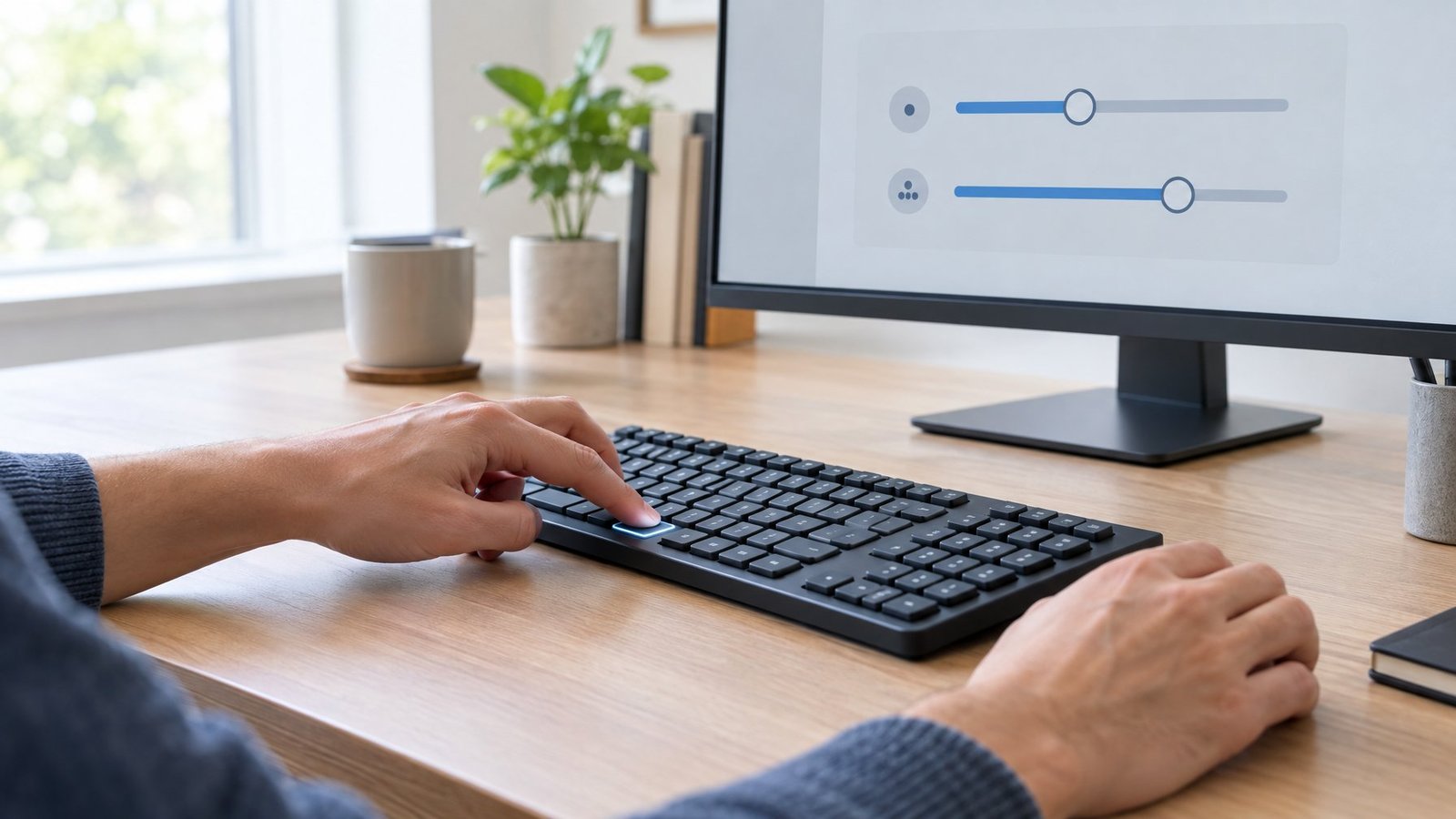
Gamers and people who hold Backspace to delete text notice these settings most. Both sliders are easy to change back if you don’t like the result.
What Do Repeat Delay and Repeat Rate Change?
Two separate values control a held key:
| Setting | What it controls | When to change it |
|---|---|---|
| Repeat delay | Pause before a held key starts repeating | Shorten it if holding Backspace or an arrow key feels sluggish to start |
| Repeat rate | How fast characters repeat once started | Raise it if repeated characters crawl across the screen |
A short repeat delay feels snappy but can cause doubled letters if you rest on keys. A middle setting on delay with the fastest key repeat rate works well for most typists. True input latency (keyboard latency between press and screen) comes from hardware, connection, or system load, and these sliders won’t change it.
Where Can You Find Keyboard Properties?
The classic path works on both Windows 10 and Windows 11:
- Press Windows + R, type control keyboard, and press Enter.
- On the Speed tab, adjust Repeat delay and Repeat rate.
- Click in the test box and hold a key to try the new settings.
- Select Apply.
On newer Windows 11 builds, Microsoft moved “character repeat delay and rate” into Settings > Accessibility > Keyboard. If the Control Panel window doesn’t open, look there. The Cursor blink rate setting moved to Settings > Accessibility > Text cursor in the same update.
Fix USB, Wireless, and Bluetooth Connection Delays
Connection problems cause most lag that shows up in every app at once. The fix depends on how your keyboard connects.https://www.youtube.com/embed/ykoXfrjuWlE
Wired keyboards usually suffer from bad ports or hubs, while wireless models suffer from weak batteries and signal interference. If you’re weighing a switch, our guide on wireless vs Bluetooth keyboard options explains how each link behaves.
Reconnect a Wired Keyboard and Try Another USB Port
Unplug the cable, wait about 10 seconds so Windows unloads the driver, and plug it back in. If lag stays, move it to a different USB port.
- Skip the hub. Plug the wired keyboard straight into the PC. Unpowered hubs and monitor ports are frequent causes.
- Use a rear port on a desktop. Those connect directly to the motherboard.
- Inspect the cable. Kinks or frayed spots near the plug can cause dropped or late keys.
Clean under the keycaps too. Crumbs under one switch can make a single key slow to register. For a mechanical keyboard, you can pop the cap off and clear the switch; our walkthrough on how to remove keys from a mechanical keyboard shows the safe way.
Check Batteries, Receiver Placement, and Wireless Interference
Low batteries are the top cause of wireless keyboard lag. Many keyboards keep working at low charge but start delaying or dropping keys, so replace or recharge first.
Then work on the signal:
- Unplug the USB receiver, wait about 10 seconds, and plug it back in.
- Move the receiver to a front port or use a short USB extension so it sits within a foot or two of the keyboard.
- Keep it away from USB 3.0 ports holding drives, since unshielded USB 3.0 devices can cause wireless interference.
- Look for a Reset button on the keyboard or receiver and press it.
Metal desks, Wi-Fi routers, and microwaves nearby also weaken the link. If your wireless mouse acts up at the same time, the same fixes apply; see our wireless mouse not working guide.
Re-pair a Bluetooth Keyboard That Lags
Removing and re-pairing gives a Bluetooth keyboard a fresh connection and often cures lag.
- Go to Settings > Bluetooth & devices (Windows 10: Settings > Devices > Bluetooth & other devices).
- Select More options (…) > Remove device on your keyboard.
- Turn Bluetooth off, wait 10 seconds, and turn it back on.
- Put the keyboard in pairing mode and select Add device.
Charge the keyboard fully before pairing, because some models won’t hold a steady link on a low battery. Bluetooth keyboard lag often returns when many Bluetooth devices share one adapter, such as headphones streaming audio at the same time. Our Bluetooth mouse not working fix covers related adapter issues.
Investigate Drivers, System Load, and Game-Only Lag
When basic checks fail, the cause is usually a driver, a software conflict, or a game pushing the PC too hard. Each has a clear test.
Drivers break most often after a Windows update. Safe Mode tells you whether third-party software is involved.
Update or Reinstall Keyboard and Bluetooth Drivers
A fresh keyboard driver solves lag caused by a corrupted or outdated install. To update keyboard driver files:
- Right-click Start and open Device Manager.
- Expand Keyboards, right-click your keyboard, and choose Update driver > Search automatically for drivers.
- If that doesn’t help, right-click again, choose Uninstall device, and restart. Windows reinstalls the driver on boot.
For Bluetooth models, repeat this under Bluetooth for the adapter (its name often includes “radio”). If lag began right after an update, open the device’s Properties > Driver tab and select Roll Back Driver if it’s available. You may also find a newer Bluetooth driver on your PC maker’s support site, so check there if Windows says the best driver is already installed. Brand-specific tools add their own layer; if you use Logitech software, see our Logitech G Hub not detecting keyboard fix.
Check Windows Update and Available Troubleshooters
Go to Settings > Windows Update > Check for updates and install everything. Then open Advanced options > Optional updates, where non-critical driver updates often wait.
Microsoft retired the old keyboard troubleshooter on newer Windows 11 releases. On Windows 11, use Settings > System > Troubleshoot > Other troubleshooters and run the Bluetooth troubleshooter for wireless models, or search for troubleshooters in the Get Help app. Windows 10 still has the legacy troubleshooters under Update & Security > Troubleshoot.
Windows 10 lost free support on October 14, 2025. Unless you’re enrolled in Extended Security Updates, driver fixes through Windows Update may stop arriving, which makes the manufacturer’s site more useful on older PCs.
Use Safe Mode to Isolate Software Conflicts
Safe Mode loads Windows with only basic drivers and services. If typing is instant there, a third-party app or driver is causing your lag.
- Hold Shift and select Restart from the Start menu.
- Choose Troubleshoot > Advanced options > Startup Settings > Restart.
- Press 4 for Safe Mode.
Type in Notepad for a minute. If it’s smooth, return to normal mode and disable startup apps in Task Manager one group at a time until the lag returns. Keyboard macro tools, RGB lighting apps, and remapping software are frequent culprits. If your device is encrypted, keep your BitLocker key handy. Advanced users can pick Safe Mode with Command Prompt, but regular Safe Mode is enough for this test.
Test Game Performance Before Changing Keyboard Settings
Lag that appears only in games is usually low frame rate, not the keyboard. When a game drops frames, every input feels late.
- Turn on an FPS counter. If it dips below about 60 when lag appears, lower graphics settings first.
- Check that Settings > Gaming > Game Mode is on (it’s on by default). It limits background work like driver installs during play.
- Make sure your display runs at its full refresh rate; our guide on how to check and change monitor refresh rate walks through it.
- For online games, high ping also makes actions feel delayed even with a perfect keyboard.
If several keys pressed together get dropped, that’s keyboard ghosting, a hardware limit that settings can’t fix.
Getting Responsive Typing Back
Most keyboard input lag has a simple cause, and working in order saves time.

We suggest this order:
- Test in Notepad and with the on-screen keyboard to find where lag lives.
- Restart and close heavy apps in Task Manager.
- Turn off Filter Keys.
- Adjust repeat delay only if held keys feel slow.
- Reconnect the cable or receiver, replace batteries, or re-pair Bluetooth.
- Update, reinstall, or roll back drivers, then install Windows updates.
- Boot into Safe Mode to spot software conflicts.
If the keyboard lags on a second PC too, the hardware is failing and replacement is the practical choice.
Frequently Asked Questions
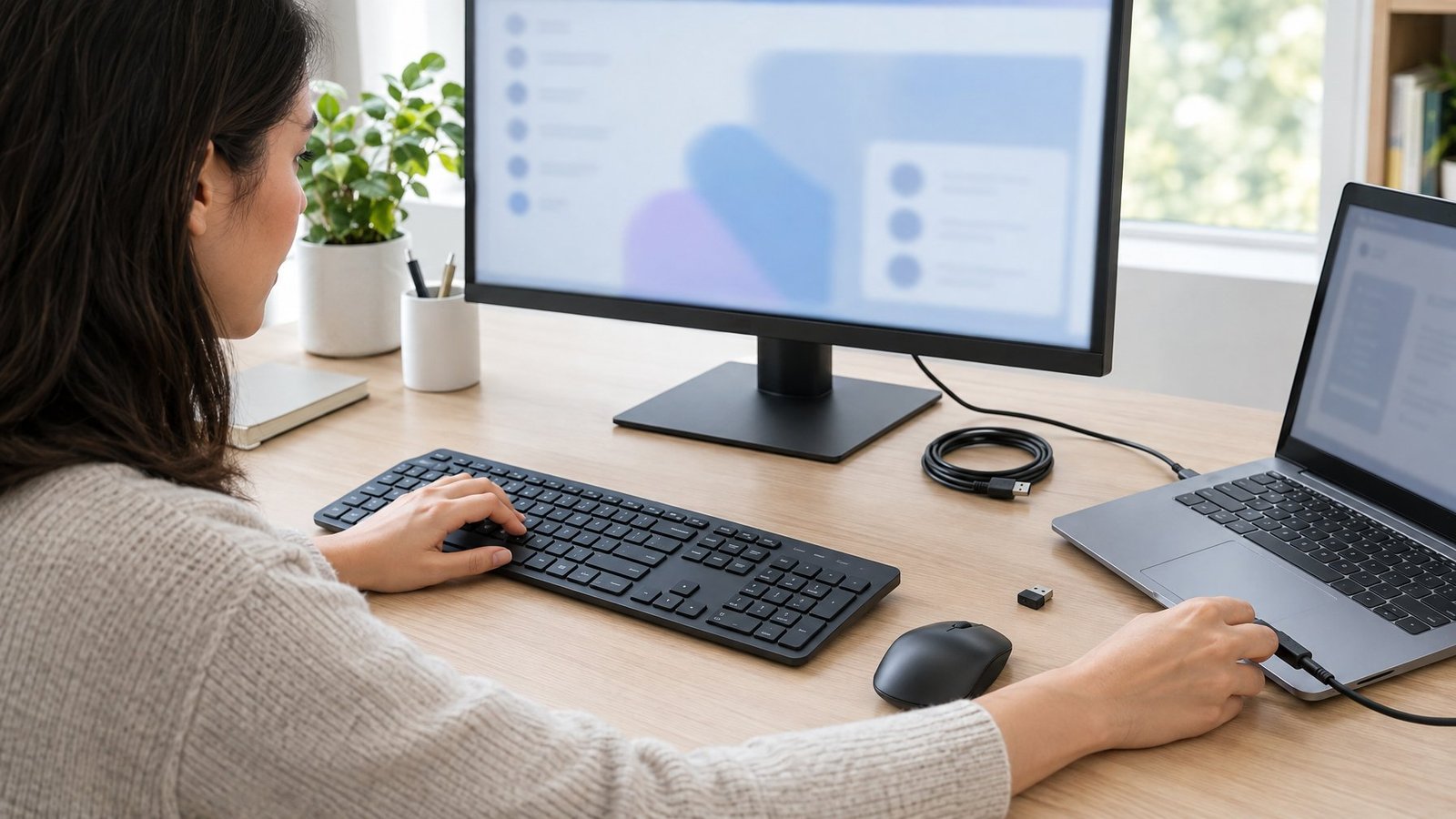
How do I fix keyboard delay on Windows 11?
Press Windows + U, open Keyboard, and turn off Filter keys, then restart and update drivers in Device Manager. For keyboard delay on Windows 11 with held keys, newer builds place repeat delay and rate under Settings > Accessibility > Keyboard.
How do I fix keyboard delay on Windows 10?
Go to Settings > Ease of Access > Keyboard and turn off Filter Keys, then set repeat delay in Control Panel’s Keyboard Properties. Since Windows 10 support ended in October 2025, get driver updates from your PC maker’s site if Windows Update has none.
Why is my laptop keyboard slow to respond?
The usual causes are Filter Keys, high CPU or disk use, or a driver issue. Check Task Manager for busy apps and reinstall the keyboard driver. Lenovo owners can also see our Lenovo keyboard not working fix.
How can I reduce keyboard delay in games like Roblox?
Raise your frame rate by lowering graphics settings, and keep Game Mode on. Close background apps and use a wired or low-latency receiver connection. High server ping also makes inputs feel slow in online games.
What should I do if only one key is delayed?
Clean under that key, since dirt is the most common cause of a single slow key. Test it in the on-screen keyboard and in Notepad; if only the physical key lags, the switch may be worn and need replacing.
Why does my Bluetooth keyboard lag intermittently?
Intermittent Bluetooth keyboard lag usually comes from low battery, distance, or interference from nearby USB 3.0 devices and Wi-Fi. Charge the keyboard, move it closer, re-pair it, and update the Bluetooth adapter driver.

I’m Anirban Saha, Founder & Editor of TechBullish. With a B.Tech in Electronics and Communication Engineering, and 8+ years of experience as a software developer, I have expertise in electronics, software development, gadgets, and computer peripherals. I love sharing my knowledge through informational articles, how-to guides, and troubleshooting tips for Peripherals, Smart TVs, Streaming Solutions, and more here. Check Anirban’s LinkedIn Profile here.
