
Most scroll wheel problems come from three places: dirt around the wheel, a weak battery or connection, or a setting that changed without you noticing. To fix a mouse scroll wheel, start by charging or replacing the batteries and reconnecting the mouse, then blow compressed air around the wheel, then check your scroll settings and driver before you think about replacing anything. Those steps solve the large majority of jumpy, dead, or backward scrolling.
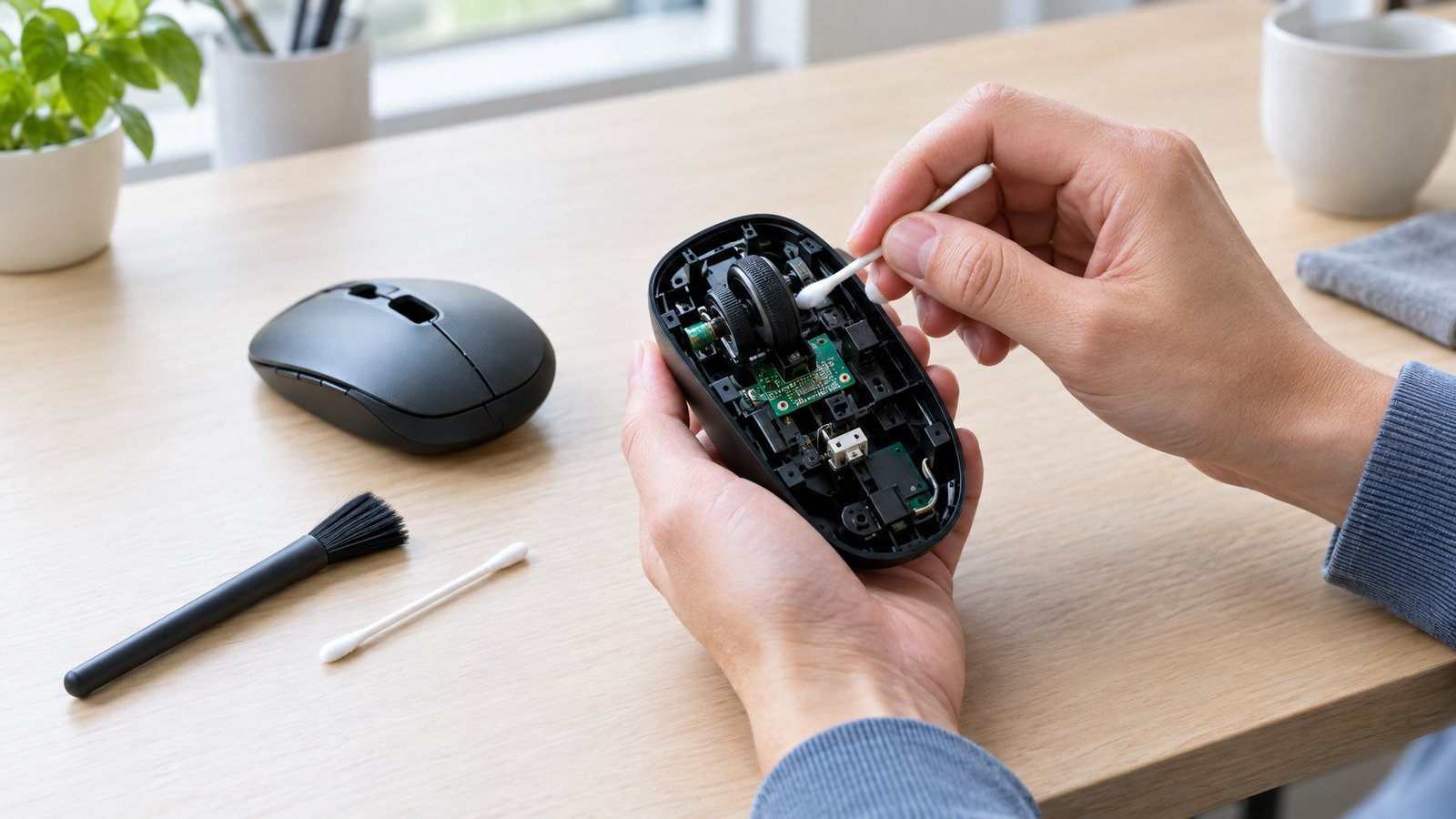
The tricky part is that a failing wheel and a software glitch can look the same on screen. A page that jumps back up while you scroll down might be dust on the wheel sensor, or it might be a driver that broke after an update. Work in order from cheap and fast to slow and involved, and you will know which one you have within about 15 minutes.
Try These Quick Fixes First
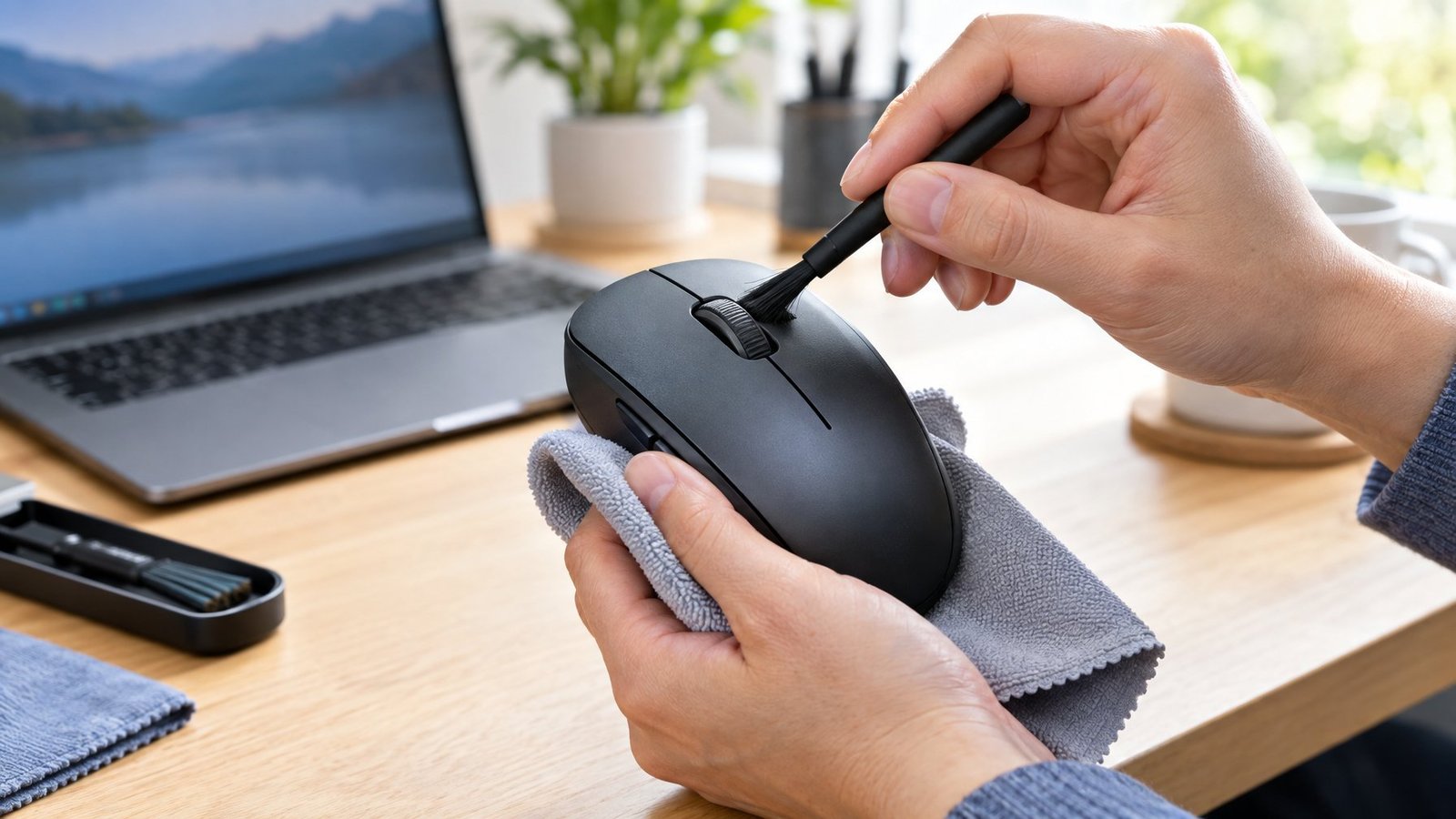
Power, connection, and dirt cause most cases of a mouse scroll wheel not working, and you can check all three in a few minutes with no tools beyond a can of compressed air. A quick test on a second app or computer then tells you whether the mouse or the PC is at fault.
Check the Battery, Connection, and USB Port
A low battery often shows up in the wheel first. The cursor may still move while scrolling turns choppy or skips. Swap in fresh batteries, or charge a rechargeable mouse with its own cable, before you do anything else.
Next, reset the connection:
- USB receiver or wired mouse: Unplug it, wait about 10 seconds so Windows unloads the driver, then plug it into a different port.
- Skip the hub: Plug straight into the computer. Monitor ports and unpowered hubs cause dropped inputs.
- Try USB 2.0: Logitech suggests moving from a USB 3.0 port to a USB 2.0 port if problems continue.
- Bluetooth: Remove the mouse from your paired devices and pair it again. Turning off other Bluetooth gear helps, since too many connections interfere with each other.
If the mouse has a reset button on the bottom or on the receiver, press it. For deeper connection trouble, our guides to a wireless mouse not working and a Bluetooth mouse not working fix walk through more steps.
Clean Around the Wheel Without Opening the Mouse
Dust, crumbs, and hair collect in the gap around the wheel and confuse the part that reads each notch. That causes skipping and reverse scrolls.
- Unplug the mouse or remove its batteries.
- Hold the can of compressed air upright and give short bursts into the gaps on each side of the wheel.
- Spin the wheel with your finger while you spray, so debris on every side gets hit.
- Wipe the wheel with a lint-free cloth lightly dampened with 70% (or weaker) isopropyl alcohol. Never pour liquid onto the mouse.
Short bursts matter. A long blast can push moisture from the can into the mouse. We find the wheel spinning while you spray clears more grime than spraying a still wheel.
Test Scrolling in Another App and on Another Computer
A quick swap test tells you where the fault lives. Scroll in a browser, a text file, and File Explorer. If only one program misbehaves, the issue sits in that app’s settings.
Then plug the mouse into a different computer. If it scrolls fine there, your PC’s settings, drivers, or USB chipset driver are the likely cause. If it fails everywhere, the wheel hardware is the prime suspect, so skip ahead to the repair section.
Check Your Scrolling Settings
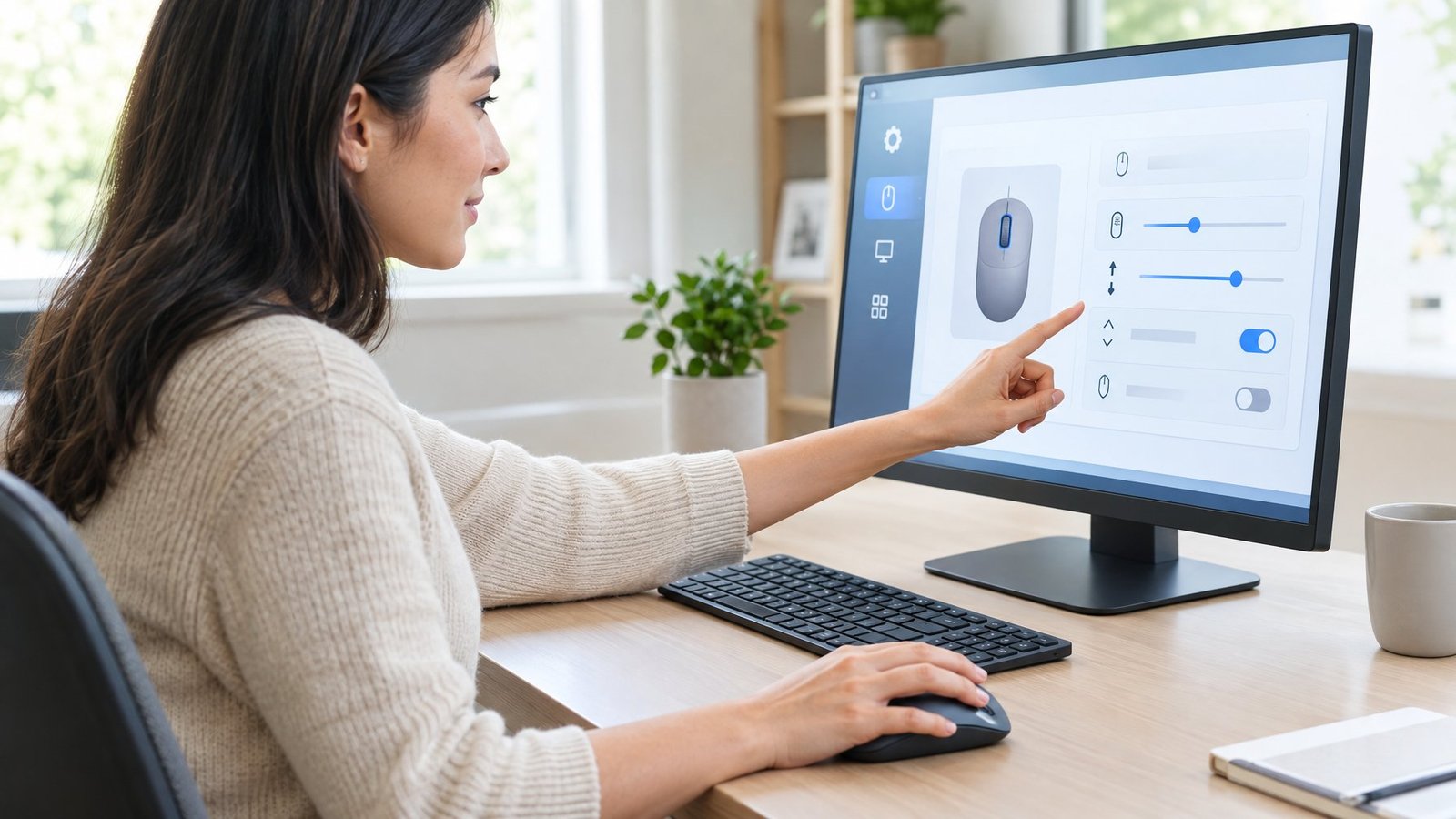
Backward, sluggish, or oversized scrolling almost always traces back to one slider or toggle. Windows and macOS both let you set direction and speed, and brand apps add their own layer of controls on top.
Adjust Scroll Speed and Direction in Windows
In Windows 11, open Start > Settings > Bluetooth & devices > Mouse and find the Scrolling section. There you can change:
| Setting | What it fixes |
|---|---|
| Roll the mouse wheel to scroll | Pages jumping a full screen per notch |
| Lines to scroll at a time | Scrolling that feels too slow or too fast |
| Scroll inactive windows when hovering | Wheel only working in the active window |
| Scrolling direction | Vertical scrolling that runs backward |
Horizontal tilt scrolling lives under Additional mouse settings > Wheel tab, if your mouse supports it. On a 2-in-1 laptop, disable tablet mode if touch behavior seems to override the mouse. Windows 10 lost free support on October 14, 2025, so older menus under Devices > Mouse may lack newer options like the direction switch.
Check Scroll Direction and Speed on a Mac
Macs flip direction with natural scrolling, which moves content the same way your fingers move. It suits trackpads and feels backward to many mouse users.
- Direction: Open Apple menu > System Settings > Mouse and turn Natural scrolling off or on.
- Speed: Go to System Settings > Accessibility > Pointer Control > Mouse Options and drag the Scroll speed slider.
A mouse must be connected for these settings to show up. If you use a Logitech mouse with Logi Options+, macOS may ask for permissions after an install or update. Wheels that stop scrolling right after an update often need those permissions granted.
Review Mouse Software and App-Specific Controls
Brand apps override your system mouse settings. Razer Synapse controls scroll acceleration and the Smart-Reel switch between tactile and free-spin modes on some wheels. Corsair iCUE lets you remap buttons, including the wheel click. Logitech G HUB and Logi Options+ handle scroll modes and firmware.
Open the app, pick your mouse, and look for scroll settings or remaps that changed. Some gaming mice also have a physical button that toggles free-spin scrolling, which can make the wheel feel broken when it has only switched modes. If the app can’t see your mouse at all, see our fixes for Razer Synapse not detecting a mouse or Logitech G HUB not detecting a mouse.
Refresh Drivers and Rule Out Software Problems
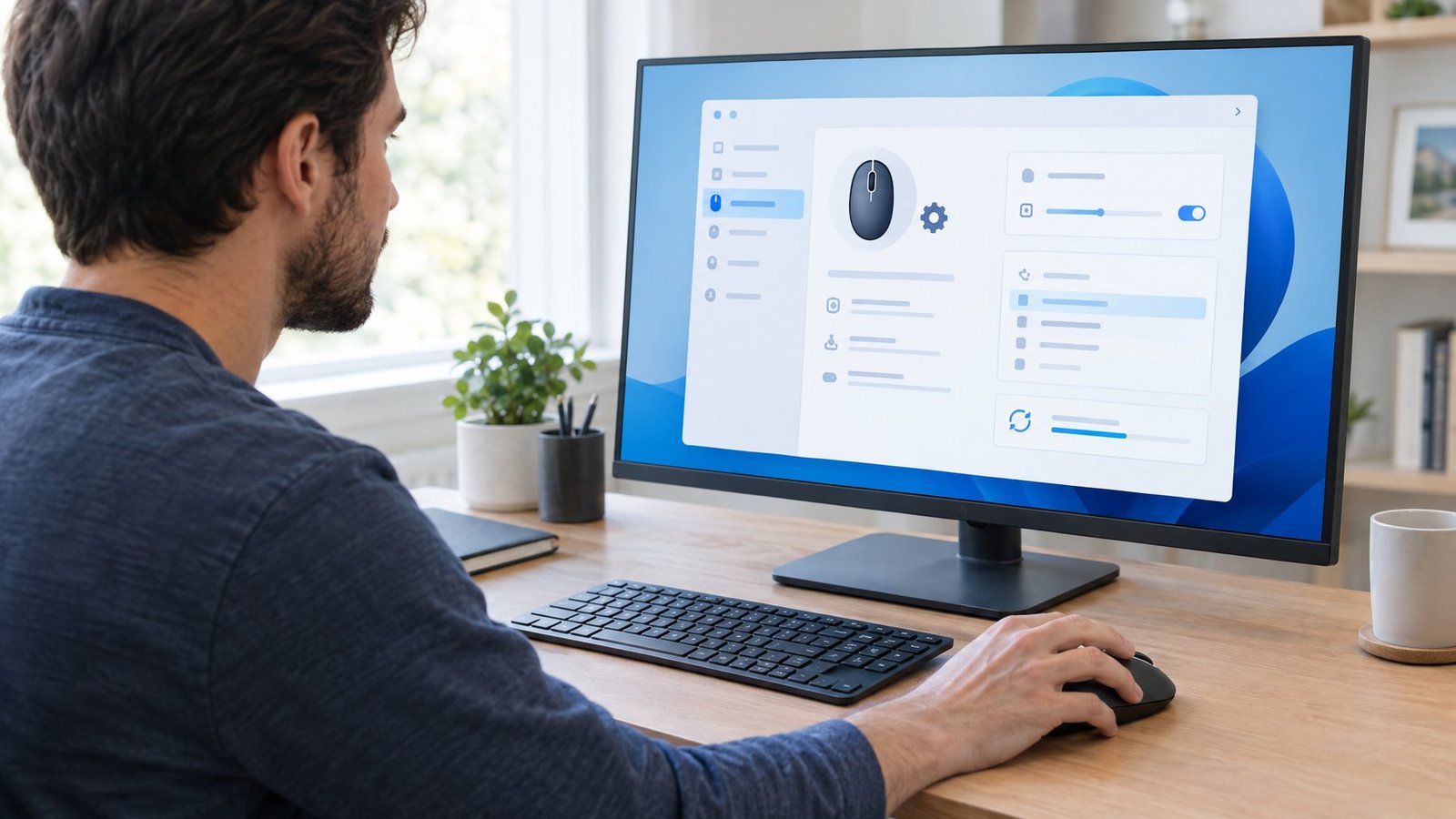
When the mouse works on another computer but not yours, a damaged driver or a conflicting program is the usual cause. Reinstalling the driver takes about five minutes, and a clean boot shows whether background software is interfering.
Update or Reinstall the Mouse Driver in Windows
Device Manager handles both jobs:
- Right-click Start and select Device Manager.
- Expand Mice and other pointing devices.
- To update, right-click your mouse, choose Update driver, then Search automatically for drivers.
- To reinstall mouse drivers, right-click the mouse and choose Uninstall device, confirm, then restart. Windows reinstalls the driver on boot.
If you use brand software, Logitech advises uninstalling the app first, removing the device, rebooting, then reinstalling the latest app. Keep a spare mouse or the keyboard handy, since the cursor may stop until the restart. Only download drivers from the maker’s own site.
Check for Recent Updates and Software Conflicts
If scrolling broke right after an update, roll back. In Device Manager, open your mouse’s Properties, select the Driver tab, and choose Roll Back Driver. You need admin rights. Also run Windows Update to grab any newer fix.
For conflicts, try a clean boot. Type msconfig, open the Services tab, check Hide all Microsoft services, and click Disable all. Then turn off startup apps in Task Manager and restart. If scrolling works cleanly, turn items back on half at a time to find the culprit. Logitech also suggests disabling USB Selective Suspend in advanced power settings when a mouse drops out.
When Should You Run System File Checker?
Run System File Checker only when other devices also act strangely or Windows itself seems unstable. It repairs corrupted system files, which rarely affect a single mouse wheel.
- Open Command Prompt as administrator.
- Type
DISM.exe /Online /Cleanup-image /Restorehealthand press Enter. - After it finishes, type
sfc /scannowand press Enter. - Wait for “Verification 100% complete,” then restart.
The scan takes a while. Skip it if only the wheel misbehaves and the mouse fails on other computers too.
Decide Whether the Wheel Needs Repair or Replacement
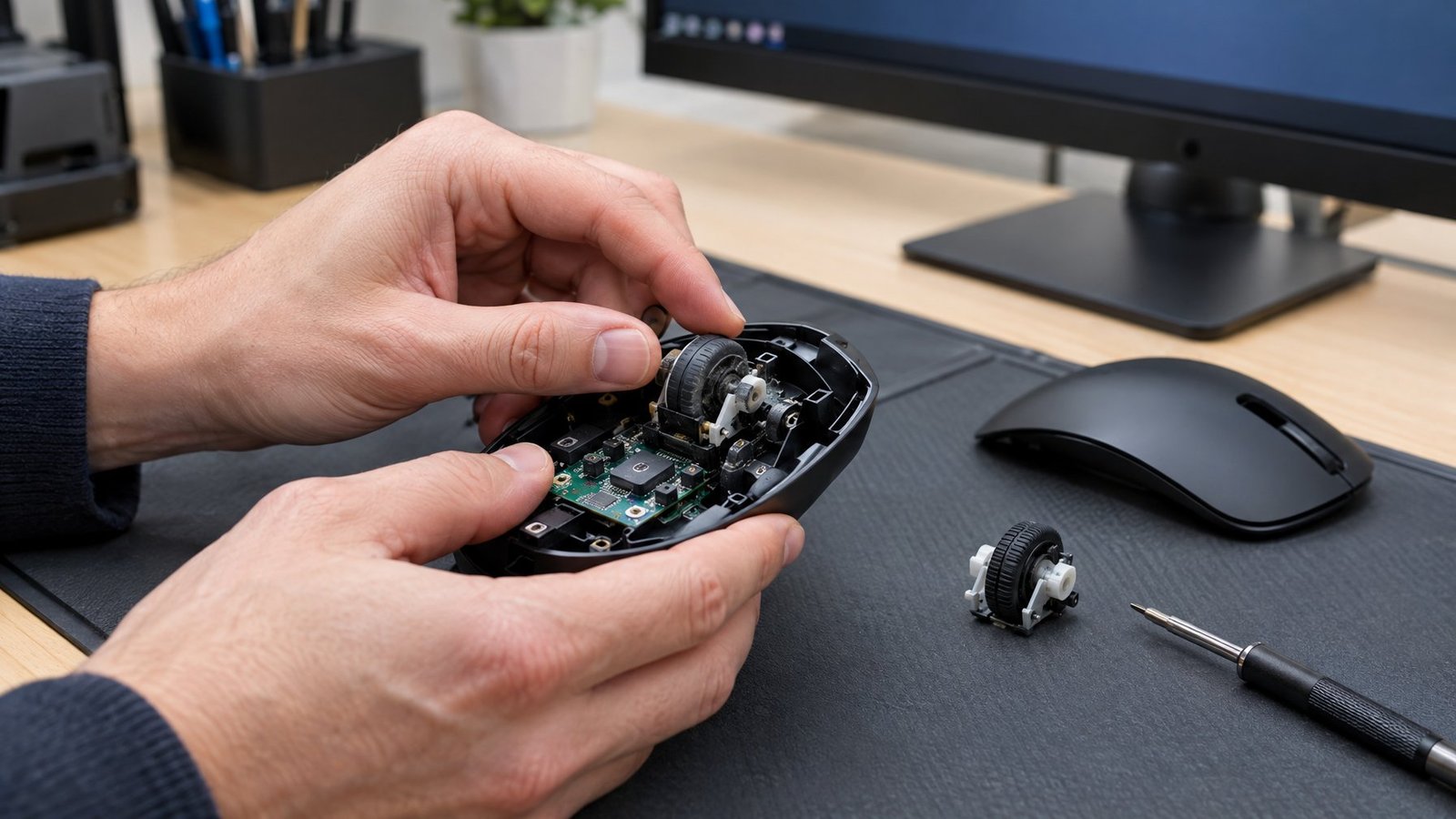
A wheel that fails on every computer after cleaning has a hardware fault. The symptoms point to which part broke, and the price of the mouse decides whether fixing it makes sense.
What Do a Stuck Wheel or Failed Middle Click Indicate?
Each symptom points to a different part:
- Wheel won’t turn or feels gritty: Debris or a broken axle. Compressed air sometimes frees it.
- Wheel turns but skips or scrolls backward: A worn encoder, the part that counts notches. Mechanical encoders wear from contact over time, which is why Razer now builds optical scroll wheels into models like the Viper V4 Pro.
- Wheel scrolls but won’t click: A worn or broken middle switch. Our guide to a middle mouse button not working covers that fault in detail.
- Wheel spins freely with no bumps: Possibly a free-spin mode toggle, or a broken spring.
Wear is normal after years of heavy use. Our piece on whether a computer mouse wears out explains what fails first.
When Is Professional Repair Worth It?
Check your warranty before you open anything. Logitech, for example, excludes damage from unauthorized repair or disassembly, and it also excludes normal wear and tear. Valid claims usually go through the store within the first 30 days.
Professional or DIY repair makes sense for expensive gaming or ergonomic mice, especially when the maker sells spare parts. Replacing an encoder often requires soldering. For a budget mouse, labor usually costs more than a new one. If you’re shopping, our list of the best mouse under $200 is a good starting point.
Start Simple Before Replacing the Mouse
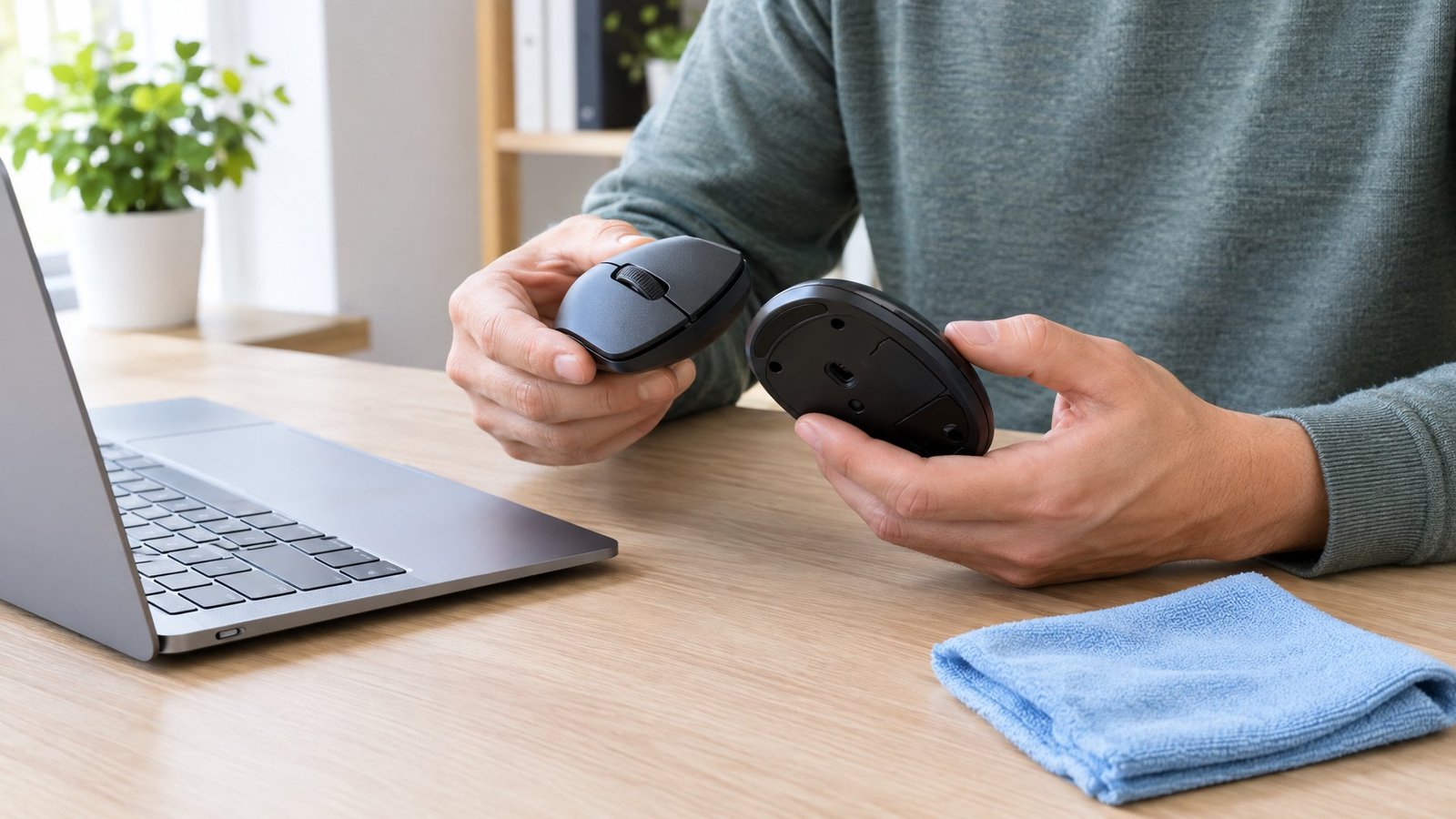
Nearly every scroll wheel fix comes down to working in order, from the easiest step to the hardest. Fresh batteries and a direct USB connection come first. Compressed air around the wheel comes next.
After that, check scroll direction and speed in Windows or macOS, then look inside Razer Synapse, Corsair iCUE, or Logitech’s apps for changed modes. A driver reinstall or rollback in Device Manager handles most software faults.
Test on a second computer at any point to split hardware from software. If the wheel still skips or won’t click everywhere, it’s worn out. Use the warranty if it’s new, or repair it if it’s a pricey model, and replace it if it’s cheap.
Frequently Asked Questions
Why is my mouse wheel scrolling the wrong way?
Your scroll direction setting is flipped. On Windows, change Scrolling direction under Settings > Bluetooth & devices > Mouse. On a Mac, turn off Natural scrolling in Mouse settings.
How do I stop my mouse scroll wheel from jumping?
Clean around the wheel with compressed air while spinning it, and replace or charge the battery. If jumping continues on other computers, the encoder is likely worn and the mouse needs repair or replacement.
Why does my mouse wheel zoom instead of scroll?
A stuck Ctrl key is the usual cause, since Ctrl plus scroll zooms in most apps. Tap both Ctrl keys, clean the keyboard, and check your mouse software for a zoom remap on the wheel.
What if the scroll wheel turns but will not click?
The middle click switch has failed or been remapped. Check your brand software for a changed button assignment first; if nothing changed, the switch is worn and needs replacement.
How do I fix a Logitech mouse scroll wheel?
Clean it with compressed air, plug the receiver directly into the computer, and check scroll settings in Logi Options+ or G HUB. Update the firmware, and on a Mac grant any permissions macOS requests after installing the software.
Can a broken mouse scroll wheel be repaired?
Yes, many can. Worn encoders and middle switches can be swapped, though it often takes soldering, and opening the mouse may void the warranty.

Jefferson McCall is the tech-savvy co-founder of TechBullish, brings his passion for electronics to life through hands-on expertise. He has a deep understanding of embedded systems and consumer electronics from his decade of industry experience repairing and troubleshooting them. He spends time learning new and evolving technologies. Check Jefferson’s Crunchbase Profile here.
