
To fix mouse double clicking, first confirm the mouse is really sending two clicks with a click tester. If clicks are clean, check the File Explorer click setting and ClickLock. If the problem follows the mouse to another computer, the microswitch is failing: filter it with debounce software, then clean, tighten or swap the switch, claim warranty, or replace the mouse.
Work through the checks in order. Settings take a minute, and a software filter takes five. A switch repair takes about an hour and a soldering iron, and opening the mouse can void your warranty.
Is the Mouse Really Sending Two Clicks?
Before you change settings or open your mouse, confirm what’s actually happening. A mouse that double clicks on its own is usually caused by a worn or dirty switch that “chatters,” sending two signals for one press. But the same symptom can also come from a double-click speed setting, mouse software or a touchpad setting. Testing first tells you which fix you need.
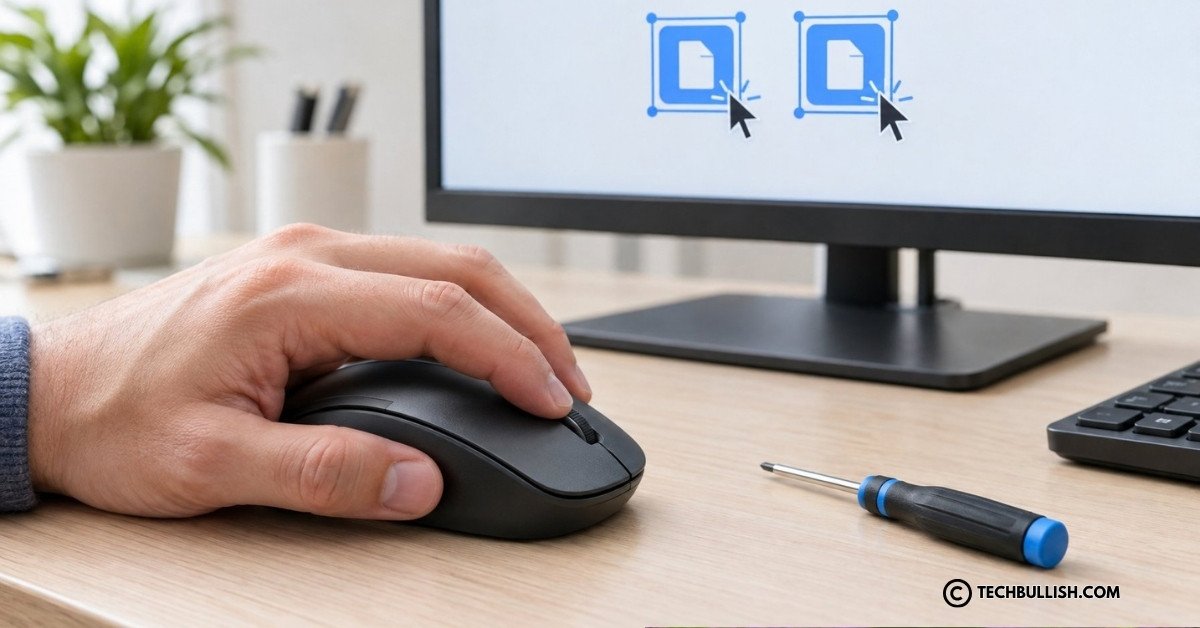
Use the free mouse double click test below. It measures the tiny gap between releasing a button and the next press. A person can’t click twice within a few milliseconds on purpose, but a faulty switch can, so any extra clicks it flags came from the mouse, not from you.
For the most accurate result:
- Use a physical mouse, not a laptop touchpad.
- Click at your normal speed. Don’t try to click fast.
- Test each button that’s giving you trouble, about 20 to 30 clicks each.
- If files drop while you drag them, also run the 5-second hold test.
Mouse Double Click Test
Single click slowly and normally inside the box, about 20–30 times. Test each button you have trouble with. If the tool flags clicks you made only once, your switch is chattering.
What your result means
- No unwanted double clicks: Your switch is likely fine. The problem is probably a setting or software. Go to Check your double-click settings.
- One or two unwanted double clicks: The switch is starting to wear or has dust inside. Try cleaning it with compressed air first, then test again.
- Several unwanted double clicks or a failed hold test: The switch is chattering. Use a debounce tool as a quick fix, try the spring fix, replace the switch, or claim your warranty if the mouse is still covered.
Try the Mouse on Another Computer
- Problem follows the mouse: the fault is in the mouse, most likely the left-click switch.
- Problem stays on the first computer: look at settings, drivers or software on that computer.
If you have only one computer, try a different mouse on it. If that one clicks cleanly, the first mouse is the problem.
Check Whether File Explorer Opens Items with One Click
This setting only affects files and folders in File Explorer and on the desktop. When it is on, one click opens items and hovering selects them. Clicks elsewhere are unchanged.
Windows 11:
- Open File Explorer.
- Select See more (three dots) > Options.
- On the General tab, find Click items as follows.
- Choose Double-click to open an item (single-click to select) and select Apply.
In Windows 10, select View > Options in File Explorer, then follow steps 3 and 4.
Which Settings Can Stop Unwanted Double Clicks?
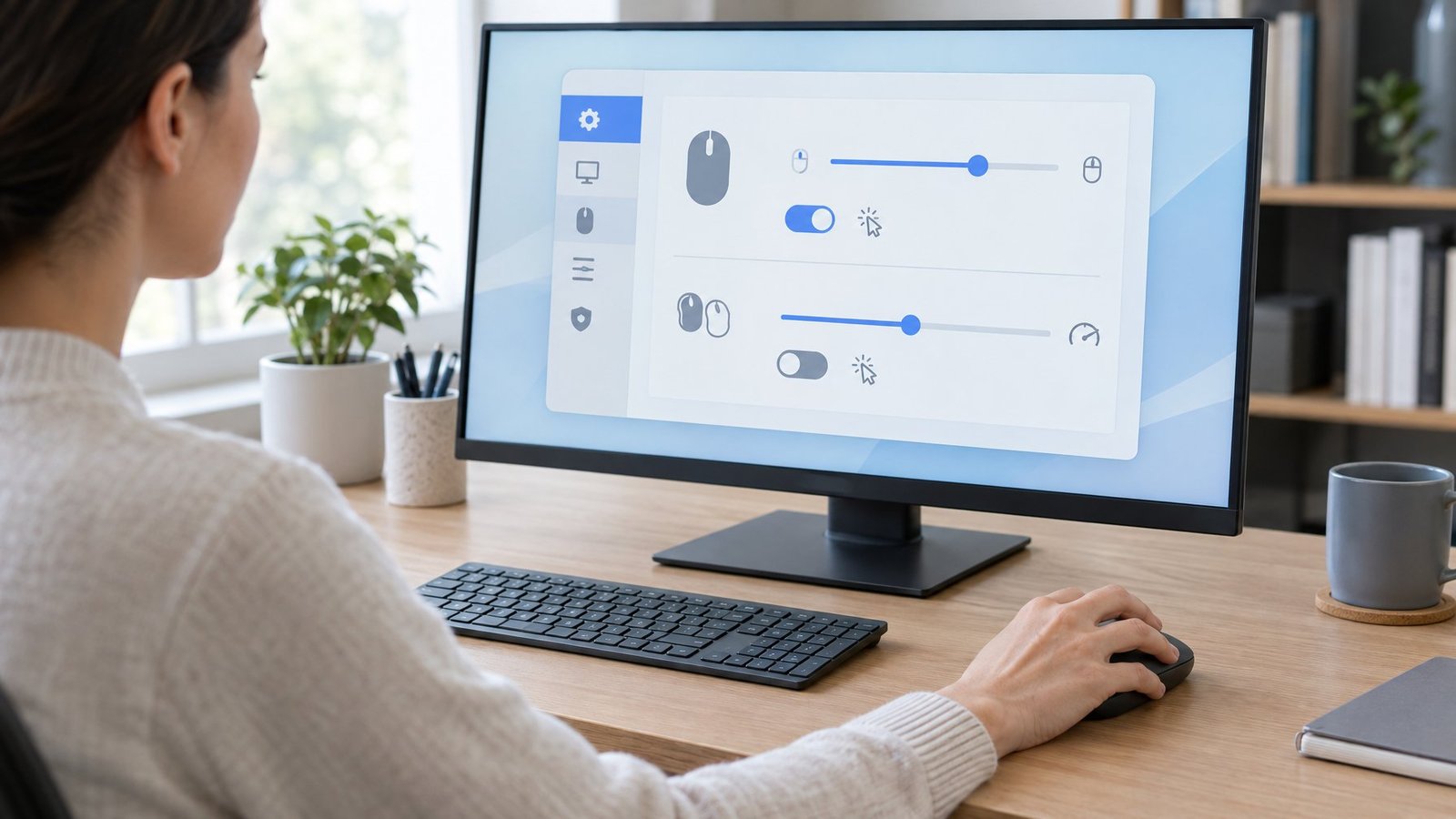
Three settings shape how your computer reads clicks: double-click speed, ClickLock, and debounce options in mouse software. The first two fix misread clicks. None of them repair a worn switch, and only debounce can hide one.
Adjust Double-Click Speed
This sets how close together two separate clicks must be to count as a double click. If it is too slow, two deliberate single clicks can merge into a double click.
It does not help a worn switch, whose extra signal arrives within milliseconds and counts as a double click at any setting.
Windows 11:
- Go to Settings > Bluetooth & devices > Mouse.
- Under Related settings, select Additional mouse settings.
- On the Buttons tab, move Double-click speed toward Fast.
- Test on the folder icon beside the slider, then select OK.
Windows 10: go to Settings > Devices > Mouse > Additional mouse options, then use the same Buttons tab slider.
macOS (Ventura and later): open Apple menu > System Settings > Accessibility > Pointer Control and drag the Double-click speed slider. The exact layout varies slightly between macOS versions.
Linux (GNOME; menu names vary by version): open Settings > Accessibility > Pointing & Clicking and adjust Double-Click Delay. KDE Plasma users can find double-click timing under System Settings > Mouse or Workspace Behavior, depending on the version.
A middle-to-fast setting suits most people. Very fast settings make real double clicks hard to land.
Turn Off ClickLock
ClickLock lets you drag without holding the button, but it makes files grab and release at odd times if you don't know it is on. Open Additional mouse settings, stay on the Buttons tab, clear Turn on ClickLock, select OK, and repeat the drag test.
Check Debounce Settings in Mouse Software
Debounce is a short delay the mouse uses to ignore the electrical flicker a switch makes when pressed. A longer delay can filter false clicks from a tired switch. Our gaming vs normal mouse guide explains why gaming mice offer these controls.
| Software | What to look for | Notes |
|---|---|---|
| Corsair iCUE | Button Response Optimization | Found in device settings on supported mice. Availability depends on model and iCUE version. |
| Logitech G HUB / Options+ | Firmware update | Debounce is not user-adjustable on most models. Install the latest firmware, which sometimes improves click handling. |
| Razer Synapse | Firmware update | Debounce is handled in firmware and generally isn't exposed to users. |
| Other brands | "Debounce," "click latency" or "button response" options | Check your mouse's manual or support page. |
If the software can't see your mouse, fix that first with our guides on Logitech G HUB not detecting a mouse and Razer Synapse not detecting a mouse.
Free Software Fixes: Filter False Clicks with Debounce Tools
If your mouse software has no debounce option, a free Windows tool can filter false clicks. This is a stopgap for a failing switch, not a repair, but it can keep a mouse usable for weeks or months.
X-Mouse Button Control is a free button-remapping tool for Windows that includes a debounce option in its settings. Install it, open its settings, enable debounce, and start with a short delay. Menu locations vary by version, so check the tool's help file if you can't find it.
Option 2: AutoHotkey Debounce Script (Also Fixes Drag Drops)
This script ignores false presses that follow a release too quickly. It also ignores false releases while you hold the button, which is what makes dragged files drop.
- Install AutoHotkey v2 from the official site.
- Create a text file named
debounce.ahkand paste in the script below. - Double-click the file to run it. A green "H" icon appears in the system tray.
- To run it at login, press Win + R, type
shell:startup, and place a shortcut to the file in that folder.
#Requires AutoHotkey v2.0
PRESS_DELAY   := 80   ; ignore presses within 80 ms of the last release
RELEASE_CHECK := 0.03 ; seconds to confirm a release is real (30 ms)
lastRelease   := 0

$LButton::
{
    global lastRelease
    if (A_TickCount - lastRelease < PRESS_DELAY)
        return                      ; false press: ignore it
    Send "{LButton down}"
    loop {
        KeyWait "LButton"           ; wait for a release
        ; if the button is pressed again within 30 ms,
        ; the release was switch bounce: keep holding
        if !KeyWait("LButton", "D T" RELEASE_CHECK)
            break                   ; release was real
    }
    Send "{LButton up}"
    lastRelease := A_TickCount
}
Tuning:
- False double clicks continue: raise
PRESS_DELAYin steps of 10 to 20 ms. - Real fast double clicks stop working: lower
PRESS_DELAY. Values from 50 to 80 ms rarely interfere with normal double clicking. - Drags still drop: raise
RELEASE_CHECKto0.05. This adds a small delay to every release, so keep it as low as works for you.
The script hides the fault; it does not repair the switch. As the switch wears further, expect to raise the values or move on to a hardware fix.
macOS and Linux: there is no widely trusted equivalent for macOS. On Linux, some desktop environments and input drivers offer debounce options, but support varies. On both, cleaning or replacing the switch is the more reliable path.
Could Power, Connectivity or Software Be the Cause?
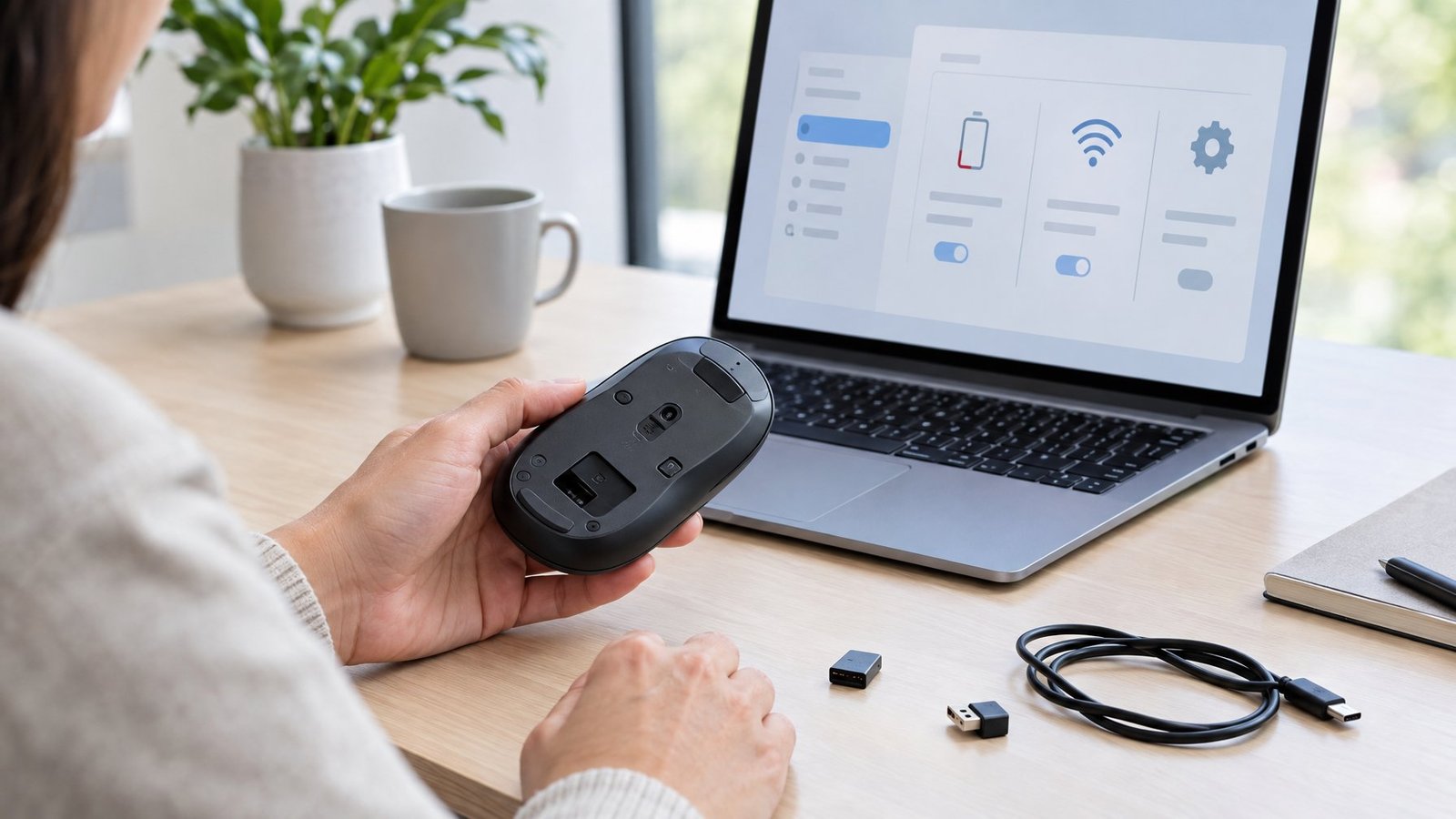
Weak batteries, a noisy USB connection or a stray button mapping can all produce clicks you didn't make. Wireless mice show these problems most often.
Recharge or Replace Batteries and Re-Pair a Bluetooth Mouse
A dying battery causes dropped signals that can repeat or split a click. Charge fully or use fresh batteries first.
Windows:
- Go to Settings > Bluetooth & devices.
- Find the mouse, select More options (...) > Remove device.
- Turn Bluetooth off, wait 10 seconds, and turn it back on.
- Put the mouse in pairing mode and select Add device.
macOS:
- Open System Settings > Bluetooth.
- Select the info (i) button next to the mouse, then Forget This Device.
- Turn Bluetooth off and on, put the mouse in pairing mode, and select Connect.
- If pairing still fails, restart the Mac. This resets the Bluetooth service.
For deeper pairing trouble, see our Bluetooth mouse not working fix.
Try Another USB Port and Skip the Hub
Plug the mouse or receiver into a different port, and connect directly to the computer instead of through a hub. USB 3.0 ports and drives can produce radio noise in the 2.4 GHz band that many wireless mice use, an effect Intel documented in its white paper USB 3.0 Radio Frequency Interference Impact on 2.4 GHz Wireless Devices.
Move the receiver to a USB 2.0 port (often black; USB 3.0 is often blue) or use a USB extension cable to move it away from plugged-in drives. Our guide to connectors on the back of a computer helps identify ports.
Check your mouse software for a left button mapped to "double click" or a macro. This can happen after you import a shared profile. Turn off any auto clicker; our piece on the Razer Synapse auto clicker shows where those settings live.
For drivers on Windows 11, go to Settings > Windows Update > Advanced options > Optional updates and install any mouse drivers. Then update firmware in your brand's app.
What If the Mouse Switch Is Failing?
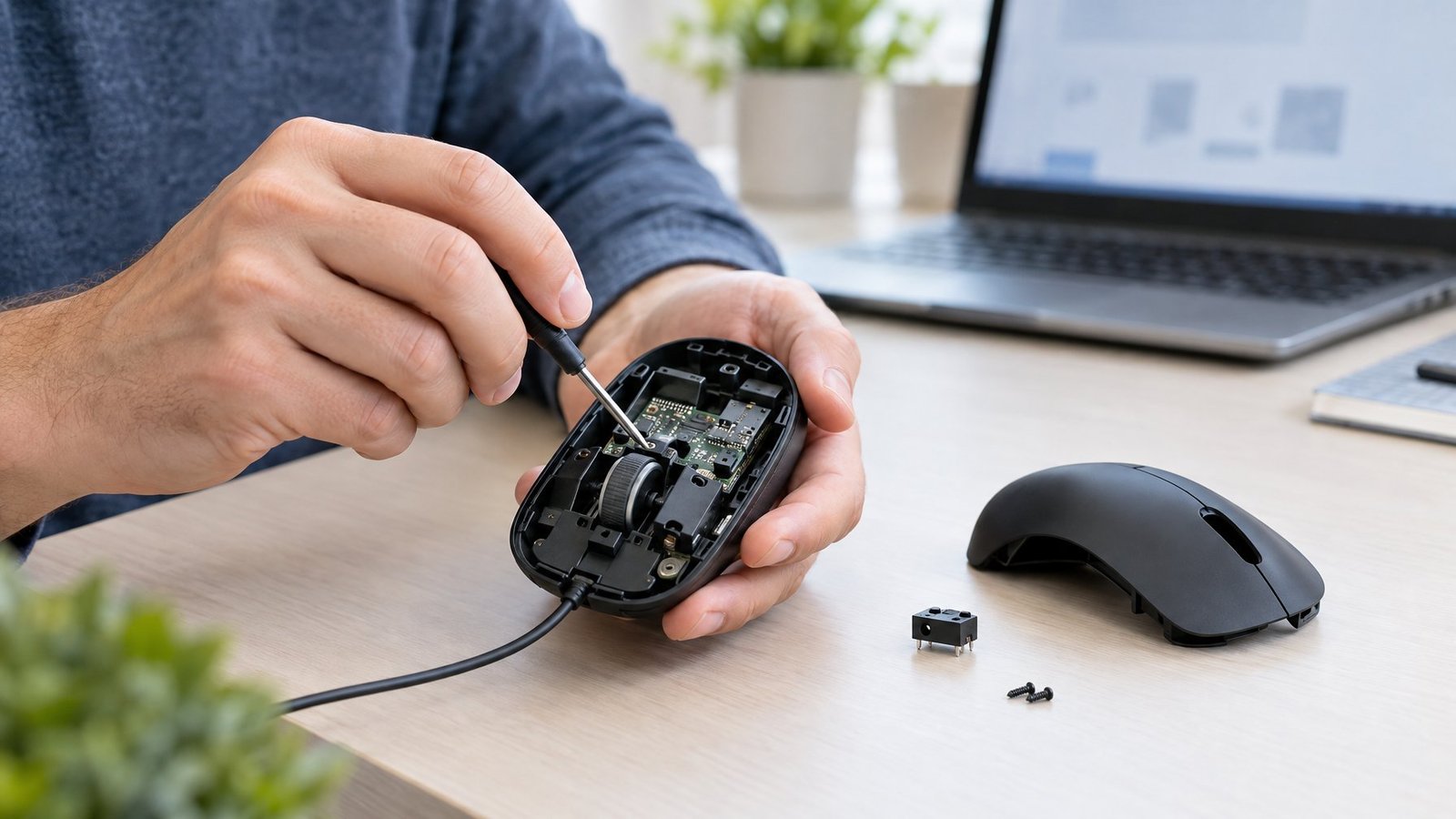
A mouse that double clicks on every computer has a worn or dirty switch. Software can hide the symptom, but the metal parts inside keep wearing. Try these fixes from least to most invasive.
Understand Contact Bounce
Each button presses on a microswitch containing a springy metal strip. When pressed, the strip hits the contact and bounces for a few milliseconds before settling. This is contact bounce, and the mouse's debounce filter normally ignores it.
As the metal wears or oxidizes, the bounce grows longer and messier until it slips past the filter as a second click, or as a false release while you hold the button. That is why longer debounce helps only for a while. See our article on whether a computer mouse wears out.
- Unplug the mouse, or remove batteries and switch it off.
- Blow short bursts of compressed air into the seam around the left button.
- Click the button 20 to 30 times quickly to shake debris loose.
- Wipe the surface with a lint-free cloth lightly dampened with water.
Check your brand's care guide before using alcohol, because Logitech and Razer publish different guidance on alcohol-based cleaners. Follow the official care instructions for your model, and never spray liquid into the mouse.
Step 2: Check the Warranty Before Opening the Case
Opening a mouse can void the warranty. Some warranties also exclude normal wear. If your mouse is covered:
- Return it to the retailer if you are inside its return window.
- Otherwise file a claim with the maker and keep your receipt.
- Include your click test results or a short video so support can see the fault.
Step 3: Clean the Switch with Contact Cleaner
You will need a small Phillips or Torx screwdriver, a plastic pry tool, and electronics contact cleaner that is safe on plastics.
- Unplug the mouse or remove batteries. Peel off any feet or stickers covering screws.
- Remove the screws and lift the shell carefully. Watch for ribbon cables and the scroll wheel.
- Find the left-click microswitch under the left button. Photograph the layout before touching anything.
- Apply a tiny amount of contact cleaner around the switch plunger. Don't soak the board.
- Press the switch 30 to 50 times, let it dry fully, then reassemble and rerun the click test.
Step 4: Tighten the Switch Spring (Omron-Style Switches)
Many mice use a switch with a small copper leaf spring. Over time it loses tension, which causes bounce. This fix needs no soldering, but the parts are tiny, so work over a tray and practice on a spare switch if you can.
- Work with the switch in place on the board.
- Use a thin blade or pick to release the tabs on the sides of the switch housing, then lift the cover straight up.
- Note how the copper leaf, the spring and the plunger sit, and take a photo.
- Remove the copper leaf. Gently increase its curve by pressing the bend with a pick or tweezers. Small changes make a big difference.
- Reassemble in the same order, snap the cover on, and test the click feel and the click tester results.
If the leaf cracks, or the fault returns within days, move on to a switch swap.
Step 5: Swap the Left Switch with a Rarely Used One
This is often the cleanest free repair. The side-button or DPI switch is rarely pressed, so it is nearly new, and it is often the same model as the left-click switch.
- Confirm both switches look identical and have the same pin layout and markings.
- Desolder both switches using a soldering iron and solder wick or a desoldering pump.
- Solder each switch into the other's position.
- Reassemble and run the click test and the drag test.
Basic soldering skill is required. If you have never desoldered, practice on scrap electronics first, because overheating a pad can lift it from the board.
Step 6: Replace the Switch or the Mouse
Replacement microswitches cost a few dollars. Common options for many mice are the Omron D2F series and the Kailh GM series. Match the pin layout, plunger height and click force to your original.
If you'd rather not solder, buy a new mouse. For the most durable option, choose a mouse with optical switches. They detect clicks with a light beam instead of metal contacts, so they don't suffer contact bounce, the cause of almost all double clicking. Our computer mouse lifespan guide shows what to expect from any mouse.
Brand-Specific Notes
Logitech Mouse Double Clicking
Update firmware in Logitech G HUB or Logi Options+, test on another computer, and check your warranty before opening the mouse.
Most models have no user-adjustable debounce, so X-Mouse Button Control or the AutoHotkey script above is usually the best software workaround. Many older Logitech mice use Omron-style switches, which makes them good candidates for the spring fix in Step 4.
Razer Mouse Double Clicking
Synapse doesn't expose a debounce control on most models. Update firmware, check for remapped buttons or macros, and check your warranty and Razer's cleaning guidance before any repair. Many recent Razer mice use optical switches, which don't bounce.
If one of those double clicks, suspect settings, software or connectivity before the switch.
Corsair Mouse Double Clicking
Open iCUE, select your mouse, and look for Button Response Optimization in device settings. Turning it on adds debounce filtering. Availability depends on the model and iCUE version.
What If a Laptop Touchpad Is Double Tapping?
A touchpad has no switch to wear out in its tap feature, so double tapping is usually a sensitivity setting.
In Windows 11, go to Settings > Bluetooth & devices > Touchpad > Taps, and lower the touchpad sensitivity or turn off Tap with a single finger to single-click.
On a Mac, open System Settings > Trackpad and turn off Tap to click to test. If a physical touchpad button double clicks, it has the same switch wear as a mouse.
Choose the Fix That Matches Your Test Result
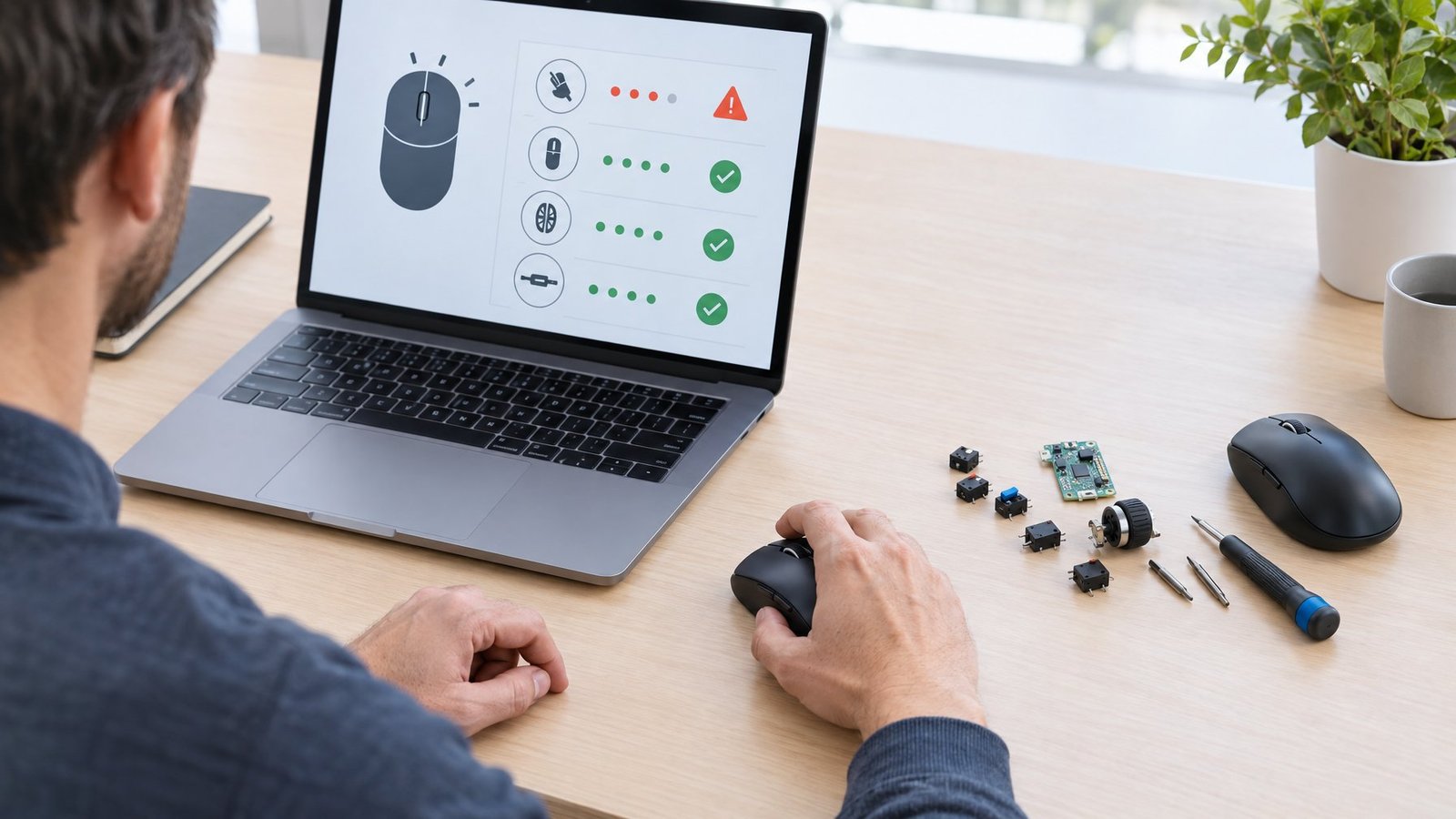
| Test result | Most likely cause | Fix to try |
|---|---|---|
| Single clicks open files, tester shows clean clicks | File Explorer single-click setting | Switch back to double-click to open |
| Files grab and release on their own | ClickLock | Turn off ClickLock |
| Problem only on one computer | Settings, drivers, mappings or USB port | Check settings, button mappings, drivers and a direct port |
| Wireless mouse acts up randomly | Battery or signal | Recharge, re-pair, move the receiver to USB 2.0 |
| Tester shows false doubles on every PC | Worn switch | Debounce tool now; then clean, tighten, swap, claim warranty or replace |
| Drag drops items mid-move | Worn switch | AutoHotkey script as a stopgap; then the same hardware fixes |
Start at the top and stop at the first fix that holds up through a 50-click test and a drag test. If the mouse is under warranty, file the claim before opening the case.
Frequently Asked Questions
Usually the microswitch under the button is worn or oxidized and bounces, so the mouse reports two presses. If a click tester shows false doubles on more than one computer, the mouse hardware is at fault.
Run a click tester first. If clicks register cleanly, set File Explorer to double-click to open items and turn off ClickLock in Additional mouse settings. If the tester shows false doubles, the switch is worn: use a debounce tool as a stopgap, then clean, repair or replace the switch.
Yes. Replacing the worn microswitch, or the mouse, removes the cause. Cleaning, tightening the switch spring and debounce settings can work for a while but are often temporary.
Games involve rapid clicking and holding the button to fire or aim, which exposes a bouncing switch and dropped holds sooner than normal use. Check for macros or remapped buttons in your mouse software, then run a click tester.
No. It only changes how your operating system groups separate clicks. A worn switch sends its extra signal within milliseconds, so it counts as a double click at any speed setting.
Yes, if both are the same type. Moving the nearly new side-button switch to the left-click position is a common free fix, but it needs soldering.
Yes. The script only filters left-button signals while it runs. It does not modify the mouse or Windows. Right-click its tray icon and choose Exit to turn it off.
Mice with optical switches read clicks with light instead of metal contacts, so they do not suffer contact bounce. They are the best choice if you are replacing a mouse because of double clicking.

I’m Anirban Saha, Founder & Editor of TechBullish. With a B.Tech in Electronics and Communication Engineering, and 6+ years of experience as a software developer, I have expertise in electronics, software development, gadgets, and computer peripherals. I love sharing my knowledge through informational articles, how-to guides, and troubleshooting tips for Peripherals, Smart TVs, Streaming Solutions, and more here. Check Anirban’s Crunchbase Profile here.
