
Most mouse problems come down to a handful of simple causes: dead batteries, a loose receiver, a bad USB port, a dirty sensor, or a driver that stopped loading. To fix a mouse that is not working, check the power and connection first, move it to a different USB port, restart the computer, and then reinstall the driver in Device Manager if the cursor still won’t respond. Those steps solve the vast majority of cases without spending a dime.
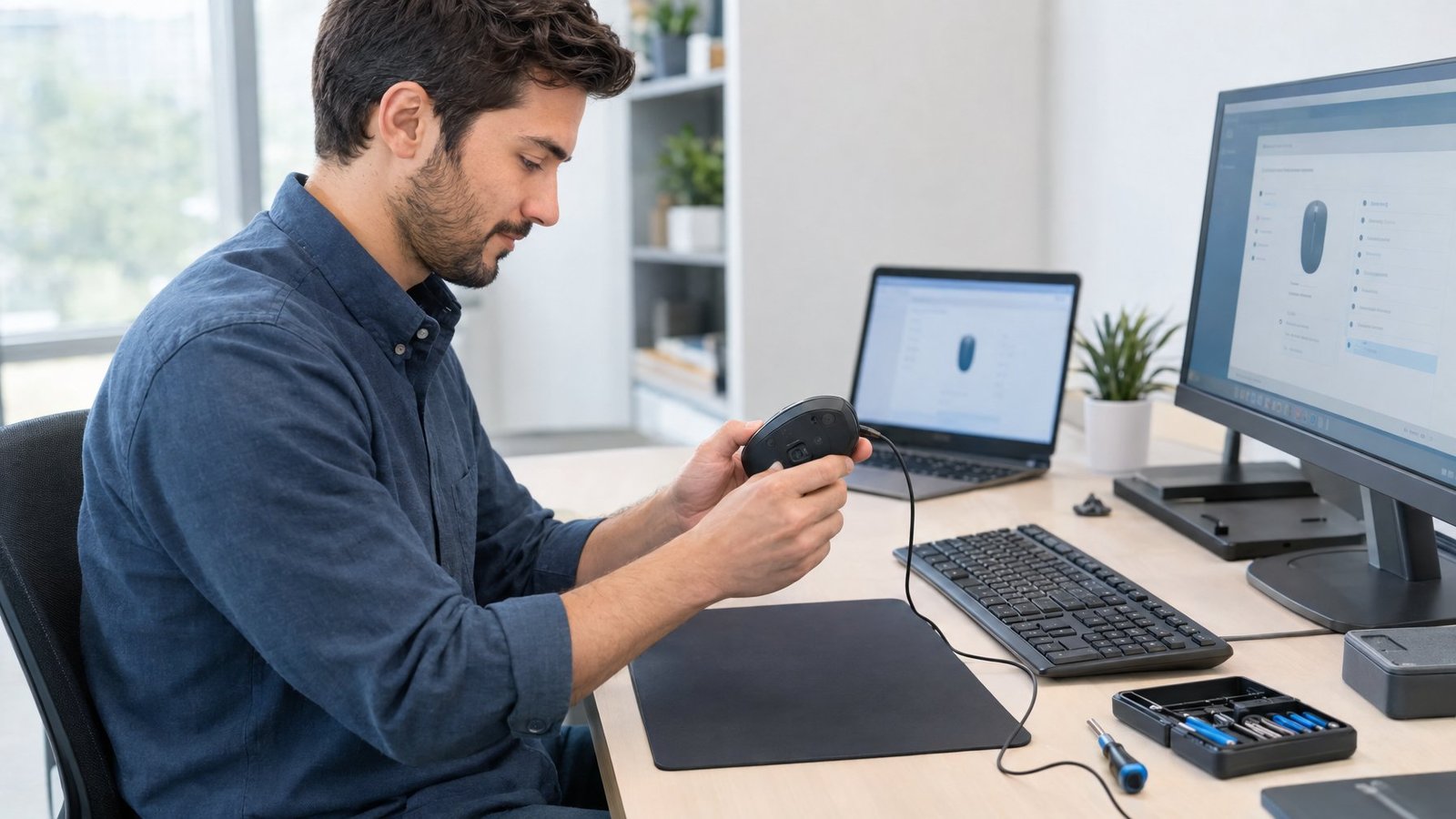
The trick is working in the right order. Swapping batteries takes ten seconds, while digging through driver settings takes much longer. Start with the fast physical checks, and you’ll know within a few minutes whether the problem lives in the mouse, the port, or Windows itself.
What Should You Check First?
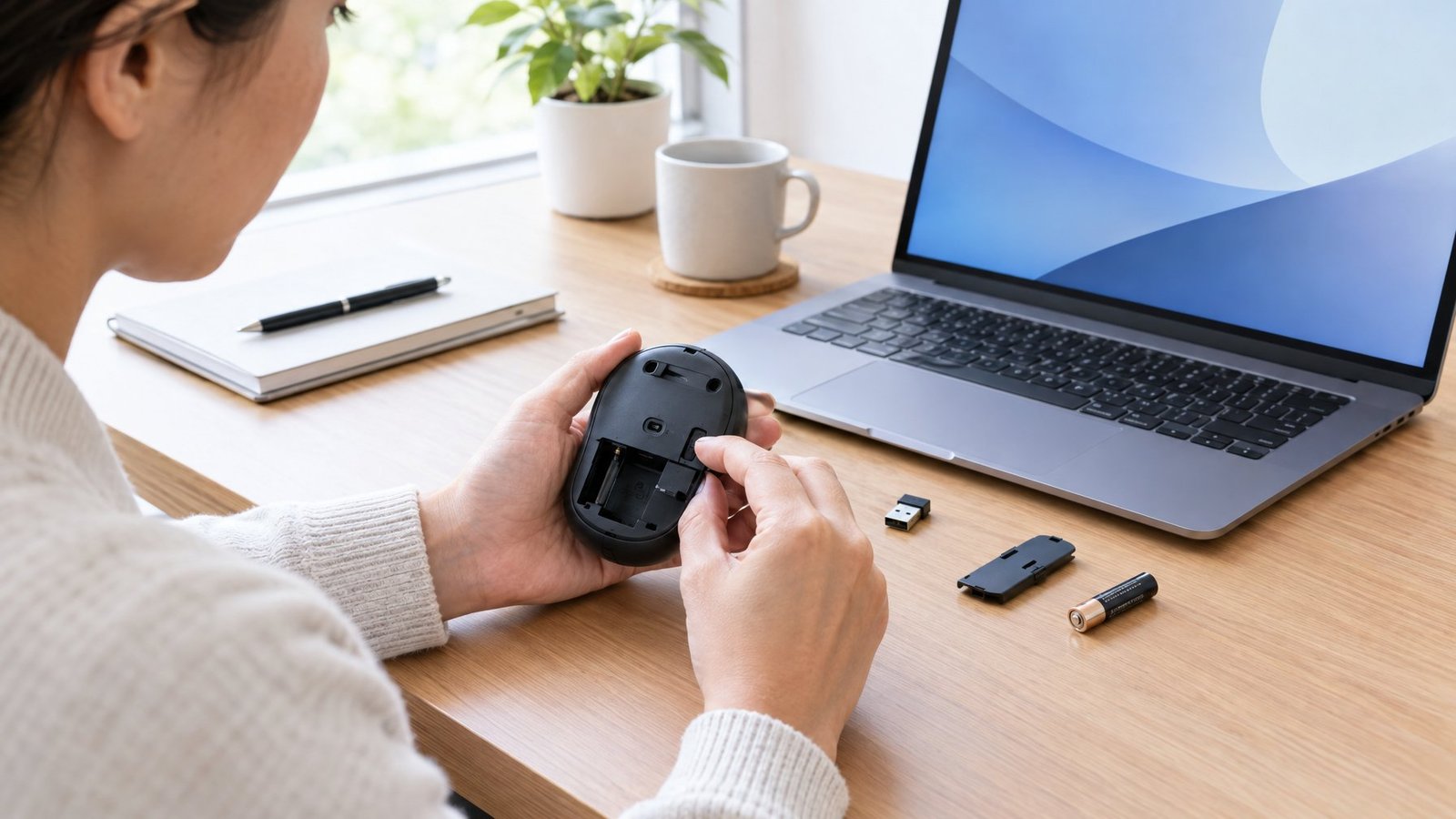
Start with power and physical connections, since they cause most dead-mouse moments. Fresh batteries, a direct USB port connection, a restart, and a quick sensor cleaning fix most failures before you ever open a settings menu.
Check the Power, Batteries, and Cables
Flip the mouse over and look for a power switch. Many wireless mice have a small slider on the bottom, and it’s easy to bump it off when you toss the mouse in a bag.
Next, check the power source:
- Battery mice: Swap in fresh batteries, even if the old ones seem fine. Weak batteries cause lag and skipping before they die fully.
- Rechargeable mice: Plug in the charging cable for 10 to 15 minutes, then try again.
- Wired mice: Run your fingers along the cable and look for kinks, fraying, or bent spots near the plug.
If the mouse has an LED under it or on top, watch for it. No light at all often points to a power or cable problem.
Try Another USB Port and Bypass the USB Hub
Unplug the mouse or its receiver, wait a few seconds so Windows can unload the driver, and plug it back in. If nothing changes, move it to a different USB port on the computer.
A USB hub adds another spot where things can fail. If you use one, make sure it has power. Unpowered hubs struggle to run several devices at once. Better yet, plug the mouse directly into the computer to rule the hub out. Our guide to the connectors on the back of a computer to attach a mouse can help you pick the right port on a desktop.
Restart the Computer and Clean the Mouse Sensor
A restart clears stuck drivers and background glitches. If the mouse is dead, use the keyboard: press the Windows key, then Tab and arrow keys to reach the power button, or press Ctrl + Alt + Delete and use the power icon.
While the computer reboots, clean the mouse:
- Turn the mouse off or unplug it.
- Blow gently on the sensor window or use a can of compressed air.
- Wipe it with a cotton swab dampened with a little rubbing alcohol.
- Check the mouse pad for crumbs, hair, or shiny spots.
Glass desks and glossy surfaces confuse many optical sensors, so test the mouse on a plain mouse pad or a sheet of paper.
How Do You Reconnect a Wireless Mouse?
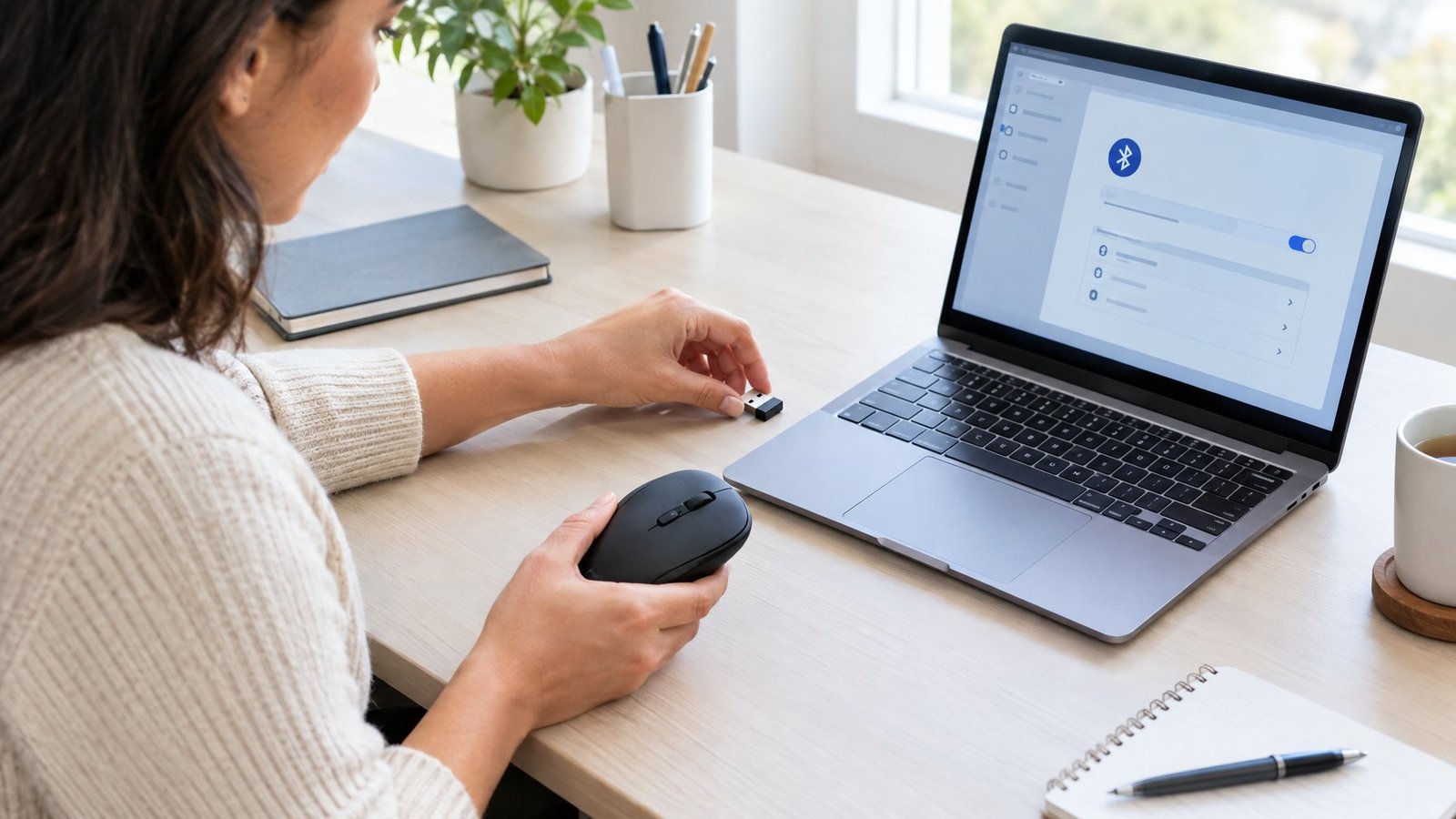
Reconnecting a wireless mouse means resetting the link between the mouse and the computer, either through its USB receiver or through Bluetooth. Once the link is back, clearing away nearby interference keeps it stable. For more model-specific tips, see our full guide on a wireless mouse not working.
Reconnect the USB Receiver
Many wireless mice use a tiny USB dongle. Pull it out, wait about 10 seconds, and plug it back in. The connection often returns on its own.
If it doesn’t, look for a Reset or Connect button on the bottom of the mouse. Some receivers have one too. Pressing it drops the wireless link and builds it again.
A few other checks help:
- Make sure you’re using the receiver that came with that mouse. Receivers are paired to specific devices.
- Move the receiver to a front USB port on a desktop so it sits closer to the mouse.
- Use a short USB extension cable if the receiver sits behind a metal PC case.
Check Bluetooth and Pair the Mouse Again
For a Bluetooth mouse, open your Bluetooth settings first. In Windows 11, go to Start > Settings > Bluetooth & devices and confirm Bluetooth is turned On. Some laptops also have a physical wireless switch, so check that as well. Airplane mode must be off.
If Bluetooth is on and the mouse still won’t work, pair it again:
- In Bluetooth & devices, find the mouse, select the three dots, and choose Remove device.
- Put the mouse in pairing mode. This usually means holding the connect button until a light blinks.
- Select Add device > Bluetooth and choose the mouse from the list.
If the mouse doesn’t show up, set Bluetooth devices discovery to Advanced under Bluetooth & devices > Devices. Our Bluetooth mouse not working fix covers more pairing problems.
Reduce Wireless Interference
Wireless signals get crowded fast. Keep the mouse within a few feet of its receiver, and clear metal objects out of the path.
Watch out for USB 3.0 devices plugged in near the receiver or Bluetooth adapter. Unshielded USB 3.0 drives and hubs can disrupt nearby wireless connections. Moving the receiver to a USB 2.0 port, or to a port on the other side of the computer, often fixes lag and dropouts right away. Wi-Fi routers and speakers parked beside your desk can also add noise.
What If the Mouse Still Does Not Work in Windows?
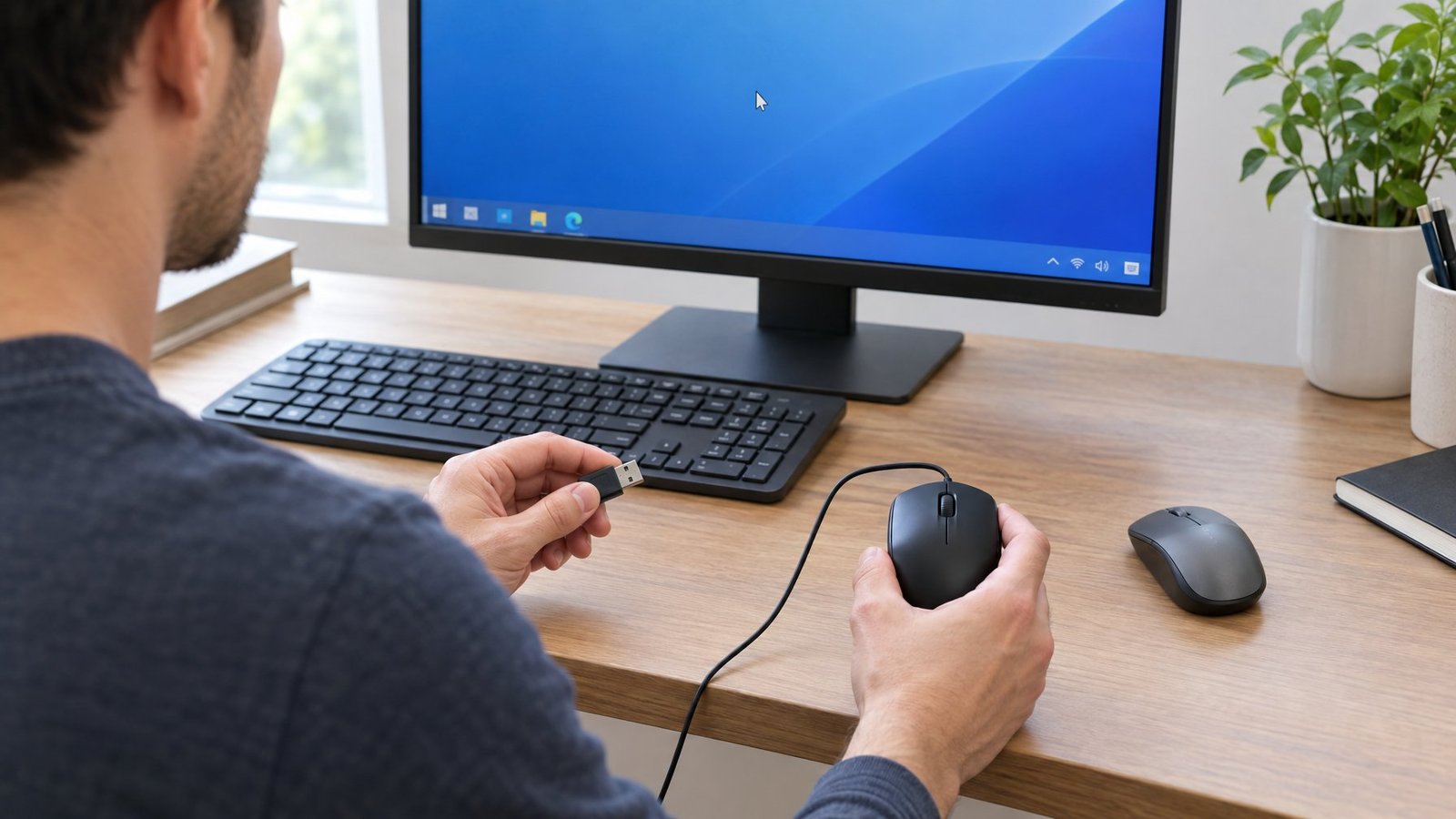
When the hardware checks pass, the fault is likely in Windows. Wrong settings, a broken driver, or a missing update can all make a working mouse act dead or strange.
Check Mouse Settings and Pointer Behavior
Open mouse settings at Start > Settings > Bluetooth & devices > Mouse. A few settings cause confusing problems:
- Primary mouse button: If left and right clicks seem swapped, set this back to Left.
- Mouse pointer speed: A slider set very low makes the mouse feel dead; set very high, it feels jumpy.
- Enhance pointer precision: Try turning it on or off if the pointer feels off at slow speeds.
Can’t find the cursor? Select Additional mouse settings, open the Pointer Options tab, and check Show location of pointer when I press the CTRL key. You can also turn on pointer trails there. On a multi-monitor setup, the cursor may simply be sitting on another screen.
Update or Reinstall the Driver in Device Manager
Device Manager lets you refresh the mouse driver. Right-click Start and choose Device Manager, then expand Mice and other pointing devices.
To update: right-click the mouse, choose Update driver, then Search automatically for drivers.
To reinstall:
- Save your work.
- Right-click the mouse and choose Uninstall device, then confirm.
- Restart the computer. Windows reinstalls the driver when it starts.
If the trouble began right after an update, open the mouse’s Properties, go to the Driver tab, and select Roll Back Driver. You need admin rights for this. Gaming mice often rely on brand software too, so check our guides if Logitech G Hub isn’t detecting your mouse or Razer Synapse isn’t detecting your mouse.
Check Windows Update and Available Troubleshooting Tools
Windows Update delivers most driver fixes. Type “check for updates” in the taskbar search, open it, and select Check for updates. Install anything pending and restart.
Troubleshooters have changed in recent years. Microsoft removed the old hardware troubleshooter (“Hardware and Devices”) from newer Windows 11 releases, and moved others to the Get Help app. For a Bluetooth mouse, open Get Help and search “Bluetooth troubleshooter” to run automatic diagnostics. You can also reach the current tools at Settings > System > Troubleshoot > Other troubleshooters.
If you’re still on Windows 10, keep in mind that Microsoft ended free updates and support on October 14, 2025, so new driver fixes won’t arrive through Windows Update.
How Can You Tell What Is Causing the Problem?
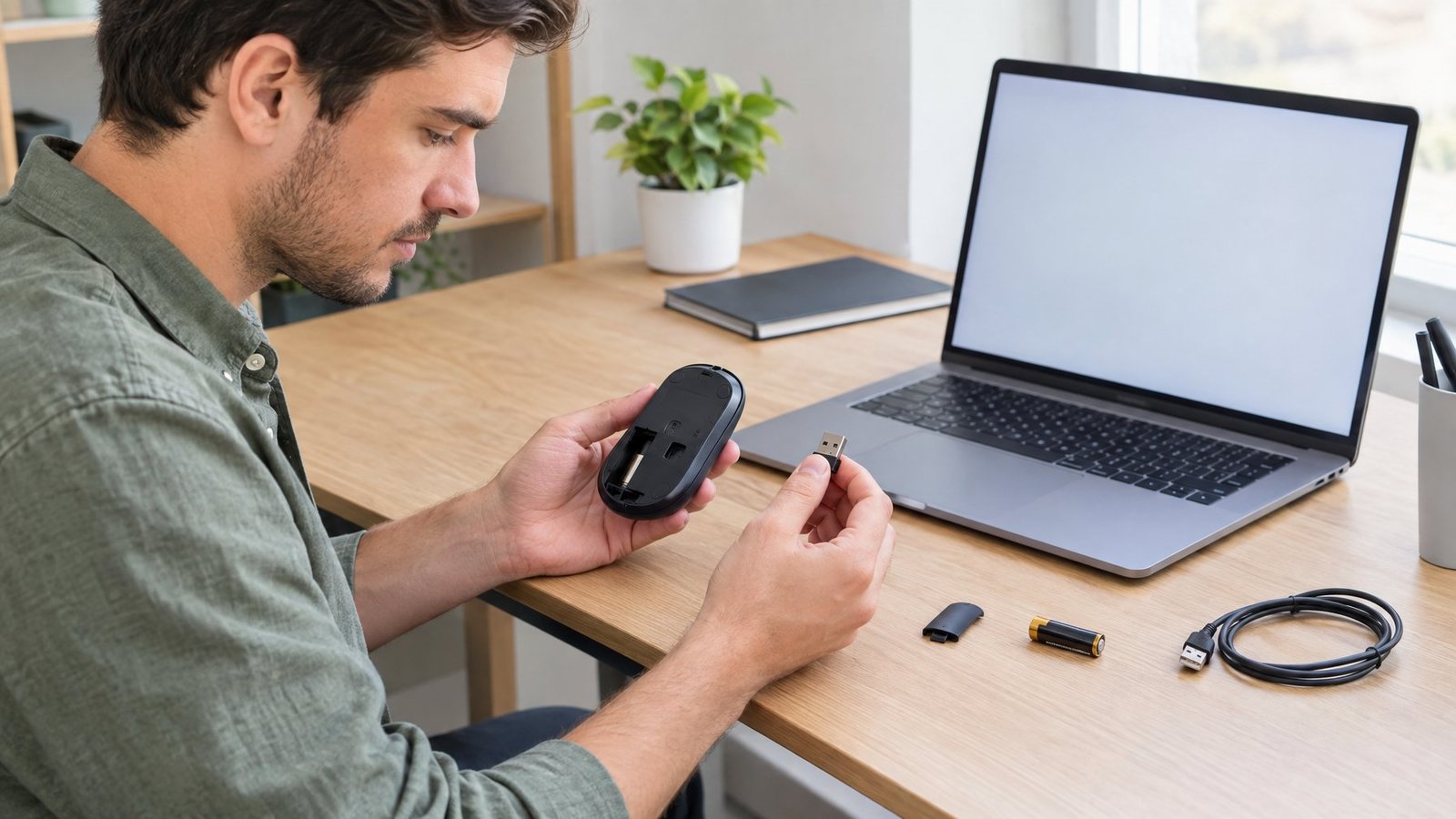
The way a mouse fails tells you a lot about why it failed. A frozen cursor, dead buttons, and random drops each point to a different culprit, and testing on another computer settles whether the mouse itself is broken.
The Cursor Will Not Move
A cursor that won’t budge usually means no power or no connection. Check these in order:
- Is the power switch on, and does the LED light up?
- Is the receiver or cable seated firmly in a working port?
- Does the cursor move on a different surface?
If the pointer appears but stays frozen, Windows may have stalled. A restart often clears it. If there’s no pointer at all, press Ctrl to use the pointer-location feature, if enabled, or check your other monitors.
The Mouse Moves, but Clicks Do Not Work
When movement works but clicks don’t, the connection is fine. The problem sits in the buttons or settings.
First, check the Primary mouse button setting to rule out swapped buttons. Then test the clicks in a different app, since one frozen program can ignore input. If the button feels mushy, sticks, or double-clicks on its own, the switch inside is wearing out. That’s a common failure on mice used heavily for years. For wheel clicks, see our guide on a middle mouse button not working.
The Mouse Lags, Jumps, or Disconnects
Lag and jumping usually come from weak batteries, a dirty sensor, a bad surface, or wireless interference.
Try these fixes:
- Replace or recharge the batteries.
- Clean the sensor and switch to a matte mouse pad.
- Move the receiver closer, away from USB 3.0 devices.
- Turn off USB power saving in Device Manager. Open Universal Serial Bus controllers, right-click each USB Root Hub, choose Properties > Power Management, and uncheck the option that lets the computer turn off the device.
Test the Mouse on Another Computer
Plugging the mouse into a second computer is the fastest way to split a mouse problem from a computer problem.
- Works on the other computer: The mouse is fine. Focus on your ports, drivers, and settings.
- Fails on both: The mouse is likely broken.
Some mice need a driver or brand software to work fully, so install it on the test computer if needed. You can also try a different mouse on your own computer for the same answer from the other side.
Knowing When to Replace the Mouse
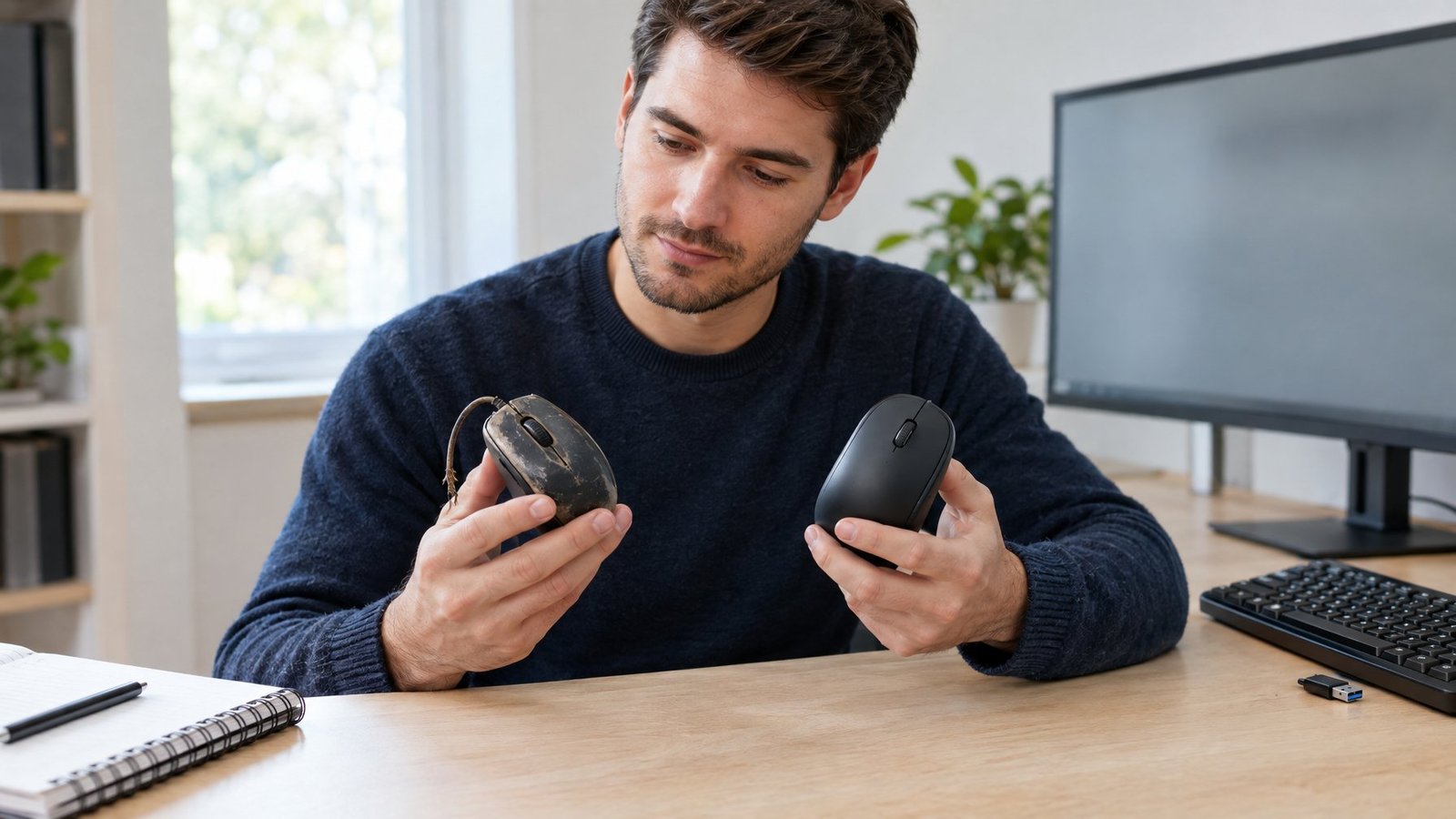
Replace the mouse when it fails on a second computer, or when physical parts are clearly worn out. At that point, more troubleshooting won’t bring it back.
Signs a mouse is done:
- It doesn’t work on any computer, even with fresh batteries and a new port.
- Buttons double-click on their own or stop registering.
- The scroll wheel skips or scrolls the wrong way.
- The cable is frayed, or the connection drops only when you bend it.
- A rechargeable battery won’t hold a charge for more than a few hours.
Cheap office mice rarely justify repair. Buttons and wheels do wear out with use, and our articles on whether a computer mouse wears out and typical computer mouse lifespan explain what to expect.
Before buying, check the warranty. Many brands cover mice for one to three years, and a free replacement beats paying for a new one. If you do shop, our comparison of a gaming vs normal mouse helps you pick the right type for how you work.
Getting Your Mouse Working Again
Work from the simplest fix to the most complex. Check power, batteries, and cables first, then try a different port and skip any hub. Restart and clean the sensor before touching settings.
For wireless mice, replug the receiver or re-pair over Bluetooth, and keep USB 3.0 gear away from the signal. If Windows is the problem, check mouse settings, reinstall the driver in Device Manager, and run Windows Update. When the mouse fails on a second computer too, it’s time for a replacement.
Frequently Asked Questions
How can I fix an unresponsive mouse?
Start by checking the power switch, batteries, and connection, then move it to another USB port. If that fails, restart the computer and reinstall the driver in Device Manager. Testing it on another computer tells you if the mouse itself has died.
Why is my cursor unresponsive even though the mouse is on?
A powered-on mouse with a frozen cursor usually has a broken link to the computer. The receiver may be loose, Bluetooth may be off, or the driver may have failed to load. Replug the receiver or re-pair the mouse, then restart Windows.
How can I reset my mouse?
Many wireless mice have a small Reset or Connect button on the bottom that restarts the wireless link. You can also turn the mouse off, remove the batteries for 10 seconds, and put them back. In Windows, removing and re-adding the device in Bluetooth settings works as a software reset.
First, check that the primary mouse button is set to Left in Windows mouse settings. Then test the click in another app and on another computer. If it fails everywhere, the switch inside is likely worn and the mouse needs replacing or a warranty claim.
Why does my wireless mouse keep disconnecting?
Weak batteries and wireless interference cause most dropouts. Replace the batteries, keep the receiver close and away from USB 3.0 devices, and turn off USB power saving in Device Manager. If drops continue on another computer, the mouse’s radio may be failing.

I’m Anirban Saha, Founder & Editor of TechBullish. With a B.Tech in Electronics and Communication Engineering, and 8+ years of experience as a software developer, I have expertise in electronics, software development, gadgets, and computer peripherals. I love sharing my knowledge through informational articles, how-to guides, and troubleshooting tips for Peripherals, Smart TVs, Streaming Solutions, and more here. Check Anirban’s LinkedIn Profile here.
