
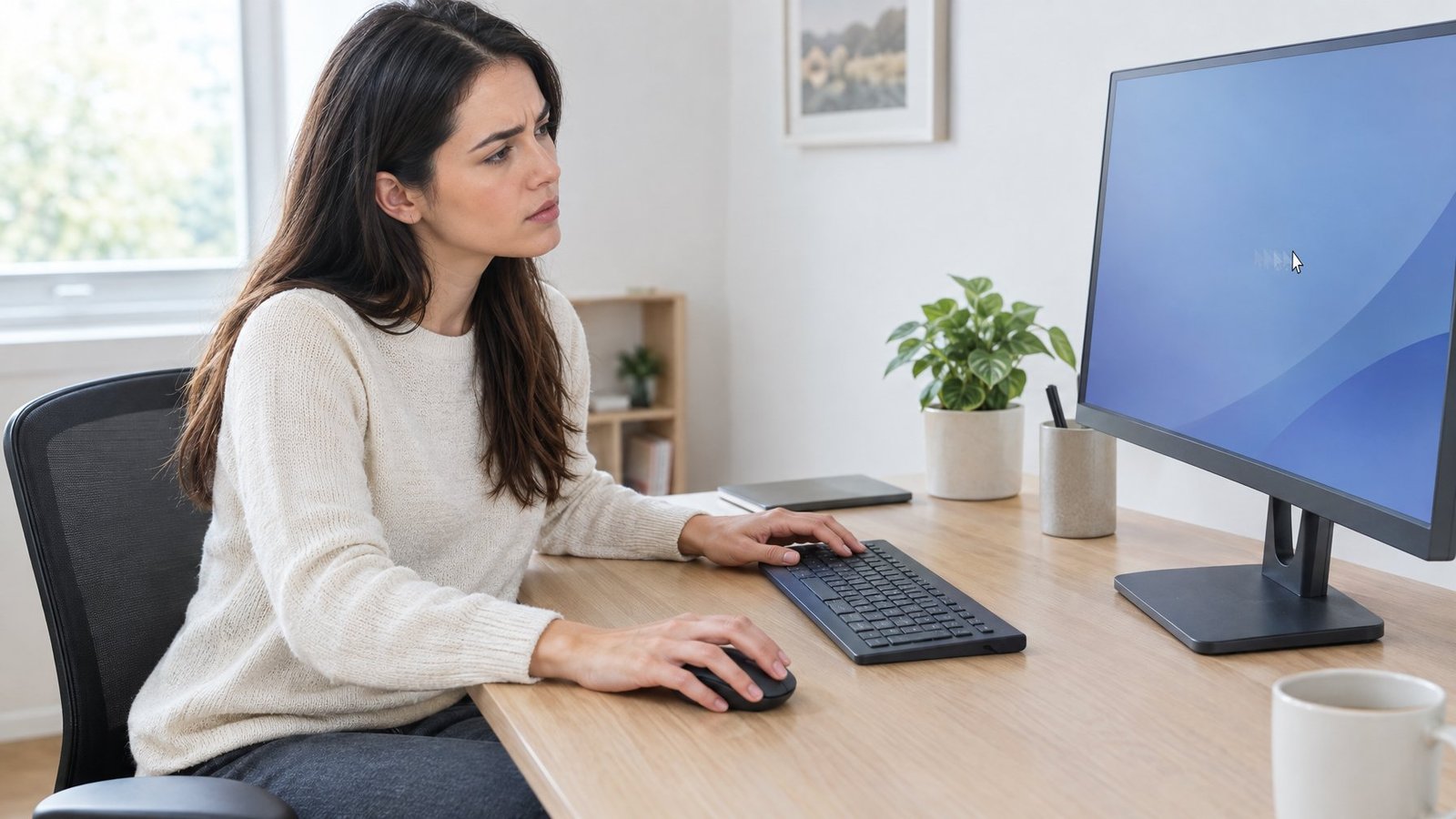
A laggy mouse pointer is one of those small annoyances that can derail a whole afternoon of work or gaming. The cursor sticks, jumps, or ignores you for a split second, and suddenly every click feels like a gamble.

Mouse lag usually comes from one of four places: the mouse itself, the connection it uses, a Windows setting, or something going on inside your PC. Mouse stuttering is most often caused by a dirty sensor, a weak wireless signal, a power-saving setting, or background programs eating up your system’s resources. The good news is that most of these causes take just a few minutes to check and fix.
We’ve worked through this exact problem on more machines than we can count, and the pattern is almost always the same: start with the hardware, move to the software, and only then look at bigger system issues. That order saves time and rules out the easy fixes first.
What Kind of Lag Are You Seeing?
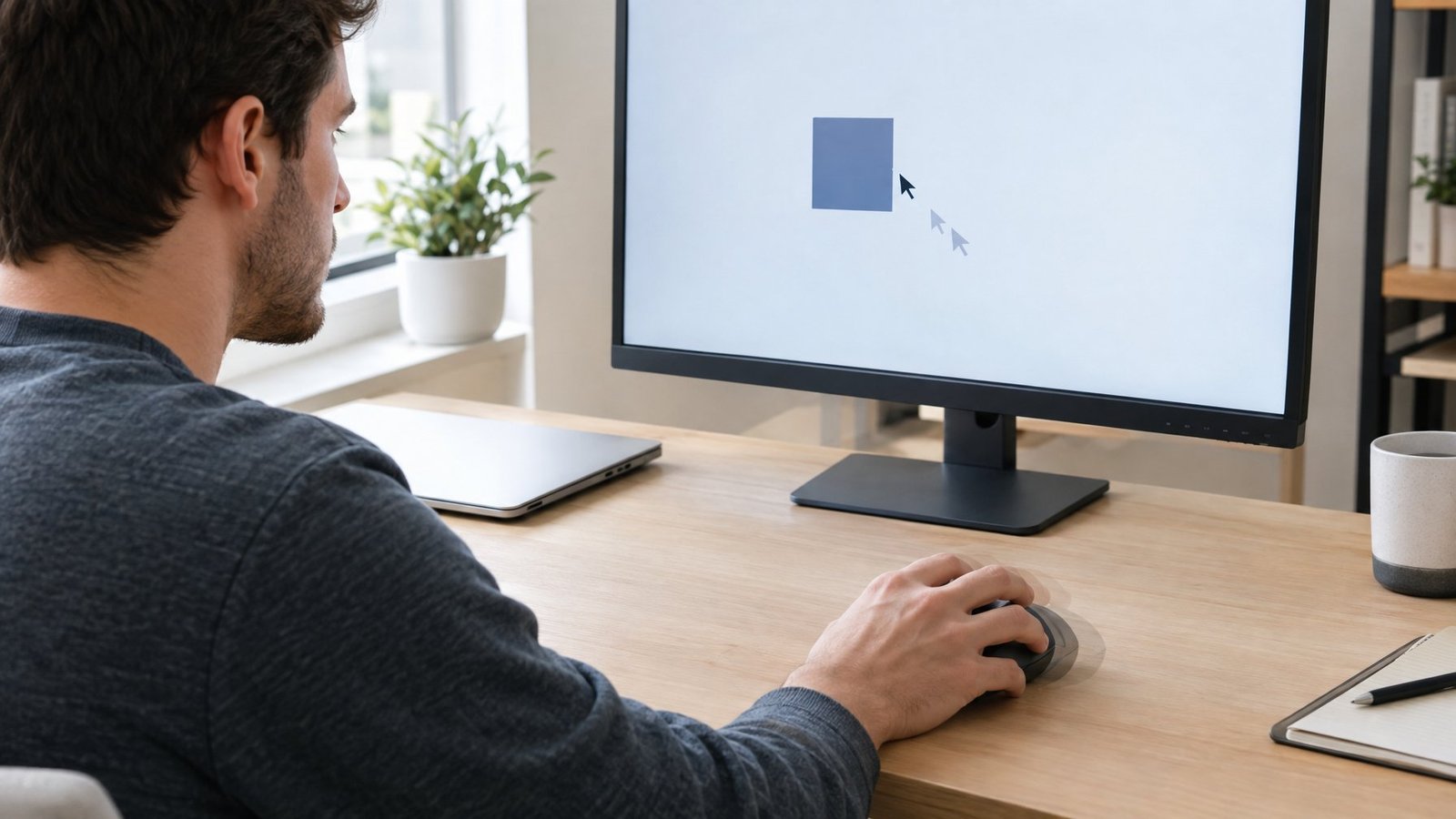
Figuring out why your mouse is lagging starts with naming exactly what the pointer does wrong and whether the problem travels with the mouse or stays put on one PC. Those two details point you toward the right fix much faster than guessing.
Is the Pointer Slow, Jumping, or Freezing?
A pointer that moves sluggishly often points to a software setting like pointer speed or a system that’s too busy to keep up. A cursor that jumps or skips across the screen usually means a tracking problem, like a dirty sensor or a bad surface. A pointer that freezes completely for a second or two is a strong sign of a wireless or Bluetooth connection drop.
Watching exactly how the cursor misbehaves narrows your search before you touch a single setting.
Does the Problem Follow the Mouse or Stay with the PC?
Test the mouse on another computer, or try a different mouse on your own PC. If the lag follows the mouse to a new computer, the mouse or its receiver is likely the problem. If a different mouse lags on your PC too, the cause is more likely in Windows or the system itself.
Check the Mouse and Connection First
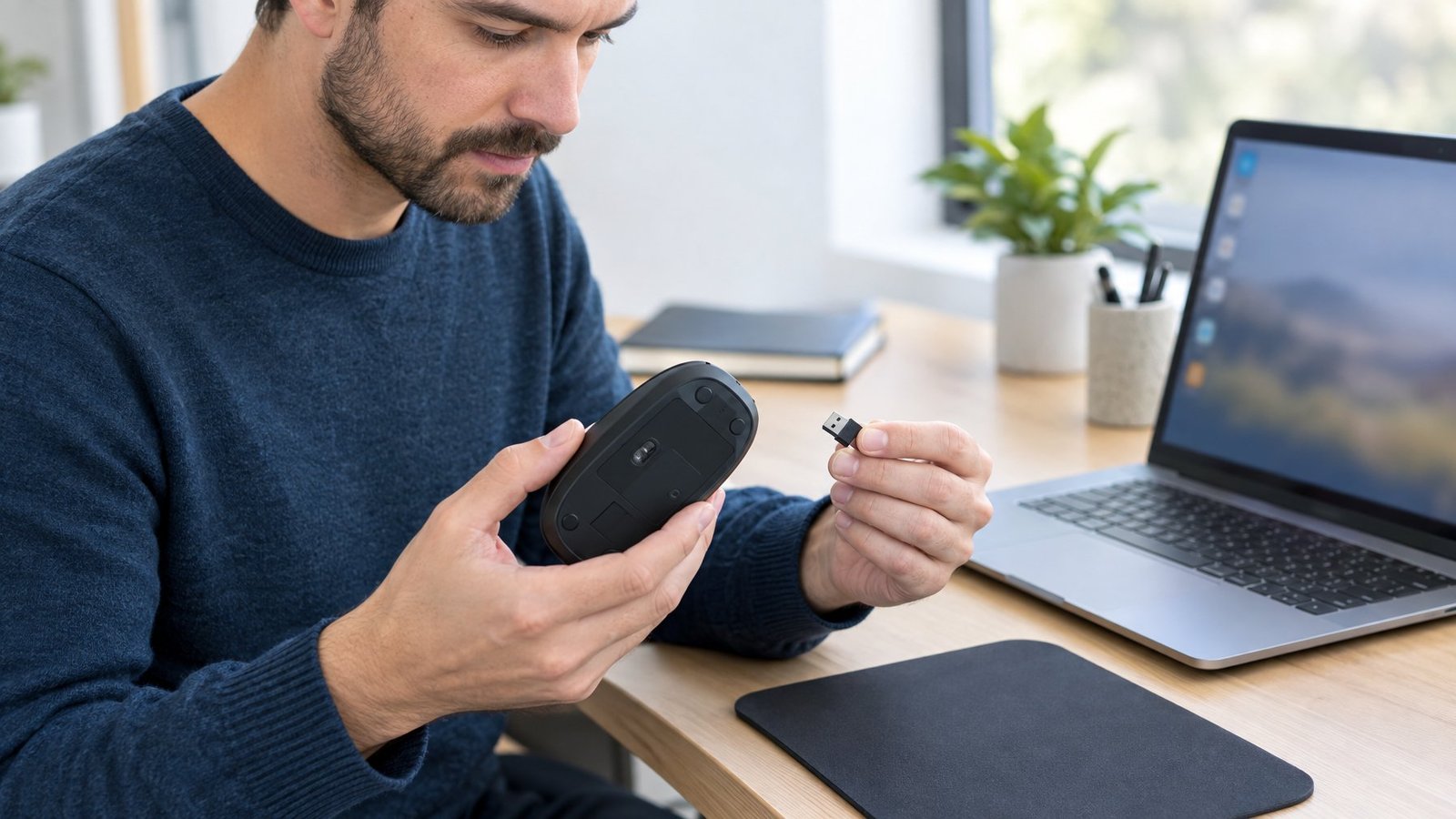
Hardware issues cause a surprising share of lag complaints, and they’re the fastest to rule out. A dirty sensor, a loose USB port, or a wireless receiver sitting too far away can all make a perfectly good mouse feel broken.
Clean the Sensor and Test a Different Surface
Flip the mouse over and wipe the sensor lens clean of dust or lint. Then test it on a plain white sheet of paper to see if the surface you normally use, like a glossy desk or a patterned mouse pad, is confusing the sensor. Glass, glossy, and highly reflective surfaces are common culprits for a jumpy pointer.
Try Another Port for a Wired Mouse
Unplug a USB mouse, wait a few seconds, and plug it into a different USB port directly on the PC. If you’re running it through a USB hub, make sure the hub has its own power and try bypassing it entirely. A loose or failing port is an easy thing to overlook.
Move the Wireless Receiver and Check the Battery
Wireless mouse lag often comes down to distance and interference. Keep the USB receiver within about 20 cm of the mouse, and keep both at least 2 meters away from Wi-Fi routers and other 2.4 GHz devices that can cause wireless interference. Low batteries also cause stuttering well before the mouse stops working completely, so swap in fresh batteries or recharge before ruling out anything else. For a deeper look at connection problems specific to wireless models, our guide on wireless mouse not working covers more ground.
Reconnect a Bluetooth Mouse
A Bluetooth mouse lag that only shows up after the mouse has been idle is often just the device waking up. Bluetooth accessories hibernate after 8 to 10 minutes of inactivity to save battery, and reconnecting can take a couple of seconds. If the lag is constant rather than just at wake-up, remove the device from Bluetooth settings and pair it again. Our walkthrough on getting a bluetooth mouse not working fix has more detailed pairing steps.
Which Windows Settings Could Be Affecting the Pointer?
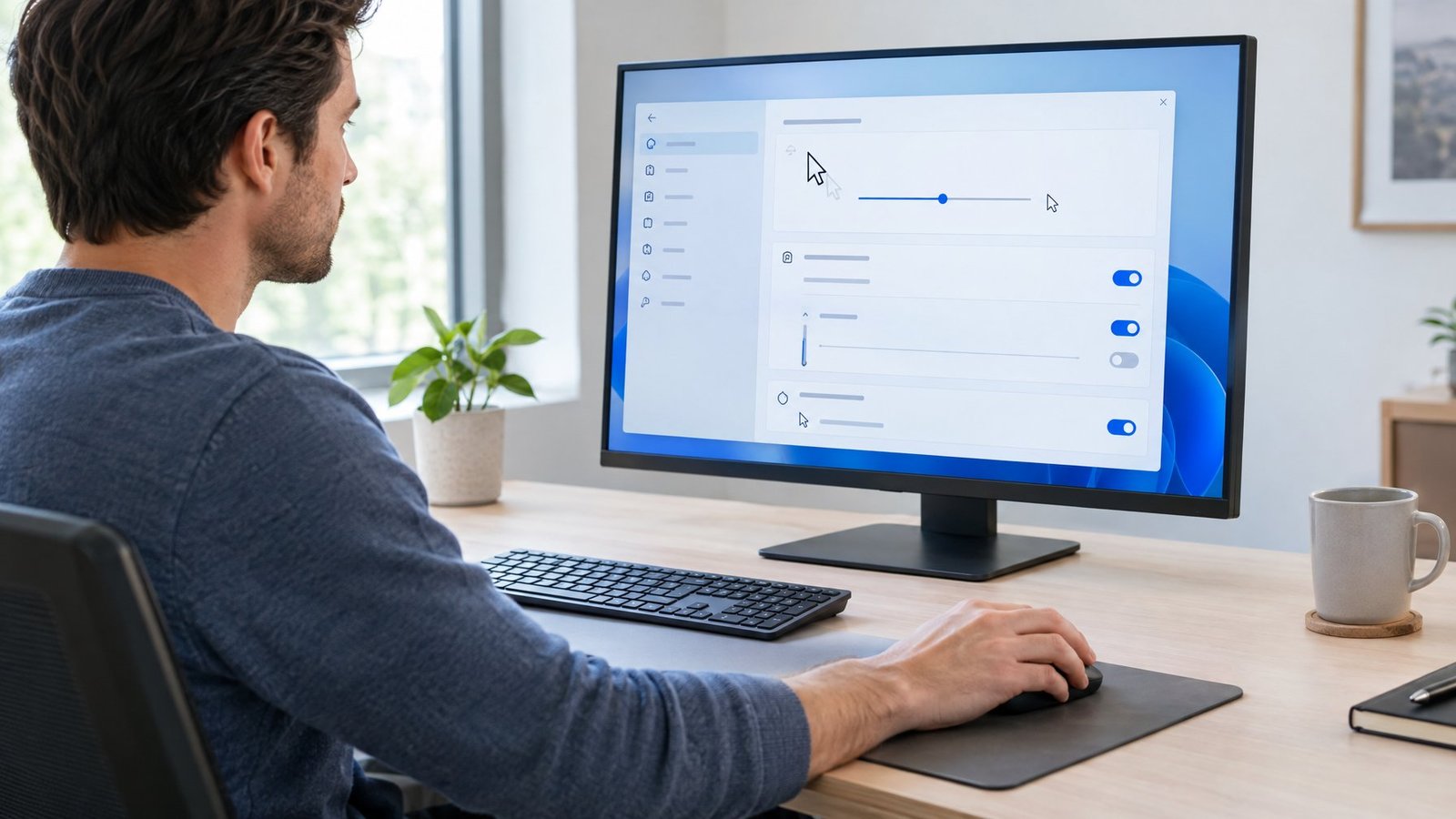
Windows has several settings that directly affect how smooth the pointer feels, and a few power-saving options that can make a wireless or Bluetooth mouse feel sluggish without any obvious warning. Checking pointer speed, visual effects, and USB power settings covers most of what Windows controls.
Adjust Pointer Speed and Test Acceleration
Open Settings > Bluetooth & devices > Mouse and use the pointer speed slider to see if a different speed feels smoother. Mouse acceleration, controlled by the Enhance pointer precision checkbox under Additional mouse settings > Pointer Options, changes how the cursor speeds up based on how fast you move the mouse. Turning this off gives a flat, predictable motion that some people find fixes a feeling of lag that was really inconsistent acceleration. If sensitivity still feels off after adjusting, our guide on how to fix mouse sensitivity walks through more tuning options.
Turn Off Pointer Trails and Test Scrolling
Display pointer trails can make a cursor look like it’s lagging when it’s actually working fine. Turn this off in the Pointer Options tab and see if the “lag” disappears. If your mouse lags only when scrolling, check whether Scroll inactive windows when hovering over them is causing conflicts, and adjust the lines-per-scroll setting to something lower.
Check USB and Bluetooth Power Management
Windows uses USB selective suspend and similar power-saving features to save battery, but they can introduce a noticeable delay when a wireless receiver or Bluetooth adapter wakes from an idle state. In Device Manager, find your USB root hub or Bluetooth adapter, open its Properties, go to the Power Management tab, and uncheck Allow the computer to turn off this device to save power. Restarting the Bluetooth Support Service through the Services app can also clear up a stuck connection.
When Is the PC or Display Causing the Delay?
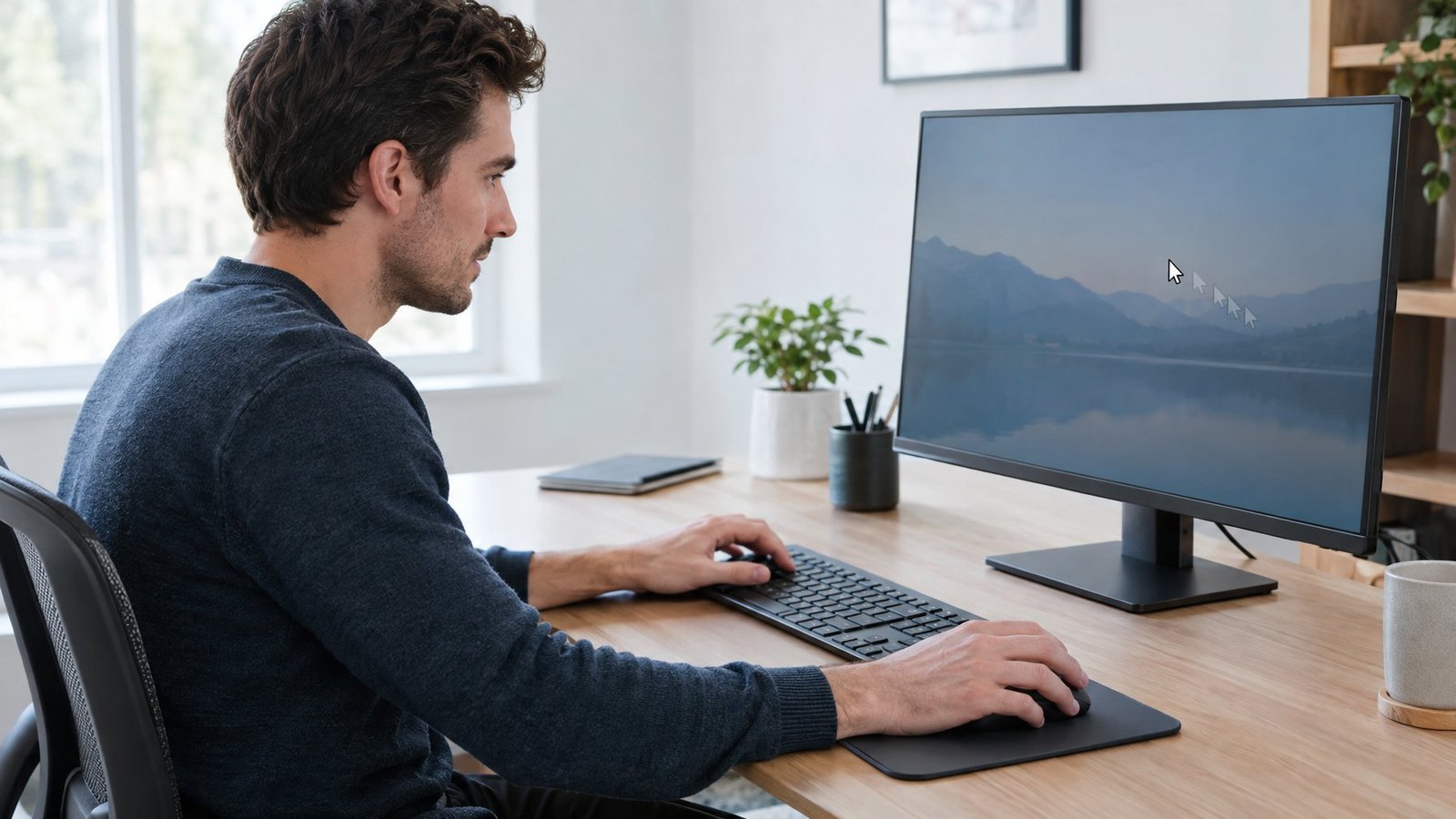
A mouse that lags across every surface, every USB port, and every Windows setting usually has a system-level cause, like a busy processor, an outdated driver, or a display setting fighting with your games. These issues take a bit more digging, but they’re just as fixable.
Check System Load and Background Processes
Open Task Manager with Ctrl + Shift + Esc and check the Processes tab for anything hogging CPU or memory. A system under heavy load has less room to process mouse input smoothly, and background processes are a common hidden cause. Running a malware and viruses scan through Windows Security is also worth doing, since malware can quietly consume resources and slow everything down, including cursor response.
Update Windows and the Relevant Drivers
Go to Settings > Windows Update and install any pending Windows updates, including optional driver updates. Then check Device Manager for outdated mouse drivers or chipset drivers tied to your USB controllers. Driver mismatches are a quiet but common reason a mouse that worked fine last month suddenly stutters this month. If general input problems persist after updating, our article on how to fix mouse not working covers related troubleshooting.
Rule Out Mouse Software and Startup Conflicts
Software conflicts between mouse utilities like Logitech Options, Logi Options+, Logitech G HUB, or Razer Synapse and other startup programs can cause stutter. A clean boot, which starts Windows with only essential drivers and startup programs, helps isolate whether a background app is the culprit. If you use Razer peripherals and the software isn’t recognizing your device at all, see our piece on razer synapse not detecting mouse.
Check Display Settings If Lag Happens in Games
If the lag only shows up in games, check your monitor refresh rate under Settings > System > Display > Advanced display, since a mismatch between the game and your refresh rate can look like cursor lag. Variable refresh technologies like G-Sync, FreeSync, and adaptive sync reduce tearing and input delay in supported games. For windowed or borderless games, turning on Optimizations for windowed games in the Graphics settings can reduce frame latency as well. Readers chasing competitive responsiveness might also find our comparison of 144hz vs 240hz refresh rates useful.
Get Your Mouse Moving Smoothly Again

Most mouse lag traces back to something simple: a dirty sensor, a receiver placed too far away, a power-saving setting, or a background process stealing resources. Working through hardware first, then Windows settings, then system-level causes clears up the vast majority of cases without needing any special tools.
Keep the fix list in order next time the pointer starts acting up. Clean the sensor, check the connection, adjust the Windows settings that control speed and power management, then look at what else is running on the PC. That sequence saves time and usually finds the answer before you reach the last step.
Frequently Asked Questions
Why is my mouse lagging all of a sudden?
A sudden lag usually points to a recent change, like a Windows update, a new driver, a low battery, or a new program running in the background. Check Task Manager for anything new consuming CPU, and check Windows Update for recently installed updates that might need a driver rollback. A fresh restart often clears up temporary glitches too.
Why is my mouse lagging on a laptop?
Laptop touchpads and mice can lag due to USB power-saving settings that suspend ports to save battery life. Check Device Manager and uncheck the power-saving option for your USB controllers. Running on battery power with an aggressive power mode selected can also slow down overall system responsiveness.
Why does my mouse lag when I scroll?
Scrolling lag often comes from the “Scroll inactive windows when hovering over them” setting conflicting with certain apps, or from a high lines-per-scroll value. Lowering the scroll speed in Mouse settings usually smooths this out. A worn-out scroll wheel mechanism can also cause stuttering that feels like lag; our guide on how to fix mouse scroll wheel issues covers that scenario.
Why does my mouse lag only in games?
Game-only lag is often tied to display settings rather than the mouse itself, including refresh rate mismatches or windowed mode optimizations. Turning on Optimizations for windowed games and matching your monitor’s refresh rate to what the game expects can resolve this. Background recording or overlay software from gaming peripherals can also add a slight delay.
Why is my mouse freezing in Windows 11?
Freezing in Windows 11 is commonly linked to USB selective suspend, outdated drivers, or a background process using too much memory. Check Device Manager for driver issues and Task Manager for heavy background activity. A pending Windows update with a driver fix can also solve freezing that started after a recent system change.

I’m Anirban Saha, Founder & Editor of TechBullish. With a B.Tech in Electronics and Communication Engineering, and 6+ years of experience as a software developer, I have expertise in electronics, software development, gadgets, and computer peripherals. I love sharing my knowledge through informational articles, how-to guides, and troubleshooting tips for Peripherals, Smart TVs, Streaming Solutions, and more here. Check Anirban’s Crunchbase Profile here.
