
A dark keyboard usually comes down to one of a few simple causes: the backlight feature got turned off by a key combo, a software setting reset itself, or the device is running low on power. Most keyboards that stop lighting up can be fixed by pressing the correct function key combo or checking the brightness setting in your lighting software, with power and connection problems being the next most common cause.
We’ve walked plenty of people through this exact issue, and the fix is rarely complicated. It just takes checking a few spots most people skip.

A dead backlight feels like a bigger problem than it usually is. Before assuming something broke, it helps to rule out the easy stuff first: the hardware itself, the key combo that controls it, and the brightness or timeout setting. If you’re also dealing with keys that won’t type at all, that’s a separate issue covered in our guide on a laptop keyboard not working.
What Should You Check First?
Start by confirming your keyboard actually has a backlight, then find the right key combo to turn it on, and finally check whether the brightness is set to zero or has simply timed out. These three checks solve the problem for most people within a couple of minutes.
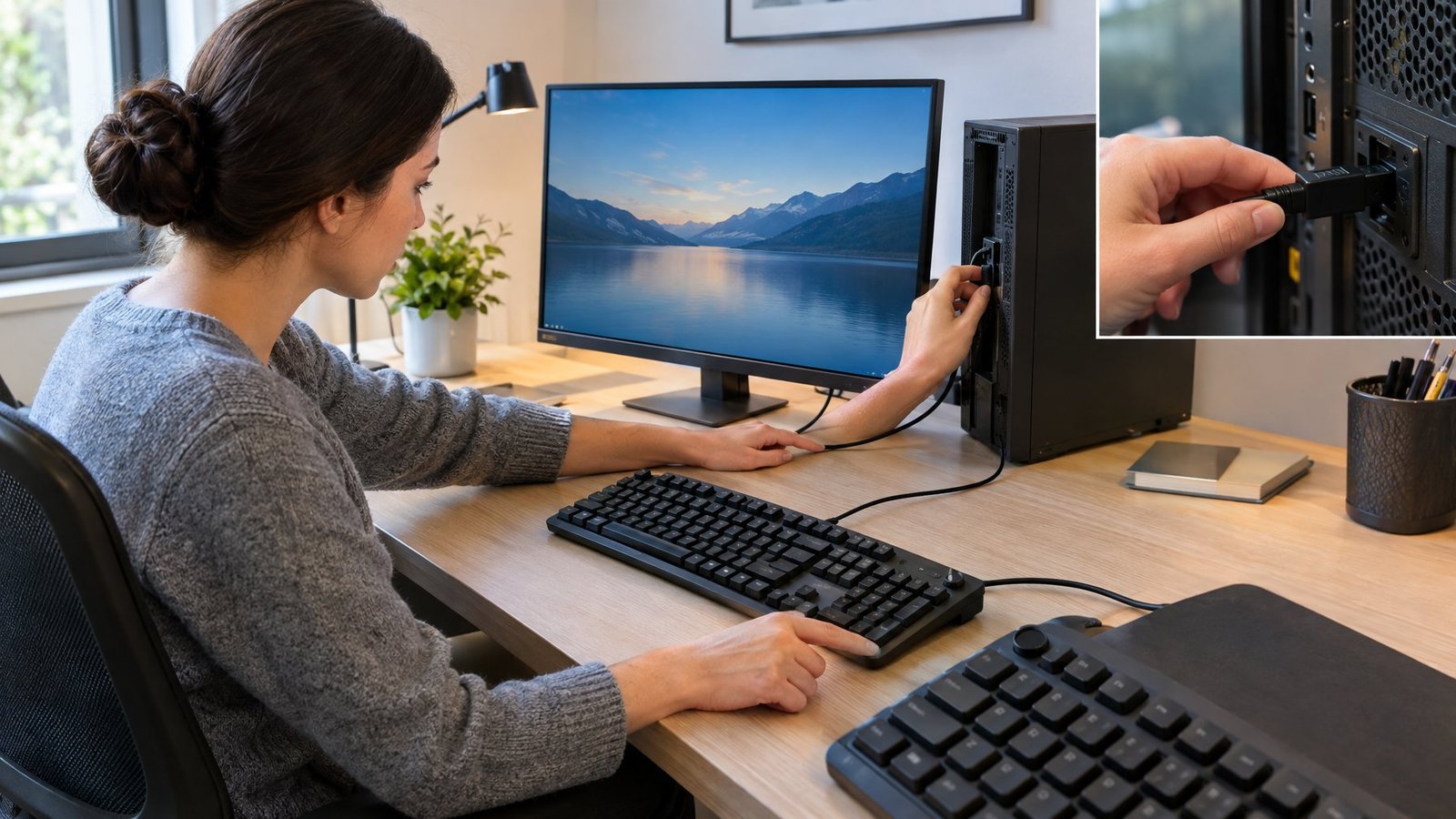
Does Your Keyboard Actually Have a Backlight?
Not every keyboard includes backlighting, even on laptops that look similar to models that do. Look for a small light icon printed on the Space bar or the Esc key. That icon is the clearest sign the hardware supports a backlight.
If there’s no icon on either key, the keyboard likely doesn’t have this feature built in, and no setting will turn on a light that isn’t there.
Which Key Turns the Backlight On?
Most laptops use a function key shortcut to toggle the backlight, and the exact combo depends on the brand. Common options include Fn + Space, Fn + F5, and Fn + F6. On many Lenovo laptops, Fn + Space or Fn + Esc cycles through off, low, and high brightness modes, and some models only support two brightness levels instead of three.
Try each shortcut a few times in a row, since one press might just dim it rather than switch it off completely.
Is the Brightness Set to Zero or Timing Out?
Sometimes the backlight works fine but it’s simply dialed all the way down or set to turn off automatically. Keyboard backlight timeout settings shut the light off after a period of no typing, which can look exactly like a broken backlight. Tap a few keys or move your hands over the keyboard to see if it wakes back up before assuming anything is wrong.
Where Can You Change Keyboard Lighting Settings?
Keyboard lighting is often controlled through software rather than hardware alone, so a setting change or app conflict can turn the light off without any actual malfunction. Windows has its own lighting controls on supported devices, laptop makers include their own apps, and gaming keyboards often run separate software that can clash with other lighting tools.
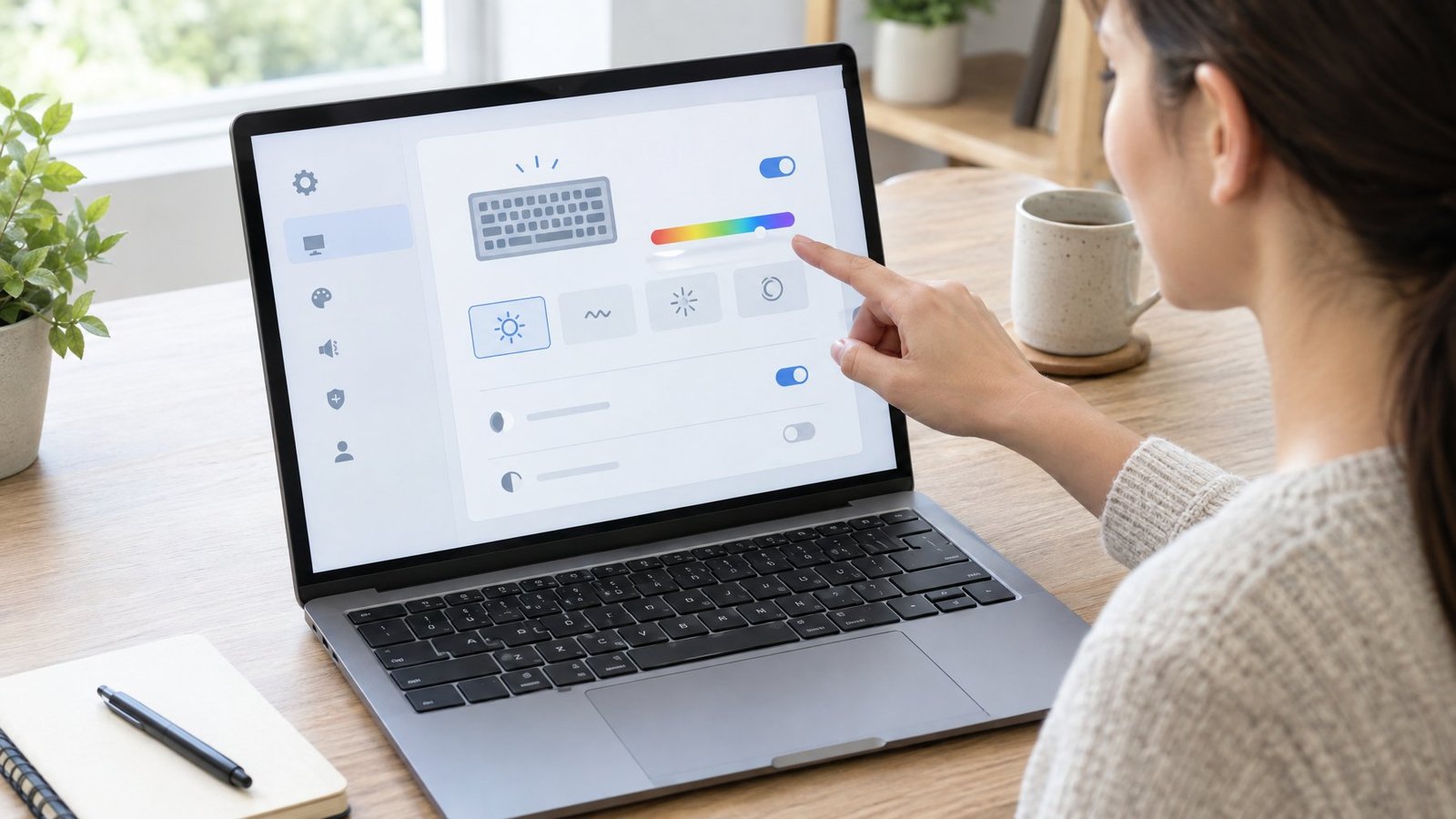
Check Windows Lighting Controls on Supported Devices
Windows 11 includes a built-in feature called Dynamic Lighting that manages RGB and LED devices, including some keyboards, directly from the Settings app. You’ll find it under Personalization > Dynamic Lighting, where you can adjust brightness, color, and effects for each connected device or apply settings globally.
One detail worth knowing: Dynamic Lighting ties ambient settings to the specific USB port a device is plugged into, so moving your keyboard to a different port can make it appear as a new device with reset settings. Also check whether “Compatible apps in the foreground always control lighting” is enabled, since another app running in the background might be overriding your brightness slider.
Check Your Laptop Manufacturer’s Keyboard Settings
Laptop brands often include their own software for managing the keyboard backlight alongside or instead of Windows controls. On Lenovo laptops, Lenovo Vantage has a dedicated keyboard backlight option under Device > Device Settings > Input & Accessories. If the backlight doesn’t respond to the Fn key shortcut, opening Lenovo Vantage and adjusting that setting directly is worth trying.
If you’re troubleshooting a Lenovo model specifically, our dedicated guide on a Lenovo keyboard not working fix covers more brand-specific steps. Dell owners dealing with a similar issue can check our Dell laptop keyboard not working guide as well.
Review Gaming Keyboard Profiles and App Conflicts
Gaming keyboards rely on brand software like Razer Synapse, Corsair iCUE, or Logitech G HUB to control lighting, and these apps can conflict with each other or with Windows Dynamic Lighting. In Razer Synapse, the Lighting tab lets you toggle device lighting on or off and choose Chroma effects. Corsair iCUE uses a Lighting Effects panel where you add color layers to each connected device. Logitech keyboards often need a dedicated Backlight key press to activate lighting before G HUB’s LIGHTSYNC settings take effect.
Running two of these apps at once is a common cause of lighting that won’t stick. If you’ve set a color or effect and it keeps reverting, check whether more than one lighting app is installed and close the one you’re not using. Our guide on Logitech G HUB not detecting keyboard fix covers related detection issues, and if you’re trying to set a specific color on a Redragon board, see how to change color on Redragon keyboard.
Could Power or a Connection Be Turning the Lights Off?
Low battery and unstable connections are a common reason backlighting cuts out even when every setting looks correct. Wireless keyboards in particular tend to dim or disable lighting first as a way to save battery life before anything else stops working.
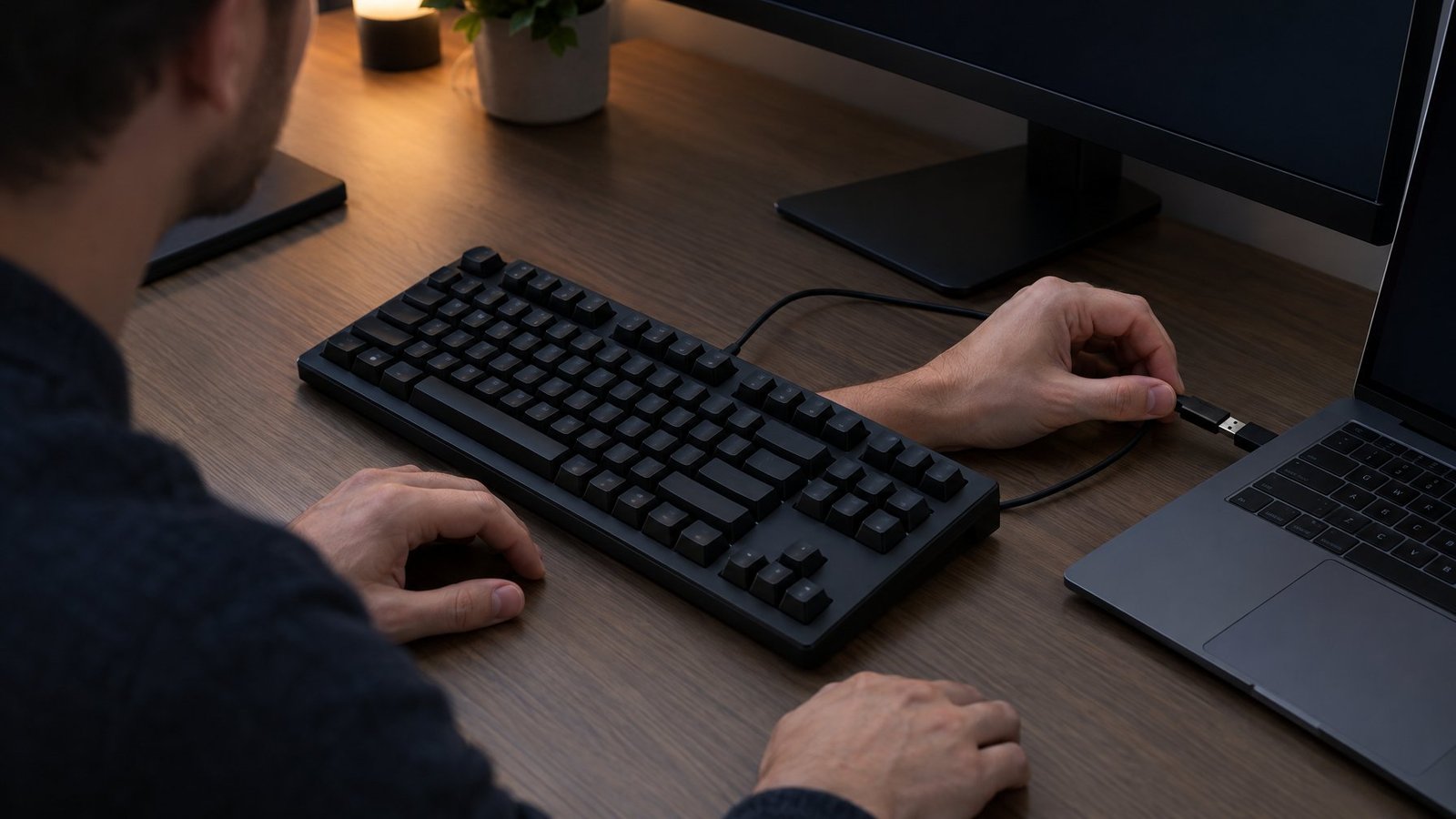
Charge the Laptop or Wireless Keyboard
A laptop running on battery power sometimes dims or disables the keyboard backlight to extend battery life, so plugging in the charger is worth testing first. For wireless keyboards, low batteries are one of the most frequent causes of connection and lighting problems. Charge or replace the batteries fully before troubleshooting anything else.
Try a Direct USB Port Instead of a Hub
USB receivers and keyboard cables should connect directly to your computer rather than through a hub, KVM switch, or docking station extension. Wireless receivers plugged into hubs are known to lose connection more easily, and that instability can affect lighting along with regular typing. Moving the receiver to a USB port directly on the computer, and keeping it away from other electronics, often resolves both lighting and connection drops at once. If typing itself is affected too, our wireless keyboard not working guide covers more connection fixes.
Check USB Power-Saving Settings
Windows uses a feature called USB selective suspend to save battery power by putting idle USB ports into a low-power state. This is enabled by default and generally shouldn’t cause problems, but on some systems it can affect how peripherals like keyboards behave when plugged into certain ports. If your keyboard lighting drops out specifically when the laptop is unplugged or idle, that’s worth noting as a possible power-management pattern tied to the port or driver in use.
What If the Backlight Still Does Not Work?
Updating drivers, checking the BIOS, and testing outside your normal Windows session will catch most remaining cases. These steps rule out software corruption and point toward whether the issue is a driver, a firmware setting, or an actual hardware fault.
Update Keyboard Drivers and Manufacturer Software
Outdated or corrupted drivers can stop a backlight from responding even when the hardware works fine. Open Device Manager, find your keyboard under the Keyboards category, right-click it, and choose Update Driver. Windows will search automatically for a newer version. If that doesn’t find anything, download the latest driver directly from your laptop manufacturer’s support site and install it manually. It’s also worth updating Lenovo Vantage, Razer Synapse, Corsair iCUE, or Logitech G HUB to their latest versions, since outdated companion software is a frequent cause of lighting glitches.
Test the Backlight Outside Your Normal Windows Session
Checking whether the backlight works in Safe Mode or in the BIOS setup screen helps narrow down whether the problem is software or hardware. Restart into Safe Mode through Windows Recovery, or enter the BIOS during startup, then try the Fn + Space or Fn + Esc shortcut. If the backlight turns on in BIOS or Safe Mode but not in normal Windows, a driver conflict or recent software change is the likely cause, and a system restore to an earlier point can help.
Check Firmware Before Considering Repair
If the backlight works in BIOS, updating to the latest BIOS version from the manufacturer’s support site can resolve lingering issues in normal Windows use. If it doesn’t work even in BIOS or Safe Mode, that points toward a hardware fault rather than a software one. At that stage, a power drain, unplugging the charger, removing the battery if possible, and holding the power button for ten seconds before reconnecting, is worth trying before assuming a keyboard replacement is needed.
Finding the Fix That Fits Your Keyboard
The right fix depends on what kind of keyboard is involved and where the problem sits. A laptop with a built-in backlight usually comes down to a function key shortcut, a manufacturer app setting, or a BIOS check. A wireless keyboard points first toward battery charge and USB receiver placement. A gaming keyboard with RGB lighting often comes down to conflicting software or an app that needs an update.
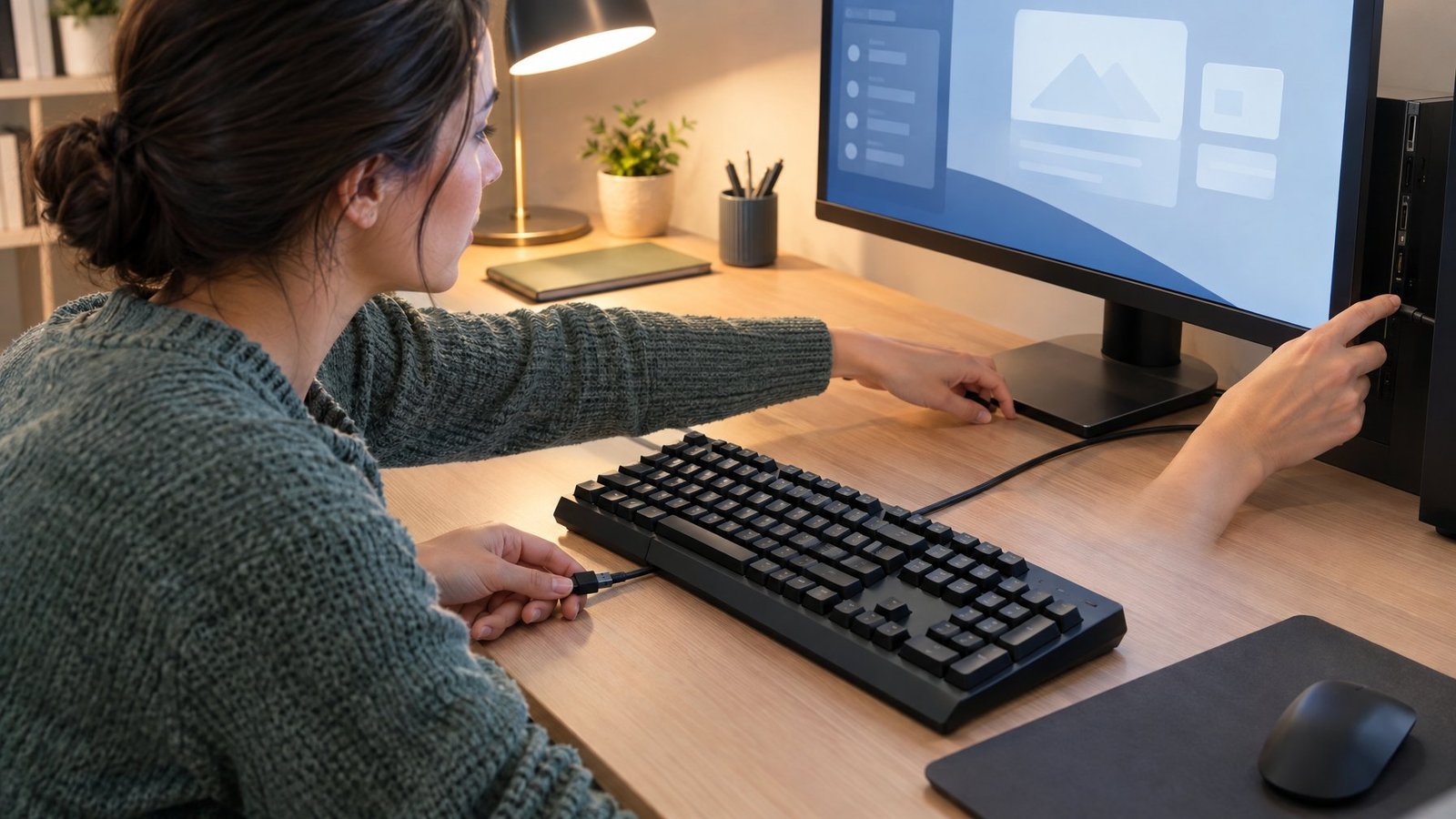
Working through the checks in order, hardware, shortcut key, software setting, power, and then drivers, solves the vast majority of dark keyboards without needing any repair. If typing itself stops working alongside the lighting, that’s usually a separate issue worth checking through our guide on how to fix keyboard not typing. And if you’re shopping for a new board altogether, our mechanical keyboard guide covers backlit options worth considering.
Frequently Asked Questions

Why is my laptop keyboard not lighting up in Windows 11?
Check Windows 11’s Dynamic Lighting feature under Personalization > Dynamic Lighting first, since it can override or conflict with manufacturer lighting apps. Also confirm the backlight shortcut key hasn’t been toggled off, and that another lighting app isn’t set as the priority controller in the background light control list.
Why did my keyboard light turn off by itself?
A built-in keyboard backlight timeout is the most common cause, shutting the light off after a stretch of no typing to save power. On Mac laptops specifically, a setting can turn the backlight off automatically after a chosen period of inactivity. Tapping any key usually brings it back immediately if this is the cause.
Why are only some of my mechanical keyboard keys lighting up?
This usually points to a lighting zone or profile setting in software like Corsair iCUE or Razer Synapse rather than a failure. Check the Lighting Effects panel for that device and confirm no individual zones have been set to black or disabled. A loose connection to an external controller box can also cause partial lighting on larger keyboards.
How do I turn my MacBook keyboard backlight on?
Go to Apple menu > System Settings > Keyboard, then drag the Keyboard Brightness slider to the right to turn it on. MacBooks with dedicated brightness keys can also use the keyboard brightness increase key directly. An “Adjust keyboard brightness in low light” option is available in the same settings menu for automatic control.
Why is my Chromebook keyboard light not working?
Not all Chromebook models include a backlit keyboard, so the first step is checking whether your specific model supports the feature at all. If your model does include one, it’s often controlled through a dedicated brightness key or system tray setting. For other Chromebook keyboard issues beyond lighting, our Chromebook keyboard not working guide covers more troubleshooting steps.

I’m Anirban Saha, Founder & Editor of TechBullish. With a B.Tech in Electronics and Communication Engineering, and 8+ years of experience as a software developer, I have expertise in electronics, software development, gadgets, and computer peripherals. I love sharing my knowledge through informational articles, how-to guides, and troubleshooting tips for Peripherals, Smart TVs, Streaming Solutions, and more here. Check Anirban’s LinkedIn Profile here.
